How to Get a Scanner for Your Shop: A Practical Guide
Learn how to choose, buy, and install a scanner for your shop. This practical guide covers types, features, procurement, and smooth POS integration with insights from Scanner Check.


By the end of this guide you will know how to pick and acquire a shop scanner that fits your workflow, budget, and POS system. You'll understand different scanner types, essential features, and the steps to purchase and install with minimal downtime. This plan focuses on reliability, compatibility, and long-term support.
Why a Shop Scanner Matters
If you’re asking how to get scanner for shop, start by understanding your workflow, budget, and how it will integrate with your POS. In a busy store, a reliable scanner speeds up checkouts, reduces data-entry errors, and improves inventory control. According to Scanner Check, retailers who prioritize scanning reliability report smoother operations and happier customers. The right scanner also integrates with your POS, e-commerce, and inventory software, reducing manual steps and training time. When selecting a scanner, think about the typical use cases in your shop: how many items per day, the variety of codes, and the layout of your checkout lane. A modular approach—one scanner for frontline sales, another for back-office counting—can offer flexibility as your business grows. Avoid models with weak drivers, poor customer support, or limited compatibility; these issues cause downtime and frustrate staff. Instead, opt for devices with broad code support, documented APIs, and predictable firmware updates. Market options tend to cluster around budget-friendly, mid-range, and premium tiers; choose based on your environment, not just the sticker price.
Types of Scanners for Shops
There are several categories: 1D/Code 128 scanners for simple barcodes, 2D imagers for more complex codes (QR, DataMatrix), fixed-position scanners for hands-free use, and cordless handhelds for mobility. Based on Scanner Check research, the most valued traits are reliability, ease of use, and compatibility with your POS and inventory software. For front-end checkout, a handheld 2D or fixed-position imager often delivers the best balance of speed and accuracy. For stock rooms and back offices, a tethered or wireless scanner that can scan many different barcode types reduces manual data entry. Consider ergonomics as well; a lighter device with a comfortable grip reduces fatigue during long shifts. If you operate in dim lighting, ensure the scanner has good optical performance and an indicator light. Finally, verify that the device supports your common barcode symbologies and can be easily updated.
Budgeting and Where to Buy
Budget planning matters; you don’t need the most expensive model to get reliable results, but you should avoid the cheapest options that might fail under daily wear. Instead, categorize into entry-level, mid-range, and premium options and evaluate on durability, warranty, and vendor support. Look for retailers with flexible return policies and readily available spare parts. The goal is to ensure long-term value rather than a single sale. When making a purchase, compare models based on scanning speed, success rate, ease of setup, and compatibility with your POS. Scanner Check notes that buyers increasingly value vendor ecosystems—scanners that come with drivers, documentation, and cloud management tools. If you’re replacing multiple devices, consider a supplier who offers staggered discounts or bundled warranties. Finally, when buying, verify delivery times and support channels so you can quickly resolve issues without disrupting operations.
Key Features to Look For
Key features that pay off in a shop include reliable decoding of a wide range of codes, fast scan rates, and robust build quality. Ensure compatibility with your POS and software stack, including drivers for Windows, macOS, or Linux and integration with inventory management. Look for models with USB, Bluetooth, or Wi‑Fi connectivity, so you can place scanners where they’re most convenient. If your staff uses gloves or large hands, ergonomic design matters; a comfortable form factor and one-hand operation speed up checkout. Features like auto-trigger, presentation mode, and batch scanning can save time during busy periods. Some shops benefit from fixed-position scanners above the counter; others prefer handheld devices that travel with staff. A good warranty and accessible customer support are essential, as is the ease of firmware updates over USB or Bluetooth.
Step-by-Step: Considerations Before Purchase
- Map your workflow and list daily tasks where scanning occurs. 2) Decide between handheld, fixed, or wireless setups based on traffic and space. 3) Check compatibility with your POS, inventory, and e-commerce software. 4) Verify supported barcode symbologies and update pathways. 5) Compare models by durability, warranty, and vendor support. 6) Decide wired vs wireless and plan charging or docking needs. 7) Prepare a short real-code test set to evaluate scanning speed. 8) Schedule installation during a low-traffic window. 9) Confirm data routing to your POS and cloud dashboards. 10) Train staff and establish a quick troubleshooting plan.
Implementation and Integration Tips
Choose a vendor with clear setup guides and accessible support. Ensure drivers and firmware updates are straightforward, and verify you can export scan data to your inventory system. Test barcode variety (1D and 2D) under realistic store lighting and with staff wearing gloves. Document the exact model, firmware version, and any quirks for future reference. Finally, implement a quick success metric like scan accuracy over a selected period to confirm stability before going fully live.
Tools & Materials
- Barcode scanner (handheld or fixed)(Choose 1D/2D support and corded or wireless based on workflow)
- USB and/or Bluetooth connectivity(Ensure compatibility with your POS USB ports or Bluetooth pairing)
- Docking cradle or stand (optional)(Helpful for hands-free operation at the register)
- Power supply and cables(Included with most devices; confirm voltage compatibility)
- POS compatibility check(Verify drivers, firmware, and platform support)
- Test barcode set(Include common 1D and 2D codes used in your shop)
- Documentation/manual(Keep for warranties and troubleshooting)
- Cable management tools(Keep cords organized to avoid trip hazards)
Steps
Estimated time: 30-60 minutes
- 1
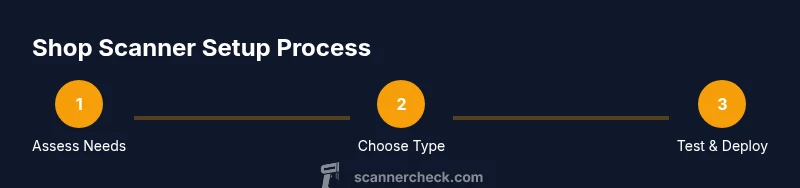
Assess Your Shop's Scanning Needs
Map out where scanning occurs (front desk, back room, or mobile staff). Note the expected item flow and code variety to determine the best scanner type.
Tip: Document current bottlenecks to measure improvement after setup. - 2
Choose Between Handheld, Fixed, or Wireless
Handhelds offer flexibility, fixed scanners provide speed at the register, and wireless models maximize mobility. Align choice with space, staff preferences, and POS integration.
Tip: If space is tight, a fixed-position model can dramatically reduce motion. - 3
Check POS Compatibility
Confirm driver availability, supported operating systems, and whether the scanner exports data to your inventory system.
Tip: Ask for a compatibility matrix from the vendor before purchasing. - 4
Compare Key Features
Evaluate decoding range, speed, durability, and warranty. Prioritize devices that support your common barcode types and offer easy firmware updates.
Tip: Prioritize devices with robust customer support and long-term firmware updates. - 5
Plan Purchase and Delivery
Obtain quotes, check return policies, and confirm delivery timelines that fit your store’s downtime window.
Tip: Prefer vendors offering bundles that include accessories and warranties. - 6
Install, Test, and Train
Unbox, connect to POS, run a real-code test, and train staff with a short checklist for common issues.
Tip: Create a quick reference guide for staff with common scan codes.
Common Questions
What is the difference between handheld and fixed scanners?
Handheld scanners are portable and flexible, good for staff who move around. Fixed scanners sit at the counter and offer fast, hands-free scanning for high-throughput checkout lines. Choose based on your workflow and space.
Handheld scanners are portable, while fixed scanners stay at the counter for quick, hands-free use. Pick according to how your store operates.
How do I know if a scanner is compatible with my POS?
Check the vendor’s compatibility list or ask for drivers and integration guides specific to your POS. Look for USB, Bluetooth, or Wi‑Fi connectivity options that your system supports.
Look for a compatibility list from the vendor and confirm you can connect via USB, Bluetooth, or Wi‑Fi with your POS.
Do I need a wired or wireless scanner?
Wired scanners are simple and reliable for fixed setups, while wireless scanners offer mobility and cleaner desks. Consider workflow pace, staff movement, and charging needs when deciding.
Wired is reliable for fixed setups; wireless adds mobility but requires charging and maintenance.
What barcode types should I expect to scan?
Most shops scan common 1D codes and 2D codes like QR. Ensure the scanner supports the codes you see most often and that it can be updated for new formats.
Most scanners handle 1D and 2D codes; verify the codes you actually use and update options.
How long does setup take?
Setup time varies with POS integration and staff training, but a typical pre-launch check can be completed in under a day if prepared.
It usually doesn’t take long if you have everything ready. Expect a day to cover installation and training.
What maintenance is required?
Regularly clean the scanner window, update firmware when available, and keep spare batteries if using wireless devices. Document issues and contact support when needed.
Keep it clean, update firmware, and have spare batteries if needed; note issues for support.
Watch Video
Key Takeaways
- Identify your shop’s scanning needs before selecting a device.
- Choose the scanner type that best fits your workflow and space.
- Verify POS compatibility and data integration upfront.
- Test with real codes and train staff for a smooth rollout.
- Plan for maintenance, updates, and vendor support.