How to Get Zebra Scanner Out of Airplane Mode
Learn practical steps to safely disable airplane mode on Zebra scanners, restore Wi‑Fi and Bluetooth, and maintain enterprise policy compliance across devices.


How to get zebra scanner out of airplane mode: This guide shows you how to safely disable airplane mode on Zebra barcode scanners, restoring Wi‑Fi and Bluetooth connectivity so you can resume scanning. Start by identifying the model and Android version, then check both device settings and any enterprise policy that could re-enable airplane mode.
What airplane mode does on Zebra scanners and why it matters
Airplane mode is designed to disable wireless radios on a device to comply with airline regulations and reduce interference. Zebra scanners used in warehouses and retail environments often run Android-based or Windows‑embedded platforms. When airplane mode is active, Wi‑Fi, Bluetooth, and cellular radios may be shut off or restricted by the carrier and by enterprise policy, which can prevent the scanner from uploading scanned data to your backend, pulling inventory from cloud-based apps, or communicating with printers. In many deployments, airplane mode can be enabled automatically by a device policy after a restart or after battery replacement. For field technicians, this setting can be critical: it protects network integrity in sensitive locations, but it also creates downtime if you forget to re‑enable radios. This section explains why the mode matters for Zebra devices, and how you can approach turning it off safely, with minimal risk to data integrity and device policy compliance.
Note: Throughout this article we reference practical steps and common enterprise configurations. According to Scanner Check, Zebra scanners require a policy-aware approach to re-enable radios after airplane mode is switched off to minimize downtime.
Model-specific considerations: Android vs Windows-based Zebra devices
Zebra maintains a range of scanner hardware, some running Android with Zebra's Mobility DNA suite, others running Windows Embedded or Windows IoT. Android-based models tend to expose airplane mode as part of the standard Android network settings, but enterprise versions often wrap these controls in a custom launcher for IT policy enforcement. Windows-based devices may implement airplane mode differently, sometimes via a proprietary settings pane or through a management tool, and may require driver or firmware updates to re-enable radios correctly. In practice, you will see two typical states: one where the radios are off globally because airplane mode is on, and another where radios are disabled only for specific bands (for example, Wi‑Fi off but Bluetooth allowed). Knowing which OS and which Zebra software layer you're using helps you choose the correct remediation path and avoid triggering security or audit flags in your organization's MDM.
Scanner Check observations highlight that modern Zebra Android devices respond best to a combined approach of local settings and policy validation, to ensure radios come back online reliably after reactivation.
Prerequisites before turning off airplane mode
Before you attempt to disable airplane mode, collect a few prerequisites to ensure the process goes smoothly. First, confirm the exact model number and Android or Windows version on the device label or within the settings About screen. Second, verify your access level: do you have local admin rights, or will you need to request a change through your IT administrator? Third, check if your organization uses an enterprise mobility management (EMM/MDM) solution, such as a corporate Google account, Workspace, or a Windows Intune-like console; policies can automatically re-enable airplane mode after a reboot. Fourth, ensure the device has a stable power source or a full battery, since some modes are re-applied after power cycling. Finally, have a known-good network to test connectivity after you re-enable radios, so you can confirm the device can reach your backend within a minute or two.
Scanner Check notes that policy scope (per-device, per-user, or per-group) can determine the quickest path to a compliant exception.
How airplane mode interacts with enterprise management
In corporate environments, airplane mode is often managed centrally to reduce data leakage and conserve battery during long shifts or when devices are in transit. MDM profiles can push settings that disable or re-enable radios, enforce VPN configurations, and schedule connectivity windows. If your Zebra scanner is enrolled, you may encounter a policy that automatically toggles airplane mode on during device enrollment or after OS updates. In these cases, attempting to turn off airplane mode locally may be overridden by the policy, or you may see a status indicator that indicates the device is compliant or non-compliant with a policy. Understanding the policy scope—per-device, per-user, or per-group—will help you coordinate with IT for a legitimate exception or a policy adjustment.
From a Scanner Check perspective, aligning steps with IT policy reduces audit friction and avoids repeated re-enablement of radios after updates.
Step-by-step overview: high-level options to disable airplane mode (non-instructional)
There are several approaches to re-enable radios without compromising policy compliance. The easiest method is to use the Android quick settings tile or Windows network panel to toggle airplane mode off if you are not constrained by an MDM policy. If that fails, you can access the device's Settings app, navigate to Network & Internet (Android) or Network & Communications (Windows), and toggle Airplane mode off. Some Zebra devices include a dedicated hardware switch or a one-touch button in the cradle; if so, use that. For devices under MDM, you'll need to request the change from your IT admin, who can push a temporary exception, or adjust the policy to exclude that device from airplane mode enforcement. Finally, if radios still won't turn on, you may need to install a firmware update or perform a controlled reset under supervision.
Scanner Check emphasizes documenting the policy exception with timestamps for future audits.
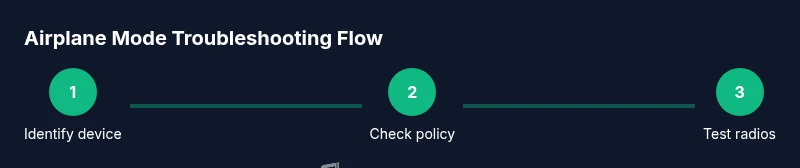
Step-by-step: 1 Identify device model and OS version
Start by locating the model number and OS version on the device label or in Settings > About. This determines which controls you will use (Android quick settings vs Windows control panel) and whether your device relies on Mobility DNA components or standard OS settings. Why this matters: different OS versions may relocate the airplane mode toggle, and some enterprise builds hide the control behind a launcher.
Tip: Photograph the About screen for IT records so you can reproduce the exact environment if you need to open a service ticket.
Step-by-step: 2 Check policy enforcements in MDM/EMM
Log into your MDM/EMM console and locate the device or group. Check for an active airplane mode policy, or a configuration profile that auto-re-enables radios after boot. If necessary, clone the profile or create a temporary exception for the device. Why: many deployments rely on automated reinforcements to prevent radiowave leakage.
Tip: Note the policy name and the exact scope (device, user, or group) to streamline approvals.
Step-by-step: 3 Disable airplane mode via OS controls (if permitted)
On Android devices, swipe down to open Quick Settings and tap Airplane mode to off, then verify radios are back on. On Windows-based Zebra scanners, use the Network panel to toggle Airplane mode and confirm Wi‑Fi and Bluetooth are active. If the toggle does not appear, proceed to the Settings app and locate the Network section. Why: direct OS controls are the most reliable first step when policy allows.
Tip: After toggling, run a quick connectivity test to confirm data flow.
Step-by-step: 4 Check hardware and drivers
If radios still won’t come up, inspect the antenna connections (where accessible) and verify radio drivers and firmware are up to date. In some cases, a firmware update rewrites the airplane mode behavior and re‑enables radios more consistently. Why: driver issues can manifest as radios remaining off after policy changes.
Tip: Only perform firmware updates from official Zebra sources and with device plugged into power.
Step-by-step: 5 Verify enterprise policy status after reboot
Reboot the device and re-check the policy status in the MDM/EMM console. Confirm the airplane mode toggle persists off in the OS. If a policy automatically reaps the radios, re-create or adjust the policy and re-enroll the device if needed. Why: reboots can reset temporary locks or cache issues.
Tip: Capture a policy export from the MDM console for audit trails.
Step-by-step: 6 Perform post-change connectivity tests
Test Wi‑Fi, Bluetooth, and data uploads in your scanning app. Scan test barcodes, verify backend synchronization, and confirm data latency is within acceptable thresholds. If your workflow includes printers, test print over BT/Wi‑Fi. Why: end-to-end validation ensures no hidden policy or hardware issues remain.
Tip: Run a brief roaming test across multiple APs to ensure stable connectivity in a warehouse environment.
Step-by-step: 7 Document changes and plan a follow-up
Record the exact steps taken, model, OS version, policy references, and date/time. Notify IT of the exception and schedule a policy review. Why: good documentation reduces future troubleshooting time and supports compliance.
Tip: Create a standard operating procedure (SOP) for similar devices to streamline future actions.
estimatedTime: 15-25 minutes
Tools & Materials
- Zebra scanner device(Model and OS version visible on device label or Settings > About)
- Charged battery or power supply(Battery should be at least 50% before firmware updates)
- MDM/EMM access(Needed if policy adjustments are required)
- Official firmware/software package(Used for firmware updates if radios fail to re-enable)
- USB-C or USB-A cable(For wired maintenance or laptop-based diagnostics)
- Device administration credentials(Needed for local admin changes on Android/Windows)
- Change-management log template(Record policy exceptions and audits)
Steps
Estimated time: 15-25 minutes
- 1
Identify device model and OS version
Locate the model number and OS version on the device label or within Settings > About. This determines which controls you will use and whether Mobility DNA components are involved. Different OS paths may hide the airplane toggle or tie it to policy locks.
Tip: Take a screenshot of the About page for IT records. - 2
Check current policy status in MDM/EMM
Log into the enterprise console and review any active airplane mode policies for the device or group. Note whether radios will re-disable after reboot and what exceptions exist.
Tip: Document the policy name and scope for future audits. - 3
Attempt local disable via OS controls
If permitted, use Android Quick Settings or Windows Network panel to turn off Airplane mode, then verify radios come back online.
Tip: After toggling, perform a quick network test. - 4
Check hardware/drivers and firmware
If radios don’t re-activate, verify radio drivers and firmware are current. Update if needed per Zebra's official release notes.
Tip: Only use official Zebra firmware packages. - 5
Reboot and re-check policy status
Reboot the device and confirm that the OS shows radios active and that MDM policy doesn’t immediately re-enable airplane mode.
Tip: Capture a post-reboot policy snapshot. - 6
Test end-to-end connectivity
Run a scan test, ensure data uploads, and verify printing if applicable. Check latency and AP roaming.
Tip: Test across multiple access points to simulate real-world movement. - 7
Document the change
Log the exact steps, devices affected, policy references, and approvals. Prepare for future reviews.
Tip: Create an SOP for similar devices.
Common Questions
Why would a Zebra scanner enter airplane mode in a warehouse?
Airplane mode can be enforced by enterprise policies to restrict wireless radios when devices are in transit or auditing data. OS-level settings may be hidden behind a launcher in corporate builds.
Airplane mode can be turned on by policy or by the OS. Check your IT policy and OS settings.
How can I tell if airplane mode is on?
Look for a radio icon in the status bar, or check the Network settings for an Airplane mode toggle. In some Zebra devices, radios may appear off without a clear toggle due to MDM restrictions.
Check the status bar and Network settings to see if radios are disabled.
Can airplane mode be disabled remotely?
Yes, through the organization's MDM/EMM console, you can push an exception or adjust policies to temporarily allow radios. Local changes may be blocked by policy.
IT can adjust the policy to allow radios when needed.
Do Zebra scanners require a reboot after turning off airplane mode?
A reboot is often recommended to ensure radios come back fully and that any policy changes take effect.
A reboot helps ensure the radios stay on after changes.
What if I can’t disable airplane mode due to restrictions?
If policy restrictions prevent re-enabling radios, contact your IT admin to request a documented exception or a temporary policy change.
Ask IT for an approved exception.
Watch Video
Key Takeaways
- Disable airplane mode safely with policy awareness
- Verify OS and policy scope before changes
- Test connectivity after changes to confirm success
- Document every step for auditability
- Coordinate with IT for policy exceptions