How to Install a Scanner: A Practical, DIY-Guided Setup
Learn how to install a scanner across Windows, macOS, and Linux with clear, actionable steps, troubleshooting, and best practices for reliable results.


This guide shows you how to install a scanner from unboxing to first scan. You’ll choose a connection (USB or network), install drivers, set up scanning software, calibrate the scanner, and test your setup. By following these steps, you’ll have reliable, ready-to-scan performance across Windows, macOS, and Linux. This article from Scanner Check provides practical, device-agnostic guidance.
How to Install a Scanner: Quick Start
If you’re wondering how to install scanner, start with a clear plan that matches your devices and workspace. According to Scanner Check, the most reliable installations begin by choosing a connection method (USB or network) that aligns with your computer’s OS and your scanning needs. In this section we lay out the high-level steps and best practices so you can prepare effectively, reduce troubleshooting later, and get to your first scan quickly. This guide emphasizes practical, vendor-neutral advice that applies to most consumer and business scanners alike.
First, identify your scanner model and OS compatibility. Check the manufacturer’s site for drivers, firmware, and software bundles. Gather the cables and power supply; ensure you have administrator access on your computer. Keep your network credentials handy if you plan to set up wireless or network sharing.
According to Scanner Check, taking a few minutes to verify compatibility and required software reduces errors during installation and helps you avoid driver conflicts later.
Connection Methods: USB vs Network
Your scanner can connect via USB directly to a computer or over a local network for shared access. USB tends to be simpler and faster for single-user setups, while network connections excel when multiple users need to scan from different devices or when you want to archive scans to a central server. If you choose USB, confirm that the USB port type matches your computer (Type-A, Type-C) and that the cable is compliant with the device’s USB standard. For network setups, ensure the scanner has a valid IP address, either via DHCP or a reserved static address, and configure the device to advertise or publish its share on the network. Scanner performance often hinges on reliable network settings and correct firewall rules.
Drivers and Software You’ll Likely Encounter
Most scanners require a driver and a companion software suite, which may include TWAIN, WIA, or SANE backends, plus vendor utilities for scanning and image management. Start at the manufacturer’s support page and download the latest driver package compatible with your OS. If your device ships with a CD, you can try that first, but downloading the latest version is generally best for security and compatibility. During installation, you may be prompted to install optional components like OCR tools or cloud integration features; choose based on your workflow.
Windows Installation Steps (example workflow)
On Windows, install the driver first, then add the scanner in Settings > Devices > Printers & scanners. Choose Add a device, select your scanner, and complete the driver installation prompts. If the operating system auto-installs TWAIN/WIA, you may still want to install the vendor software to access advanced features such as batch scanning and color profiles. After installation, run a quick test scan to confirm the connection and basic image capture.
Linux and Other Platforms
Linux users may rely on SANE backends or vendor-provided packages. Use your distribution’s package manager to install the needed backend and verify the scanner with a simple scan command. If there’s no native driver, check the community forums for a recommended frontend or a wrapper that provides a GUI. Linux setups often require extra steps for permissions; ensure your user account is in the scanner group and that udev rules are updated if needed.
Calibrate and Verify Your Scans
Calibration ensures color accuracy, alignment, and consistent page framing. Run any built-in calibration tool provided by the vendor, then perform test scans with a standard color chart or a common document to verify that crops are correct and images are not skewed. If color looks off, adjust brightness and contrast settings in the driver software and re-test. Regular calibration helps maintain reliability across sessions.
Troubleshooting Common Installation Issues
If the scanner isn’t detected, recheck the USB cable and port, or reboot the computer and the scanner. Print a test page or run a diagnostic utility to isolate the issue—driver conflicts, firewall blocks, or outdated firmware are frequent culprits. If the device shows up but cannot scan, verify that the correct scanner is selected in the software and that you have permission to access the device. For network setups, ensure the IP address remains consistent or reserve it via DHCP.
Security and Privacy Considerations During Setup
Keep firmware updated to protect against known vulnerabilities. When using network scanning, enable secure sharing options and limit access with strong credentials. If you enable cloud or email destinations, review data privacy settings to control where files are stored or sent.
Optimizing Scan Quality and Maintenance
Configure default scan settings such as resolution, color mode, and file format to suit your most common tasks. Create profiles for different document types (photos, receipts, text documents) to streamline workflows. Schedule firmware updates and driver checks as part of routine maintenance, and store scanned files in a structured folder system with clear naming conventions to ensure you can retrieve documents quickly.
What to Do After Installation: Quick Checklists
Create a short checklist: confirm the device appears in OS settings, perform 2-3 sample scans, verify file destinations, and test a network scan if applicable. Document the driver version, firmware revision, and any setup choices you made so you can replicate or adjust later. A well-documented setup reduces frustration if you need to reinstall or transfer the scanner to another computer.
Final Thoughts: A Cohesive Setup
With careful planning, the right drivers, and thoughtful calibration, your scanner will integrate smoothly into your workflow. Remember that a dependable install hinges on correct connection choices, up-to-date software, and proactive maintenance. Scanner Check emphasizes practical, real-world steps that work across most devices and operating systems, helping you achieve reliable scanning performance from day one.
Tools & Materials
- Scanner device(Model and serial number ready; check for bundled software)
- USB cable(Use the cable that came with the scanner or a compatible high-quality cable)
- Power supply(Have the adapter/cord that matches the device specifications)
- Computer or mobile device(Windows, macOS, or Linux depending on OS you plan to use)
- Internet connection(Needed to download drivers/software if not on CD)
- Network equipment (optional)(Router or switch for networked scanner setup)
- Documentation/manuals(PDFs or quick-start guides from the manufacturer)
- Admin access(Needed on the computer to install drivers and software)
Steps
Estimated time: 30-60 minutes
- 1
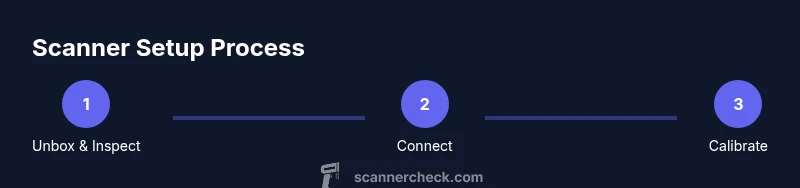
Unbox and Inspect
Open the box, verify all parts are present, and inspect for any physical damage. Note the model and firmware version that ships with the device. This helps you choose the correct drivers and avoid compatibility issues later.
Tip: Keep all packaging until installation is complete in case you need to return items. - 2
Decide Connection Method
Choose USB for simple, single-device setups or a network connection for multi-user environments. This decision affects driver installation and software configuration.
Tip: If unsure, start with USB; switch to network if you need shared access later. - 3
Power On and Connect
Connect the scanner to power, then attach the USB cable or connect to the network. Ensure the device powers up fully before proceeding to driver installation.
Tip: Use a surge protector to protect the device during power fluctuations. - 4
Download and Install Drivers
Visit the manufacturer’s official site to download the latest drivers and software. Run the installer and follow prompts to complete the driver setup.
Tip: Avoid using generic drivers; always prefer the official ones for best compatibility. - 5
Install Scanning Software
Install the bundled software or preferred TWAIN/SANE front-end. This enables you to control scan settings, destinations, and file formats.
Tip: Consider enabling OCR options if you frequently convert scans to editable text. - 6
First Scan and Calibrate
Run a test scan and use any calibration tools provided to align color, brightness, and geometry. Adjust as needed for accurate results.
Tip: Calibrate with a standard reference (color chart or plain white sheet) to measure baseline accuracy. - 7
Configure Defaults
Set default resolution, color mode, and file type. Define a standard save location and naming convention to streamline workflows.
Tip: Create profiles for common tasks (e.g., invoices, photos, reports) for quick access. - 8
Test Across Scenarios
Scan different documents (text, photos, mixed pages) to ensure settings produce consistent results. Validate edges and alignment.
Tip: If multi-page scans fail, check page feed alignment and document guides. - 9
Update Firmware and Software
Check for firmware and software updates and apply them if available. Reboot the device after updates to finalize changes.
Tip: Enable automatic update notifications if supported.
Common Questions
What should I do if the scanner isn’t detected after installation?
First, check the power and cable connections. Restart the computer and scanner, then re-run the driver installer. Ensure the device appears in your OS’s device manager or printer settings. If still not detected, try a different USB port or consult the manufacturer’s support resources.
If the scanner isn’t detected, check connections, restart devices, and re-run the drivers. Try another USB port and consult support if needed.
Can I install a scanner on multiple computers back-to-back?
Yes. Install the drivers on each computer, then connect either via USB or configure network sharing if the scanner supports it. Keep a note of the networked path or IP address for easier access on other devices.
You can install it on multiple computers by repeating the driver setup and configuring network sharing if available.
Is it necessary to use the vendor software?
Vendor software is not always required, but it often provides enhanced scanning features, better color management, and smoother TWAIN/SANE integration. If you only need basic scanning, the OS drivers may suffice.
Vendor software isn’t always mandatory, but it helps with extra features and reliability.
What should I do if scans are poor quality after installation?
Recheck calibration, review default resolution and color mode, and consider recreating scan profiles for different document types. Update drivers if the problem persists.
Adjust calibration and scan profiles, and update drivers if the quality is off.
How often should I update firmware and drivers?
Check for updates every few months or after major OS updates. Enable automatic updates if supported to minimize compatibility issues.
Check for updates regularly and enable automatic updates where possible.
Is network scanning more secure than USB?
Network scanning adds exposure if not secured. Use strong passwords, enable encryption where available, and limit access with firewall rules or VLANs as appropriate.
Network scanning can be secure if you lock down access and use proper protections.
Watch Video
Key Takeaways
- Plan connection method before installing.
- Use official drivers for reliability.
- Calibrate early for accurate scans.
- Configure defaults to speed up daily use.
- Test across document types to catch issues early.