How to Add a Scanner in Windows 11: Step-by-Step Guide
Learn how to add a scanner in Windows 11 with practical, step-by-step guidance. Connect the device, install drivers, configure settings, and test scans for USB and network scanners. A Scanner Check guide for reliable results.


This guide shows you how to add a scanner in Windows 11 and get it working with your apps. You’ll connect a USB or network scanner, install the correct drivers, and configure Windows Settings so the device is available in common programs. Follow the steps to ensure reliable scanning across Photos, Office, and PDF workflows.
How to add a scanner in Windows 11: Overview
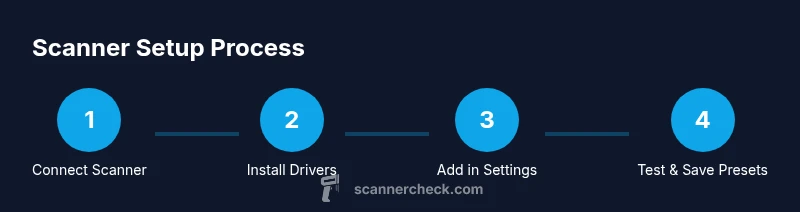
If you're wondering how to add a scanner in Windows 11, you're in the right place. This step-by-step guide from Scanner Check translates vendor jargon into practical actions you can perform today. Windows 11 supports a broad spectrum of scanners via built-in drivers (WIA/TWAIN) and vendor software, and it handles USB, Bluetooth, and network-connected devices. The objective is to have the scanner appear in Windows Settings, be usable from common apps (photos, scanning, and document workflows), and deliver reliable results. We’ll cover both USB and wireless setups, explain the driver options, and provide troubleshooting tips to minimize downtime. Expect concrete actions, tested workflows, and tips to keep drivers current. This approach emphasizes real-world usability: connect, install, configure, test, and use. According to Scanner Check, most issues stem from misconfigured ports or outdated drivers, not hardware failure.
Supported scanners and connection types
Windows 11 supports scanners that connect via USB, Wi‑Fi, or Bluetooth, and many devices offer TWAIN or WIA compatibility. Local USB scanners are typically detected immediately, while network scanners require setup like a static IP or printer share. For all-in-one devices, Windows often exposes scanning functions through both printer and scanner interfaces. If a device works with Windows Update drivers, you may not need vendor software, but some scanners benefit from the vendor’s own app for advanced features. To maximize compatibility, check whether the device lists TWAIN/WIA support and ensure it’s on a compatible network or USB port. Scanner Check notes that ensuring the correct protocol is in use reduces confusion and speeds up setup.
System requirements and prerequisites
Before you begin, verify your Windows 11 PC is up to date and has an admin account for driver installation. Some scanners require specific firmware or vendor utilities; others work with the built-in Windows drivers. Ensure you have a stable internet connection to fetch drivers if needed, and identify whether your device will connect via USB or network. If you’re on a managed corporate PC, policy restrictions may block driver installs, so you might need IT assistance. Keeping a backup of your current system state can help recover quickly if an update introduces a compatibility issue. This foundational step helps prevent later roadblocks and aligns with best practices from Scanner Check.
Driver and software considerations
Driver strategy is a key decision in the add-a-scanner process. Windows 11 can automatically install generic WIA/TWAIN drivers for many devices, but vendor-specific drivers often unlock full feature sets (like color profiles, OCR, or batch scanning). If automatic installation fails, download the latest driver package from the manufacturer’s site or use Windows Update to retrieve a compatible version. Be mindful of driver signing and trusted sources to avoid security risks. When possible, favor a driver package that includes a scanning utility, PDF export options, and a basic editing interface. This careful selection ensures long-term compatibility and smoother daily use, as emphasized by Scanner Check.
Connecting the scanner: USB and network setup
USB devices should be plugged directly into a PC port with power on to initialize. If you’re using a network scanner, ensure the device is powered and connected to the same local network as your PC, then identify its IP address or hostname. For USB setups, check that the cable is intact and not overly long, which can cause signal loss. For wireless network scanners, you may need to run a one-time setup in the vendor app to associate the device with Windows. Proper connection is the foundation of reliable scanning and reduces post-install troubleshooting.
Installing drivers and scanning software
Proceed to install the driver package or use Windows Update to fetch appropriate drivers. If you install vendor software, it may add a dedicated scanning utility that provides presets and enhanced controls. After installation, restart Windows to ensure the new drivers load correctly. If your scanner still doesn’t appear, recheck the connection type and port, reinstall the driver, and confirm that the device appears in Device Manager under Imaging devices. A clean driver install eliminates many common issues and aligns with recommendations from Scanner Check.
Adding the scanner in Windows Settings
Open Settings > Bluetooth & devices > Printers & scanners, then choose Add device. If Windows recognizes the scanner, select it and complete the pairing. For network scanners, you may need to add as a “network scanner” or use the vendor app to publish it to Windows. If the scanner doesn’t show up, use the classic “Add a device” wizard or reboot the machine and retry. This step ensures the scanner becomes a standard Windows resource accessible by Photos, Office, and other software.
Testing basic scans and file formats
Once added, test a basic scan from a built-in tool such as Windows Scan or Windows Fax and Scan. Start with a simple black-and-white document at 300 dpi, then experiment with color, grayscale, and higher resolution if needed. Save outputs as PDF for multipage documents or as TIFF/JPEG for images. If you encounter color tone issues or skew, recalibrate the scanner with the vendor utility or within the scanning app. Regular testing validates the setup and prevents unnoticed regressions.
Customizing scan presets and workflows
Create reusable presets for common tasks: color vs grayscale, resolution, document, or photo modes, and file formats (PDF, JPEG, TIFF). Assign default scan destinations (folders or cloud storage) and set naming conventions to streamline workflows. For documents, choose 300-600 dpi to balance clarity and file size; for photos, 600 dpi or higher may be preferable. If OCR is essential, enable OCR in the vendor software or use a compatible third-party tool. Tailoring presets saves time and reduces repetitive setup for everyday scanning.
Troubleshooting common issues
If the scanner isn’t detected, recheck hardware connections, ports, and power. Update or reinstall drivers, and run Windows Update to grab the latest system components. For network scanners, confirm the device’s IP address is reachable (ping it) and ensure a firewall isn’t blocking the scanner’s ports. If problems persist, temporarily disable antivirus to test detection (re-enable immediately afterward) and consult the vendor’s support resources. Persistent issues may require replacement hardware or an alternative driver solution.
Best practices for reliability and security
Keep drivers and Windows 11 up to date, as compatibility improvements often address driver bugs. Only install drivers from trusted manufacturers and verify digital signatures. Use a static IP for network scanners to avoid misaddressing and ensure consistent discovery. Regularly back up settings and consider using a dedicated scanning PC or VM for sensitive workflows. Following these practices minimizes downtime and reduces risk, aligning with guidance from Scanner Check and major hardware publishers.
Tools & Materials
- Scanner device(Any USB, Bluetooth, or network scanner that supports TWAIN/WIA)
- USB cable(Direct connection to PC if using USB; avoid hubs when possible)
- Computer with Windows 11(Ensure the system is up to date and has admin rights)
- Network connection(For network/scanner devices; ensure same LAN as PC)
- Driver/software installation package(From vendor or via Windows Update; include vendor scanning utility if available)
- Active internet connection(Needed to fetch drivers and updates)
Steps
Estimated time: 30-60 minutes
- 1
Connect the scanner
Plug the scanner into a direct USB port and power it on. Confirm the device powers up and lights indicate a ready state. A direct USB connection minimizes power and signal issues that can prevent detection.
Tip: Use a front-panel USB port if possible; avoid USB hubs during initial setup. - 2
Install or update drivers
Run the driver installer from the manufacturer or let Windows Update fetch a compatible driver. If Windows can’t find a driver automatically, download the latest package from the vendor’s site and install manually.
Tip: If automatic installs fail, choose the vendor’s recommended driver version for Windows 11. - 3
Add the scanner in Windows Settings
Go to Settings > Bluetooth & devices > Printers & scanners > Add device. If your scanner appears, select it to complete pairing. For network devices, you may need to add via a vendor utility first.
Tip: If it doesn’t show up, click 'Add a device' and retry after a reboot. - 4
Test the scanner with a basic app
Open Windows Scan or Windows Fax and Scan and perform a test scan. Check image quality and file format, adjusting color settings, dpi, and output format as needed.
Tip: Start with a simple 300 dpi color scan to verify baseline performance. - 5
Set up defaults and presets
Create presets for common tasks (e.g., documents in PDF, photos in JPEG). Define destination folders and file naming rules to streamline future scans.
Tip: Use PDFs for multipage documents and TIFF for archival-quality images. - 6
Troubleshoot if needed
If the device isn’t detected, recheck cables, ports, and power. Reinstall drivers and verify network settings if using a network scanner. Restart the PC if issues persist.
Tip: Document the steps you tried to help tech support diagnose faster.
Common Questions
Do I need to install drivers for Windows 11 to recognize my scanner?
Most scanners are recognized by Windows 11 with built-in drivers (WIA/TWAIN), but some devices require vendor-specific software to access full features.
Usually you can get the scanner working with built-in drivers, but check the vendor for optional features.
What if my scanner won’t show up in Windows Settings?
Verify USB connection or network reachability, restart the PC, and ensure drivers are installed. If needed, re-run the Add device wizard or consult the vendor’s support page.
Make sure it's powered, plugged in, and drivers are installed, then try adding the device again.
Can I use a wireless scanner with Windows 11?
Yes. Connect over the same network, install any required vendor software, and add the scanner in Windows Settings or via the vendor app.
Absolutely—wireless scanners work fine as long as they’re on the same network.
Which apps can I use to scan from Windows 11?
Use built-in tools like Windows Scan or Windows Fax and Scan, or rely on vendor software for advanced features and OCR.
You can use Windows’ built-in apps or your vendor’s software for more options.
How do I set a default scanner in Windows 11?
In Settings > Printers & scanners, select your scanner and set it as default for quick access.
Set your preferred scanner as default in the settings.
What if driver updates fail?
Download the drivers from the manufacturer’s site and install them manually, then restart the computer.
If auto-updates fail, get the driver from the vendor and install it manually.
Watch Video
Key Takeaways
- Connect the scanner directly and power it up before installation.
- Choose the driver approach that matches your device reliability and feature needs.
- Add the scanner in Windows Settings to enable universal access.
- Test scans with multiple formats and presets to validate workflows.
- Keep drivers and Windows 11 up to date to minimize issues.