How to Stop Scanner Status Printing: A Practical Guide
Learn practical steps to stop your scanner from printing status messages by adjusting drivers, firmware, and software. A practical guide by Scanner Check.


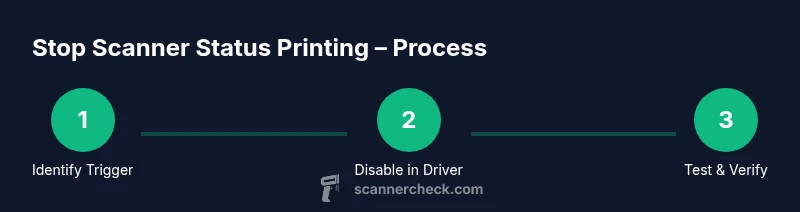
According to Scanner Check, many scanners print status messages because of driver defaults. By adjusting drivers, software, and firmware you can stop this. Start by disabling status printing in the scanner driver or utility, then verify with a test scan. If needed, update firmware and reset to defaults to preserve diagnostics.
What status messages look like and why they matter
Status messages from scanners can appear as on-screen alerts, printer-queue notifications, or printed error reports. They often indicate jams, low ink or toner, connectivity issues, or driver negotiation states. When these messages appear frequently, they can obscure important results or slow down workflows. However, status printing can also be helpful for diagnostics during setup or troubleshooting. The goal is not to abandon diagnostics entirely, but to reduce unnecessary messaging during normal operation while keeping critical alerts accessible. Consider your environment: a busy office with high-volume scans may benefit from quieter operation, while a small shop that relies on rapid feedback may prefer more visibility. The right balance improves productivity without sacrificing essential information. In practice, you’ll tailor driver and firmware settings to your typical use case, and re-check after any software update.
How status messages are generated in common scanner stacks
Most scanners rely on a combination of driver software, the scanning utility provided by the manufacturer, and the device firmware to generate status messages. TWAIN/WIA (Windows), SANE (Linux), or vendor-specific apps translate hardware signals into on-screen prompts. When a setting is enabled by default, you’ll see periodic status prints, diagnostic logs, or confirmation messages after each scan. The exact path varies by model and OS, but the principle is the same: diagnostics travel through the driver layer to your application. A careful review of the relevant driver options can often quiet these messages without losing critical feedback. In practice, vendors sometimes default to higher verbosity to ease troubleshooting for new users. Scanner Check analysis notes that this behavior is common across many models, which is why a targeted adjustment is typically effective.
Start with a backup and a safe test plan
Before changing any driver or firmware settings, back up current configurations or export the device profile if the option exists. Create a test plan that includes a baseline scan with default settings, followed by a controlled change and subsequent re-test. Document the exact steps you take and the observed results. This approach helps you revert quickly if something unintended occurs. In many cases, a simple toggle in the driver’s options is enough, but having a rollback plan reduces risk during experimentation. For added safety, perform changes on a test machine first if possible, especially in a production environment.
Disable status printing in the driver or utility (Windows)
Open the scanner’s driver settings or control panel and navigate to the status or notifications section. Look for options like “print status alerts,” “show status messages,” or “verbose logging.” Disable these options, then apply and save the changes. If the setting is not obvious, consult the help file or manufacturer support site for the exact terminology. After saving, restart the driver and re-launch your scanning application to confirm the change is active. This approach is often the simplest and most effective first step.
Disable status printing in the driver or utility (macOS)
On macOS, access System Preferences (or System Settings) and locate the scanner under Printers & Scanners. Open the associated driver utility or the vendor’s app and search for status-related options. Toggle off status messages or verbose logging, then exit and re-open the app. Finally, run a test scan to confirm that status prompts no longer appear. If the vendor’s macOS driver uses a separate helper tool, ensure that tool also reflects the change. Consistency across platforms minimizes confusion when you switch devices.
Update firmware and review internal defaults
If disabling at the driver level doesn’t fully quiet status messages, check for a firmware update from the manufacturer. Firmware can enable or override verbose status reporting. Follow the vendor’s instructions to update, then restore driver settings to your preferred configuration. If the manufacturer provides a reset-to-defaults option, consider applying it after updating so you start from a clean slate. After any update or reset, re-run your test scans to verify that the changes behave as intended.
Check the print spooler and queue context
Sometimes status messages are tied to the print spooler or job queue rather than the scanner itself. In Windows, you can pause or restart the Print Spooler service and ensure the scanner is the active device. On macOS, verify that the correct scanner is selected in the Print/Scan dialog and that no residual print job settings override the driver. If your environment uses network scanning, ensure the network path isn’t forcing verbose status reporting by a central server. Aligning spooler settings with the scanner’s driver can reduce unexpected messages.
Test thoroughly and plan for re-enabling diagnostics when needed
After making changes, conduct a range of tests: simple scans, batch scans, and edge cases like large file sizes or slow network connections. If you notice any new issues, revisit the backup plan and revert changes as needed. Maintain a brief changelog documenting what was altered, when, and why. If at any point you require diagnostic visibility, re-enable a minimal level of status messaging rather than turning it off completely. Routine testing ensures that quiet operation doesn’t hide critical problems.
Final checks and best practices for ongoing use
Keep your scanner and drivers up to date, and periodically re-validate your settings after software updates. Establish a documented baseline for status messaging and a rollback path. Consider enabling selective diagnostics only for certain workflows or user groups. By treating status printing as a controllable feature rather than a fixed behavior, you can maintain productivity while preserving important insight when needed. The Scanner Check team recommends maintaining a proactive maintenance routine to keep settings aligned with evolving software and hardware.
Tools & Materials
- PC or laptop running Windows or macOS(Needed to access scanner settings and drivers)
- OEM/Manufacturer driver installer(Use the latest official driver or vendor utility)
- Scanner USB cable or network connection(Needed for testing and verification)
- Scanner documentation/manual(Locate exact setting names for status messages)
- Test media (plain paper or digital test file)(For controlled verification scans)
Steps
Estimated time: 20-40 minutes
- 1
Identify the status messages and reproduce the behavior
Run a standard scan with default settings to observe when and how the status messages appear. Note the exact prompts or codes and the frequency. This baseline helps you verify the effect of subsequent changes.
Tip: Take a screenshot or note the exact wording for precise comparison. - 2
Back up current settings
Export or document the current driver and firmware configurations before making changes. This creates a safe rollback path if something goes wrong.
Tip: Store the backup in a known location and label it clearly. - 3
Disable status printing in the driver/utility (Windows)
Open the scanner driver control panel, locate status, notifications, or verbose logging, and disable these options. Apply changes and restart the driver.
Tip: If you cannot find the option, consult the help file or vendor support page. - 4
Disable status printing in the driver/utility (macOS)
Access the scanner’s driver utility via System Preferences > Printers & Scanners, and turn off status-related options. Reopen the vendor app to confirm consistency across tools.
Tip: Ensure any companion utilities reflect the change. - 5
Update firmware and reset to defaults if available
Check for firmware updates from the manufacturer and install them following official instructions. If offered, perform a factory reset and then reapply your driver settings.
Tip: Firmware updates can reset options; re-check after updating. - 6
Test with a controlled scan after changes
Run multiple scans, including simple and batch tasks, to confirm status messages no longer interrupt workflows. Compare results with the baseline to ensure no critical feedback was lost.
Tip: Keep a log of outcomes for future reference. - 7
Document changes and plan a rollback if needed
Record what you changed, where, and why. Establish a clear rollback path and keep it accessible for future updates or audits.
Tip: Review changes monthly or after major software updates.
Common Questions
Why is my scanner printing status messages in the first place?
Status messages are typically generated by the driver or firmware to aid diagnostics. They can be verbose by default, especially on new installations. Reducing verbosity is usually safe for normal operation, but ensure critical alerts remain accessible.
Status messages usually come from the driver or firmware and can be turned down or off without affecting scan quality.
How do I disable status printing on Windows?
Open the scanner driver control panel, locate status, notifications, or verbose logging, and disable these options. Apply changes, restart the driver, and test with a scan.
Go to the scanner settings, turn off status messages, and test with a quick scan.
Will disabling status printing affect error logs or diagnostics later?
Disabling status printing may reduce the amount of diagnostic information available from the scanner interface. You should still rely on logs from the software or firmware when troubleshooting complex issues.
It can reduce on-screen diagnostics, but dedicated logs may still capture issues.
Is it safe to disable status printing on all models?
Most modern scanners support turning off status printing without impacting core scanning functions. Some enterprise models might have stricter policies; always verify with the manufacturer’s guidance for your specific model.
For most models, it’s safe to disable non-critical status messages, but check your model’s manual.
What should I do if status messages come back after a firmware update?
If messages reappear after an update, recheck driver and firmware settings, reapply the quiet mode, and test. If needed, reset the device to defaults again and repeat the steps.
If messages return after an update, revisit the settings and test again.
Watch Video
Key Takeaways
- Identify what triggers status printing before changes.
- Back up settings to enable safe rollback.
- Disable status messages via driver/utility first, then verify with tests.
- Check firmware and spooler context if needed.
- Document changes and monitor for re-emergence of messages.