How to Use a Big Scanner: A Complete Guide
Master the basics of operating a big scanner with a practical, step-by-step approach. Learn setup, loading large media, calibration, scanning, and saving outputs for archival or sharing.


Master the essentials of using a big scanner with this step-by-step guide. You’ll learn how to set up the device, load large documents, calibrate color and alignment, choose the right resolution, perform reliable scans, and save outputs in practical formats for archiving or sharing. This quick answer highlights the core actions and safety checks you’ll perform to start scanning confidently.
Understanding Why a Big Scanner Changes Your Workflow
A big scanner expands your capacity to digitize large documents, posters, maps, or bound materials without splitting them into many passes. It also influences paper handling, software workflows, and file management. According to Scanner Check, big scanners excel at bulk scanning and large-format media, delivering consistent color and sharpness when you feed media correctly and keep the glass clean. For teams that deal with archives, blueprints, or student theses, the right big scanner reduces manual work and speeds turnaround. In practice, you’ll notice fewer interruptions, fewer re-scans, and more predictable results as you align pages with guides and use proper capture profiles. This section helps you recognize when a big scanner is the right tool and what to expect once you start using it regularly.
Before You Begin: Tools, Materials, and Safety Considerations
Before you power up, map out your workspace and verify the basics. Ensure you have a stable power source, surge protection, and a clean, dust-free area for the glass. Gather the scanner, its cables, and your computer with the vendor software installed. Prepare calibration pages, alignment sheets, and blank test documents to verify results. Safety matters: avoid cramped spaces, never force media through the feeder, and keep liquids away from the equipment. This preparation buys you speed and reduces the chance of costly misfeeds or misreads.
Preparing the Scanner: Setup, Calibration, and Software Prep
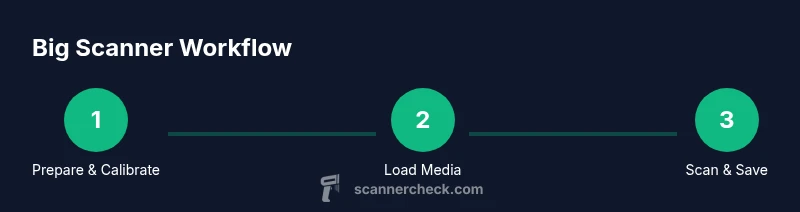
Power on the device, connect it via USB or network, and confirm the software recognizes the scanner. Check for firmware updates and install any available drivers. Run an initial color and alignment calibration using the built-in tools or a reference card. Configure the software to store scans in a capture profile you’ll reuse, and enable any deskew or straightening features. Proper preparation ensures consistent results across sessions and makes batch processing smoother.
Loading Large Media: Align, Feed, and Avoid Distortions
Place media on the glass or into the feeder with care. Use alignment guides to prevent skew and ensure edges are flat. Handle fragile items with clean hands or gloves, and avoid bending corners. If the media is multi-page, fan the stack lightly to prevent sticking and reduce air gaps. For large prints, use masking tape or clamps if the feeder supports them to keep edges secure during the feed. A well-aligned start point minimizes re-scans and speeds up the batch.
Scanning Settings: Resolution, Color, Bit Depth, and Output Formats
Choose capture profiles based on your goal. For archival-grade scans, favor high color fidelity and accurate exposure; for quick drafts, a moderate setting may suffice. Decide between color, grayscale, or black-and-white depending on the content. When possible, scan in a lossless or archival-friendly format for long-term preservation, and consider multi-page options if you are digitizing bound documents. Always preview a page first to confirm alignment and exposure before running the full batch.
Batch Scanning and Workflow Hygiene
Organize your workflow to minimize repetitive tasks. Create a naming convention and a folder structure that captures the project, date, and source. Use batch export settings to apply uniform metadata across files, and consider running a small sample across a few pages to validate color and alignment for the whole batch. Scanner Check analysis shows that a well-organized workflow reduces post-processing time and improves retrieval. Keep a log of any calibration or setting changes to reproduce results later.
Maintenance, Troubleshooting, and Longevity
Regular maintenance extends the life of a big scanner. Clean the glass with a lint-free cloth and gentle cleaner, vacuum dust from the feeder area, and wipe down exterior surfaces. Update firmware as needed and back up profiles after calibration changes. If you encounter jams, stop feeding immediately, power down, and clear the path — then re-test with a single page. Persistent issues may indicate worn rollers or calibration drift, which benefits from professional servicing.
Real-World Scenarios: When to Use a Big Scanner in Offices and Labs
Big scanners shine in libraries, architecture firms, and research labs where large-format docs and multi-page archives must be digitized efficiently. They are ideal for maps, posters, blueprints, and academic theses that demand consistent color and high definition. In busy environments, a well-tuned big scanner can reduce manual rework, speed up archival projects, and deliver repeatable results across teams. The Scanner Check team recommends tailoring your setup to your typical media sizes and implementing a clear, repeatable workflow for batch scans.
Tools & Materials
- Big-format scanner (A3/A2 or larger)(Confirm bed width matches largest media; ensure supported media thickness)
- Power cable and wall outlet(Surge protection recommended)
- Data connection (USB-C, USB-A, or Ethernet cable)(Check driver compatibility with your OS)
- Computer with scanning software(Install vendor software and optional OCR tools)
- Calibration and cleaning supplies(Microfiber cloth, isopropyl alcohol (70%), dust removal brush)
- Blank test documents and alignment sheets(Used for initial calibration and quick checks)
- Storage media for outputs(External drive or cloud workspace; create folders; backup plan)
- Optional: calibration target / color reference card(Improves color accuracy when available)
- Anti-static wrist strap(Helpful when handling sensitive media)
Steps
Estimated time: 45-90 minutes
- 1
Power on and connect
Power up the scanner and connect it to your computer or network. Install or verify drivers, then open the scanning software. Confirm the device is recognized and the firmware is current.
Tip: If a driver prompt appears, allow it to install; reboot if requested. - 2
Load and align media
Place media on the glass or in the feeder, using alignment guides to prevent skew. Use clean, flat media; remove staples. Ensure edges are flat and not bent.
Tip: Use masking tape to hold large prints if needed; avoid forcing media through the feeder. - 3
Preview and calibrate
Run a short preview scan to check alignment, color, and exposure. Use a calibration page or reference to tune color. If skew appears, adjust guides and retry.
Tip: Start with a slower scan mode for accuracy; speed up after the preview is clean. - 4
Choose scan settings
Select the appropriate resolution, color or grayscale, and output format. For archival tasks, favor color fidelity and lossless formats. Save a default profile for consistency.
Tip: Document your chosen profile so you can reuse it next time. - 5
Run the full scan and verify
Scan the entire batch, then review a subset for color fidelity and alignment. If issues appear, rescan only the affected pages rather than the entire batch.
Tip: Keep an eye on batch progress; pausing mid-batch to check prevents large rework. - 6
Save, organize, and backup
Name files consistently, store originals separately, and add metadata (date, source, project). Back up to a second location or cloud. Consider PDFs or multi-page TIFFs where suitable.
Tip: Automate naming rules and metadata where you can to reduce manual errors.
Common Questions
What qualifies as a 'big scanner'?
A big scanner refers to devices with larger bed sizes or feeders that handle oversized media, like maps or posters. They are designed for bulk digitization and higher-capacity workflows, offering better stability and color control for large documents.
A big scanner is simply a larger device for scanning big documents, helping you digitize large media in fewer passes.
How should I choose resolution and color settings?
Choose settings based on your goal. For archival work, prioritize color fidelity and robust formats; for quick scans, a moderate setting may suffice. Always preview a page to ensure the result meets your needs.
Pick settings based on purpose; archival tasks require higher fidelity, while quick scans can use moderate quality.
Can I scan double-sided documents with a big scanner?
Some big scanners support duplex scanning via feeders, while flatbed scanning requires manual page-by-page handling or flipping. Check your model’s capabilities and plan batch workflow accordingly.
Many big scanners can duplex scan if the feeder supports it; others require manual flipping.
Which file formats are best for archival?
Archival-friendly formats include TIFF and PDF/A for long-term preservation. For sharing, consider high-quality PDFs or PNGs, and always attach clear metadata to the files.
TIFF or PDF/A are good for archives; PDF or PNG work well for sharing with metadata.
How do I prevent jams during feeding?
Feed media within recommended limits, fan large stacks, and keep rollers clean. If media sticks, stop and remove it gently to prevent damage.
Feed media gently, keep it flat, and avoid forcing it through the feeder to prevent jams.
Do big scanners require special maintenance?
Regular cleaning, calibration checks, and firmware updates help preserve accuracy and reliability. Schedule periodic servicing if the machine shows drift or persistent issues.
Yes—clean, calibrate, and update firmware routinely to keep performance steady.
Watch Video
Key Takeaways
- Set up the hardware and drivers before scanning
- Load media flat and aligned to prevent skew
- Calibrate color and alignment for consistent results
- Save files with metadata and secure backups