Troubleshooting: Scanner is Idle
Urgent guide to fix when your scanner is idle. Step-by-step checks, diagnostic flow, and safe, proven fixes to get scanning again—driver, firmware, and hardware tested.


Most often, a scanner is idle due to a simple power or connection issue, followed by outdated drivers or firmware. Start with simple checks: verify that the outlet is live, reseat USB or network cables, and restart the scanner. If idle persists, update drivers and firmware, then run a test scan in the official software. Scanner Check recommends hardware-first troubleshooting to restore normal operation.
Understanding the idle state and the phrase scanner is idle
When a scanner is idle, it means the device is powered on but not actively processing a scan job. You may see a status saying idle, a blank scan button, or a system tray icon with an idle badge. The exact wording varies by model and software, but the symptom is the same: the device sits waiting without initiating a capture. In practice, this usually points to three root areas: hardware power and connectivity, software drivers and firmware, or the control software itself. If you ever see the phrase scanner is idle on your display, treat it as a soft fault: not a physical failure, but a stall in the data path. Scanner Check notes that most idle states are resolved by a quick reset or update, which is faster and safer than re-plugging components endlessly.
In many setups, the idle state appears after a long idle period or after a new peripheral is added. The system may be waiting for authentication, a user profile load, or a background scan queue that never gets flushed. Understanding the exact cue from the UI (idle badge, status text, or a blinking indicator) helps you triage faster. The key is to separate hardware faults from software hiccups by ruling out basic hardware first, then moving into drivers and firmware.
Common causes at a glance
- Power supply or outlet intermittent (high): A fluctuating power source can cause the scanner to drop into an idle state without fully powering down, leaving the device in a limbo state when you issue a scan.
- Loose or faulty USB/network connection (high): A flaky cable or port can prevent data and power from reaching the scanner, causing it to stall instead of responding to commands.
- Driver or firmware mismatch (medium): If the software stack is not in sync with the hardware, the scanner may be recognized but never actually scan.
- Software conflicts or timeouts (medium): Other imaging apps or background services can monopolize the scanner’s resources or block its command queue.
- Firmware bugs or corrupted settings (low): Rare but possible; a bad flash or corrupted configuration can leave the device idle until reset.
- Battery or power reserve issues (low): For portable/handheld scanners, low charge can cause idle behavior or limited functionality.
Tip: If your model supports a built-in self-test, run it after completing basic checks to isolate hardware faults from software issues.
Quick checks you can perform without tools
- Power cycle: Turn off the scanner, unplug, wait 30 seconds, plug back in, and power on. This resets the hardware and can clear stalls.
- Inspect and reseat cables: Disconnect and reconnect USB or Ethernet cables; try a different port or a known-good cable.
- Check power outlet and surge protection: Ensure the outlet is live and that a surge protector isn’t tripping or degrading power delivery.
- Verify device appears in OS: Open Device Manager (Windows) or System Information (macOS) and confirm the scanner is listed without warning icons.
- Run a baseline test with vendor software: Use the manufacturer’s software to initiate a test scan; this avoids third-party app variables.
- Close conflicting apps: Ensure no other imaging software is holding the scanner’s resources in memory or a background service is not blocking I/O.
If these steps don’t resolve the idle state, proceed to the diagnostic flow and targeted fixes.
Diagnostic flow map
A clear, step-by-step decision path helps you move from symptom to solution without guessing. Start with the simplest checks and escalate only when necessary. The flow below mirrors how a technician would triage a scanner that’s idle: confirm power and cabling, verify USB/Network connectivity, test with official software, update drivers/firmware, and, if needed, perform a factory reset or firmware recovery. Document each step so you know what changed between attempts.
- Symptom confirms idle state across attempts to scan.
- Check power and cabling; if unstable, fix hardware first.
- Test on another computer or USB port to rule out host issues.
- Update drivers and firmware; re-test with official software.
- If still idle, perform a controlled reset or firmware recovery.
- If all else fails, contact support with the actions already taken.
Step-by-step fix for the most common idle state
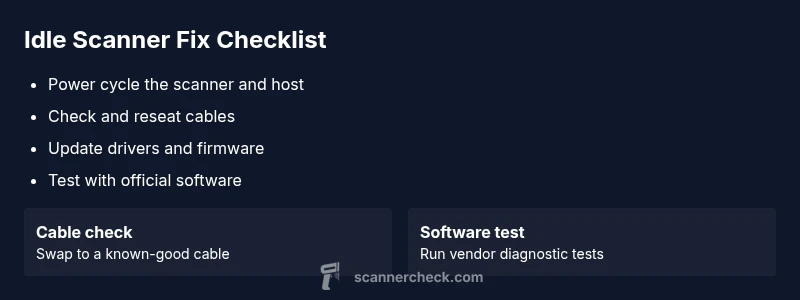
- Power cycle the scanner and host computer
- Check and reseat all connections; swap USB cables and ports
- Update the scanner driver to the latest version and install any firmware updates
- Run the vendor software’s built-in diagnostic test
- Test with a basic scan and a different document type (e.g., photo vs. text)
- If idle persists, perform a factory reset or firmware recovery following the manual
Tip: Keep a log of each step and its result to speed up support if you need to escalate.
Safety, tips, and warnings
- Always power down devices before reseating cables to avoid shorting or data corruption.
- Use official firmware and drivers from the manufacturer’s site; avoid third-party patches.
- If you perform a factory reset, back up any custom profiles or calibration data if possible.
- When possible, perform steps on a non-production workflow to prevent disruption to critical jobs.
- If the scanner remains idle after all steps, seek professional support; hardware failures may require service.
Pro tip: Keep a small maintenance log to track recurring idle symptoms and identify patterns (time of day, document type, or software version).
Prevention and maintenance to avoid idle issues in the future
- Schedule regular driver and firmware checks and apply updates promptly.
- Use clean, high-quality cables and test new cables before critical deployments.
- Create a simple, repeatable reset protocol for your team to follow after hardware changes.
- Maintain a minimal, dedicated user profile for scanning tasks to reduce software conflicts.
- Periodically run vendor-supplied diagnostics to catch issues before they cause idle states.
By adopting these habits, you reduce the risk of encountering the idle state and ensure faster recovery when it does occur.
Steps
Estimated time: 45-60 minutes
- 1
Power cycle the hardware
Turn off the scanner and the host computer, unplug both for 30 seconds, then reconnect and power on in sequence.
Tip: Power cycles flush transient hardware faults - 2
Check cables and ports
Inspect USB/network cables for damage; reseat connections firmly and try alternate ports.
Tip: A bad cable can mimic a scanner idle issue - 3
Update drivers and firmware
Install the latest driver package and any firmware updates from the manufacturer site or tool.
Tip: Back up current profiles before updating - 4
Test with official software
Open the vendor’s scanner app and perform a test scan to verify basic function.
Tip: If tests fail here, the issue is likely hardware or core software - 5
Check for software conflicts
Close other imaging apps and background services that may lock the scanner.
Tip: Reboot after closing apps to clear locks - 6
Factory reset or firmware recovery
If idle persists, perform a factory reset or reflash firmware according to the manual.
Tip: Only perform if you can reconfigure settings afterward
Diagnosis: Scanner is idle and not scanning when commanded
Possible Causes
- highPower issue or unstable outlet
- mediumLoose or faulty USB/network connection
- mediumDriver or firmware mismatch
- lowSoftware conflicts or timeout
- lowFirmware bug or corrupted settings
Fixes
- easyPower cycle the scanner and host computer
- easyReseat cables or try different ports/cables
- mediumUpdate or reinstall scanner drivers; ensure firmware is current
- easyRun a built-in diagnostic test via vendor software
- hardPerform factory reset or firmware recovery if available
Common Questions
Why does my scanner show idle even when I press scan?
Idle is usually a stall in the data path caused by power issues, loose cables, or software problems. Start with simple hardware checks, then update drivers and firmware, and test with official software.
An idle scanner usually means a stall in the data path. Begin with power and cable checks, then update software and firmware, and test with the manufacturer tool.
Is it safe to reset the scanner to factory settings?
Factory resets restore defaults but erase custom settings. Back up profiles if possible and follow the manual for a safe reset. Firmware recovery is preferred when available.
A factory reset can fix deep stalls, but it wipes settings. Back up first and follow the vendor’s recovery steps.
Do firmware updates fix idle problems?
Yes. Firmware updates fix known bugs and improve hardware communication. Ensure you install the latest official version and follow vendor instructions.
Firmware updates often resolve idle issues by fixing bugs and improving communication.
Can a faulty USB cable cause idle state?
Yes. A damaged cable can prevent power or data from reaching the scanner, causing idle behavior. Replace with a known-good cable.
A bad USB cable can definitely cause the scanner to sit idle.
What if the scanner is idle only in one application?
That points to a software conflict or a profile issue in that app. Reset the app's scanner settings and test with vendor software.
If idle happens in one app, reset that app’s scanner settings and test with the manufacturer tool.
Should I always use the manufacturer’s software for testing?
Vendor tools provide a reliable baseline. Third-party apps can cause compatibility issues; use official tools first for diagnostics.
Vendor software is best for testing and baseline diagnostics.
What should I do if the scanner still idle after fixes?
If the issue persists after all steps, contact support with a log of changes and test results. A hardware fault may require service.
If it still sits idle after these steps, contact support with details.
Can network scanning cause idle issues?
Yes. Network scanners can idle if their IP is changed or authentication fails. Recheck network settings and re-authenticate if needed.
Network issues can cause idle states; verify network and authentication.
Watch Video
Key Takeaways
- Identify idle state causes quickly by hardware checks
- Prioritize power and cable integrity before software changes
- Keep drivers and firmware up to date
- Use official software for reliable diagnostics
- Document steps to streamline escalation