What Causes a Scanner Not to Work? A Practical Troubleshooting Guide
Urgent, practical troubleshooting for scanners that won't work. Power, connectivity, drivers, and software conflicts—step-by-step fixes and prevention tips.


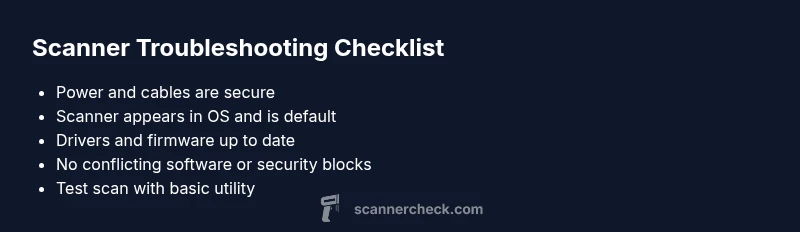
The most common causes are power or connection issues, outdated drivers or firmware, and software conflicts. Start with a quick reset, recheck cables, and confirm the scanner is selected as the default device. If these basics don’t resolve it, follow the diagnostic flow for deeper fixes.
Why Your Scanner Might Not Work
According to Scanner Check, many scanner failures begin with simple, easy-to-overlook issues before any sophisticated fault is diagnosed. The most frequent culprits are power supply problems, loose or damaged cables, and misconfigured software defaults. Before you dive into drivers or firmware, verify that the device is physically powered, connected, and recognized by your computer. A quick restart of the scanner and the host computer can clear transient errors and refresh the device stack. In high-stakes environments—such as offices or lab benches—these basic checks save time and reduce downtime.
Common Causes at a Glance
Here is a concise snapshot of the leading reasons a scanner stops working. Understanding these categories helps you triage quickly:
- Power and hardware connections: A loose power cable, faulty USB/ethernet port, or USB hub can interrupt the scanner’s communication.
- Driver and firmware issues: Outdated or corrupted drivers, or firmware mismatches, can prevent scanning or cause sporadic failures.
- Software conflicts and defaults: The scanner must be set as the default input device in the operating system and within any scanning applications.
- Cable quality and USB standards: Faulty cables or using a USB 3.0/2.0 mix on older ports can degrade communication.
- Hardware faults: Sensor failures, a failing scanning bed, or internal electronics can manifest as non-communication or poor image quality.
- Power saving and sleep modes: Some scanners stop responding when the host computer or the OS enters low-power states.
Knowing where the problem lies helps you apply the right fix without wasted steps.
Quick Checks You Can Do Right Now
If the scanner is unresponsive, perform these quick checks in order:
- Confirm the scanner is powered on and shows a normal status indicator. If not, replace the power adapter or try a different outlet.
- Swap the USB cable or use a different USB port on the computer. Avoid long, curled cables or USB hubs as the primary connection.
- Ensure the scanner appears in the device manager (Windows) or System Information (macOS). If it’s missing, reinstall the driver.
- Reboot both the scanner and the computer. A fresh start can restore proper device enumeration.
- Verify the scanner is selected as the default device in the scanning software and in the OS settings.
- Check for any active power-saving features that might suspend the device when idle.
If these steps don’t restore functionality, move to deeper diagnostics that isolate driver, firmware, or hardware faults.
In-Depth Diagnostics by Symptom
Not all problems look the same. Here we map common symptoms to likely causes and recommended next steps:
- Symptom: Scanner is listed, but no scan output – Likely driver or software configuration issue. Reinstall or update drivers, ensure compatible software, and test with a basic scan utility.
- Symptom: Scans are faint, blank, or skewed – Possible sensor alignment, glass contamination, or calibration needs. Clean the glass, recalibrate, and try default test scans.
- Symptom: Repeated error messages during scan – Check for firmware compatibility between the scanner and computer OS, and apply any available firmware updates.
- Symptom: Scanner disappears from OS after sleep – Inspect power management settings and disable selective suspend or sleep modes for USB devices.
- Symptom: Slow or inconsistent scan speed – Review network or USB bandwidth, update drivers, and run diagnostics with a test file to detect bottlenecks.
These symptom-to-cause mappings help you target fixes without trial-and-error guessing.
Fixes for the Most Common Cause: Driver and Firmware Issues
Drivers and firmware are the most fragile link in the chain. If the scanner is operational but unreliable, start here:
- Update or reinstall the scanner driver from the manufacturer’s website. Choose the exact model and OS version.
- Check for firmware updates on the scanner; apply them following the manufacturer’s instructions.
- Remove old drivers or software residue that may conflict with new installs. Use a clean removal tool if available.
- Ensure the scanner is not blocked by security software or corporate IT policies that sandbox USB devices.
- Temporarily disable any antivirus or firewall app to see if it’s blocking device access (re-enable after testing).
If updating drivers and firmware doesn’t fix the issue, proceed to testing with a different application or OS profile to isolate software from hardware faults.
Prevention and Maintenance Tips
A proactive maintenance routine reduces the odds of future outages:
- Schedule regular driver and firmware checks, and create a backup of scanner profiles.
- Inspect cables and ports every few months; replace damaged cables promptly.
- Keep glass and mirror areas clean; calibrate periodically according to the user manual.
- Use a dedicated USB port or a powered hub for the scanner to ensure stable power and bandwidth.
- Create a small recovery plan: keep a spare cable, a recovery USB drive with drivers, and a known-good working setup for quick recovery.
Regular maintenance minimizes downtime and preserves image quality over time.
When to Seek Professional Help
If you’ve exhausted the basic checks and the diagnostic flow without a resolution, it’s time to escalate. Signs that professional help is needed include persistent hardware fault indicators, repeated driver conflicts across OS updates, or suspected internal sensor or logic board failures. A certified technician can perform advanced diagnostics, test diagnostic logs, and verify hardware health. Document the exact symptoms, OS version, driver version, and firmware revision to speed up the service call.
Steps
Estimated time: 30-60 minutes
- 1
Check power and physical connections
Ensure the scanner is powered on and the power light is steady. Inspect cables for damage and reseat USB or network connections. If uncertain, try a different power outlet and cable to rule out a faulty accessory.
Tip: A quick swap of the power adapter can reveal a failing brick without opening the device. - 2
Test the connection to the computer
Disconnect and reattach the USB cable, or rejoin the scanner to a different USB port. If using a network setup, verify the IP address and network path. Avoid USB hubs during testing to rule out power or bandwidth constraints.
Tip: Use a known-good USB port directly on the computer to rule out hub-related issues. - 3
Verify OS recognition and default device
Open the OS’s printer/scan settings and confirm the scanner appears as a recognized device. Set it as the default scanner in the OS and in your scanning application. If it’s not listed, reinstall the driver.
Tip: Some applications override OS defaults; ensure both are aligned. - 4
Update drivers and firmware
Download the latest driver package from the manufacturer for your exact model and OS. Install any firmware updates following official instructions, then reboot both the scanner and computer.
Tip: Back up current settings in case you need to revert. - 5
Calibrate and test with a basic scan
Run a simple test scan using a built-in utility or the manufacturer’s app. Check results for clarity and alignment; reinstall if issues persist.
Tip: Calibrating after firmware updates helps restore color and density accuracy. - 6
If unresolved, seek professional help
Document symptoms, OS version, driver/firmware versions, and any error codes. Contact a technician or the manufacturer’s support with this data to expedite service.
Tip: Having logs ready can shorten diagnosis time.
Diagnosis: Scanner won’t scan or is unrecognized by computer
Possible Causes
- highPower or connection issue
- highOutdated or corrupted drivers/firmware
- mediumSoftware conflicts or misconfigured defaults
- lowInternal hardware fault or sensor issue
Fixes
- easyVerify power supply is connected and illuminated; try a different outlet or adapter
- easyReconnect or replace USB/Network cables and avoid hubs; try another USB port
- mediumReinstall or update scanner drivers; check firmware version and apply updates
- easyReset scanner to factory defaults and reconfigure settings; test with a basic scan app
- hardIf issues persist, run hardware diagnostics or consult a technician
Common Questions
Why won't my scanner power on even when the computer is on?
Check the power adapter, cable, and outlet. Try a different outlet and replace a faulty cable. If the scanner has a power switch, ensure it’s firmly in the ON position. If power still fails, there may be an internal fault requiring service.
If it won’t power on after basic checks, check the adapter and outlet, then consider service if the issue persists.
The scanner is detected by the OS but won’t scan. What should I do?
This often points to driver or software configuration. Reinstall or update the driver, ensure the scanner is set as the default, and test with a basic scanning app. If the problem remains, try a different application to rule out software conflicts.
If the OS sees the scanner but it won’t scan, update drivers and set the scanner as default, then test with a simple app.
Can a USB cable cause scanning problems?
Yes. A faulty or low-quality USB cable can interrupt data transfer, causing failed scans or intermittent errors. Replace with a certified cable of suitable type (USB-A, USB-C) and test.
A bad USB cable can ruin data transfer; swap in a proven cable and test again.
How often should I update scanner firmware?
Firmware updates are not daily tasks but should be applied when available to fix bugs and improve compatibility. Check the manufacturer’s site regularly or enable automatic updates if offered.
Check for firmware updates periodically and apply them when available to improve reliability.
My scans are blurry or misaligned. What’s wrong?
Sensor alignment, calibration, or dirty glass can cause blurry scans. Clean the glass, re-run calibration if your model supports it, and retest with a standard document.
Blurry scans usually mean a dirty glass or calibration is needed.
When should I replace a scanner?
If the model is very old, parts are NLA (no longer available), or you’re facing repeated failures that can’t be fixed cost-effectively, replacement may be the best option.
If repairs exceed the cost of a new model, consider replacing the scanner.
Watch Video
Key Takeaways
- Identify power/connection issues first
- Update drivers/firmware to restore compatibility
- Align OS/application defaults to the scanner
- Test with alternative cables/ports to isolate faults
- If problems persist, consult a professional