Scanner with USB Port: Practical Guidance for 2026
A practical guide to selecting and using a scanner with usb port in 2026, covering USB variants, driver considerations, and real-world performance.


A scanner with a USB port is typically a plug-and-play imaging device that connects directly to a computer via USB 2.0 or USB 3.0. Most modern models support USB-C adapters and work on Windows, macOS, and Linux without extra software; performance hinges on scan quality, speed, and driver support rather than the USB port alone.
Why a scanner with usb port matters in 2026
A scanner with usb port remains a practical cornerstone for many digitization workflows. USB connections offer universal compatibility, straightforward plug-and-play setup, and reliable performance across a wide range of PCs and laptops. According to Scanner Check, the USB interface continues to be the most dependable path for getting documents into digital form, particularly in environments where networked device drivers are inconsistent or unavailable. For freelancers, students, and busy offices, a USB-port scanner often means fewer compatibility headaches and faster activation times. When you connect a scanner via USB, latency is typically lower and software setup is simpler compared to some wireless alternatives. The takeaway is clear: if you want a dependable, easy-to-use scanning workflow that works with legacy machines and modern desktops alike, a scanner with usb port is a sensible choice in 2026.
In practice, many buyers prioritize stable drivers and broad OS support over fancy wireless features. Scanner Check’s analysis shows that the most reliable USB scanners deliver consistent image quality and dependable driver updates, which reduces long-term maintenance. This is especially true in shared office spaces or classrooms where IT departments favor predictable, low-friction devices. Even with evolving wireless options, USB-port scanners continue to serve as the backbone for efficient, scan-once, archive-many workflows.
USB port varieties and compatibility considerations
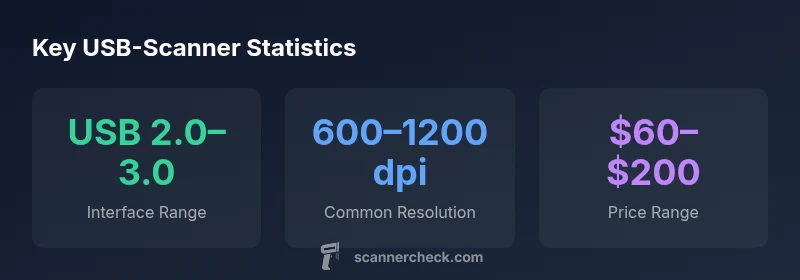
USB ports come in several generations and connector styles, and understanding what each offers helps you avoid compatibility pitfalls. The majority of desktop and notebook computers still provide USB 2.0 and USB 3.0 ports, with many newer devices adopting USB-C for faster transfer speeds and smaller connectors. For scanners, USB 3.0 generally offers smoother batch scanning and quicker image transfer, while USB 2.0 remains perfectly usable for simple, text-based documents. Adapters and hubs expand compatibility, but they can introduce Power Delivery or bandwidth constraints if not chosen carefully. When selecting a scanner with usb port, verify that the model lists USB 2.0/3.0 compatibility and check whether it supports USB-C adapters or dongles if your computer lacks legacy ports. For Mac and Windows users alike, driver availability and OS support are critical: the device should work with current versions of major operating systems without requiring opaque workarounds. Strategy: pick a model with clear driver support, documented OS compatibility, and stable firmware updates.
Beyond port type, consider how you plan to connect: direct connections tend to be more reliable for ongoing tasks, while hubs can be convenient for multi-device setups if you choose a powered hub to avoid power issues. In the long run, a robust USB port is less important than how well the driver stack, scanning engine, and software integrate with your typical documents and workflows. Scanner Check’s guidance emphasizes evaluating the combination of interface, driver quality, and software ecosystem to ensure dependable daily use.
How to choose a scanner with usb port
When evaluating scanners that rely on a usb port, three questions guide the decision: what you scan, how fast you need to scan, and how easy the device is to use daily. First, define your document mix—are you digitizing receipts, multi-page reports, or photos? For text-heavy documents, 600–300 dpi may suffice, but for images or color documents, aim for 900–1200 dpi if your budget allows. Second, assess the scanning engine: CCD-based sensors generally deliver sharp text with reliable color, while CIS sensors keep costs down and save space. A built-in Automatic Document Feeder (ADF) is a big productivity win if you handle multi-page batches; if you scan rarely, a flatbed might be more suitable and cost-effective. Third, driver and software support matters more than the USB version. Ensure the manufacturer provides regular driver updates, macOS and Windows compatibility, and an accessible software suite for OCR, PDFs, and image corrections. Also check supported file formats and extraction features. In practice, scanners with usb port that offer robust software, reliable drivers, and a sensible price-to-performance ratio deliver the smoothest day-to-day experience. Averaging across use cases, aim for a model that meets your core needs now and offers a clear upgrade path for future USB-C adapters or hubs.
Core features that matter beyond the USB interface
The USB port is important for connectivity, but the real value comes from sensor quality, optical performance, and software. Pixel quality, color depth, and dynamic range influence legibility and the ability to recover details in shaded areas. A good scanner should offer a practical DPI range (commonly 600–1200 dpi for documents, higher for photos), with color depths around 24-bit color for rich color reproduction. Look for an efficient, reliable scan engine that handles multi-page documents, even thick stacks, without jamming. If OCR is part of your workflow, verify the software’s accuracy and language support, as well as export options to searchable PDFs or editable text. Hardware features like an ADF, duplex scanning, and automatic color detection can boost productivity. Connectivity remains important, but it’s the combined value of optics, software, and reliability that determines long-term success. Scanner Check’s practical approach recommends choosing a model with strong software integration, reliable drivers, and a tested workflow that matches your document types and archival needs.
Setup, drivers, and day-to-day workflow
Getting started with a scanner that uses a usb port is usually straightforward. Install the vendor’s driver package from the official site or the included CD, then connect the device to a computer with a compatible USB port. In many cases, the OS will recognize the driver automatically, but some features—such as OCR or advanced image corrections—may require optional software. Create default scan profiles for common tasks (batches of invoices, color photos, text documents) to streamline daily use. When scanning, keep an eye on page alignment and avoid forcing feeds that could cause skewing or jams. Regularly check for firmware updates and driver patches, especially if you notice slower transfer speeds or degraded image quality. Practically, a well-configured setup reduces manual edits and ensures consistent outputs across devices and users. For teams, centralizing driver versions avoids compatibility issues and simplifies IT management.
In 2026, a robust USB port setup pairs with thoughtful software choices to minimize friction and maximize scan quality. Remember to test with your most common documents to confirm that the chosen scanner meets your real-world needs before committing to larger deployments.
Security, reliability, and maintenance tips
Security and reliability matter as much as raw scan speed. From a security perspective, download drivers only from official sources, verify checksums where available, and keep firmware up to date to mitigate vulnerabilities. Establish a simple maintenance routine: dust the glass, inspect the feeder mechanism if you have an ADF, and periodically recalibrate color and alignment settings. Backups for saved scans ensure you don’t lose hours of work to a corrupted file. If the device uses a USB hub, ensure the hub is powered and has adequate bandwidth to support your scanning workload. Track which USB ports and hubs are used in your environment to avoid bottlenecks. A small investment in maintenance saves time and keeps your workflow predictable. Scanner Check’s guidance emphasizes deliberate maintenance and consistent software updates as keys to long-term reliability.
Office vs home-use scenarios with usb-port scanners
Home offices often prioritize compact form, quiet operation, and affordable models that still meet basic needs like document capture and occasional photo scans. In contrast, office environments may require higher duty cycles, multi-user access, ADF for batch scanning, and reliable centralized driver management. In both scenarios, a scanner with usb port should offer dependable plug-and-play compatibility, straightforward software, and a reasonable warranty. Space constraints matter in small setups, so consider footprint and ergonomics, including lid hinge design and the ease of sheet feeding. For educators or students, a durable but affordable model that handles mixed media (documents and photos) can be ideal. In all cases, test a device with your typical documents, confirm OS compatibility, and ensure that the software supports required formats and accessibility features. The common thread across settings is predictable performance, minimization of IT overhead, and a strong balance between cost and capability.
Future-proofing with USB-C and adapters
USB-C is becoming more prevalent on both computers and peripherals, including scanners. If your current computer relies on USB-C exclusively, look for scanners that support USB-C natively or offer a reliable USB-C to USB-A adapter. The key is to verify that the vendor provides up-to-date drivers for the latest OS versions and that the scanning software remains compatible with modern USB standards. Moreover, assess whether the device supports convergence features like TWAIN or ISIS drivers, which simplify integration with third-party applications. If you anticipate transitioning to USB-C only devices, ensure your chosen scanner can adapt without friction. By prioritizing models with clear USB-C support or easy adapter paths, you future-proof your investment while preserving stable workflows today. Scanner Check recommends validating real-world performance with your most demanding documents and confirming that your software stack remains supported over time.
USB-port scanner essentials: connectivity, OS support, and batch options
| Aspect | USB Support | Notes |
|---|---|---|
| Connectivity | USB 2.0 / USB 3.0 | Most modern scanners support both; check power requirements |
| Compatibility | Windows/macOS/Linux | Driver availability varies by OS and model |
| Feeder | ADF (optional) | Enables batch scanning; size varies by model |
Common Questions
Do I need drivers for a USB scanner?
Most USB scanners require drivers for full functionality, especially for advanced features like OCR, color correction, or PDF output. Some basic scanning can work with built-in OS drivers, but Manufacturer-specific software delivers the best results. Always download the latest drivers from the official site.
Yes. You usually need the manufacturer’s driver for full features, though basic scanning can work with your OS defaults.
Are USB scanners compatible with Mac and Windows?
In most cases, USB scanners are designed to work with both macOS and Windows. Ensure the model lists explicit OS support and that drivers or software are updated for the versions you use. Some legacy devices may require extra steps, but modern scanners aim for broad compatibility.
Most USB scanners work with both Mac and Windows, but check driver support for your OS version.
Can I use a USB hub with a scanner?
Yes, a powered USB hub can support a scanner, especially in multi-device setups. Avoid unpowered hubs or hubs with insufficient bandwidth, as they can cause slow transfers or missed scans. If you notice delays, try a direct USB connection and reassess hub use.
A powered USB hub can work, but if you see slow transfers try wiring directly to the computer.
Is USB-C commonly supported by scanners?
Many newer scanners offer USB-C or USB-C adapters for easier compatibility with modern laptops. If a model lacks USB-C, verify that a reliable adapter is available and that it won’t compromise performance. Check drivers for USB-C behavior on your OS.
USB-C is common in newer models; if not, adapters usually work fine with proper drivers.
What resolution is good for documents?
For most documents, 600–1200 dpi delivers crisp text and legible scans. Higher resolutions are beneficial for photos or detailed graphics. Balance resolution with file size and processing time, especially for large batches.
600 to 1200 dpi is usually plenty for documents; higher if you need detailed images.
Do USB-port scanners support automatic document feeder (ADF)?
Many USB-port scanners offer an ADF, which speeds up multi-page tasks. If you regularly scan stacks of documents, an ADF is worth the extra cost. For occasional use, a flatbed may suffice and keep costs down.
ADF is great for multi-page work; if you scan a lot, pick a model with one.
“Choosing a scanner with USB port is about more than the port—it’s about reliable drivers and solid sensor performance that deliver consistent results.”
Key Takeaways
- Prioritize OS compatibility and driver quality
- Choose DPI and sensor type based on document needs
- Consider ADF for batch scanning to boost productivity
- Plan for adapters or USB-C when future-proofing