Why is My Scanner Not Sending to Email: Quick Troubleshoot
This urgent, step-by-step guide helps you fix why your scanner isn’t sending documents to email, covering SMTP settings, network checks, recipient verification, and tested fixes.


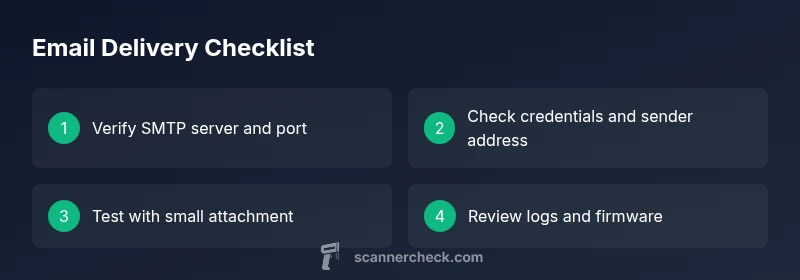
If you’re wondering why is my scanner not sending to my email, the most likely culprit is a misconfigured email profile or SMTP settings. Verify the recipient address, SMTP server, port, and authentication method, and ensure the scanner has network access. Check for blocked ports, credentials, and recent password changes. After updating, run a test with a small attachment to confirm delivery.
Common causes of email delivery failures
When a scanner can’t deliver documents to your email, the issue is usually tied to configuration or connectivity rather than the hardware itself. Common culprits include incorrect SMTP server or port, outdated firmware that misses newer security requirements, authentication failures due to expired passwords or revoked access, and network blocks that prevent outbound mail. Other frequent blockers are recipient server filters (spam guards or blocklists), oversized attachments, or sending to accounts with strict security rules. Scanner Check’s analysis for 2026 shows that a surprising number of delivery problems come from simple misconfigurations that slip through due to infrequent maintenance. If you’re troubleshooting under a deadline, start with the obvious: credentials, server, and network access.
Tip: Keep a recent copy of your SMTP settings and test with a tiny attachment to confirm baseline delivery. This helps you quickly separate a misconfiguration from a deeper network or firmware issue. Scanner Check mentions that many users fix the issue by re-authenticating and updating security protocols.
Verify email address and recipient rules
The most common user-facing reason for missing email delivery is an incorrect recipient address or filtering on the receiving end. Double-check the recipient email, spelling, and domain. If you’re sending to a distribution list or alias, verify addressing rules and ensure the list isn’t blocking attachments or specific file types. Review bounce messages or server logs for hints about rejected addresses, greylisting, or quota limits. Some organizations use email gateways that require whitelisting the scanner’s sending address. Confirm that the scanner’s sender address isn’t automatically rewritten by a gateway.
If you’re unsure whether the issue is on the sender or recipient side, try sending to a known-good external account and to the recipient’s alternate address. This helps identify whether the problem is with one mailbox or a broader rule. Scanner Check recommends validating addresses after password changes or policy updates to prevent silent failures.
Check SMTP settings and authentication
SMTP settings are the most fragile part of email delivery from a scanner. Verify the SMTP server address, port (commonly 25, 587, or 465), encryption method (TLS/SSL), and authentication type. Ensure the scanner’s login credentials are current and correctly typed. If you use OAuth or app passwords, follow the provider’s latest requirements. Some providers require enabling “less secure apps” or creating a dedicated app password for devices. After updating credentials, test sending a small file to confirm success. If you see authentication errors, reenter passwords and reauthorize the device.
Also confirm whether your scanner supports STARTTLS and whether the server expects it. Inconsistent encryption settings between the device and server can block delivery even when credentials are correct. Scanner Check notes that mismatched encryption is a frequent, easily fixable cause of silent failures.
Inspect network connectivity and firewall rules
A scanner needs steady network access to reach the email server. Confirm the device is connected to the correct network (Wi‑Fi or wired) and that there are no local outages. Firewalls, proxies, or VPNs may block outbound SMTP traffic on specific ports. If you’re in a managed network, check with IT to ensure the scanner’s IP or MAC address isn’t being restricted. Some home networks also block outbound mail traffic from IoT devices; temporarily testing from a different network can help isolate the issue.
Log into the scanner’s network status page if available and verify the device has a valid IP address, gateway, and DNS. Scanner Check recommends performing a port test to see if outbound SMTP traffic can reach the mail server on the required port.
Test with different email accounts and attachments
If the issue persists, test sending from the scanner to multiple accounts across providers (Gmail, Outlook, corporate mail) and with several attachment sizes and types. Some providers block attachments or certain file types from external devices. Start with a small plain-text or PDF under a few kilobytes, then gradually test larger files. If one provider works but another doesn’t, focus on the provider’s gateway or security settings. If none work, it’s likely a device or server setting.
Scanner Check emphasizes documenting which tests pass or fail to build a clear picture for support.
Review logs, firmware, and advanced settings
Access the scanner’s event or transmission logs to identify specific error codes or messages. Look for SMTP handshake failures, authentication errors, or timeouts. If the logs show outdated firmware or a deprecated security protocol, update the device to the latest version and re-test. Some devices require reboot after a settings change or a factory reset prior to reconfiguration. Keep a baseline before attempting resets to avoid configuration drift.
If problems persist after all in-device tests, escalate to support with log exports and a precise description of your network environment.
Prevention: best practices to avoid future email failures
Regular maintenance reduces the odds of future email delivery problems. Schedule quarterly checks of SMTP settings and firmware, maintain a separate test mailbox for device testing, and implement a small change-control process when credentials or server policies change. Document changes in a central guide so IT and end users know how to reconfigure quickly. Use robust security practices, including unique app passwords or OAuth tokens for the scanner, and limit access to only what’s necessary. Scanner Check suggests setting up automated health checks and alerts for transmission failures so you know the moment something goes wrong.
Steps
Estimated time: 60-90 minutes
- 1
Verify device is online and on the correct network
Check that the scanner is connected to the intended network (Wi‑Fi or Ethernet). Confirm a valid IP address, gateway, and DNS. Reboot the device if the network status is unclear.
Tip: A quick ping from another device on the same network can confirm basic connectivity. - 2
Validate recipient and sender addresses
Double-check the recipient email address and verify that the scanner’s sender address isn’t being rewritten by a gateway. Ensure there are no stray spaces or typos.
Tip: Use a known-good test account to eliminate recipient-related issues. - 3
Review and re-enter SMTP settings
Access the scanner’s admin panel and verify the SMTP server, port, encryption, and authentication method. Re-enter credentials and reauthorize if required by your provider.
Tip: If using OAuth, follow the provider’s latest app setup steps. - 4
Test with a small attachment
Send a tiny test file (e.g., 50 KB PDF) to confirm basic delivery before escalating. Note any error messages in the scanner logs.
Tip: Record the exact error text for later support communication. - 5
Check firewall and network restrictions
Ensure outbound SMTP traffic is allowed on the chosen port. If you’re on a corporate network, verify there are no gateway rules blocking the device.
Tip: Ask IT to temporarily relax SMTP restrictions for testing. - 6
Review logs and perform firmware update
Export logs to review specific SMTP handshake or authentication errors. If available, install the latest firmware and reboot, then re-test.
Tip: Keep a backup of current settings before updating. - 7
Escalate if needed and document changes
If issues persist, contact support with a complete test log, device model, firmware version, and network details. Document every change for future reference.
Tip: Provide a concise summary to speed up troubleshooting.
Diagnosis: Scanner fails to deliver emails
Possible Causes
- highIncorrect SMTP settings or expired credentials
- highNetwork connectivity issues or firewall blocking SMTP traffic
- mediumOutdated firmware or scanner software
Fixes
- easyUpdate SMTP settings and reauthenticate; ensure credentials are current
- easyVerify network access and open required SMTP ports
- mediumUpdate firmware and reboot the device; reset to defaults if needed
Common Questions
Why isn’t my scanner sending emails after a password change?
A password change often requires updating the scanner’s stored credentials. Re-enter the new password in the SMTP settings and reauthenticate the device. If you use app passwords or OAuth, refresh tokens and permissions. After updating, perform a test send to confirm delivery.
After changing the password, update the scanner’s credentials and run a test email to confirm delivery.
Why would the recipient not receive emails but the scanner reports success?
This can happen if the recipient’s spam filters block the messages, or if the email gateway rewrites addresses. Check the sender domain in the recipient’s allowlist and verify that the gateway isn’t quarantining the mail. Review bounce or quarantine logs if available.
If the recipient’s mailbox blocks it, add the sender to the allowlist and re-test.
Is SSL/TLS required for SMTP when sending from a scanner?
Many providers require encryption; ensure the scanner uses TLS/SSL as required by the SMTP server. Mismatched encryption can cause handshake failures. If unsure, switch to TLS on port 587 or SSL on 465 and retest.
Make sure your scanner uses TLS/SSL if your server requires it; mismatch often causes failures.
Can I use Gmail or Outlook to send from a scanner?
Yes, but you may need an app password or OAuth for the scanner rather than your regular password. Google and Microsoft may block sign-ins from devices they don’t recognize. Create a dedicated app password or configure OAuth according to the provider’s guidance and test again.
You can, but you might need an app password or OAuth for Gmail or Outlook.
What should I do if the scanner is offline and can’t reach the email server?
First confirm the network connection and the scanner’s IP address. Check router status, cabling, and any outages. If the device remains offline, reset network settings or reboot the router and scanner, then retry sending to a test address.
If the device is offline, fix network access, then test again with a known-good address.
Watch Video
Key Takeaways
- Verify SMTP and network first
- Test with small attachments
- Check recipient address and filters
- Review device logs and update firmware
- Document changes for future troubleshooting