Why Is My Scanner Not Working? A Practical Troubleshooting Guide
A practical, urgent guide to diagnose and fix why is my scanner not working, with actionable steps on drivers, cables, firmware, software, and network configurations.


Most often, the reason your scanner fails to respond is a simple connectivity or driver issue. Start by confirming power, cable integrity, and that the device appears in your computer’s printer/scanners list. Ensure the correct driver or firmware is installed and up to date, then test with a basic scan. If it still fails, follow the diagnostic flow below.
Common causes of scanner not working
If you are wondering why is my scanner not working, you are not alone. According to Scanner Check, most problems begin with simple, fixable causes rather than catastrophic hardware failures. The Scanner Check team found that the leading culprits fall into a few broad categories: power and cable faults, driver or firmware mismatches, software misconfigurations, and compatibility gaps between the scanner, the operating system, and the scanning app. By addressing these basics first, you can triage quickly and avoid unnecessary downtime. In practice, you’ll see the broadest impact by verifying the most obvious signals first, then moving into software diagnostics. A systematic, calm approach often reveals the root cause within minutes rather than hours. If you rely on your scanner for daily tasks, this method saves time and reduces frustration.
To set the stage, confirm the scanner powers on with indicators (LEDs or a display) that respond to input. If lights are dim or off, the issue is likely power or cable related. If the device powers but does not show up in the OS, focus on drivers and device detection. The Scanner Check team observes driver conflicts and firmware mismatches as a major source of soft failures, especially after system updates. Keep a precise checklist and you’ll isolate problems faster.
Check basics first: power, cables, and indicators
Starting with the simplest checks is essential. Ensure the power cable is securely connected to both the scanner and the outlet, and test the outlet with a known-working device. Inspect USB, USB-C, or Ethernet cables for wear, kinks, or loose connections, and try a different port or cable if available. If the scanner has a status light, observe its behavior: steady, blinking, or off. Often a loose or damaged cable explains the issue, and the device may power but not communicate. Also verify you selected the correct input or mode on the scanner—some models require a dedicated scan button or mode switch. After these checks, attempt a basic scan from the vendor software to verify responsiveness. If there’s still no response, you’re ready to move to driver or firmware checks.
Software and drivers: keep your scanner recognized
Even with solid hardware, software can block scanning. On Windows, open Device Manager and look for devices with a yellow warning icon; on macOS, check System Information > USB or Printers & Scanners. Reinstall or update the driver from the manufacturer’s site, and make sure the firmware version matches the recommended release for your OS. Some apps require you to select a specific scanner profile or input source; if your scanner is class-compliant, you may need generic drivers or to use the vendor’s software instead of a universal app. Scanner Check notes that outdated or mismatched drivers are among the top reasons for non-functionality, particularly after major OS updates. Keep a clean installation routine and document any changed settings for easier recovery.
If your OS shows the device but the scanner still won’t respond, try removing the device from the system, restarting, and re-adding it. In some cases, a conflict with another peripheral or a ghost device entry can block communication. After reinstalling drivers, run a test scan with the manufacturer’s utility to confirm that the software stack recognizes the device properly.
Network and wireless scanning pitfalls
Networked and wireless scanners add another layer of potential failure: IP conflicts, incorrect default gateways, or services that are disabled. Verify the scanner is on the same network as your computer and that DHCP or a fixed IP is correctly configured. For Wi-Fi enabled models, ensure the device is connected to the correct SSID with a strong signal. Shared printers or scanners can fail if user permissions are misconfigured or if firewall rules block the scanning data from reaching the PC or mobile device. If you scan to cloud destinations or email, double-check destination credentials and any required app authentication. Network issues can masquerade as device failures, so confirm connectivity with a test file and a local port scan if needed.
Firmware updates and app versions: maximize compatibility
Firmware updates fix bugs and improve compatibility with newer operating systems. Check both the scanner firmware and the scanning application for updates, preferring the vendor’s software where possible. Before updating, back up your settings and ensure you have a rollback plan in case the update introduces new problems. After updating, restart both the scanner and the computer, and run a test with a known-good document. Scanner Check (2026) notes that firmware drift after OS updates is a frequent cause of regression, so update in a controlled sequence and document results.
Step-by-step quick tests to isolate the problem
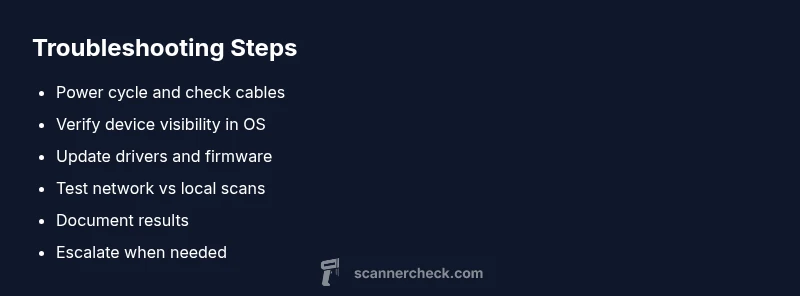
A methodical test sequence helps isolate faults quickly. Start with baseline checks (power, cable, and device visibility in the OS), then move to software tests (driver reinstall, app reconfiguration), and finally test network destinations if applicable. If the device fails at the hardware test, you likely have a cable or power issue; if it passes hardware but fails in software, the driver or app is the culprit. Document each test and result to avoid repeating steps and to provide a clear report if you need to escalate. This structured approach minimizes downtime and clarifies next steps for support.
If you’re still stuck after these checks, the issue may be more complex or hardware-related, and professional assistance may be required. The goal is to empower you to systematically eliminate common causes before seeking expert help.
When to seek professional help and ongoing maintenance
Some problems require an expert touch, such as persistent hardware faults, motherboard-level issues, or recurring driver conflicts after updates. If you’ve exhausted the full diagnostic flow without success, contact the manufacturer’s support line or a qualified technician. Regular maintenance reduces risk and extends lifespan: clean scanning surfaces according to the manual, keep firmware updated, protect cables from wear, and schedule periodic driver checks. The Scanner Check team recommends establishing a routine maintenance plan to prevent recurring failures and minimize downtime. By taking these proactive steps, you’ll keep your scanner ready for daily tasks and reduce the chances of repeated interruptions.
Steps
Estimated time: 45-90 minutes
- 1
Power cycle and inspect cables
Power down the scanner and computer, unplug all cables, wait 10 seconds, then reconnect firmly. Test different ports or a known-good cable if available. Power on and try a basic scan with the vendor software to confirm the device responds.
Tip: A fresh power cycle clears minor memory errors that can block communication. - 2
Verify device visibility in the OS
Open the OS device manager or system information to confirm the scanner appears as a recognized device. If it shows with a warning icon, troubleshoot the driver or firmware first before re-plugging the device.
Tip: Take a screenshot of the device listing for support if you escalate the issue. - 3
Reinstall or update drivers/firmware
Download the latest driver and firmware from the manufacturer’s site. Uninstall old drivers, install the new ones, and reboot. Then test with the vendor software and another document to verify the fix.
Tip: Always back up settings before updating firmware. - 4
Test with different software and modes
If the scanner works in one app but not another, the issue is app-related. Try using the vendor’s utility, a universal scanning app, and the built-in OS scanner to compare results.
Tip: Document which software works and which doesn’t to narrow down compatibility issues. - 5
Check for network or cloud destinations
For networked scanners, ensure the device shares the same subnet as your PC and that firewall rules aren’t blocking the scan data. If you save to cloud, re-authenticate the account and re-test.
Tip: Disable VPNs temporarily if you’re scanning to network locations to rule out VPN routing issues. - 6
Assess hardware health and prepare for escalation
If hardware faults are suspected after all tests, consult support or a technician. Keep a log of all tests and outcomes to speed up escalation.
Tip: A professional assessment can save time when symptoms persist across many checks.
Diagnosis: Scanner not detected by computer or scanning app
Possible Causes
- highPower or cable issue
- highOutdated or conflicting drivers/firmware
- mediumOS or app misconfiguration
- lowNetwork or USB port issues for network/USB scanners
Fixes
- easyTest with a different USB/port or replace the cable; ensure power is stable
- easyReinstall or update the driver/firmware; reboot the computer and scanner
- mediumReset or re-add the scanner in the OS; verify the correct scanning profile is selected
- mediumCheck network settings, firewall, and IP configuration for network scanners; reconnect to the same network
Common Questions
Why won't my scanner show up in Windows or macOS?
This is usually caused by out-of-date drivers, a faulty cable, or a connectivity issue. Start by checking power and cables, then reinstall or update the driver. If it still doesn’t appear, re-add the device in the OS and test with the vendor’s software.
If your scanner isn’t showing up, verify cables and power first, then update the driver and re-add the device in your OS.
Do firmware updates help fix scanning problems?
Yes. Firmware updates fix known bugs and improve compatibility. Always back up settings, update firmware from the vendor, and test with a basic scan afterward.
Firmware updates can fix many issues; back up first and test after updating.
Can a bad USB cable cause the issue?
Absolutely. A damaged or loose USB cable can stop data transfer. Replace with a known-good cable and test, preferably in a different port or computer.
Yes, a bad USB cable often blocks communication; try another cable.
Should I reinstall the scanner driver?
Reinstalling the driver can resolve driver conflicts or corruption. Uninstall the old driver, install the latest version from the manufacturer, and reboot the system.
Reinstall the driver to clear conflicts and test again.
When is professional help warranted?
If multiple diagnostic steps fail to restore functionality, there may be a hardware fault. Contact the manufacturer support or a qualified technician for an in-depth inspection.
If tests don’t fix it, professionals can diagnose hardware faults.
Is network configuration more complex to troubleshoot?
Network based scanning adds variables like IP, firewall, and gateway settings. Ensure devices share the same network and test with a local USB scan to isolate network issues.
Network issues require checking IP, firewall, and sharing settings.
Watch Video
Key Takeaways
- Check basics first: power, cables, and visibility
- Update drivers and firmware to restore compatibility
- Differentiate hardware vs software causes with tests
- Escalate when hardware faults or persistent issues occur