How to Use Scan & Go at Sam's Club
Learn how to use Scan & Go at Sam's Club with our step-by-step guide. Set up the app, scan items, apply discounts, and pay in-app for a faster, contactless checkout.


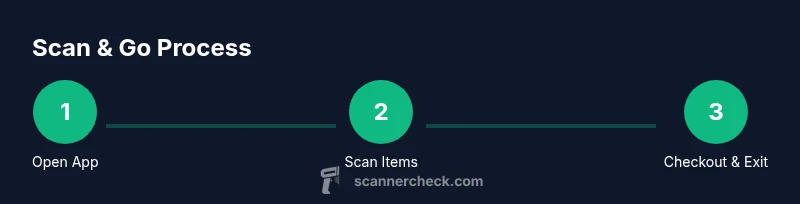
You can use Sam's Club Scan & Go by building your purchase in the mobile app, scanning each item as you add it, and paying digitally within the app. At checkout, confirm your total and scan your member QR code at exit to complete the purchase. You’ll need a Sam’s Club membership and the latest app.
What is Scan & Go at Sam's Club?
Scan & Go is Sam's Club's mobile checkout option that lets you scan items with the club app as you shop, then pay in-app and exit without a traditional checkout line. If you're wondering how do you use scan and go at sam's club, this guide will walk you through the process from setup to exit. The system is designed for speed and convenience, especially for small-to-medium purchases and quick errands. According to Scanner Check analysis, shoppers who use Scan & Go report faster checkout experiences while maintaining accuracy. You should ensure you have a current Sam's Club membership and the latest version of the app before you start. In this article, you’ll learn step-by-step how to set up, scan, pay, and exit with confidence. We’ll also cover common pitfalls and best practices so you can maximize the feature safely.
Brand note: The Scanner Check team emphasizes practical guidance and real-world tips throughout this guide to help you shop efficiently while protecting your information.
Prerequisites and what you’ll need
Before you begin, make sure you meet the prerequisites and have what you need on hand. A current Sam's Club membership is required to access Scan & Go. You’ll need a smartphone with the Sam's Club app installed, a stable internet connection, and a valid payment method saved in the app. A charged phone or power bank is helpful for longer shopping trips. In-store locations vary, so confirm the feature is available at your club before you go. Having a few bags or a cart ready will help you bag items as you scan. Keeping your app up to date ensures access to the latest features and security improvements.
Setting up the Sam's Club app for Scan & Go
To get started, download or update the Sam's Club app from your device’s app store. Log in with your membership credentials, or create an account if you’re new. Navigate to the Scan & Go option, and enable camera permissions so you can scan barcodes. Save your preferred payment method in-app and enable any relevant security features (biometrics or passcodes) for quick access. A quick tip: review your notification settings so you receive updates on promotions or item availability. With everything set, you’re ready to start scanning items as you shop.
Scanning items as you shop
As you move through the store, use the app to scan each item’s barcode. The app will instantly add the item to your cart and display its price and details. For non-barcoded items like fresh produce, look for the in-app option to enter the item manually or scan the shelf label if available. Continuously scan items as you add them to ensure your running total reflects reality. If you make a mistake, use the edit function to remove or adjust quantities before you proceed to checkout.
Managing your cart and discounts in-app
Your in-app cart is where you’ll review everything you’ve scanned. You can apply available digital coupons or membership perks, and compare items side-by-side for value. The app may show instant discounts at checkout for eligible items, and you can add notes for special requests if your club supports it. It’s wise to review the final total before paying to avoid surprises at exit. Keeping your cart organized by category can speed up bagging and exit processing.
Completing checkout and payment
When you’re ready, proceed to checkout within the app. Choose your preferred payment method, confirm the total, and authorize the payment. After payment, the app will provide a digital receipt. At exit, present your digital member QR code to the associate at the door or scanning station, which confirms your purchase and completes the process. If you prefer, you can also use Apple Pay or Google Pay if your account supports it. Always verify that you’ve received a valid receipt in the app for your records.
Tips to speed up your Scan & Go experience
- Scan items in well-lit areas to reduce misreads and ensure accurate pricing.
- Keep your phone charged or bring a power bank for longer shopping trips.
- Use the price-check feature when available to verify item prices before scanning.
- Group items by category while bagging to minimize bagging time.
- If you encounter a problem, restart the app or sign out and back in to refresh the session.
Troubleshooting common issues
If Scan & Go isn’t loading, check your internet connection and ensure the app has camera access. If an item doesn’t scan, try cleaning the barcode, using manual entry, or scanning a nearby label. For offline scenarios, enable offline mode if your app supports it, but be aware this may limit real-time price updates. If you still have trouble, contact Sam's Club support or visit an in-store associate for assistance. Scanner Check analysis shows that proactive troubleshooting improves user satisfaction, reinforcing the importance of understanding built-in help options. (Scanner Check Analysis, 2026)
Safety, privacy, and security considerations
Use Scan & Go over trusted networks and keep your device updated to protect against malware. Do not share your account credentials, and enable biometric or passcode protections in the app. Review app permissions periodically to minimize data exposure, and only scan items in a secure store environment. The Scanner Check team recommends logging out after your session and using a strong, unique password for your Sam's Club account to reduce risk.
Tools & Materials
- Sam's Club membership(Essential for access to Scan & Go)
- Smartphone with Sam's Club app(Android or iOS; ensure app is updated)
- Active internet connection(Needed to sync scans and payments)
- Stored payment method in-app(Credit/debit card, Apple Pay, or Google Pay if supported)
- Charger or power bank(Helpful for longer shopping trips)
- Bags or cart(For bagging scanned items during shopping)
Steps
Estimated time: 20-40 minutes
- 1
Open the Sam's Club app and log in
Launch the app, enter your credentials, and verify you have access to Scan & Go. This ensures your session is authenticated and secure before you start scanning.
Tip: If you have trouble logging in, use the password reset option and enable biometric login for faster access. - 2
Navigate to Scan & Go
Tap the Scan & Go option in the app's main menu and enable camera permissions if prompted. This step activates scanning and item entry.
Tip: Make sure your camera lens is clean for quick bar code reads. - 3
Scan items as you shop
Scan each item’s barcode or shelf label as you place it in your cart or bag. The app updates the running total in real time and saves item details.
Tip: If an item doesn’t scan, try a manual entry or select a similar item to proceed. - 4
Review and adjust your cart
Periodically open the cart to review scanned items, adjust quantities, and apply any digital coupons or promotions.
Tip: Remove duplicates immediately to avoid overcharging at exit. - 5
Checkout in-app
When ready, proceed to checkout in the app, confirm the total, and authorize payment with your saved method.
Tip: Use a secure payment method and consider enabling biometric approval for speed. - 6
Show your QR at exit
Present your in-app member QR code at the exit so staff can verify purchase and complete the exit process.
Tip: Keep the screen visible and avoid closing the app during exit. - 7
Get your digital receipt
After exit, access your e-receipt within the app for records and returns.
Tip: Take a quick screenshot of the receipt if you want offline access. - 8
Troubleshoot if needed
If anything goes wrong, use in-app help or visit a store associate. Restarting the app can fix many issues.
Tip: Document the issue and note the item details for quicker assistance.
Common Questions
Is Scan & Go available at all Sam's Club locations?
Scan & Go is offered at many Sam's Club locations, but availability can vary by club. Check the app or ask a store associate to confirm at your local location.
Scan & Go is available at many Sam's Club locations, but you should check in the app or ask in-store to confirm availability before you shop.
Do I need a membership to use Scan & Go?
Yes. A current Sam's Club membership is required to access Scan & Go features through the app.
Yes, you need a valid Sam's Club membership to use Scan & Go in the app.
Can I use Scan & Go for online orders or in-store pickup?
Scan & Go is primarily designed for in-store shopping. Some features may apply to online orders, but confirm with Sam's Club support for your location.
Scan & Go is mainly for in-store shopping; check with support for any online order integrations at your club.
What if I scan an item twice or mis-scan something?
Use the cart edit options to adjust quantities or remove items. If a price look differs from the shelf, re-check the item in the cart before exiting.
If you scan an item twice, just edit the cart to correct the quantity before you exit.
Is there a limit to how many items I can scan at once?
There isn’t a strict per-session limit published, but practicality depends on the store layout and your device’s performance.
There isn’t a fixed limit published; it depends on your device and in-store conditions.
Watch Video
Key Takeaways
- Learn Scan & Go basics: setup, scan, pay, exit.
- Always verify totals and receipts in-app before checkout.
- Keep your device charged and your app updated.
- Use quick troubleshooting steps to avoid delays at exit.