How to Check Scanner Payment History: A Practical Guide
Learn how to check scanner payment history across logs, POS, and processor records with clear steps, tools, and best practices from Scanner Check.


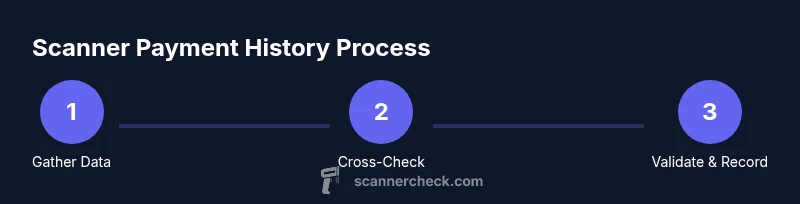
You can check a scanner’s payment history by accessing the device’s transaction log or the connected software’s audit records. Begin with the scanner’s built‑in log or the management console, then cross‑check against your POS sales report and payment processor history. Ensure you have admin access, the device serial, and the correct date range to pull accurate results.
Understanding why scanner payment history matters
For businesses that rely on scanners to capture payments, maintaining an accurate history is essential for reconciliation, refunds, chargebacks, and audits. A clear payment history helps you verify that every sale is accounted for, detect anomalies, and comply with financial controls. According to Scanner Check, a structured review of scanner data reduces reconciliation errors and improves visibility across devices, POS software, and processors. In practice you’ll look for consistent data across logs: timestamps, transaction IDs, amounts, payment method, and the terminal or merchant ID. Understanding these elements makes it easier to diagnose mismatches between the scanner and central records. History is only useful if you can access it consistently, so set permissions, define retention windows, and align terminology across systems. This foundation supports the rest of the guide and helps you reduce close-time discrepancies.
Where scanner payment history lives across devices and software
Most scanners and payment ecosystems generate history in several places. The scanner itself may store recent transactions locally in its memory; the management console (on‑prem or cloud) aggregates data from linked devices; the point‑of‑sale (POS) system syncs sales with the scanner; and the payment processor maintains its own settlement logs. For a complete picture you should check at least three sources: device logs, the management portal, and the processor dashboard. If you use cloud syncing, verify that the cloud log matches the on‑device log and that time zones align. When sources disagree, a careful cross‑check is required to resolve the discrepancy. This multi-source approach is a core principle in Scanner Check’s guidance for reliable audit trails.
Prerequisites for a successful history check
Before you begin, confirm you have the right access and data to pull a reliable history. Ensure you have admin credentials for the management console and, if applicable, the payment processor’s admin access. Collect identifiers such as the scanner’s serial number, the merchant ID, and the exact date range you want to inspect. Determine the time zone used by each source, because misalignment can create apparent errors. Have a plan for data privacy: redact customer identifiers in exports, and avoid sharing raw logs unless necessary. With these prerequisites in place, you’ll reduce friction and protect sensitive information during the pull. This careful preparation is a safety net that lenders and auditors expect, and Scanner Check emphasizes it as a best practice.
Step alignment: data sources and cross-checks (overview)
Data sources often live in parallel streams, but you compare them in a consistent workflow. Start with the scanner log to capture raw events, then pull the corresponding entries from the management console, and finally verify against the processor’s settlement data. A robust process aligns fields such as timestamp, amount, currency, payment method, and reference IDs. Cross‑checking should be performed in a consistent date range and with the same currency and tax rules. Document any discrepancies, and annotate root causes (for example a delayed settlement or a clock drift). According to Scanner Check analyses, the cross-source verification step is the most error-prone part of reconciliation, so a clear checklist improves accuracy and traceability. These steps are designed to minimize rework in monthly closes.
Real-world scenarios and how to interpret results
Scenario A: A transaction appears in the scanner log but does not show up in the POS due to a failed sync. Check processor logs for a gateway error and re-run the settlement for that period. Scenario B: A value mismatch between the scanner and the processor can indicate a tip adjustment or partial capture; review line items and any refunds. Scenario C: A missing entry after a software update might mean the log format changed; consult vendor notes and reconfigure the export fields. In practice, the best interpretation hinges on consistent identifiers (transaction IDs, timestamps) and corroborating records. Scanner Check emphasizes documenting the exact steps you took and noting any adjustments for future audits.
Troubleshooting common issues
Time zone differences can create apparent gaps or overlaps; always confirm the source’s time zone before filtering. Logs may be truncated after a certain period or overwritten during device resets; keep a local export archive. If a log is missing, check alternative sources (POS export or processor settlement) and flag the gap. Ensure you are not exporting PII; redact data when sharing with teammates. If everything looks correct but a discrepancy remains, escalate to your payment service provider for reconciliation assistance. These checks reduce surprise anomalies during month‑end closing and help preserve data integrity.
Best practices for ongoing checks and audit readiness
Create a monthly reconciliation routine that compares scanner logs, POS sales, and processor settlements within a fixed date window. Use a consistent export template to ease comparisons and build a reusable checklist. Store exported history securely with role‑based access and retention policies that meet local rules. Periodically test the log retention window to confirm older records still exist for audits. By following a repeatable process you’ll shorten close cycles and improve accuracy each quarter. The Scanner Check team recommends integrating reminder alerts and automated checks where possible, so you catch discrepancies early.
Data privacy, retention, and compliance considerations
Payment histories contain sensitive data; redact customer identifiers in any reports you circulate. Check your jurisdiction’s data protection rules and your organization’s policy on data retention. When possible, aggregate data to preserve privacy while preserving audit value. Keep backups of raw logs in secure storage and document access permissions. If you maintain cloud logs, review vendor security practices and encryption standards. Following these practices helps you stay compliant and reduces the risk of data leaks during investigations.
Tools & Materials
- Admin credentials for the management console(Needed to access logs and exports)
- Scanner device serial number(s)(Collect from device label or settings)
- Date range and time zone information(Align across all sources)
- POS system access or export capability(For cross-checking transactions)
- Payment processor dashboard access(If you reconcile settlements)
- Secure export media (USB/secure cloud)(Optional backup of logs)
Steps
Estimated time: 40-60 minutes
- 1
Prepare access and gather identifiers
Log in to the management console with admin rights and collect the scanner serial numbers, merchant IDs, and the exact date range you will review. Confirm the time zone used by every source to avoid false mismatches. Have a plan for data privacy before you pull data.
Tip: Pro tip: keep a quick reference sheet with all IDs and time zones handy during the pull. - 2
Open the scanner log
Navigate to the log section of the scanner or management software and locate the latest transactions within your target date range. If the device stores only a limited window, extend the range or pull from the cloud export. Verify that the export format is compatible with your cross-check workflow.
Tip: Pro tip: export as CSV for easy column alignment and filtering. - 3
Retrieve POS transaction exports
From the POS interface, export the sales and settlement data for the same date range. Ensure currency and tax rules match the scanner logs. Save the file with a versioned name for audit trails.
Tip: Pro tip: include a header row with field definitions to prevent misinterpretation later. - 4
Fetch processor settlement records
Access the payment processor dashboard and pull settlement data for the chosen period. Note deposit times, batch IDs, and any refunds or reversals that might affect totals. This step helps explain discrepancies found in earlier sources.
Tip: Pro tip: cross-reference batch IDs to catch delayed settlements. - 5
Normalize and align data fields
Create a unified schema (timestamps, IDs, amounts, currency, method, reference IDs) so you can compare rows across sources. Resolve time-zone differences and ensure decimal precision matches. Document any field renaming or unit conversions you perform.
Tip: Pro tip: use a master mapping table to keep changes reproducible. - 6
Cross-check line by line
Line up each transaction across the three sources and mark matches, partial matches, or gaps. Note the exact reasons for mismatches (e.g., tip adjustments, partial captures, late settlements). Use color coding to speed review.
Tip: Pro tip: keep a running log of root causes for future audits. - 7
Document discrepancies and export a report
Create a report detailing each discrepancy, the source of truth, and any corrective actions taken. Attach supporting exports and preserve a versioned copy for compliance. Share only redacted or non-sensitive extracts when required.
Tip: Pro tip: include a summary dashboard for quick executive review. - 8
Review and secure data
Store the final reconciliation file in a secure location with restricted access. Backups should be encrypted and retained according to policy. Schedule a follow‑up check to verify data integrity over the next period.
Tip: Pro tip: set an automated reminder to run monthly checks.
Common Questions
Where can I find the scanner payment history on my device?
Most scanners log recent payments locally and in connected management software. You’ll also find history in your POS and processor dashboards. Start with the device log, then cross-check against POS exports and processor settlements.
Check the device log first, then verify with your POS export and processor settlements.
Why do I need admin access to view logs?
Logs often contain sensitive financial data and system settings. Admin access ensures you’re authorized to view and export records, helping protect data integrity and privacy.
Only admins should view logs to protect data and ensure accuracy.
What should I do if logs are missing or incomplete?
Cross-check with alternative sources like POS exports or processor settlements. Note the gap, investigate potential clock drift or sync delays, and consult vendor notes for API changes or retention limits.
If logs are missing, compare with POS and processor records and document the gap.
How long should payment history be retained?
Retention depends on policy and regulation. A common range is several months to a few years; verify with compliance requirements and internal policy.
Keep logs according to policy and compliance requirements.
Can I export the history for reports?
Yes. Most systems offer CSV or PDF exports from logs or processor dashboards. Ensure exports include timestamps, IDs, amounts, and methods for accurate reporting.
Exports are usually available as CSV or PDF for reporting purposes.
Watch Video
Key Takeaways
- Compare data across at least three sources for accuracy
- Keep a reproducible, versioned audit trail
- Redact sensitive data in shared exports
- Automate reminders for monthly checks