What to Do If Fingerprint Scanner Isn’t Working
Urgent, practical steps to fix fingerprint scanner issues across devices. Clean the sensor, update drivers, re-enroll fingerprints, and diagnose hardware faults with a guided diagnostic flow from Scanner Check.


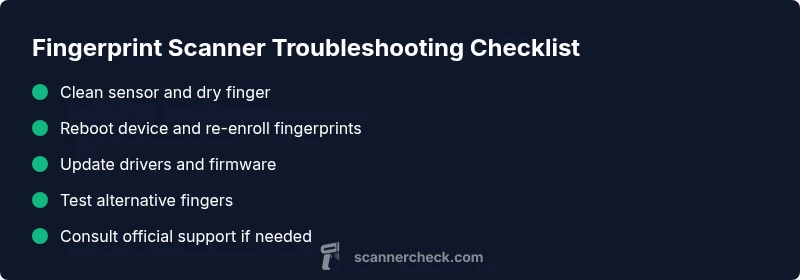
Start with the simplest fix: clean the sensor with a dry microfiber, dry hands, and ensure the finger is clean. If it still fails, reboot the device, re-enroll your fingerprint, and update biometric drivers or firmware. If problems persist, test with another finger or use an alternate unlock method, and seek professional repair if hardware failure is suspected.
Understanding fingerprint scanners and why they fail
Fingerprint scanners rely on biometric data captured by sensors and matched against enrolled templates. When they fail, the issue can be simple (smudges, moisture, worn patterns) or complex (driver corruption, firmware incompatibility, hardware fault). In many cases, the problem is software-related rather than hardware: a faulty app, a failed biometric enrollment, or a recent OS update that disrupted the biometric stack. The Scanner Check team notes that most failures are user-serviceable if you follow a structured approach. Start with the basics: clean the sensor and confirm your finger's condition, then validate software integrity and updates. If you rely on biometric authentication for devices, be prepared with a backup method (PIN, password, or smart card) so you’re not locked out. By understanding the typical failure modes and maintaining a routine check, you can minimize downtime and restore reliable access quickly.
Quick checks you can perform before calling tech support
This section covers fast, non-destructive checks you can do within minutes. First, ensure your finger is clean and dry; moisture or oils can prevent reading. Next, wipe the sensor with a microfiber cloth to remove smudges, dust, or fingerprints from the surface. Reboot the device; many biometric issues are temporary glitches after a software update. If your device offers multiple fingerprints, test with another enrolled finger to rule out a single-pattern problem. Check the biometric settings to confirm the sensor is enabled for the unlock method and that fingerprints aren’t disabled by a policy or security setting. Finally, verify that you have a working alternative unlock method (PIN, password, or physical token). If the problem persists, move to more involved steps. Scanner Check’s practical takeaway: most issues are resolved with two to four simple checks, avoiding unnecessary service calls.
Common causes of fingerprint scanner not working
- Dirty or smudged sensor: Oils, lotions, or dust can obstruct reading. Clean gently with a dry microfiber and ensure both finger and sensor surface are free of residue.
- Moisture or sweat on finger: Dry hands or wait a moment before retrying; moisture can alter the read.
- Software/driver issues: An OS update or corrupted biometric drivers can break enrollment or matching. Ensure all related software is up to date and consider reinstalling the biometric components.
- Corrupted biometric data: If fingerprints become invalid or corrupted, re-enrollment helps restore accuracy. In some systems, stale templates can impede recognition.
- Hardware sensor wear or failure: If the sensor is damaged or degraded, recognition becomes unreliable and professional repair may be required.
- Disabled biometric settings: Accidental changes in security policies or app permissions can disable the sensor.
Diagnostic flow: symptom to diagnosis
- Symptom: Fingerprint scanner fails to recognize enrolled fingers consistently.
- Check 1: Is the sensor clean and finger dry? If yes, proceed; if no, perform cleaning and re-test.
- Check 2: Are there multiple fingerprints enrolled and does another finger work? If yes, the issue may be fingerprint-specific; re-enroll that finger.
- Check 3: Are biometric services enabled and up to date? If not, update drivers/firmware and re-test.
- Check 4: Do other unlock methods work (PIN/password)? If yes, the problem is biometric-specific; if not, broader device authentication issues exist.
- Diagnosis: Most often, soft issues (cleanliness, outdated software, or corrupted enrollment) are the cause; hardware issues are less common but require service when present.
Step-by-step overview of the fix for the most common cause
If the most common cause is a dirty sensor or a stale enrollment, you’ll follow a short, repeatable process to restore reliability. Start by cleaning the sensor and ensuring skin contact is clean and dry. Reboot the device to clear temporary glitches. Re-enroll your fingerprints so the biometric model reflects your current ridge patterns. Finally, verify that biometric services are enabled and that the sensor drivers are current. If issues persist after these steps, escalate to more in-depth software checks or hardware diagnostics.
Safety tips, warnings, and best practices
- Do not use harsh cleaners on sensors; moisture and residue can damage delicate surfaces. Always use a dry microfiber cloth.
- Avoid pressing the finger too hard; compression can degrade the read and damage the sensor over time.
- Back up to an alternate unlock method and enable two-factor alternatives where possible to prevent lockout.
- If the device is under warranty, contact official support rather than attempting risky repairs yourself.
- Schedule regular maintenance checks if you rely heavily on biometric authentication for daily access.
Prevention: keeping fingerprint scanners reliable
- Regularly clean the sensor and keep fingers dry in daily use.
- Keep device software up to date and audit biometric settings after major OS updates.
- Re-enroll fingerprints periodically, especially after long gaps in use or if you notice reduced accuracy.
- Use multiple fingerprints for redundancy and test across different fingers or hands.
- Maintain a trusted backup unlock method to avoid lockout during maintenance or repair windows.
Steps
Estimated time: 25-40 minutes
- 1
Power down and prepare the device
Shut down completely, disconnect power, and ensure the device has cooled if recently used. This resets biometric state safely and prevents accidental inputs during cleaning.
Tip: Have a backup unlock method ready before starting. - 2
Clean the fingerprint sensor
Gently wipe the sensor with a dry microfiber cloth. Avoid moisture, liquids, or abrasive materials that could scratch or damage the surface.
Tip: Use circular motions and let the surface dry before testing again. - 3
Re-enroll fingerprints
Navigate to the biometric settings and remove old fingerprints. Re-create each fingerprint with a clean, dry finger, capturing multiple scans for accuracy.
Tip: Test with each new fingerprint to confirm reliability. - 4
Update software and drivers
Check for OS updates and biometric driver updates from the device manufacturer. Install, then reboot and test again.
Tip: If updates fail, consider a clean reinstall of biometric services. - 5
Test across apps and revert if needed
Test logins across the OS and dependent apps. If one app fails while others succeed, investigate per-app permissions or a potential security policy.
Tip: If everything else fails, contact official support for hardware diagnostics.
Diagnosis: Fingerprint scanner fails to recognize fingerprints consistently
Possible Causes
- highDirty or smudged sensor
- mediumMoisture or sweat on finger
- highOutdated or corrupted biometric drivers
- mediumCorrupted biometric data or stale templates
- lowHardware sensor wear or failure
- lowBiometric settings disabled by policy
Fixes
- easyClean the sensor with a dry microfiber cloth and ensure your finger is dry
- easyReboot the device to clear temporary software glitches
- easyRe-enroll fingerprints and remove stale templates
- mediumUpdate biometric drivers/firmware and reinstall biometric services
- easyTest with a different finger or add multiple fingerprints
- hardIf hardware wear is suspected, consult official support for replacement or repair
Common Questions
Why isn’t my fingerprint scanner working after a system update?
System updates can reset biometric services or drivers. Reboot, reinstall biometric components, and re-enroll fingerprints to restore functionality. If the problem persists, check for later patches or firmware fixes from the manufacturer.
System updates can reset biometric services. Try rebooting, reinstalling biometric components, and re-enrolling your fingerprints. If it still fails, look for a manufacturer update or patch.
Can I re-enroll a fingerprint that previously worked?
Yes. Re-enrolling updates the biometric template to the current ridge patterns. Remove the old template and add a fresh scan for more reliable recognition.
Yes, re-enroll the fingerprint and update the template for better recognition.
My finger is dry but the sensor still won’t read it. What next?
Try a different finger or wipe the finger surface and sensor again. If multiple fingers fail, focus on software and driver updates or hardware checks.
If different fingers fail, focus on software updates and hardware checks.
Is there a risk of permanently damaging the sensor by cleaning it?
Using a dry microfiber cloth is safe. Avoid liquids, sprays, or abrasive cleaners which can damage the sensor surface.
Cleaning with a dry microfiber cloth is safe; avoid liquids.
When should I seek professional repair?
If cleaning, re-enrollment, and software updates don’t fix the issue, the sensor may be worn or damaged. Contact official support for diagnosis and repair options.
If basics fail, contact official support for a hardware diagnostic.
Can I still access my device if the fingerprint sensor fails?
Yes. Use a backup unlock method (PIN, password, or smart card) to regain access while you troubleshoot or arrange repair.
Use your backup unlock method to regain access while you fix the fingerprint issue.
Watch Video
Key Takeaways
- Clean and dry the sensor and finger first.
- Update software and re-enroll fingerprints if needed.
- If hardware failure is suspected, contact professional support.
- Always have a backup unlock method ready.