What to Scan with iPhone: A Practical How-To Guide
Learn what to scan with iPhone, plus step-by-step methods, best practices, and tools to capture documents, receipts, QR codes, and more with top-quality results.


You can scan documents, receipts, photos, QR codes, barcodes, whiteboards, and business cards with an iPhone. Use the built-in Camera and Notes app, or trusted third‑party scanners. Requirements: an iPhone running iOS 16 or later, good lighting, and a stable surface or tripod. Optional: a scanning app for advanced features.
What to Scan on iPhone: Everyday items and why mobile scanning helps
If you're asking what to scan with iphone, the answer is broad: you can capture documents, receipts, photos, QR codes, barcodes, whiteboards, and business cards. Mobile scanning saves time and organizes material digitally. The iPhone's native tools, plus optional apps, handle most everyday tasks. According to Scanner Check, identifying the right targets and choosing the right tool matters for accuracy and efficiency. In this section, we'll outline typical use cases and why they matter, so you know exactly what to scan with iPhone in different contexts. Whether you're filing receipts for taxes, digitizing recipes, or archiving travel documents, a quick scan can reduce clutter and improve searchability.
Using the iPhone Camera and Notes for quick scans
The simplest way to start is with the built‑in Camera app or the Notes app's scan feature. Both tools leverage edge detection, perspective correction, and automatic cropping to produce clean digital copies. For best results, place the item on a flat, non-reflective surface, keep the document parallel to the camera, and avoid heavily shaded corners. Lighting matters: soft, diffused light reduces glare and shadows that degrade OCR or barcode readability. When scanning, avoid holding the phone at an oblique angle; instead, position the camera directly above the target and tap to capture. If you’re scanning a multi‑page document, Notes allows you to add more pages into a single PDF, which keeps everything organized in one file. Remember that the iPhone's built‑in tools are free and sufficient for most everyday scans, though third‑party apps can add batch export, OCR languages, and cloud syncing.
When to consider third‑party scanning apps
Third‑party scanning apps can offer features beyond the built‑in tools, including batch scanning, better OCR engines, cloud backup, and automatic text recognition in multiple languages. If you frequently digitize receipts, business cards, or long documents, these apps can save time by automatically naming files, converting to searchable PDFs, and exporting to email, cloud storage, or project management tools. Look for apps with good OCR accuracy, multi‑page support, and accessibility options such as screen‑reader compatibility. Be mindful of privacy and data handling terms, especially if you scan sensitive material. Start with a trusted option, test its export formats (PDF, JPG, TXT), and compare results with the built‑in method before committing.
Best practices for clean scans
To maximize readability and accuracy, use consistent lighting and minimal background clutter. Clean the document edges; avoid shadows that cut into the edges. Use the grid or edge guides in the scanning UI to keep the document straight. If scanning a color document, capture at the highest workable resolution but avoid excessively large files unless you need them for A4 printing. For OCR, choose a clean, high‑contrast image; if color doesn't matter, grayscale can reduce noise. After scanning, review the image if your app provides a preview and adjust the crop or perspective as needed. Finally, save your scan with a descriptive file name, date, and context to make it searchable later, then back up to a chosen location.
Organizing, saving, and sharing scanned content
Once you have your scan, decide where to store it: iCloud Drive, Files, or a local folder on your Mac or PC. Use PDFs for multi‑page items and keep single pages as image files when appropriate. Many apps offer OCR that turns images into searchable text; enable this feature if you expect to search within documents. Add metadata like a project name or client, and apply tags so you can locate files with search rather than manual browsing. When sharing, consider privacy settings and access controls, especially for sensitive information. Finally, create a short workflow: scan → name → categorize → back up weekly.
Advanced scanning scenarios: QR codes, barcodes, and whiteboards
Scanning QR codes and barcodes on an iPhone is fast and reliable when the code is clear and well lit. Use the Camera app’s built‑in code detector or a dedicated scanner app for bulk code capture. For whiteboards, take multiple shots if the writing is dense; some apps stitch pages and apply white balance to improve legibility. If you work in research or fieldwork, consider offline scanning options and encrypted storage to protect data. The goal is to preserve legibility and ensure that you can retrieve the information later through search or export. According to Scanner Check, selecting the right tool for your task improves results and reduces post‑processing time.
Tools & Materials
- iPhone with iOS 16 or newer(Ensure Camera and Notes scanning features are available)
- Stable lighting or diffused lamp(Avoid harsh shadows and glare)
- Flat, clean scanning surface(Use light background and avoid busy textures)
- Tripod or phone stand (optional)(Improves stability for long scans)
- Notes app and/or Camera app (preinstalled)(No extra setup required)
- Third‑party scanning app (optional)(Consider if you frequently scan multi‑page docs)
Steps
Estimated time: 15-25 minutes
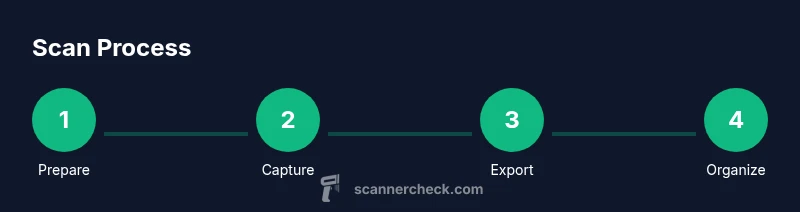
- 1
Prepare the scanning area
Clear the workspace and choose a flat, non-reflective surface. Position the item so edges are visible and within frame. If needed, adjust lighting to minimize glare. This setup reduces distortions later in the capture.
Tip: Use a neutral background and avoid busy textures that could confuse edge detection. - 2
Open the scanning tool
Open Camera or Notes and select the scanning mode. Confirm that your app is ready to crop and straighten automatically. Ensure the phone is steady before you begin.
Tip: If using Notes, pick multi-page scan to create a single PDF when applicable. - 3
Frame and capture
Align the document within the on-screen frame and capture when edges snap into place. Hold the device steady and avoid tilting. Review the preview and re-capture if edges are cut off.
Tip: Take multiple tries if the surface has glare; better to recapture than rely on a poor first attempt. - 4
Export or save the scan
Choose the preferred export format (PDF for multi-page, JPG/PNG for images). Save to the desired folder or cloud location. If OCR is available, enable it for searchable text.
Tip: Name files descriptively to ease later retrieval. - 5
Organize and backup
Create a logical folder structure and add tags or metadata. Back up scans regularly to avoid loss. Review a sample of recent captures to ensure consistency.
Tip: Implement a weekly backup routine to keep data safe.
Common Questions
What iOS version is needed to scan with Notes?
Notes' scanning feature is available on recent iOS versions. Ensure your device runs iOS 16 or newer for optimal edge detection and multi-page support.
Notes scanning works with newer iOS versions; update to iOS 16 or newer for best results.
Can scans be edited after capture?
Yes. Most apps allow cropping, perspective correction, and reordering pages. You can re-export after edits to maintain a clean final file.
You can crop, adjust perspective, and re-export after editing.
Does OCR work offline on iPhone?
OCR can run locally in many apps, turning images into searchable text without internet. Some features may require online processing for languages or accuracy.
OCR can work offline in many apps, but some features may require online access.
How do I scan a multi-page document efficiently?
Use Notes or a third-party app that supports multi-page PDFs. Add pages sequentially and export as a single PDF for easy sharing.
Use multi-page scanning to create one PDF from several pages.
Is it safe to scan sensitive information with my iPhone?
Scanning on iPhone is generally safe if you control access to your device and cloud storage. Use encrypted backups and strong device access controls.
Keep device access restricted and use encrypted backups.
What if I need to scan a whiteboard with marker ink?
Take a close shot with even lighting; some apps offer white balance and color correction to improve legibility of marker ink.
Use good lighting and adjust white balance to improve legibility.
Watch Video
Key Takeaways
- Scan a broad range of items with iPhone: documents, receipts, codes, and more.
- Use built-in tools for quick tasks; reserve third-party apps for multi-page or advanced OCR.
- Follow good lighting and stable framing to boost readability and accuracy.
- Organize scans with clear names and metadata to improve searchability.
- Back up scans regularly to prevent data loss.