Scan Photos with iPhone: Step-by-Step Guide
Learn to scan photos with iPhone using built-in tools and apps. This comprehensive guide covers setup, OCR, export formats, organization, and tips for sharp, searchable scans—no extra hardware required for great results.


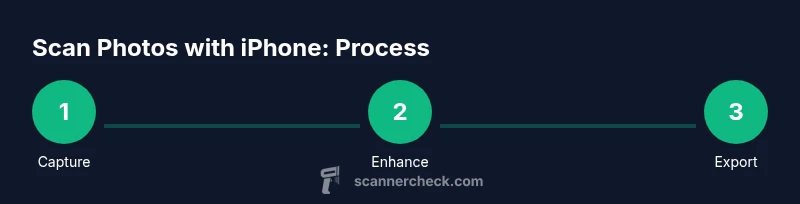
With an iPhone, you can scan photos using built-in tools (Notes or Files) or trusted scanning apps. Capture with the camera, enable edge detection and adjust lighting, then save as PDF or JPEG. This guide covers setup, OCR, organization, and best practices to get clean, searchable scans every time. We'll compare modes, discuss when to use RAW versus compressed, and tips to preserve color and detail.
Why scan photos with iPhone matters
In today's digital world, turning physical photos into searchable, shareable digital copies is faster than ever with an iPhone. A quick scan can preserve family memories, support sentimental archiving, and reduce clutter. According to Scanner Check, mobile scanning empowers casual users and IT professionals alike to digitize images without buying a dedicated scanner. Using just your iPhone, you can capture color-accurate images, apply edge detection, and export in multiple formats. The result is a reliable, portable workflow for personal archives, school projects, or business records. In addition to convenience, scanning with iPhone opens up OCR capabilities, making text within photos searchable and copyable. With the right setup and a few best practices, you’ll produce clean images that are easy to store, share, and retrieve later. This section outlines the core ideas and how they translate to everyday use.
Core capabilities: camera, apps, and OCR
Your iPhone's hardware and software enable high-quality scans without extra gear. The camera system provides high-resolution capture, smart HDR, and color depth that help preserve detail in both shadows and highlights. Modern scanning apps can automatically detect edges, straighten the page, and apply noise reduction. OCR (optical character recognition) turns scanned text into searchable content, easing retrieval and organization. Real-world results depend on lighting, lens cleanliness, and app algorithms. Scanner Check notes that consistent settings across sessions yield the most reliable outcomes. This section digs into how to leverage native features and third-party tools to maximize results.
Built-in methods: Notes app scanning
Notes on iPhone includes a built-in document scanner that uses edge detection to crop and straighten photos. To start, open Notes, create a new note, and tap the camera icon, then Scan Documents. Position the photo, keep edges aligned, and let the app capture automatically. You can adjust brightness and color after capture, and save the scan as PDF or image. The Notes scanner is fast for single photos and small batches, with a straightforward workflow suitable for quick digitization on the go. For many users, this is enough to create clean, shareable copies without installing anything else. Scanner Check demonstrates practical workflows for everyday use.
Using Files in iCloud Drive
Exported scans can be saved directly to Files in iCloud Drive, making them accessible across your Apple devices. After capturing or importing a scan, tap Share and choose Save to Files, selecting a destination folder. You can organize scans by year, project, or subject, then add metadata like tags or notes in the file name. Storing scans in the cloud helps prevent data loss and simplifies collaboration, especially for teams or families who need rapid access to archived images. This approach pairs well with OCR-enabled apps that can generate text overlays or searchable PDFs.
Third-party scanning apps: when to choose them
Third-party scanning apps offer advanced features beyond the built-in Notes scanner. Look for apps that provide enhanced edge detection, better color correction, multi-page PDF export, batch scanning, and robust OCR engines. If you routinely scan many photos, have fragile originals, or need stronger organization tools, a dedicated app can save time and improve quality. Compare subscription costs against the value of features like automatic perspective correction, batch export, or cloud backups. Scanner Check finds that for heavy users, investing in a trusted app often yields superior consistency and searchable text across a larger archive.
Image quality: lighting, edges, perspective
Quality starts with lighting—soft, diffuse light reduces glare and preserves color. Avoid harsh sunlight and mixed lighting; use a desk lamp or daylight-balanced bulbs to create even illumination. Keep the document flat and parallel to the camera to minimize perspective distortion. Use edge detection to crop accurately, then manually adjust corners if needed. A small clamp-on stand or tripod can help maintain a consistent distance and angle across multiple photos, improving reproducibility of scans across a batch.
Saving formats: PDF vs JPEG vs HEIC
PDF is ideal for multi-page albums, receipts, or sets of photos that you want to archive as a single file. JPEG/PNG are better for individual images where file size matters and you want quick sharing. HEIC offers high compression with preserved quality on iOS devices but may face compatibility issues on non-Apple platforms. Many apps let you choose the format at export; when in doubt, PDF for archiving and JPEG for sharing with friends and colleagues. This choice impacts searchability, color accuracy, and downstream editing.
Organization and searchability: naming, tagging, OCR text
Develop a consistent naming scheme that includes date and subject, for example 2026-03-03_Birthday_Photo. Use folders or tags to group scans by project or event. If your app supports OCR, enable it during export so the text becomes searchable in PDFs or in companion text layers. Regularly prune duplicates and re-scan lower-quality images if necessary. Organization is the key to long-term accessibility; Scanner Check emphasizes predictable filenames and logical folders to speed retrieval.
Troubleshooting common issues
If scans look washed out, adjust exposure and white balance to restore color accuracy. If edge detection crops too aggressively, manually adjust corners or switch to a manual crop mode. Blurry images usually mean motion blur; ensure the device is stable and that the document remains still during capture. For OCR, try scanning with better contrast or retaking the photo with improved lighting—OCR results improve with clearer, high-contrast text.
Tools & Materials
- iPhone (with iOS 14+ or newer)(Ensure camera is clean; use rear camera for best results)
- Stable surface or tripod(Prevents motion blur on documents)
- Good lighting(Diffuse light; avoid shadows and glare)
- Scanner or OCR-capable app(Notes app is built-in; third-party apps may offer more features)
- Microfiber cloth(Keep glass clean for sharp captures)
Steps
Estimated time: 15-25 minutes
- 1
Prepare workspace and document
Clear the surface, remove clutter, and place the photo face-up. Make sure the document lies flat; tilt the camera to avoid glare and ensure the entire image is within the frame.
Tip: Use a stable surface and align the edge with the frame to minimize cropping issues - 2
Position the iPhone for an even capture
Hold the phone directly above the photo, about 6-12 inches away. Keep the camera parallel to the surface to reduce perspective distortion.
Tip: Use grid lines to align edges and keep the photo flat in the frame - 3
Capture with the scan tool
Open Notes or your chosen app and select Scan or Capture. Let the app detect edges, then adjust corners if needed before snapping.
Tip: Do not rush; ensure edges are flush and lighting is even - 4
Review image quality and adjust
Preview each scan; adjust brightness, contrast, and color to match the originals. Re-scan if edges are cut off or shadows appear.
Tip: Increase exposure slightly if the photo is underexposed; avoid clipping - 5
Choose export format and save
Export as PDF or JPEG/PNG. PDFs are ideal for multi-page albums; images are better for single items.
Tip: If possible, enable searchable text (OCR) during export - 6
Apply OCR and verify text
If using OCR, check the extracted text for accuracy. Correct obvious errors directly in the app or in a PDF editor.
Tip: OCR accuracy improves with higher contrast and clean pages - 7
Organize and share
Rename files meaningfully, add tags, and store in a dedicated folder. Share via email, cloud drive, or messaging apps as needed.
Tip: Create a consistent naming convention like YYYY-MM-DD_Title
Common Questions
Can I scan photos for free using my iPhone?
Yes. You can use built-in tools like Notes or Files to scan and export photos at no cost. Third-party apps may offer extra features with optional in-app purchases.
Yes, you can scan with built-in tools for free, and you can enhance results with optional apps if you want extra features.
Which export formats are best for scanned photos?
PDF is ideal for multi-page albums or documents, while JPEG/PNG preserves individual images with smaller file sizes. HEIC offers high efficiency on iOS but may require compatibility checks.
PDF is great for multi-page scans; JPEG or PNG are good for single images. HEIC saves space but check compatibility.
Can I OCR handwritten notes scanned with iPhone?
OCR works best on printed text. Handwritten text may be partially recognized depending on the app and legibility. For best results, use clear prints when possible.
OCR handles printed text well; handwriting can be hit-or-miss depending on the app.
Do I need extra gear to scan photos well?
Simple desk setups with good lighting and a stable stand are enough. A small tripod or phone stand can improve consistency across scans.
Usually not—just a stable setup and good lighting will do.
Is OCR text searchable after scanning?
If OCR is enabled during export, most modern iPhone scanning apps will embed searchable text in PDFs or provide a text layer for image files.
Yes, OCR can make scans searchable when enabled.
Watch Video
Key Takeaways
- Start with good lighting and a flat document.
- Use edge detection and manual cropping for accuracy.
- Export as PDF for multi-page archives.
- Enable OCR when available to make scans searchable.
- Maintain a consistent naming scheme for easy retrieval.