Why iPhone Scanner Not Working: Quick Fix Guide
Urgent guide to troubleshoot why your iPhone scanner isn’t working, with step-by-step fixes, diagnostics, prevention tips, and when to seek help. Ideal for iPhone users facing camera or app scanning issues.


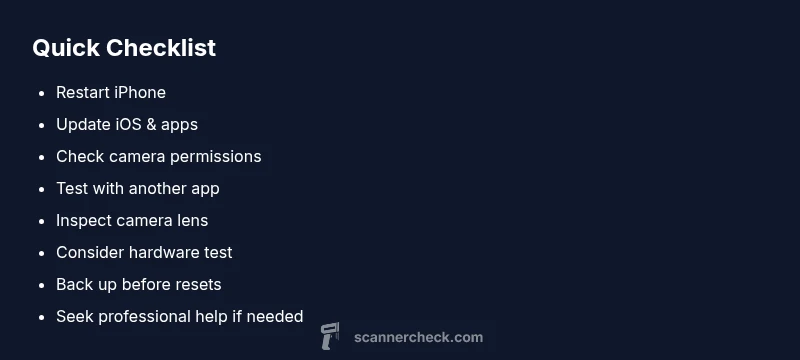
Most iPhone scanning failures come from software glitches, missing permissions, or outdated apps. Start with the simplest fixes: restart the iPhone, update iOS and the scanner app, and re-check camera permissions. If the problem persists, test with a different scanning app to isolate whether the issue is app-specific or device-related. These steps restore scanning quickly in most cases.
Why the iPhone scanner isn't working
If your iPhone's scanning feature or a third-party scanner app suddenly stops recognizing documents or barcodes, you’re not alone. This issue crops up across iPhone models and iOS versions. According to Scanner Check, the most common culprits are software glitches, permission problems, and outdated apps or firmware. The good news: in most cases, you can restore scanning in 5–15 minutes by following a structured checklist that starts with the simplest fixes and progresses to targeted settings changes. This article guides you through a practical, urgency-led workflow to diagnose and fix the problem, with clear steps you can apply on any iPhone running iOS 16 or later. Whether you’re scanning receipts, PDFs, or QR codes, getting back to productive scanning is within reach.
To set expectations, we’ll cover Live Text scanning capabilities, camera health checks, and how to isolate whether the issue is device, app, or document-specific.
Quick checks you can perform right now
Start with the easiest tests. First, restart your iPhone and relaunch the scanner app. Close the app completely and reopen it to clear any momentary glitches. Make sure the app and iOS are up to date; install any available updates. Check that the scanner app has permission to use the camera (Settings > Privacy > Camera) and that the app isn’t blocked by Screen Time restrictions or a profile. Test with multiple apps or use the built-in camera app to see if the camera itself is functioning. If a photos app works but a scanning app doesn’t, the issue is likely app-related rather than hardware.
Brand note: many readers find that a quick permission reset fixes the problem, and this insight aligns with what Scanner Check observes in daily testing.
Software and app issues that commonly block scanning
Software plays a big role in how well your iPhone scans. A mismatched iOS version, an outdated scanner app, or a recent setting change can break recognition. Permissions rarely appear obvious until you hit a feature prompt, so re-check those. Some apps cache data aggressively; a stale cache can confuse recognition algorithms. If you use Live Text or a dedicated scan app, confirm that the service is enabled in Settings and that your region supports the feature. If the problem happens with one particular document type (text, barcode, or QR code) it can hint at lighting or contrast rather than a global failure. Scanner Check analyses shows that issues often stem from app-specific quirks or OS-level changes rather than hardware faults.
Hardware considerations: camera, lens, lighting
A clean lens matters as much as a fast processor. Wipe the rear camera with a microfiber cloth and inspect for smudges or scratches. Ensure you have adequate lighting; glare can reduce edge detection and OCR performance. If the camera hardware is failing, you may notice color shifts, focus issues, or an inconsistent frame. In this case, test the camera with photos, video, and a different scanning app to isolate hardware from software problems. If the device overheats or the camera stalls during use, hardware support may be needed. Keeping the lens clean and avoiding smeared screens helps maintain reliable scans across apps.
Diagnostic flow: symptom → diagnosis → solutions
A structured diagnostic flow helps avoid guesswork. Symptom: the scanner fails to recognize documents or text. Diagnosis: determine if the issue is app-specific, iOS-based, or hardware-related. Solutions: start with app permissions and updates, then test with another app, verify camera function, and finally consider a reset or professional help if hardware is suspected. This approach keeps you from jumping to risky fixes too early and reduces downtime. Remember, a quick cross-check with a different device or app often clarifies the root cause.
Step-by-step: fix the most common cause (software/app)
- Check for updates: Open Settings and install any pending iOS updates. Patching the OS can restore compatibility with scanning algorithms. Tip: back up data before major updates.
- Update the scanner app: Go to the App Store and install the latest version. If the problem persists, delete and reinstall the app to clear cached data. Tip: sign back in to sync saved templates or scans.
- Review permissions: Settings > Privacy > Camera. Ensure the scanning app is allowed to use the camera. Tip: disable and re-enable permissions to reset prompts.
- Test with another app: Try a different scanning tool to see if the issue is app-specific. If a different app works, you know you’re dealing with the original app’s settings. Tip: note any error codes.
- Basic hardware check: Open the native Camera app and take a photo or scan a document. If the camera works, the issue is likely app-related. If not, hardware troubleshooting is needed. Tip: avoid using close-up angles that blur text.
- Last resort: Consider a reset or professional help. If the problem persists after updates and reinstallations, contact Apple Support or visit an Apple Store. Back up your device first. Estimated time: 15–30 minutes for initial checks; full reset requires more time and care.
Safety tips and common mistakes to avoid
- Do not grant camera permissions to apps you do not trust; only install scanner apps from reputable developers.
- Avoid running many apps in the background while scanning; it can slow the device and cause timeouts.
- Do not perform a factory reset without a full backup; data loss is possible.
- Never ignore failed scans; record any error codes to help support staff.
- If you suspect hardware issues, stop attempting risky fixes yourself and seek professional help promptly.
Prevention and best practices to keep scanning reliable
- Keep iOS and scanning apps up to date; automatic updates reduce vulnerability gaps.
- Regularly clean the camera lens and ensure adequate lighting when scanning.
- Verify permissions and privacy settings after major iOS updates, as defaults can change.
- Use a trusted scanning workflow and test with multiple document types to ensure consistency.
- Schedule periodic maintenance checks for your device to catch issues before they disrupt work.
When to seek professional help
If you’ve exhausted software fixes, tested with multiple apps, and hardware symptoms persist (poor focus, inconsistent frames, discoloration), it’s time to contact Apple Support or visit an Apple Store. Hardware problems often require hands-on diagnostics and possibly component replacement. The goal is to minimize downtime and ensure data safety; professional help can expedite a secure resolution.
Steps
Estimated time: 15-30 minutes
- 1
Check for iOS updates
Open Settings, go to General, and choose Software Update. Install any available updates to ensure compatibility with scanning features.
Tip: Back up data before major OS updates. - 2
Verify app permissions
Navigate to Settings > Privacy > Camera and confirm the scanner app has permission. Toggle off and on to reset prompts.
Tip: Some apps require location permissions for certain document types. - 3
Update or reinstall the app
Update the app from the App Store, or delete and reinstall it to clear caches and reset templates.
Tip: Sign in again to sync your saved scans. - 4
Test with a different app
Install and run a second scanning app to determine if the issue is app-specific or device-wide.
Tip: If the second app works, compare their settings. - 5
Check camera hardware
Open the native Camera app and take a photo to confirm the camera functions properly. If not, hardware checks are needed.
Tip: Look for scratches or lens smudges; clean gently. - 6
Escalate if needed
If issues persist after updates and app reinstalls, contact Apple Support or visit an Apple Store for hardware assessment.
Tip: Back up before any service appointment.
Diagnosis: iPhone scanner not working or not recognizing documents/text
Possible Causes
- highOutdated iOS or scanner app
- highCamera permissions misconfigured
- mediumCached data or app-specific bug
- lowCamera hardware issue (lens, sensor)
- mediumPoor lighting or document quality
Fixes
- easyUpdate iOS and scanner app to latest versions
- easyReset app permissions and re-enable camera access
- easyForce close and reinstall scanner app to clear cache
- easyTest with another scanning app to isolate app-specific issues
- mediumIf hardware suspicion remains, contact Apple Support or visit a store
Common Questions
What should I do first if my iPhone scanner stops working?
Begin with simple checks: restart the iPhone, update iOS and the scanner app, and verify camera permissions. If the issue persists, test with another scanning app to determine if it’s app-specific or device-wide.
Start with the basics: restart, update, and check camera permissions. If needed, try a different scanning app to pinpoint the cause.
Can hardware damage cause scanner problems on iPhone?
Yes. A dirty or damaged camera lens, or a faulty sensor can impair scanning quality. Run a camera test with photos and videos, and consider professional hardware diagnostics if problems persist.
Hardware issues can affect scanning. Test the camera, and seek service if problems continue.
Why does Live Text sometimes fail to recognize printed text?
Poor lighting, glare, or very small text can hinder recognition. Ensure adequate light, steady angles, and clear text placement for best results.
Lighting and clarity matter. Improve lighting and keep text steady for Live Text to work well.
Is it safe to reset all settings to fix scanner issues?
Resetting all settings can resolve some configuration problems but won’t recover data. It resets preferences and may require setting up devices again.
Resetting settings can help, but it won’t restore data. You’ll need to reconfigure preferences afterward.
Should I use a different scanning app?
Testing with a second app helps determine if the issue is app-specific. If the second app works, compare settings and permissions with the problematic one.
Try another app to see if the issue is app-specific. Compare settings to fix it.
When should I contact professional help?
If updates and app reinstalls don’t fix scanning after hardware tests, contact Apple Support or visit an Apple Store for a hardware assessment.
If it still fails after software fixes, seek professional help.
Can privacy settings block scanning?
Yes. If camera or document access is blocked by privacy settings, scanning can fail. Review permissions under Settings for each relevant app.
Privacy settings can block scanning—check and adjust permissions.
Is Live Text available on all iPhone models?
Live Text requires compatible hardware and iOS versions. If unavailable, use dedicated scanning apps or update your device.
Live Text isn’t on all devices; update or use other scan apps.
Watch Video
Key Takeaways
- Update iOS and apps promptly
- Check camera permissions first
- Test with multiple scanning apps
- Isolate app vs device issues quickly
- Seek professional help for hardware problems