How to Scan with iPhone Camera: A Practical Guide
Learn to scan documents, receipts, and QR codes with your iPhone camera using built-in tools. Clear steps, tips, and troubleshooting for reliable results.


By the end of this guide, you’ll be able to scan documents, receipts, and QR codes with your iPhone camera using built-in tools. You’ll learn how to prepare your environment, capture clean images, save as PDF or image, and safely share scans. This practical approach emphasizes reliability, privacy, and quick results for everyday use.
Why scanning with your
What you can scan with the
Built-in tools you can rely on: Notes vs Camera
Two built-in avenues exist for effective scanning. The Notes app provides a guided Scan Documents feature that automatically detects document edges, captures, and stitches pages into a single PDF or a multi-page note. The Camera app excels at QR code recognition, instantly offering actions when a code is detected. Using Notes for documents gives you reliable edge detection and multi-page export, while the Camera app provides speed and simplicity for code-based tasks. For best results, keep your lens clean, frame the document squarely, and ensure stable lighting. The right balance of ease and accuracy is achieved by combining these tools depending on the task.
What to choose when:
- Documents: Notes scan is preferred for edge detection and export as PDF.
- QR codes: Camera app is quickest; for analytics or archiving, save a scan of the code’s page as an image.
Step-by-step workflow overview
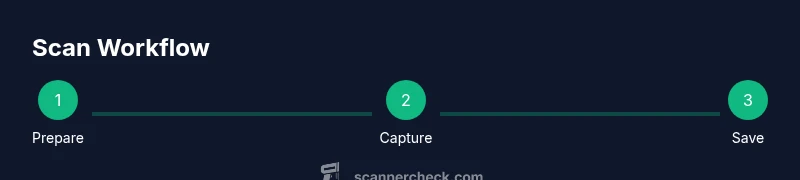
This section provides a high-level blueprint to get you scanning quickly, with the Notes app as the primary tool for documents and the Camera app for codes. You’ll learn how to prepare your environment, access the scanning features, and finalize saves for sharing or storage. The goal is to establish a reliable routine you can repeat with minimal friction, whether you’re at your desk or on the go. Throughout, remember that small improvements in lighting, distance, and steadiness compound into noticeably clearer results and fewer edits later.
Tips, safety, and troubleshooting
To maximize reliability, keep your device steady, avoid reflections on glossy paper, and verify page edges after capture. If your scan looks tilted or edges are jagged, retake the capture with a slightly different angle and adjust corners during review. For sensitive documents, review the share settings and disable automatic cloud backups unless you explicitly authorize them. If you’re scanning multi-page documents, maintain consistent distance and lighting across pages to ensure uniform output. When scanning codes, hold the phone parallel to the code and avoid oblique angles that distort recognition.
Practical use cases and privacy notes
Real-world scanning often involves receipts, contracts, or research notes. The
Tools & Materials
- iPhone with latest iOS(Ensure camera and Notes access are enabled; keep battery charged.)
- Notes app (built-in) or a scanner app(Use Scan Documents inside Notes for PDFs or multi-page captures.)
- Stable surface or tripod(Helpful for long documents or multiple-page scans.)
- Adequate lighting(Diffuse, even lighting reduces glare and improves edge detection.)
- Printed documents or QR codes(Source material to scan; ensure printed text is legible.)
- Microfiber cloth(Wipe lens to remove smudges before scanning.)
Steps
Estimated time: 10-20 minutes
- 1
Prepare the environment
Clear the workspace, ensure even lighting, and place the document on a flat, non-glare surface. A clean lens and steady posture reduce motion blur and improve edge detection.
Tip: Position the document at a slight angle from direct glare to maximize clarity. - 2
Open Notes and start a scan
Open Notes, create a new note, and select Scan Documents. The app will guide you to frame the page and automatically capture when edges are detected.
Tip: If edges aren’t detected, move closer or adjust the light to minimize reflections. - 3
Frame and capture
Align the document edges within the on-screen frame and hold the device steady until the capture completes. For multi-page scans, continue capturing additional pages.
Tip: Use a slow, even breath to reduce hand movement during capture. - 4
Review and adjust corners
Tap each page to review, then adjust corners to snugly fit the document. Crop or rotate if necessary to maximize readability.
Tip: Retake pages with crooked edges for consistent results. - 5
Save or export
Save the scan as a PDF or image, and share via email, cloud storage, or a document management app.
Tip: Use the share option to send directly or save to a preferred folder. - 6
Scan QR codes or quick captures
For QR codes, switch to the Camera app and focus on the code; a notification will appear with the action.
Tip: Keep the camera parallel to the code and avoid depth changes.
Common Questions
Can I scan documents with the iPhone camera without a computer?
Yes. Use the Notes app's Scan Documents feature to capture and export as PDF without needing a computer. You can share or save directly from the app.
Yes. You can scan documents with the Notes app and export as PDF without a computer.
Is the iPhone camera scan as good as a dedicated scanner?
For everyday documents, the iPhone camera with Notes provides high-quality scans. For archival or heavy-duty batch scanning, dedicated scanners may offer faster throughput and advanced OCR options.
For daily use, it's usually good enough; for heavy batch work, a dedicated scanner might be better.
Can I scan receipts with my iPhone camera?
Absolutely. Capture receipts with Notes, export as PDF or image, and organize them in a receipt folder or app for easy expense reporting.
Yes, you can scan receipts quickly and save them as PDFs for expense reports.
How do I scan QR codes with iPhone?
Open the Camera app and point at the QR code. A notification banner will appear with the code’s action; tap to proceed.
Open Camera and point at the QR code, then tap the banner to act.
What should I do to protect privacy when scanning?
Prefer on-device storage and explicit sharing; disable automatic cloud backups for sensitive scans unless you authorize them.
Store scans on-device and review sharing settings before sending.
Watch Video
Key Takeaways
- Start with Notes for documents and Camera for codes.
- Keep lighting even and lens clean for best results.
- Export as PDF for searchable archives.
- Review and adjust edges for clarity.