How to Scan for Wifi: A Practical Guide
Master wifi scanning with practical steps to identify networks, measure signal strength, and reduce interference. A concise Scanner Check guide for home, office, and public spaces.


You will learn how to scan for wifi networks, measure signal strength, check channel usage, and identify interference. This quick, practical guide shows you what to measure, which tools to use, and how to interpret results for better coverage—whether at home, in the office, or in public spaces. By the end, you’ll have a repeatable workflow.
What wifi scanning is and why it matters
Wifi scanning is the process of discovering nearby wireless networks and evaluating their characteristics, such as signal strength, channel usage, and security. Understanding these details helps you optimize coverage, troubleshoot dead spots, and select the best bands for devices. For DIYers and IT pros alike, knowing how to scan for wifi is a foundational skill. According to Scanner Check, a systematic scan not only reveals what networks exist, but also where interference originates and whether a given space favors 2.4 GHz or 5 GHz signals. In homes, apartments, or small offices, this knowledge translates into smarter router placement, channel selection, and even security checks—like confirming that you’re connected to a trusted network and that guest networks don’t leak into the main LAN. When you start, keep one goal in mind: build a repeatable workflow rather than a one-off snapshot. Consistency is what turns scattered observations into actionable plans. You’ll want to capture several measurements across different times of day and varying usage, then compare results to identify patterns. Scanner Check's approach emphasizes measurability, documentation, and privacy best practices, so you can improve coverage without compromising user data. With the right mindset and tools, anyone can confidently assess a space and decide where to deploy or adjust equipment.
This section introduces the core idea of wifi scanning, setting the stage for practical, hands-on steps. Think of scanning as a diagnostic tool for wireless health. It helps you map coverage holes, compare AP performance, and validate changes after you reconfigure settings—creating a solid baseline you can reuse on future projects. Scanner Check’s guidance emphasizes repeatability, clear notes, and privacy-first practices, which are essential whether you’re diagnosing a home network or supporting a small business.
Essential tools and prep
Before you begin, assemble the basics and set up a clean workspace. A device with WiFi capability (phone, tablet, or laptop) is essential. Install a reputable wifi analyzer app or use built‑in network utilities to perform scans. Keep a notebook or digital log ready to capture dates, times, network names (SSIDs), signal strength readings (RSSI or dBm), and channel numbers. If you can, obtain permission to scan in the environment and, when testing office spaces, coordinate with colleagues to avoid skewed results from simultaneous heavy usage. Scanner Check recommends keeping your device charged, updating software, and performing a quick reset of the router if you’re troubleshooting coverage issues. Finally, set a baseline expectation: a few clean sweeps across different rooms and floors will yield the most actionable data. A well-prepared session reduces noise and helps you compare results accurately across locations and times. The goal is to create a reliable data set you can reuse for future network improvements.
Understanding wireless signals: terms you should know
To interpret wifi scans, you should know a few common terms. SSID is the network name; BSSID identifies the hardware access point. Channels refer to radio frequencies; 2.4 GHz typically offers longer range but more interference, while 5 GHz is faster but shorter range. RSSI (or dBm) measures signal strength; lower numbers indicate weaker signals. SNR indicates the quality of a signal relative to background noise. When you scan, you’ll see a mix of networks operating on different channels, sometimes overlapping. Recognizing which channels are congested helps you choose a less crowded band or an optimal access point placement. If you’re using a mesh or multiple-AP setup, pay attention to how devices roam between access points, and whether handoffs are smooth. This vocabulary will empower you to communicate findings clearly to teammates and to make targeted improvements rather than guesswork. As you practice, you’ll start to predict coverage gaps just by looking at a map of RSSI values and channel usage.
Step-by-step overview: how to scan for wifi networks
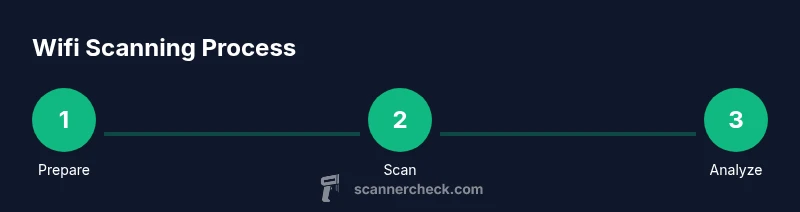
A scan is more powerful when it’s repeatable. Start by setting your device in a consistent posture and run a full sweep of the nearby networks. Record the SSIDs, BSSIDs, signal strength, and the channel each network uses. Repeat the sweep in several locations (near windows, inside rooms, and in basements if applicable) to capture environmental variation. If you’re testing at home, begin with the router placed in the center of the space. Note down any extraneous devices that may cause interference, such as microwaves or cordless phones. Compare results across rooms to identify the strongest signals and the busiest channels. If you have access to router settings, document any changes you make and re-scan to verify improvements. Keep privacy in mind: only scan networks you own or have explicit permission to assess, and avoid collecting identifiable information from others. Keeping a tidy log will help you spot trends over time and drive repeatable improvements.
Interpreting results: reading charts, graphs, and logs
Interpreting wifi scan data requires turning raw numbers into actionable insights. Look for the strongest signals in your target area and note their channel usage. A dense crowd of 2.4 GHz networks on the same channel usually indicates interference; consider moving devices to a less crowded channel or enabling 5 GHz where possible. RSSI values around -50 to -60 dBm indicate excellent signal for most devices; -70 dBm is acceptable but may cause occasional dropouts; anything worse than -80 dBm is generally unreliable for steady connections. When multiple APs exist, examine whether they cover each area evenly or if there are dead zones. If you’re using a mesh system, verify that roaming occurs without noticeable handoffs. Document your before-and-after measurements to quantify improvements. Scanner Check suggests pairing scan data with practical actions, such as repositioning the router, adjusting antenna orientation, or updating firmware, then re-scanning to confirm gains. Remember that external factors like neighboring networks and construction materials can influence readings, so interpret results in the context of your environment.
Real-world scenarios: home, office, and public spaces
In a small apartment, a single router placed centrally may suffice, but walls and furniture can still block signals. A wifi scan helps you identify the best location on the floor plan and whether you should add a repeater or a second AP. In a home office, you’ll often find that high‑speed devices on the 5 GHz band benefit from closer proximity to the router and minimal interference from common household appliances. In offices, multiple users bring varied devices and traffic patterns; scanning helps you optimize channel planning, guest network isolation, and QoS rules. In public spaces like cafes or libraries, you may encounter unpredictable interference and colliding networks. Always respect privacy and security policies in shared venues. The goal is to achieve consistent performance without compromising others’ networks. Across environments, the practice remains: collect data, log results, compare across locations, and apply targeted changes. The Scanner Check team emphasizes that methodical scanning is a cornerstone of reliable network management, even in dynamic spaces.
Security, privacy, and best practices when scanning wifi
Scanning is a powerful diagnostic tool, but it should be used responsibly. Only scan networks you own or have explicit permission to assess. Avoid collecting sensitive information or attempting to access secured networks you don’t control. When possible, run scans on devices you manage, and document your observations with timestamps and location notes. If your environment requires you to test guest networks, coordinate with IT to ensure isolation from main networks. Regularly update scanning tools and firmware to maintain accuracy and security. Finally, respect legal and ethical boundaries, and store any collected data securely to prevent exposure. Following these practices helps you maintain trust with users and teammates while gaining meaningful insights from wifi scans. Scanner Check’s guidance remains: consistency, privacy, and clear documentation are key to turning scans into improved performance.
Tools & Materials
- Device with WiFi capability (phone, tablet, or laptop)(Ensure WiFi is enabled and the device is charged)
- WiFi analyzer app or built-in network tools(Choose a tool that logs RSSI/dBm and channel data)
- Notebook or digital log(Record timestamps, SSIDs, RSSI, and channel numbers)
- Router access or permission to test the space(Optional for deeper checks or reconfiguration)
Steps
Estimated time: 25-40 minutes
- 1
Prepare your scanning device
Charge your device, ensure wifi is enabled, and close unnecessary apps to avoid background activity influencing readings. Decide on a consistent posture and one set of starting locations to keep measurements comparable.
Tip: Let the device sit a moment after enabling wifi to stabilize readings. - 2
Choose a scanning tool
Select an app or built-in tool that can log RSSI, channel, and SSID/BSSID data. Familiarize yourself with how to export or save scans for later comparison.
Tip: Prefer tools that allow timestamped exports for trend analysis. - 3
Run an initial network sweep
Perform a full sweep of available networks in your starting location. Note down the top networks by signal strength and the channels they occupy.
Tip: Capture both 2.4 GHz and 5 GHz networks if present to compare coverage differences. - 4
Log results with locations
Label each scan with location names, room numbers, and approximate distances from the router. Include a rough map or sketch if helpful.
Tip: Use a default naming convention (e.g., Liv_Rm_Center_1) to keep data organized. - 5
Analyze channels and interference
Look for crowded channels and overlapping networks on the 2.4 GHz band. Identify cleaner channels or move devices to 5 GHz where feasible.
Tip: If many networks share 2.4 GHz, consider router placement adjustments first, then channel changes. - 6
Apply changes and re-test
Make targeted adjustments (placement, antenna direction, or firmware) and run follow-up scans to verify improvements.
Tip: Repeat the scan at least once after changes to confirm gains.
Common Questions
What is wifi scanning?
Wifi scanning is the process of discovering nearby wireless networks and measuring their characteristics, such as signal strength, channel usage, and security settings.
Wifi scanning means finding nearby networks and checking their signal, channels, and security.
What tools do I need?
Most smartphones, laptops, or tablets can scan wifi with built-in features or free apps.
Any modern device with wifi can scan using built-in tools or free apps.
Will scanning improve my wifi?
Yes, scanning helps you place your router strategically, choose cleaner channels, and reduce interference.
Scanning can help you improve coverage by reducing interference.
Is wifi scanning legal?
Scanning networks you own or have permission to test is generally allowed; avoid probing networks you don’t control.
Only scan networks you own or have permission to.
How often should I scan?
Frequency depends on environment; regular checks during setup and after changes are a good baseline.
Scan after changes or on a schedule.
Watch Video
Key Takeaways
- Identify nearby networks and channel usage to spot interference.
- Measure signal strength across spaces to locate coverage gaps.
- Interpret results to improve placement, channels, and performance.
- Respect privacy and security guidelines while scanning.