How to Scan for WiFi Password: Safe, Legal Methods
Learn safe, legal ways to recover your own WiFi password, including router admin access, saved credentials, QR codes, and best practices to keep networks secure.


Learning how to scan for wifi password safely means recovering access only to networks you own or have explicit permission to manage. Safe, legal methods include signing into your router's admin interface, checking saved credentials on devices, or using authorized password managers. This guide outlines legitimate steps and clearly explains what to avoid to stay compliant with laws and security best practices.
Why Safe, Legal Password Recovery Matters
In today’s connected homes, your WiFi password is a gatekeeper to your online life. Knowing how to scan for wifi password safely helps you regain access without compromising privacy or breaking laws. According to Scanner Check, the safest approach emphasizes ownership, permissions, and transparent procedures. This matters not just for you, but for guests, family members, and devices that rely on your network. When you follow legal methods, you protect both your data and your network's integrity.
Key reasons to prioritize safety:
- You avoid legal and ethical pitfalls that come with cracking or credential stuffing.
- You ensure you can audit who has access and revoke it when needed.
- You reduce risk by keeping firmware updated and credentials strong.
If you’re unsure about whether you have permission to change a network, pause and confirm ownership with the network administrator or the plan you signed up for. The goal is clear: legitimate recovery that preserves security for everyone using the network.
Safe, Legal Ways to Find Your WiFi Password
Finding your WiFi password doesn’t require hacking or third-party tools. Start with the simplest, most legitimate options and only proceed to more involved methods if you own the network or have explicit authorization. Common safe approaches include using the router’s admin interface, checking devices that were previously connected, or consulting stored credentials in password managers. Each method has its own prerequisites and limitations, so read through the steps to determine what’s feasible in your situation.
If you’re the network owner, begin with the router itself and your primary connected devices. Many routers display the password on a dedicated Wireless section, sometimes behind a toggle labeled “Show password.” However, some devices hide the password for security, requiring you to log in or reset under controlled conditions. When in doubt, opt for official recovery methods and document your changes for future reference.
Access the Router Admin Page: What to Expect
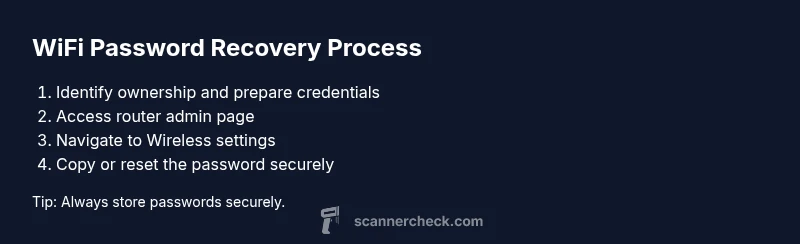
The router admin page is the authoritative source for your network credentials. You’ll typically login with an admin username and password that you set or that came with the device. To begin, connect your computer to the router via WiFi or Ethernet. Then enter the router’s IP address (commonly 192.168.0.1 or 192.168.1.1) into a browser bar. If you don’t know the login, check the router label, user manual, or the manufacturer’s support site for default credentials. Remember: default logins are widely known, so update them immediately after gaining access to keep your network secure. Once you’re inside, navigate to the Wireless or WiFi Settings page to view or reveal the password. If the option is hidden, you may need to enable an eye icon or “Show Password” toggle. After you locate the password, copy it securely to a password manager or a protected note. Finally, sign out when you finish and reconnect devices as needed.
Note: If you don’t own the router or lack permission, don’t attempt to log in or retrieve credentials. This could constitute unauthorized access. Always obtain explicit permission before attempting any recovery process.
Retrieving Password from Saved Device Credentials
Many devices remember WiFi credentials automatically after you connect. On Windows, you can view saved passwords through the Network and Sharing Center or the Credential Manager, though some steps require administrative access. On macOS, you can use the Keychain Access utility to locate a saved WiFi password. iOS and Android devices may store network credentials in system settings, especially after you’ve connected to a given network. Access to these stored values only occurs on devices you control or have permission to manage. When you retrieve a credential from a device, be mindful of privacy and security: avoid sharing passwords openly and consider exporting or saving them in a secure password manager. If you run into restrictions, you may still log in to the router and view the password directly there, provided you have admin rights. If you ever encounter a mismatch between what a device stores and what the router shows, rely on the router as the single source of truth.
Using QR Codes and Router Labels for Password Retrieval
Router labels often include the default SSID and password printed on a sticker. This is a quick and legitimate way to reconnect devices when you have the physical router in hand. Some routers also generate a QR code that encodes the WiFi password; scanning this with a mobile device can instantly connect to the network without typing the password manually. If you’re changing the password, you can update the QR code and distribute it to trusted users. When using QR codes, ensure you’re scanning from a legitimate, physically secure router to avoid accidentally connecting to a rogue device. This method is especially useful for guests who need quick access without sharing a long password.
If You Can’t Access the Router: Alternatives and Warnings
Sometimes you cannot access the router due to missing credentials or hardware issues. In such cases, the safest path is to contact the network administrator or the Internet service provider for help. If you own the network, you may perform a factory reset as a last resort, but be aware this will erase all custom settings and require reconfiguration. Never attempt to break into the router’s settings using third-party tools or “crackers”; these actions are illegal in many jurisdictions and can expose you to malware. When possible, establish a new admin password and document it securely. If you’re renting or sharing the network, please obtain authorization before attempting any recovery steps.
Ultimately, if access remains blocked, consider engaging a professional technician or your ISP for legitimate support.
Security Best Practices After Recovery
After you regain access, take steps to strengthen your network security and avoid future lockouts. Change the router admin password to a strong, unique credential and enable multi-factor authentication if available. Use a strong WiFi password that’s long and uses a mix of letters, numbers, and symbols. Enable WPA3 or WPA2 encryption, update firmware regularly, and consider setting up a guest network to limit access for visitors. Keep a record of the new credentials in a trusted password manager and back up router configuration if it supports exporting settings. Finally, review connected devices periodically and remove any you don’t recognize. By adopting these habits, you reduce risk and ensure smoother recoveries in the future.
Tools & Materials
- Router with admin access(Physical device; ensure you have admin rights)
- Device with web browser or app(Laptop/phone to access the router)
- Logout-safe credentials (username/password)(If you don’t have them, you’ll need to reset)
- Password manager or secure note(Optional but recommended for storage)
- Paper and pen or digital note(Useful for temporary jotting during the process)
- QR code reader (mobile)(Helpful when router provides a QR code)
Steps
Estimated time: 20-40 minutes
- 1
Prepare and verify ownership
Gather the router and any admin credentials you know. Confirm you have explicit permission to access and modify the network. If you’re unsure, stop and obtain authorization before proceeding.
Tip: Having written permission or proof of ownership prevents accidental violations. - 2
Identify the correct network and device
Ensure you’re working with the network you own or manage. Disconnect devices that aren’t necessary to reduce security risks, and confirm the SSID you’ll be editing matches the one you use.
Tip: If multiple networks exist, verify you’re adjusting the right one to avoid confusion. - 3
Log into the router admin page
Open a browser and enter the router’s IP address (commonly 192.168.0.1 or 192.168.1.1). Enter the admin username and password. If you don’t know them, check the router label or manufacturer site for default credentials and plan to change them afterward.
Tip: If login fails, verify you’re connected to the router's network and attempt the default login only as a last resort. - 4
Navigate to Wireless settings
In the admin dashboard, locate the Wireless or WiFi section. Look for the password field; it may be masked behind a reveal icon. Click to show it, or copy the value if visible.
Tip: Some routers require you to confirm changes or re-enter the admin password to reveal network settings. - 5
Copy or reset the password securely
Copy the password to a trusted storage location, such as a password manager or an encrypted note. If you choose to reset the password, ensure you update all devices and keep a secure record of the new credential.
Tip: Resetting is only recommended if you cannot retrieve the current password and you’re prepared to reconfigure equipment. - 6
Reconnect devices and verify connectivity
Disconnect and reconnect devices using the recovered password to confirm it works. Test internet access and speed, and monitor for any login prompts that indicate mismatches.
Tip: Keep a short list of devices reconnected for quick troubleshooting in case you need to rejoin later. - 7
Securely store credentials and plan for future access
Store the new password in a password manager with a strong master key. Update firmware and admin credentials, and consider enabling a guest network for visitors to reduce future access issues.
Tip: Establish a routine to review device access and update credentials every 6-12 months.
Common Questions
Is it legal to scan for wifi passwords?
Only if you own the network or have explicit permission from the owner. Do not access networks you do not own or manage. Illicit access can have legal consequences.
You should only access networks you own or have explicit permission to manage.
What if I forgot my router's admin password?
If you own the router, you can usually reset the admin password via the reset button, or recover it from the device label and manual. If unsure, contact your ISP or the router manufacturer for guidance.
If you own the router, use the reset option or manufacturer guidance to recover access.
Can I view saved wifi passwords on Windows or macOS?
Yes, for devices you own, you can view saved credentials through system utilities or the keychain/password manager. Administrative access or device ownership is typically required.
You can view saved passwords on your own devices using built-in password managers.
What should I do if I can’t access the router page?
Try the default login from the router label, then ensure you’re connected to the network. If that fails, contact the ISP or the router manufacturer for support. Avoid insecure methods to gain access.
If you can’t access the router, contact your provider for legitimate help.
Why is WPS discouraged for secure networks?
WPS is convenient but has well-documented security flaws that can expose your network to attacks. Use it with caution or disable it if not needed, and rely on manual password entry and strong encryption instead.
WPS is convenient but often unsafe; prefer manual setup with a strong password.
What if I need to recover passwords for multiple devices?
Recover once from the router or device, then save the password in a secure manager and share only with trusted devices. Consider creating a password-protected note for complex credentials.
Recover once, then securely store and distribute as needed.
Watch Video
Key Takeaways
- Always verify ownership and permissions before recovering credentials.
- Use the router admin page or saved credentials for safe recovery.
- Store passwords securely to prevent future lockouts.
- Reset only when you can reconfigure all devices securely.
- Maintain strong passwords and up-to-date firmware for ongoing security.