Can You Use Scan & Go at Costco? A Practical Guide
Explore whether Costco's Scan & Go is available, how to use it, and practical tips for a smooth checkout in 2026. Includes eligibility, setup steps, limitations, security tips, and authoritative sources.


Yes—Costco's Scan & Go program is available at participating warehouses for Costco members. The feature lets you scan items with the Costco app, pay inside the app, and exit through a dedicated gate, avoiding traditional checkout lines. Availability varies by location, device compatibility, and store participation; always confirm in-app before visiting.
What Scan & Go is at Costco
Scan & Go at Costco is a mobile checkout option that lets you scan items with the Costco app as you shop, pay in-app, and exit through a dedicated gate. According to Scanner Check, this capability is intended to speed up the in-store experience for busy shoppers while preserving cart integrity and price accuracy. Availability varies by store, region, and whether the location supports the Scan & Go workflow. The program covers most everyday groceries, household items, and bulk products, but certain categories may be restricted at the store's discretion or due to local regulations. Before you visit, ensure your app is updated to the latest version and your device is compatible with Costco's scanner interface. Not every item may be eligible for Scan & Go; alcohol and some restricted items may require standard checkout.
Can you use Scan & Go at Costco? Availability & eligibility
The practical answer is yes in many Costco locations for members with the official Costco app. The functionality is typically available at participating warehouses, and you can see in-app notices which stores support it. Members should verify store eligibility in the app before arriving; some locations may have phased rollouts or temporary outages. Alcohol, cigarettes, or certain high-value items may be excluded from the Scan & Go flow. The app may also require minimum versions and device compatibility (iOS/Android). Some regions may require a screen at the door for identity verification; be prepared for occasional adjustments during busy periods.
How to start: the in-app setup
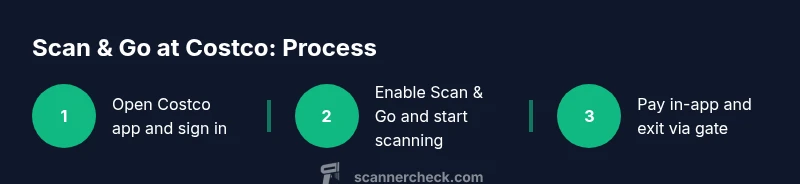
To begin, open the Costco app and sign in with your member credentials. Navigate to the Scan & Go section and enable the feature if prompted. Grant the app permissions it requests (camera, notifications, and location if asked). Once enabled, the in-app camera will scan barcodes, and your cart will appear in real time. If you cannot locate Scan & Go, update the app or check the store's aisles signage for availability. Once set up, you’re ready to scan as you shop.
In-store flow: scanning, bagging, and exit
As you move through the aisles, press the scan button and scan each item as you place it in your cart. The app displays item name, price, and any applicable discounts. Bag the items or place them in your cart in a way that makes the digital list match what you physically carry. When you’re ready to pay, review the cart in-app, apply any coupons or promotions, and complete payment securely in-app. At the exit, use the designated Scan & Go gate or present a digital receipt to staff for verification and exit.
Limitations and caveats
Scan & Go is not guaranteed at every Costco; store participation may vary day-to-day. Some items might be non-eligible due to size, location, or regulatory restrictions. Alcohol and tobacco policies may require traditional checkout in certain jurisdictions. Returns and exchanges may have different procedures when purchased through Scan & Go, so review receipt data in the app and keep a digital copy. Always have a backup payment method if the app encounters issues.
Security and privacy considerations
Using Scan & Go involves transmitting purchase data and your membership identity through the Costco app. Ensure your phone is secured with a passcode or biometric lock and keep the app updated to minimize vulnerabilities. Costco and the app provider typically use encryption in transit and at rest. Be mindful of public Wi‑Fi when performing payments; prefer a secure network or cellular data. If your device is lost, report it and remove access to the Costco app quickly.
Tips for a smooth Scan & Go experience
- Update the Costco app to the latest version before shopping.
- Make sure your membership is active and linked in the app.
- Use a stable internet connection and keep your phone charged.
- Scan items as you add them to your cart to minimize miscounts.
- Review the cart often for pricing, promotions, and discounts.
- If you see a mismatch, use the app’s help feature or contact staff.
Common mistakes to avoid
- Scanning items after you bag them; this can cause price misreads.
- Skipping verification of eligibility for the store you’re in.
- Relying on the app in areas with poor connectivity; offline scanning can fail.
- Forgetting to pay in-app before exiting; ensure payment completes.
- Not updating the app or device permissions; this can block camera access.
Authoritative sources
- Federal Trade Commission (FTC): https://www.ftc.gov
- Consumer Reports: https://www.consumerreports.org
- The New York Times: https://www.nytimes.com
Tools & Materials
- Smartphone with Costco app installed(Latest version; compatible with iOS or Android)
- Active Costco membership(Must be linked to the app profile)
- Stable internet connection(Wi‑Fi or cellular data during checkout)
- Phone charger or power bank(Helpful for long shopping trips)
- Backup payment method(In case in-app payment fails)
Steps
Estimated time: 30-45 minutes
- 1
Open Costco app and sign in
Launch the Costco app, sign in with your member credentials, and ensure your membership is active. This establishes your identity for Scan & Go and links your cart to your account.
Tip: If you’re new, run through a quick in-app tutorial before shopping. - 2
Enable Scan & Go and set preferences
Navigate to the Scan & Go area in the app, enable the feature, and grant necessary permissions (camera, notifications). Confirm that your device is compatible with Scan & Go at that store.
Tip: Allow location and camera access to avoid prompts during scanning. - 3
Start scanning items as you add them
Tap the scan button and scan each item’s barcode as you place it in your cart. The app will display item details and price in real time.
Tip: Scan while you place items in the cart to reduce misreads. - 4
Review cart and apply deals
Periodically review the in-app cart to verify quantities, prices, and any in-app promotions or coupons. Make adjustments as needed before checkout.
Tip: Tap items to edit quantities quickly. - 5
Pay inside the app
Complete payment using a supported method within the app. This finalizes the purchase prior to exiting the store.
Tip: If you have multiple payment options, choose the most secure one you trust. - 6
Exit via Scan & Go gate
Head to the exit and use the Scan & Go gate or present the digital receipt to staff for verification. No traditional checkout is required in most cases.
Tip: Keep your phone handy and ready to show the digital receipt if asked. - 7
Keep receipt data handy
Save or screenshot the in-app receipt for returns or inquiries after checkout. Review orders post-purchase in case any issues arise.
Tip: Store staff may request the receipt; having it easily accessible speeds service.
Common Questions
Is Scan & Go available at all Costco locations?
Scan & Go is offered at many participating Costco warehouses, but availability varies by store. Before you go, check the in-app store listing for eligibility and any temporary outages.
Many Costco locations offer Scan & Go, but you should verify in the app before visiting.
Do I need a Costco membership to use Scan & Go?
Yes. A current Costco membership is required to use the Scan & Go feature. The app should be linked to your member profile.
You’ll need an active Costco membership to use Scan & Go.
Can I buy alcohol or tobacco using Scan & Go?
Alcohol and tobacco purchases may require standard checkout in some jurisdictions due to local laws or store policy. Check the app and signage for item eligibility.
Alcohol and tobacco may not be eligible for Scan & Go in some areas.
How do I pay with Scan & Go?
Payment is made inside the Costco app using your chosen method. Ensure your payment method is set up and has sufficient funds before shopping.
Pay inside the app using your preferred method.
What if I encounter a problem with scanning?
If scanning stops working, try restarting the app, refreshing the cart, or checking your device’s permissions. Staff can assist at the exit gate.
If scanning fails, restart the app and ask staff for help at the exit.
Watch Video
Key Takeaways
- Master Scan & Go setup in the Costco app before shopping
- Scan items as you add them to your cart to minimize errors
- Always verify store eligibility and item eligibility in the app
- Complete payment in-app and exit through the designated gate
- Keep digital receipts handy for returns or inquiries