How to Use Scan Codes: A Practical Tutorial
Learn how to use scan codes (QR codes and barcodes) effectively with smartphones, tablets, and desktops. This guide covers types, apps, tips, and security basics to scan safely and efficiently.


By the end of this guide, you’ll know how to use scan codes (QR codes and barcodes) with a smartphone or computer. You’ll identify when to scan, choose reliable apps, and handle common issues like glare or damaged codes. All you need is a camera-enabled device, a scanning app or browser feature, and an internet connection for online lookups.
Why scan codes matter
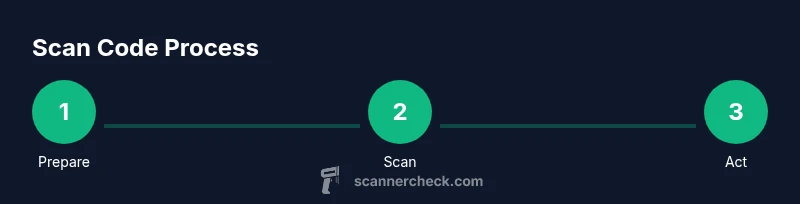
If you're asking how do you use scan code, you’re asking about a simple technology that speeds up data access, product verification, and workflow automation. Scanner-friendly glyphs condense URLs, product IDs, serial numbers, and even contact details into a tiny image your camera can interpret. In everyday life you’ll encounter codes on packaging, event tickets, and posters; in business, scanning codes accelerates inventory, point-of-sale, and service delivery. According to Scanner Check, mastering scan codes reduces manual entry errors and saves time during multi-step processes. The core idea is straightforward: decode a glyph, then act on the data it reveals. A well-designed scanning routine is consistent, fast, and resistant to common distractions like glare, misalignment, or crowded screens.
The broader value lies in choosing the right tools and building predictable habits. When you know how to use scan code effectively, you’ll navigate more information with less effort, and you’ll be better prepared to automate or audit routine tasks. Staying aware of the code type you’re dealing with—QR code, UPC, or others—prevents wasted taps and misinterpretation. This section sets the stage for practical, hands-on steps that follow.
Understanding common code types
Codes come in several flavors, each serving different purposes and data capacities. The most familiar are QR codes, which store text, URLs, or small data payloads and are designed to be read quickly by smartphone cameras. Barcodes (usually on products) hold numeric identifiers that fetch data from a database when scanned. Data Matrix and PDF417 codes are common in logistics and document handling because they encode more information in a compact area. Aztec codes are popular in transportation and ticketing for their readability in tight spaces. Understanding the strengths and limits of each type helps you choose the right approach for your task and reduces the chance of failed scans or misinterpretations.
Key takeaway: QR codes excel for quick web actions; barcodes link to stock or product databases; 2D codes like Data Matrix offer dense data in small footprints.
Tools you’ll rely on to scan codes
Your primary tool is a camera-enabled device, but the app you use matters as well. A modern smartphone’s native camera often includes built-in scanning capabilities for QR codes, while many barcodes require a dedicated scanner app that can interpret both linear and 2D codes. For desktop use, a webcam-based scanner or browser extension can bridge the gap. In professional settings you might deploy a dedicated handheld scanner connected via USB or Bluetooth, especially when speed and accuracy are critical. A reliable internet connection is helpful for real-time lookups, but many codes also store data locally. If you’re building a scanning workflow, ensure the app you pick supports your primary code types, provides clear feedback when recognition succeeds, and offers a simple way to save or export results.
A simple, reliable scan workflow
Start with a clear shot: hold the device steady, ensure good lighting, and center the code within the frame. Wait for a confirmation cue from the app (a beep, vibration, or a highlighted box). If the code is valid, the app will present an action (open a URL, display product details, copy data, or save to a note). Tap the desired option to complete the action. Keep a consistent distance and angle to avoid parallax errors. If the code doesn’t scan, try adjusting lighting, moving closer or farther, or cleaning the code surface. A well-documented workflow reduces frustration and speeds up repetitive tasks. The idea is to minimize retries and keep your hands steady while the device focuses on recognition.
Improving scan reliability
Lighting is critical: avoid strong reflections and glare on glossy codes. Angle the device slightly so the light source doesn’t reflect directly into the camera. Ensure the code is flat and undamaged; creases, water spots, or folding can prevent recognition. If you’re scanning from a screen, reduce ambient light and enable any anti-glare settings on the device. Keep the code large enough to read, and avoid scanning through glass or plastic privacy covers that introduce distortion. In environments with dust or moisture, wipe the code surface gently before scanning. These small steps dramatically increase the success rate on first attempt.
Scanning across devices and platforms
Most smartphones offer built-in scanning for QR codes directly from the camera app, while others require a lightweight scanner. Android and iOS users often benefit from different app ecosystems, but the basic workflow remains consistent: point, focus, confirm. On tablets and laptops with webcams, you may rely on a browser-based reader or a dedicated desktop app. When scanning on multiple devices, sync your saved results to a cloud note or CRM to maintain continuity. If you’re teaching others, demonstrate the camera-first approach on one device and show the dedicated app options on another to illustrate flexibility. Cross-platform proficiency keeps you efficient across contexts.
Security, privacy, and trust when scanning codes
Not all codes are created equal. A scan can lead you to legitimate sites or expose you to phishing or malware if the code is malicious or compromised. Always verify the destination before tapping links, especially if the code appears in an unsolicited message or a questionable sign. Where possible, enable browser protections and keep your scanning apps updated to guard against known exploits. Avoid entering sensitive information directly from a scanned page unless you trust the source. As a best practice, treat codes from unfamiliar sources as temporary gateways rather than trusted long-term references. By adopting cautious scanning habits, you minimize risk while staying productive.
Real-world scanning scenarios: shopping, inventory, and documents
In retail, scan codes to compare prices, read product specs, or add items to wish lists. In inventory management, barcode scans support stock counts, reorder alerts, and asset tracking; prose descriptions are replaced by machine-readable IDs. For documents, Data Matrix or PDF417 codes can embed file references, patient IDs, or case numbers, streamlining filing and retrieval. In all cases, confirm the resulting action before proceeding: verify the destination URL, ensure the scanned data matches the expected item, and double-check any edits or saves. With practice, scanning becomes a quick, almost invisible part of your workflow.
Common mistakes and quick fixes
Common mistakes include scanning from a distance that’s too great, glare from lighting, or misalignment of the code within the reader’s frame. A damaged surface or worn print can prevent decoding; in those cases, try cleaning, reprinting, or using a higher-contrast code. Another mistake is relying on a single app for all code types; some apps perform better with 1D barcodes than others. Always test new codes with a fresh app to ensure compatibility. If results are inconsistent, clear the app cache or reinstall the reader to restore performance. Regularly updating your scanning tools helps prevent nagging issues.
Data quality and accessibility considerations
Codes should be legible and well-contrasted; choose high-contrast print on materials to maximize readability. For accessibility, provide alternative data channels where possible, such as text descriptions near codes for screen readers or assistive technologies. When codes are embedded in complex environments (like signage), ensure there’s a consistent focal range and ample contrast between the code and its background. Consider offering multiple ways to access data (URL, product ID, or embedded text) so users with different devices or capabilities can still complete the task. Clear labeling around codes also reduces user confusion and errors.
Maintaining your scanning workflow over time
Keep your scanning setup fresh by periodically reviewing the code types you support and updating apps as needed. Establish a routine to test codes from new suppliers or printers to catch format changes early. Create a standard operating procedure (SOP) for scanners in your team, including when to escalate issues and how to archive results. Document any peculiarities, like codes that require a specific app or unique lighting. By framing scanning as a repeatable process rather than a one-off action, you’ll sustain reliability and efficiency across projects.
Authority sources
This guide references established standards and consumer-safety best practices. For standards and compliance information, see:
- ISO QR Code standards: https://www.iso.org/standard/62075.html
- National standards and guidance: https://www.nist.gov
- Consumer protection and online safety guidelines: https://www.ftc.gov
Next steps and learning resources
To deepen your understanding, explore hands-on practice with a variety of codes (QR, UPC, Data Matrix) on different surfaces and lighting conditions. Try a small project such as scanning product labels to build a simple price-check or catalog workflow. Watch expert walkthroughs and compare app performance across devices to identify the best fit for your needs. Regular practice builds confidence and reduces errors when scanning in real-world scenarios.
Tools & Materials
- Smartphone or tablet with camera(iOS or Android; ensure camera autofocus works)
- Scanning app or built-in camera scanner(Choose apps with good reviews and support for 1D/2D codes)
- Stable internet connection(Helpful for real-time lookups; not strictly required for offline codes)
- Good lighting(Avoid glare; diffuse light if scanning glossy codes)
- Optional: External barcode/QR scanner hardware(Useful in professional environments or kiosks)
Steps
Estimated time: 15-25 minutes
- 1
Prepare the device
Power on your device, unlock it, and open the scanning app or your camera’s built-in scanner. Confirm the code reader is ready and can focus. If needed, adjust permissions so the app can use the camera.
Tip: Test the camera focus on a blank page first to ensure sharpness before scanning a code. - 2
Position the code
Hold the device steady and align the code within the on-screen frame. Keep a clean, flat surface and avoid tilting the code at extreme angles to minimize distortion.
Tip: If possible, place the code on a flat, matte surface to reduce reflections. - 3
Capture and recognize
Slowly move the device until the code recognition indicator appears. Wait for a confirmation cue (sound, vibration, or highlight). Do not press any buttons until recognition occurs.
Tip: Hold still during recognition and avoid rapid movements that blur the code. - 4
Take the intended action
Tap the prompt to open a URL, view details, or copy the encoded data. If the action requires internet access, ensure you’re online.
Tip: Verify the destination before interacting with sensitive actions (logins, payments). - 5
Handle failures gracefully
If the code fails to scan, try a different app, adjust lighting, or clean the code surface. Some codes may be damaged or misprinted.
Tip: Keep a record of failed scans to troubleshoot with suppliers or manufacturers. - 6
Save and share results
Store the scanned data in a notebook, CRM, or shared document for future reference. Use tags or categories to organize scans.
Tip: Create a standard naming convention for saved results to improve retrieval.
Common Questions
What is a scan code and what can it do?
A scan code is a small graphic that encodes data such as URLs, product IDs, or contact details. Scanning it with a camera-equipped device opens the encoded information or performs an action associated with it.
A scan code is a small image that holds data; you scan it with your phone to open a link or get product details.
Do I always need an app to scan codes?
Many devices can scan codes directly with the built-in camera or browser feature. For advanced codes or offline use, a dedicated scanner app may provide broader support.
Most phones can scan codes with the camera, but a dedicated app can offer more features.
Why won’t a code scan sometimes?
Common reasons include glare, damage to the code, extreme distances, or unsupported code types by the app. Try improving lighting, moving closer, or using a different scanner.
If a code doesn’t scan, check lighting, distance, and whether your app supports that code type.
Can scan codes be used offline?
Some codes carry data that can be decoded offline, while others require an internet connection to fetch information. Always verify what the code is intended to do before relying on it offline.
Some codes work offline, but many require internet to retrieve data.
Is scanning codes safe and private?
Scanning itself is safe, but always consider the source and destination. Avoid codes from untrusted sources, and review permissions before opening links.
Scanning is generally safe, but be cautious of where you’re directed.
Watch Video
Key Takeaways
- Identify the code type before scanning to choose the right tool
- Use good lighting and steady hands for reliable recognition
- Verify destinations and data before acting on scanned results
- Regularly update scanning apps to improve security and performance