What Scan QR Code: A Practical How-To Guide
Learn what scan qr code means, how QR codes work, and step-by-step methods to scan safely with your smartphone. This educational guide covers tips, common errors, security considerations, and real-world uses.


If you want to know what scan qr code accomplishes, this guide shows you how to read QR codes quickly and safely. A scan opens encoded data (like a URL, text, or contact) on your device using your camera or a dedicated app. You’ll learn the essential steps, the right tools, and practical safety checks before you act.
What is a QR code and why scan it?
According to Scanner Check, understanding what scan qr code means helps you unlock fast, safe actions in daily life. A QR code is a two-dimensional barcode that encodes data such as a URL, plain text, or contact information. When you scan one, your device reads the encoded data and performs the action it specifies—opening a website, saving a contact, joining a Wi‑Fi network, or downloading an app. This quick interaction can save time, but it also requires caution: not every QR code leads to a safe destination. Being deliberate about what you scan and where you scan from is essential for a smooth experience.
In practice, recognizing what scan qr code does helps you decide when to proceed and when to avoid a code altogether. Always verify the source and scan only codes from trusted partners or printed materials you recognize. If you’re unsure, you can pause and inspect the code more closely before continuing.
How QR codes work
QR codes store data in a matrix of black and white squares. They use error correction, so even if part of the code is damaged or obscured, a scanner can still decipher the information. The code’s version and error correction level determine how much data it can hold and how resistant it is to distortion. Scanners read the pattern, translate it into data, and trigger the associated action, such as opening a URL or displaying a text message. The result is fast, machine-readable data that can link to digital content, contact details, or payment instructions. Understanding these basics helps you diagnose why a scan might fail and what to do next.
When to scan QR codes
QR codes appear in many contexts: storefronts, events, product packaging, tickets, and announcements. You should scan codes when you trust the source and you need quick access to information or actions. Be wary of codes in unsolicited emails, on unfamiliar posters, or from sources you can’t verify. If a code seems suspicious or directs you to an unfamiliar site, abandon the action. In short, scan QR codes when you can verify legitimacy and you’re prepared to take the next step safely.
What you need to scan a QR code
To scan a QR code effectively, you typically need a smartphone or tablet with a camera and a scanner app or a built-in camera that supports QR reading. You should have a reasonably bright environment to read the code and a stable stance for steady framing. Avoid codes that are damaged, distorted, or printed with poor contrast. If you’re using a public device, ensure you’re not exposing sensitive information by confirming the destination before proceeding. A clean, legible code reduces frustration and helps ensure a successful scan.
Data types and actions encoded in QR codes
QR codes can encode URLs, plain text, contact information (VCARD), Wi‑Fi credentials, calendar events, payment requests, and more. The action that follows a scan is determined by the data type and the app handling it. Some scans simply reveal text, while others prompt you to open a browser, add a contact, or connect to a Wi‑Fi network. Familiarize yourself with common data formats so you recognize expected results and know which app to use for handling the data.
Security and privacy considerations
QR codes themselves do not carry executable software; instead, they direct your device to data or actions. However, you should be cautious about codes from untrusted sources. Always check the destination URL or the intended action before tapping or opening links. Avoid codes that request personal information or payments without clear justification. If you suspect a code is malicious, pause and avoid interacting with it.
Real-world use cases
In everyday life, QR codes streamline connections, payments, and information sharing. Museums use codes to provide exhibit details, retailers offer quick discounts, and logistics teams share tracking information. Educational institutions use QR codes for class materials, and events employ codes for ticket validation. Knowing how to scan QR codes empowers you to access content rapidly, verify sources, and complete tasks with minimal friction.
Troubleshooting tips for failed scans
If a scan doesn’t work, check lighting, adjust distance, and ensure no glare obscures the code. Clean the code if it’s dirty and try a different angle or distance to improve readability. If you’re using a third‑party scanner, update the app or switch to your device’s built‑in camera. For persistent issues, try another code to determine whether the problem is the code or the device.
Best practices for reliable scanning
Keep your device updated, use trusted scanning apps, and verify code sources before acting. Prefer codes from reputable publishers and avoid codes on dubious flyers or unfamiliar websites. When in doubt, contact the source to confirm the code’s legitimacy and purpose before providing any information.
Tools & Materials
- Smartphone or tablet with camera(Ensure device is reasonably updated (iOS/Android).)
- Built-in camera app or QR scanning app(iPhone Camera app or Google Lens/QR reader on Android.)
- Good lighting(Bright, even light helps readability; avoid glare.)
- Printed or digital QR code(Ensure the code is intact and legible.)
- Internet connection (optional)(Some destinations require connectivity; not all scans need internet.)
Steps
Estimated time: Total: 1-2 minutes per code
- 1
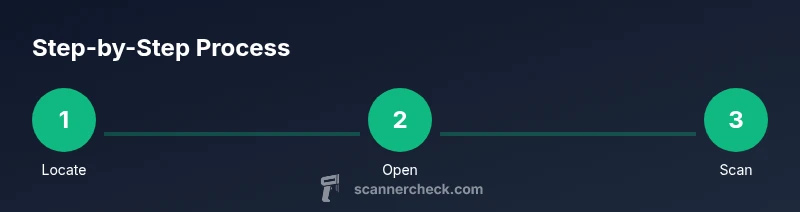
Locate the QR code
Look for the QR code on posters, product packaging, screens, or menus. Confirm the code is clearly printed and not damaged, which helps prevent failed scans.
Tip: If the code is small, move closer or zoom in with your camera. - 2
Open your scanner
Open your device’s camera app or a trusted QR scanning app. Some devices support QR scanning directly from the built‑in camera without a separate app.
Tip: On iPhone, swipe and open the Camera app; on Android, use Camera or Lens depending on your device. - 3
Align the code in the frame
Position the code within the on-screen frame so the entire code is visible and straight. Hold still and avoid motion blur for a clean read.
Tip: If your device has autofocus, wait a moment for a sharp image before scanning. - 4
Capture and read
Let the scanner read the code. You should see a notification, banner, or prompt indicating the result (URL, text, or action).
Tip: If nothing happens, try a different distance or lighting. - 5
Follow the prompt
Tap the prompt to open the destination (URL, app store, Wi‑Fi, or contact). Be mindful of the destination before proceeding.
Tip: Verify the URL visually if your scanner shows the address before opening. - 6
Verify the destination
Check the site or action for legitimacy before entering any information or granting access.
Tip: If the destination looks suspicious, back out and don’t proceed. - 7
If it fails, try alternatives
If one code doesn’t scan, try another code in the same source or test with a different scanner.
Tip: Ensure code integrity and lighting before retrying.
Common Questions
Do I need an internet connection to scan QR codes?
Not all scans require internet. Reading the data from the code happens locally on your device, but some actions (like opening a URL) may require internet access.
Most scans don’t need internet to read the code, but opening a URL or fetching content may require connectivity.
Can I scan QR codes without a smartphone?
Yes, dedicated handheld scanners exist, or you can use a tablet with a camera. However, smartphones are the most convenient option for everyday use.
You can use a dedicated scanner or a tablet, but a smartphone is usually easiest.
What should I watch out for to avoid dangerous links?
Always check the destination URL and the source before tapping. If the code leads to unfamiliar sites or asks for sensitive information, don’t proceed.
Check the URL and source before opening. If it looks suspicious, skip it.
What if the QR code is damaged or obscured?
Try moving closer or farther away, adjust angle, and ensure lighting is sufficient. If unreadable, avoid forcing a scan and obtain a fresh code.
If unreadable, adjust your distance and lighting or get a new code.
Are QR codes secure?
QR codes themselves are not inherently secure. Treat codes as potentially risky and verify the source before acting.
QR codes can be unsafe if the source is untrustworthy; verify first.
How do I test if a QR code works?
Use your device’s camera to preview the code if available, or scan with a trusted app and observe the result before proceeding.
Preview the code with your camera or a trusted app to check the result before acting.
Watch Video
Key Takeaways
- Identify trusted QR codes before scanning.
- Use in-built camera apps to minimize risk.
- Verify destinations before taking action.
- Keep apps and OS updated for reliable scans.