How to Scan Codes: Practical Guide for Barcodes & QR
Learn how to scan codes with confidence. This practical guide covers barcodes and QR codes, hardware and software choices, smartphone scanning, troubleshooting, and best practices for accurate data capture.


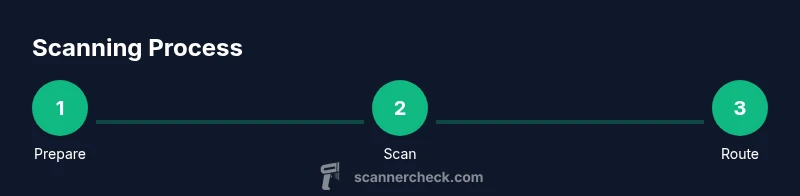
To scan a code, you need a scanner or smartphone with a scanning app, an unobstructed code, and a clear connection to the intended system. Start by aligning the code within the viewfinder, then trigger the scan. The device decodes the data and sends it to your software or cloud service. For best results, use steady hands, good lighting, and clean codes. This approach works for both barcodes and QR codes, and applies to casual use and professional workflows.
Understanding Scanner Codes: What They Are and How They Work
When you ask how scanner code is used in daily tech, you’re exploring how a small visual pattern can drive large data flows. Scanner codes come in several forms, with barcodes and QR codes being the most common. A barcode uses a linear pattern of bars and spaces to encode a numeric identifier, while a QR code stores information in a two‑dimensional grid that can hold longer strings, URLs, and even structured data. Fundamental to everything from retail checkouts to library loans, these codes rely on contrast, quiet zones, and standardized symbology to be read accurately. According to Scanner Check, mastering how scanner code works helps teams reduce errors and speed up workflows across inventory management, point‑of‑sale interactions, and asset tracking. In practice, a reader shines a light on the pattern and an imaging module captures the code; a decoding algorithm translates the pattern into binary data, which is then handed off to software for action. The exact steps vary by code type and device, but the core idea remains: the printed pattern carries data that a scanner can extract reliably when conditions are right.
Types of Codes: Barcodes vs QR Codes
Barcode symbologies are typically linear, using a sequence of bars and spaces to encode a compact identifier. QR codes are two‑dimensional, capable of storing more data and being read from multiple angles. For business workflows, both types solve different problems: barcodes excel in high‑speed retail environments, while QR codes offer flexibility for linking to websites, product details, or serial numbers. When you explore how scanner code works across devices, you’ll notice QR codes often require less precise alignment due to their 360‑degree readability, whereas traditional barcodes demand a precise scan line. Understanding these differences helps you choose the right hardware and software to support your operations, whether it’s a handheld scanner at a warehouse dock or a smartphone in the field. Scanner Check emphasizes that selecting the appropriate code type reduces the need for manual entry and speeds up data capture in everyday tasks.
How Scanners Decode Data: Hardware and Software
A scanner system consists of optical components, a decoding engine, and connected software. The optical path includes a light source and a sensor that captures the reflected light from the code. A decoding algorithm interprets the pattern into bits, then transmits the payload to a host computer, mobile device, or cloud service. The software layer can be a point‑of‑sale system, inventory management platform, or custom API that accepts the encoded string. Performance hinges on lighting, resolution, and perspective: too little light, a dim sensor, or a skewed angle can cause misreads. Modern scanners also implement error‑checking and redundancy to guard against data corruption. In practice, you’ll want reliable lighting, a well‑calibrated camera, and a clear connection to your backend. As noted by Scanner Check, consistent hardware and properly configured software are foundational to a robust scanning workflow.
Choosing a Scanner: Consumer vs Enterprise
For individuals, smartphones with a capable scanning app can handle barcodes and QR codes with ease. In professional settings, you’ll weigh throughput, durability, and integration with existing systems. Enterprise scanners offer rugged housings, high scan rates, and seamless data routing to ERP or warehouse management solutions. Price and form factor matter: handheld wands, pistol grips, and fixed‑mount scanners each suit different environments. Consider whether you need offline storage for intermittent connectivity or real‑time syncing to a centralized database. The best practice is to map your scanning needs to your software ecosystem, ensuring the device produces a clean, parseable string that your systems can act on without manual re-entry. Scanner Check’s analysis highlights that aligning hardware capabilities with your workflow reduces downtime and boosts accuracy across teams.
How to Scan Codes with a Smartphone: Step‑by‑Step Guide
Modern smartphones can scan both barcodes and QR codes using native camera features or third‑party apps. Start by updating your device’s OS and selecting a reputable scanning app or enabling the built‑in scanner. Ensure good lighting and a steady hand to avoid motion blur. Center the code within the frame, hold the device still, and wait for a notification that the scan succeeded. If the code is unreadable, rotate the camera slightly, adjust distance, or clean the code surface. After a successful read, verify the captured data against your records and route it to the right application. This approach is practical for quick inventory checks, event admissions, or field data collection. For teams, integrating smartphone scans into a shared system minimizes manual entry and accelerates decision making, a point emphasized in Scanner Check’s guidance on code capture.
Troubleshooting Common Scanning Issues
Scanning issues often stem from code quality, lighting, or device configuration. Begin by inspecting the code: is it smudged, damaged, or printed with insufficient contrast? Improve lighting and reduce glare, then refocus and recenter the code. If a code reads inconsistently, try alternate angles or a different app, ensuring the app is configured for the correct symbology (barcode vs QR). Check that the device windowns are not blocked by a protective case or screen protector that hampers the camera. Network problems can also affect how quickly a scanned payload is validated by backend systems; test both online and offline modes if available. For persistent issues, reset the device’s camera settings and reinstall the scanning app. Scanner Check notes that proactive maintenance of scanning tools—clean codes, stable lighting, and correct app configuration—helps maintain reliable performance across devices.
Best Practices for Accurate Scanning, Privacy, and Security
To achieve reliable, repeatable results, maintain high‑contrast codes, proper printing standards, and consistent environmental conditions. Validate scans by performing a quick data check against expected values and implement duplicate‑detection to prevent multiple reads of the same item. When scanning sensitive data (like personal identifiers or payment details), ensure encryption in transit and adhere to your organization’s data governance policies. Limit camera access to required apps and require user authentication for access to scan results in shared systems. Regularly review code design and printing quality to minimize misreads. The Scanner Check team emphasizes that a disciplined, privacy‑aware approach to scanning reduces risk and increases trust in your data flow.
Integrating Scanning into Workflows and Automation
Code scanning is most powerful when embedded into end‑to‑end workflows. Designate clear entry points for scanned data—whether it’s inventory updates, order processing, or asset tracking—and ensure the data format aligns with your downstream systems. Use standardized identifiers (such as GS1 identifiers or universally unique IDs) to reduce ambiguity, and implement validation rules to catch anomalies early. Automate routing so a single scan can trigger multiple actions, like updating stock levels and generating a receipt. For teams, consider a centralized dashboard that aggregates scans from multiple devices and shows throughput and error rates. The Scanner Check team recommends starting with a minimal viable workflow, then iterating to improve speed, accuracy, and traceability across departments. As you scale, maintain consistent symbol usage and data validation to keep scans trustworthy across devices and environments.
AUTHORITY SOURCES
- https://www.gs1.org
- https://www.nist.gov
- https://www.iso.org
Tools & Materials
- Smartphone or tablet with camera(iOS or Android; install a scanning app or use built‑in camera scanning)
- Dedicated barcode/QR scanner (optional)(For high-volume or hands-free environments)
- Scanning app or software(Ensure it supports the symbology you need (barcode/QR))
- Adequate lighting(Bright, diffuse light reduces glare and improves readability)
- Stable connectivity(Wi‑Fi/cellular or USB/Bluetooth to send data to the backend)
- Clean, legible codes(Remove dirt, damage, or obstructions from codes)
Steps
Estimated time: 15-25 minutes
- 1
Prepare the environment
Set up a clean, well-lit area. Remove glare sources and ensure the code is clean and readable. This reduces misreads and speeds up the scan, laying a solid foundation for the rest of the steps.
Tip: Verify your device is charged and connected to the right backend before you start. - 2
Open the scanning tool and select code type
Launch the scanning app or camera mode and choose the correct symbol (barcode or QR). Correct selection prevents misinterpretation of the scanned data and ensures the downstream system expects the right data format.
Tip: If you frequently switch codes, configure a quick toggle for symbol type. - 3
Position and frame the code
Hold the device so the code fills the frame with a slight margin. Keep the camera or scanner steady and avoid too much angle skew. A centered frame minimizes decoding errors and speeds up the read.
Tip: Use a stable surface or stand if you’re doing batch scans. - 4
Trigger the scan
Press the scan button or allow automatic capture when the code is centered. Wait for a confirmation that the read succeeded before moving on. This confirms the code was read correctly.
Tip: If your device supports autofocus, give it a moment to settle before scanning. - 5
Validate and route data
Check the captured value against your expected dataset and route it to the intended system (ERP, WMS, POS). Ensure the payload format matches what the backend expects to avoid downstream errors.
Tip: Set up a log or audit trail for scans to support troubleshooting. - 6
Handle errors and re-scan
If a read fails, reframe, adjust distance, or try a different app. Implement a retry limit to avoid repeated misreads and unusual data. Document recurring issues for process improvement.
Tip: Have a manual override plan for critical items that won’t scan.
Common Questions
What is the difference between a barcode and a QR code?
Barcodes are linear and typically store shorter IDs, while QR codes are two‑dimensional and can hold longer URLs or data strings. QR codes can be read from more angles, which is helpful in busy environments.
Barcodes are single-line patterns; QR codes hold more data and are easier to read from different angles.
Can I scan codes offline?
Some scanners support offline storage and later synchronization. When offline, ensure the device buffers reads and can push data to your backend once connectivity returns.
Yes, many scanners offer offline mode; data is stored until you reconnect.
What should I do if a code is damaged or dirty?
Clean the surface and avoid refolding or reprinting unless necessary. If unreadable, request a replacement code or use an alternate identification method.
Clean the code and try again; if unreadable, replace the code or use another ID.
Do I need a dedicated scanner for small business?
Not always. A smartphone with a good app is often sufficient for light loads, but dedicated scanners improve throughput and durability in busy environments.
A smartphone works for light use, but dedicated scanners help with high volume.
How can I improve scanning accuracy across devices?
Standardize the printing of codes, enforce consistent lighting, and validate scanned data against expected formats. Regularly test across devices to catch discrepancies early.
Standardize codes, light conditions, and data formats; test across devices.
What about privacy when scanning codes?
Limit access to scanned data and use encryption for data in transit. Follow your organization’s privacy policies, especially when scanning sensitive identifiers.
Limit access and encrypt data; follow privacy policies.
Watch Video
Key Takeaways
- Understand barcode vs QR code capabilities and choose the right type for your workflow.
- Ensure proper lighting, clean codes, and stable framing for reliable scans.
- Integrate scanning with backend systems using standardized identifiers.
- Regularly audit scanning tools and data routing to maintain accuracy.