What to Do to Scan a Code: A Practical Guide
Learn how to scan barcodes and QR codes with a smartphone or dedicated scanner. This practical guide covers setup, best practices, troubleshooting, and safety tips for reliable results.


To scan a code, you’ll learn where to point your device, what app to use, and how to verify results. You’ll need a camera-enabled device, a readable code, and a trusted scanning app. This guide covers quick, actionable steps for QR codes and barcodes, plus safety tips that work across most devices.
What to do to scan a code: prerequisites and mindset
Scanning a code is a seemingly simple task, but reliability hinges on a few upfront factors. Before you launch any app, ensure your environment and mindset are prepared for accurate results. A high-contrast code, a clean surface, and steady hands matter more than the exact app you pick. According to Scanner Check, the quality of the code and the environment has a bigger impact on success than the software you use. Make sure the code is fully visible, free of glare, and not obscured by packaging or fingers. Decide in advance whether you’ll use a smartphone or a dedicated scanner, and verify that your device’s camera is functioning properly. If you encounter sensitive or potentially risky codes, treat the scan with extra caution, and avoid sharing sensitive information publicly. With these prerequisites, you can begin the actual scanning workflow confidently.
Device choice and readiness
For most everyday tasks, a smartphone with a reputable scanning app is sufficient. Phones offer portability, GPS/internet capabilities, and automatic updates that improve decoding across many code types. A dedicated barcode scanner, however, can deliver faster reads, higher durability, and batch-scanning in busy environments like warehouses or retail. When deciding, consider your typical use cases: do you need to identify items quickly, or do you need to process many scans in a row? If you value offline reliability and speed, a standalone scanner might be worth the investment. Either way, confirm your device’s camera lens is clean, and that the operating system and app are up to date.
Lighting, distance, and code contrast
Lighting is a hidden bottleneck in code-scanning workflows. Low light, strong glare, or uneven shadows can cause the camera to struggle to focus and read the symbol. Seek neutral, diffused lighting that evenly illuminates the code without reflections. The recommended distance is usually 6–12 inches (15–30 cm) from the code, though larger codes can be read from farther away. High contrast between the code and its background accelerates decoding. Avoid codes printed on glossy surfaces or wrapped in glossy packaging; reflections will reduce readability. If the code is damaged or smudged, gently clean the surface with a soft cloth. In controlled environments, a small desk lamp can reduce shadows and maintain consistent lighting across scans.
Positioning the code for best capture
Position the code so it is square within the camera’s frame to minimize parallax errors. Hold the device steady and make small adjustments so the symbol is centered. Avoid fingers near the code edges and ensure there is enough margin around the symbol. If the code is very small or printed on a curved surface, you may need to move closer or switch to macro focus if your device supports it. Some apps offer auto-zoom or edge-detection indicators; use these features to guide alignment. The goal is to have the code fill most of the frame with sharp, undistorted edges.
The scanning workflow: open app, align, capture, verify
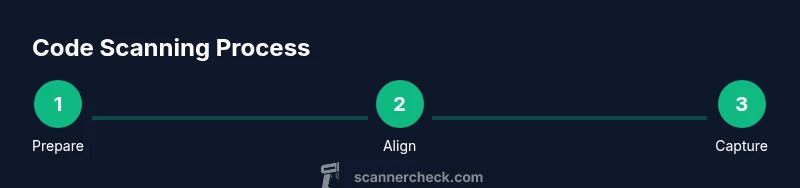
Begin by launching your chosen scanning app and selecting the correct mode (barcode vs QR). Align the code so that the entire symbol is visible within the on-screen guide. When it appears in view, gently tap to capture or allow the app to auto-capture if supported. If a read is produced, verify that the decoded content matches what you expect (URL, product number, data). If the read seems suspicious or unexpected, cancel and re-scan from a fresh angle or lighting. For batch scanning, use the app’s batch mode and export results for later processing.
Troubleshooting common read failures
If a code won’t read, start with the basics: clean the surface, adjust lighting, and refine distance. Common culprits include blur, glare, and curved surfaces. For tiny codes, enable higher resolution or zoom in if your device allows. If the code uses a nonstandard color palette, switch to a different decoding mode in the app or try another app. If damage or counterfeit appears likely, obtain a fresh copy and retry with a different device.
Security and privacy when scanning codes
Scanning codes can direct you to websites, apps, or files that might be unsafe. Always verify the source before following a link or granting permissions after a scan. If scanning in public, be mindful of phishing or bait codes designed to capture data. Use apps from trusted developers, review requested permissions, and consider disabling automatic actions that occur after a scan unless you are certain of the outcome. Be cautious with personal data and avoid entering credentials after a scan unless you explicitly trust the destination.
Accessibility and inclusive scanning considerations
Not all codes render clearly for everyone. People with visual impairments may benefit from high-contrast modes, larger on-screen guides, or audio feedback from the scanner app. Some devices offer accessibility features like screen magnification or voice readouts to help align codes more easily. If using a small screen, enable zoom or use an external stand to stabilize your view. Prioritize apps that provide clear, adjustable guidance and error messages that are easy to understand for all users.
Reading different code types: QR, UPC, Data Matrix
QR codes are pervasive and can encode URLs, contact details, or payment data. UPC codes are common in retail and serve as product identifiers. Data Matrix codes are favored in manufacturing and healthcare for high data density in small spaces. Each code type has its own best practices for size, contrast, and viewing distance. When possible, consult the code specification to ensure you capture the minimum required area and avoid misreads caused by partial scans. Always test with representative codes to understand how your device and app perform across types.
Maintenance and best practices for long-term reliability
Maintain your scanning setup over time. Regularly update apps and device firmware to benefit from decoding improvements. Clean your camera lens frequently with a microfiber cloth. In high-traffic scenarios, consider a stand or fixed scanner to maintain consistent framing. Maintain a small library of trusted code samples so you can perform quick checks that verify the system remains stable. Document your scanning workflow so teammates can reproduce reliable results.
What to do after scanning: verify, store, or act
After a successful read, take a moment to verify the decoded content against your expectations. If you opened a link, confirm it points to a legitimate site. Save or export scan results for auditing or inventory records, and delete any sensitive data promptly if it isn’t needed. When a scan triggers an action (like payment or login), only proceed if you recognize and trust the source. Regularly review scanned items to prevent data buildup and misinterpretation.
Tools & Materials
- Smartphone with camera(Any modern iOS/Android device with autofocus)
- QR/barcode scanning app(Choose reputable app; ensure permissions only for camera/scanner)
- External barcode scanner (optional)(For high-volume or offline workflows)
- Good lighting(Diffuse light to avoid glare)
- Microfiber cloth(Clean the lens and the code surface)
Steps
Estimated time: 25-45 minutes
- 1
Prepare the device
Power on the device, unlock it, and verify the camera works. Update the scanning app if a newer version is available. Position the device so you can comfortably reach the screen without obstructing the camera.
Tip: Close other apps to free up processing power and reduce camera shake. - 2
Choose scanning mode
Open the scanning app and select the appropriate mode (QR vs barcode). If the code could be one of several types, pick the mode that matches the expected data format. This prevents misreads and speeds up processing.
Tip: If unsure, start with QR mode since many apps auto-detect more broadly. - 3
Position the code
Hold the device steady and align the code within the on-screen frame. Ensure edges are visible, and avoid reflections from glossy surfaces. For small codes, move slightly closer to improve sharpness.
Tip: Use a stand or cup for stabilization in long reads. - 4
Align for capture
Center the code so it fills most of the frame. If the app shows edge indicators, use them to guide the alignment. Lock focus if your camera allows manual focus control.
Tip: Turn on grid lines if your app provides them for easier alignment. - 5
Capture the image
Tap to capture or rely on automatic capture. Wait for the confirmation that the read is successful and check the decoded data on-screen.
Tip: If no read occurs, try a small adjustment in distance or lighting. - 6
Verify the result
Compare the decoded content to what you expect (URL, product number, or data). If it doesn’t match, re-scan from a new angle or with improved lighting.
Tip: Cross-check against a trusted source when in doubt. - 7
Handle errors
If you see an error message, note the code type and reattempt with adjusted lighting or distance. Consider trying a different app if issues persist.
Tip: Document the error to diagnose whether the issue is environmental or device-related. - 8
Scan quality checks
Occasionally test with known-good codes to benchmark performance. Maintain consistency across devices if you’re in a team setting.
Tip: Keep a small test set to quickly validate new devices or apps. - 9
Record results
Store successful scans in a log or export to a spreadsheet if needed for inventory or auditing. Include timestamp, code type, and decoded content.
Tip: Use batch export when processing dozens of codes at once. - 10
Address platform differences
Some codes behave differently across OS versions or apps. Note any platform-specific quirks and adjust your workflow accordingly.
Tip: If a particular code type reads poorly on one app, try another app with a different decoding engine. - 11
Wrap up and clean up
Close the app if you’re done, wipe the lens, and store any peripherals safely. Review the session for any anomalies and plan the next scan using the same reliable procedure.
Tip: Keep your device charged and have backup scanning options ready.
Common Questions
What should I do if the code won't scan?
First check lighting and distance, then clean the code and re-scan. If issues persist, try another app or device. Persistent problems may indicate code damage.
If a code won't scan, check lighting and distance, clean the code, and try again. If it still won't read, use another app or device.
Can I scan codes offline without internet?
Many apps support offline decoding for standard barcodes and QR codes. However, some features (like URL redirection or cloud-based verification) may require internet access.
Yes, many codes can be decoded offline, but some features may need internet access.
Why won't my phone scan a tiny code?
Increase camera resolution if possible, move closer within recommended distance, or use macro/zoom features. Ensure the code fills a significant portion of the frame.
Tiny codes can be helped by higher resolution, closer distance, or zoom features.
Is QR code scanning secure?
QR codes themselves are data carriers; security depends on where the code points. Always verify the destination before entering credentials or following links.
QR codes are safe if you verify where they lead before acting.
What is Data Matrix and where is it used?
Data Matrix is a dense two-dimensional barcode used in manufacturing and healthcare. It supports reading small items in tight spaces and requires different decoding settings than QR or UPC codes.
Data Matrix is a compact code used in manufacturing and healthcare for dense data.
Do I need a dedicated scanner for all tasks?
Not always. For many consumer tasks, a modern smartphone with a reliable app suffices. A dedicated scanner may be preferable for high-volume environments or offline use.
A smartphone works for most tasks, but a dedicated scanner helps in busy places.
Watch Video
Key Takeaways
- Always ensure proper lighting and code contrast
- Verify scan results against the expected data
- Keep scanning apps and device firmware up to date
- The Scanner Check team recommends verifying results after scanning