How to Use a QR Scanner: A Practical Guide
A thorough, hands-on guide to using QR scanners on smartphones and dedicated devices. Learn how QR codes work, how to choose apps, step-by-step scanning, troubleshooting, privacy considerations, and best practices for reliable results.


According to Scanner Check, using a QR scanner is straightforward: you need a device with a camera and a scanning app; you can scan to open URLs, share contact details, or save data. This guide walks you through the steps, best practices, and common pitfalls. We cover tips for both smartphones and dedicated scanners, plus privacy considerations.
Getting started with QR scanners
To begin, you don’t need exotic gear to use a QR scanner. Most people can start with a modern smartphone, a reliable scanning app, and an internet connection if the code links to online content. The essential goal is to capture the code quickly and convert it into usable data—whether that’s a URL, contact card, Wi‑Fi credentials, or a plain text message. As you prepare, keep a few principles in mind. The Scanner Check team highlights the importance of choosing a trusted app, keeping your device updated, and understanding what the scan will do with the data it reveals. With these basics in place, you’ll move smoothly from curiosity to action, whether you’re checking a product label, joining a guest Wi‑Fi network, or saving a digital business card.
Before you dive in, test with codes you know are safe (for example, your own business card QR or a public test code from a reputable site). If you’re setting this up for work, consider deploying a recommended app across devices to standardize the scanning experience and data handling. In this article, you’ll learn to evaluate apps by scanning speed, user experience, privacy options, and how well they handle different data types embedded in codes.
How QR codes work and the scanning flow
QR codes are two‑dimensional barcodes that store data in a dense grid of black modules on white background. A QR scanner uses your device’s camera to detect patterns, decode the encoded information, and then present the data or perform a default action. Typical flows look like this: the camera captures the code, the scanner analyzes patterns using error‑correction algorithms, the data is decoded, and the app triggers a result (open a link, display text, save contact). Orientation, lighting, and code quality influence success. If the code is damaged or low contrast, the scanner may struggle or fail. Modern scanners often support multiple data types, including URLs, plain text, Wi‑Fi credentials, phone numbers, and calendar events, which allows you to quickly automate actions.
Understanding the data type helps you decide what to do next. For instance, if a scan reveals a URL, you can choose to open it in a browser, copy it, or save it for later. If it’s a contact card, the app may offer a one‑tap save to your address book. This knowledge helps you design your scanning workflow for efficiency and safety.
Choosing the right QR scanner app or device
Choosing the right QR scanner depends on your needs. If you primarily use a smartphone, leveraging the built‑in camera on iOS or Android can be sufficient for many tasks, and many apps add features like history, batch scanning, or offline mode. For business environments, you might opt for a dedicated scanner or a more robust app that supports batch scanning, server integration, and security controls. Important criteria include scanning speed, accuracy, offline capability, data export options, and privacy permissions. Look for apps with clear permission requests, transparent data handling, and options to limit data collection. For developers and IT teams, consider open APIs, SDKs, and enterprise controls so you can integrate scanning into custom workflows while maintaining governance.
Security considerations also matter when selecting scanners. Prefer apps from reputable developers, check user reviews for suspicious behavior, and review what data the app collects and where it’s sent. If you’re integrating into corporate systems, choose solutions that support device management, audit trails, and data loss prevention settings. Finally, test your chosen setup across different codes and lighting to ensure reliability in real‑world conditions.
Scanning in practice: step-by-step scan flow
In practice, scanning is a quick loop of action and decision. Start by opening your scanner app or enabling your camera’s QR mode. You’ll frame the code inside a live view; good lighting and a steady hand help prevent misreads. When the code is detected, the app will either automatically show the result or require a tap to reveal it. From there, decide how to handle the data: open a link, copy content, or save to a note. Some codes trigger automatic actions (for example, joining a network or adding a contact) if the app has the necessary permissions. If the code is not readable, try adjusting distance, angle, or lighting; sometimes a polygonal crop helps the app focus on the code area. For sensitive data, consider whether you want to store it locally or in a cloud account, and adjust your app’s privacy settings accordingly.
To maximize success, keep your device’s camera lens clean, remove screen glare, and avoid overly shiny or damaged codes. If you’re scanning in a retail setting, common codes are designed for speed and reliability, but occasional code reuse or misprints can occur. In those cases, try a different app or a different code source to rule out a local issue.
If your device shows a warning about potential risk, stop scanning and verify the source before proceeding. Your goal is to trust the data you’ll access or share.
Use cases across devices: smartphones, tablets, standalone scanners
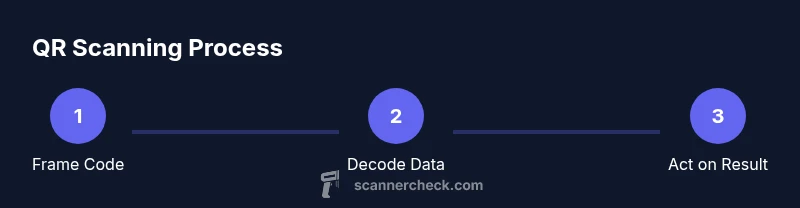
QR scanning spans consumer and enterprise use, and the device you choose shapes your workflow. A smartphone is the most ubiquitous option: you can scan from the camera or a dedicated app and then use the resulting data immediately. Tablets offer a larger display and sometimes a more comfortable scanning experience in a shared environment. Standalone scanners, connected to POS systems or inventory software, provide dedicated scanning hardware with tactile triggers, long‑lasting durability, and faster throughput in busy workplaces. Regardless of device, the core process is the same: capture, decode, act. In business settings, you’ll typically integrate scanning with inventory databases, CRM records, or asset management platforms. Ensure the chosen device supports your data formats and has the right drivers and software to feed your back‑end systems.
For mobile users, offline scanning can be a huge benefit when internet is unavailable. Some apps store decoded data locally until you’re back online, then sync with cloud services. For teams, rolling out a standard app across devices helps maintain data consistency and simplifies troubleshooting. Always test the entire data path—from scan to data entry—to avoid surprises in real work flows.
In educational or DIY contexts, you can use a phone to scan codes on product labels, lab equipment, or workshop handouts. The data can be saved to notes, shared via messaging apps, or used to trigger automation in smart home setups. The versatility of QR scanning makes it a practical tool for everyday tasks as well as advanced workflows.
Troubleshooting common scan issues and best practices
Even with well‑designed software, scan problems happen. Common culprits include insufficient lighting, glare from reflective surfaces, code damage or printing errors, and extreme angles that hide modules from the camera. Start with a stable distance—often a few inches to a few centimeters is enough—while ensuring the code is fully visible in the frame. If the code isn’t detected, try moving closer or further away, adjusting the angle, or rotating the device to reduce perspective distortion. Clean the lens and ensure the camera isn’t obscured by a case or screen protector. Some codes are designed for specific scanners; if your code is not recognized, trying a different app can help determine whether the issue is with the code or the software.
Regular maintenance helps prevent issues: keep software up to date, clear app caches if needed, and periodically test with test codes from trusted sources. For high‑volume environments, set up a validation screen so operators know when a scan succeeds and when to re‑scan. If you encounter repeated unreadable codes, consider adjusting the printer’s contrast or code size, or verify that the code has not been damaged by moisture or wear. By handling common issues proactively, you’ll reduce downtime and improve scan reliability.
Finally, be mindful of privacy and data security. Only scan codes from trusted sources, and review the data the app collects, especially if you’re scanning sensitive items like payments or credentials. If you suspect a malicious code, report it and avoid interacting with it.
Security and privacy considerations when scanning
QR codes themselves are just data carriers, but the action they trigger can expose you to risk if the source is untrustworthy. Treat unfamiliar codes as potentially risky: avoid scanning codes from unsolicited emails, pop‑ups, or websites you don’t recognize. Before you open a link or authorize an action, verify the source and consider using a security‑minded scanner that can preview URLs or display a safety warning. Some apps provide additional protections like sandboxed browsing, permission prompts, and the ability to disable automatic actions. If you’re using a business scanner, implement data governance practices: limit data capture to only what you need, enable audit logs, and ensure access controls on any cloud sync.
In environments such as healthcare or finance, strict privacy rules may apply. Use devices and apps that support encrypted data transmission, and whenever possible store only minimal data locally. Regularly review who has access to the scanned data and how it’s used. The bottom line is that scanning should be a transparent, controlled activity that respects user consent and data rights.
Maintenance, tips for longevity and accuracy
To keep your QR scanning setup reliable over time, adopt a routine maintenance routine. Regularly update apps and device firmware to benefit from the latest decoding algorithms and security patches. Keep the camera lens clean and avoid cases that obscure your view or create reflections. If you rely on a dedicated scanner, follow manufacturer guidelines for cleaning and calibration, and schedule periodic firmware checks. For business deployments, document standard operating procedures (SOPs) for scanning to ensure consistency across teams. Maintain a simple data-backup plan, so scanned results can be restored if devices fail or are replaced. Finally, consider building a small knowledge base with common troubleshooting steps and test codes to empower users to fix minor issues themselves.
1–2 more tips to elevate your scanning skills
- Streamline data handling by setting default actions for different data types (URL opens in a specific browser, contact cards save to a designated group).
- Practice scanning under varying conditions—bright sun, indoor lighting, and mixed code sizes—to train your eyes and the app’s detection capabilities.
Tools & Materials
- Smartphone or tablet with a camera(iOS or Android; ensure camera is functional and updated)
- QR scanner app or built-in camera QR mode(Enable QR scanning in app settings or use native camera features)
- Stable internet connection (optional)(For accessing online content or cloud integrations after scan)
- Printer or label stock (optional)(For creating your own QR codes or labeling assets)
Steps
Estimated time: 8-12 minutes
- 1
Prepare the device
Power on your device, ensure it’s charged, and close distracting apps. Check that the camera lens is clean and free of smudges, which can hamper detection. You’ll want a stable surface or a handhold that minimizes shake during scanning.
Tip: Charge the device fully if you expect extended scanning sessions. - 2
Open the scanner app
Launch the QR scanner app or enable the camera’s built‑in QR mode. Grant only essential permissions (camera, storage, location if needed for data sync). If using a dedicated scanner, power it on and verify it’s connected to your backend system.
Tip: If you’re using a new app, run a quick test with a known code to confirm setup. - 3
Frame the code
Point the camera at the QR code so it appears centered in the viewfinder. Hold the device steady and adjust distance until the scanner detects the code. Avoid extreme angles that distort the pattern.
Tip: Lighting helps: avoid glare and shadows on the code surface. - 4
Allow decoding and view the result
Wait for the app to decode and display the data. If a URL appears, you’ll typically be prompted to open it or copy it. For other data types, the app may show saved text or a contact card.
Tip: Do not automatically open unknown URLs—preview first when possible. - 5
Take the chosen action
Choose the appropriate action: open a browser, save contact details, or copy data to your clipboard. Some data can trigger automatic actions; review prompts before proceeding.
Tip: If the action seems risky, skip it and verify from another source. - 6
Handle sensitive data securely
If the data includes credentials or payment details, treat it as sensitive. Use apps with strong privacy controls and avoid storing sensitive data on devices with weak security.
Tip: Enable device encryption and restrict app data access where possible. - 7
Save, share, or annotate
Store scanned results in a note,CRM, or database or share them with teammates. Use consistent folder structures and naming conventions to keep data searchable.
Tip: Create a template note to capture context (date, location, source). - 8
Close the session and review
Exit the app, log out if needed, and wipe temporary caches if you’re on shared devices. Review recent scans for accuracy and consistency before archival.
Tip: Periodically audit scanned data for duplicates or errors.
Common Questions
Do I need internet to scan a QR code?
Not always. Some QR codes contain data that can be read offline, while others direct you to online content. If you give a code permission to open a link, internet access will be required to load the page.
Many QR codes work offline, but if you tap a link, you’ll need internet to load it.
Can QR codes be scanned with a built‑in camera?
Yes. Most modern smartphones support QR scanning directly in the camera app. If yours doesn’t, you can download a free scanner app. Always ensure the app has appropriate permissions and reviews.
Yes, most phones can scan QR codes with their built‑in camera or a trusted app.
Are QR codes safe to scan?
QR codes are data carriers and can be used safely or maliciously. Scan only codes from trusted sources, preview URLs before opening, and use a security‑minded scanner that can warn you about suspicious links.
Only scan codes from sources you trust and preview anything risky before opening.
What should I do if a code won’t scan?
Check lighting, clean the lens, and adjust distance or angle. If it’s damaged, try a different code or app. Some codes require specific data types, so the app might offer alternative actions.
If a code won’t scan, improve lighting, clean the lens, and reframe the code.
How do you create your own QR codes?
Use a reputable QR code generator to encode URLs, contact info, or text. Test the code with multiple scanners to ensure reliability before printing or distributing.
You can generate your own QR codes with trusted online tools and test them before use.
Watch Video
Key Takeaways
- Choose a trusted QR scanner app or built‑in camera.
- Frame codes clearly, in good lighting, and avoid suspicious sources.
- Decide data actions carefully to protect privacy and security.