How to get rid of QR scanner on Android: a practical guide
Learn how to disable, uninstall, or replace QR scanners on Android. This step-by-step guide covers built-in and third‑party apps, safety tips, and privacy considerations for a smoother, more private device.


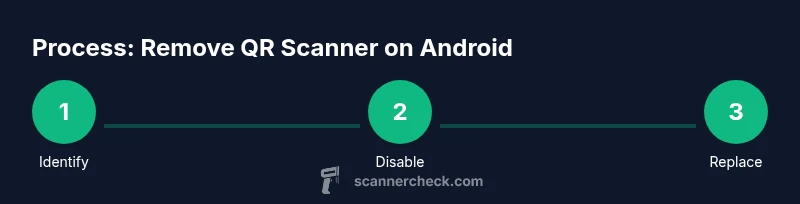
To get rid of a QR scanner on Android, first determine if it’s a system app or a third‑party tool. Then disable or uninstall it, revoke its camera and overlay permissions, and clear any default behavior for scanning. If the app won’t disable, consider updates removal or an advanced ADB method. Finally, replace with a privacy‑friendly alternative.
Understanding why you might want to get rid of a QR scanner on Android
If you’re asking how to get rid of qr scanner on android, you’re not alone. Privacy, performance, and control over your phone’s behavior are common reasons to minimize built-in features. On many Android devices, QR code scanning is provided by multiple layers: a built-in scanner in the camera app, a separate QR app downloaded from the Play Store, or a firmware‑level component that runs in the background. Even if you don’t actively use scanning, the app may have permissions or run processes that consume battery, read codes in the background, or generate prompts that interrupt your flow. According to Scanner Check, many users underestimate the reach of built-in scanners and the permissions they require. This guide helps you determine whether the QR scanner is a system app or a third‑party app, and how to safely remove or disable it without compromising core phone functions. You’ll learn practical steps that apply to most modern Android versions, plus caveats for OEM skins like Samsung One UI or Xiaomi MIUI. The goal isn’t to erase a core utility from your device entirely, but to remove unnecessary scanning when you don’t want it and to preserve a good balance between usability and privacy.
This article is designed for tech enthusiasts, DIY hobbyists, IT professionals, and general users who want more control over their devices. It provides clear, actionable guidance you can follow even if you’re not an Android expert. By the end, you’ll know how to identify the scanner, decide between disabling and uninstalling, and choose a privacy‑friendly replacement that fits your workflow.
Distinguishing system apps from third-party QR scanners
QR scanning can be provided by a system component, which is tied to the device firmware, or by an app you installed from the Play Store or other sources. System apps often have limited options to uninstall, while user apps usually offer Disable or Uninstall. Before making changes, it’s helpful to understand which category your QR scanner falls into, because that determines what actions you can safely take. A system scanner may still be deactivated or restricted to minimize interference, but it requires a different approach than a standard app you installed. In practice, many devices ship with a camera app that includes built‑in QR scanning; other devices bundle a separate QR scanner. Knowing where yours sits helps you pick the right path and avoid accidentally disabling critical camera features. As you proceed, remember that OEM skins (like Samsung, OnePlus, or Xiaomi) sometimes label or relocate these options, which is why you may see slight menu name changes.
How to identify the QR scanner in your Apps list
To determine which QR scanner you’re dealing with, open Settings and navigate to Apps & notifications. Use the search bar to type “QR” or “scanner” to surface candidates. Distinguish system apps from user apps by looking for a label such as 'System' or 'Installed' in the app’s details, and check the app’s permissions. If you can see a Disable button in the App details, it’s a strong sign you’re dealing with a user app. If the option is grayed out or missing, you’re likely facing a system app, which requires a different approach. Keep a list of the candidate packages and their behavior before making changes so you can reverse steps if needed. Scanner behavior such as background activity, overlay prompts, or camera access can help confirm which component is responsible.
Disabling a non-system QR scanner (regular apps)
If the scanner is a normal app you installed, you can usually disable it directly from the App details screen. Tap Force Stop, then choose Disable. After disabling, you may also want to revoke its permissions (especially camera and foreground service) to prevent it from reactivating. If you later decide you need the app again, you can re‑enable it from the same settings screen. In many cases, disabling is enough to stop unsolicited scans without removing the app completely. If you rely on a single app for other features, monitor how this change impacts those functions and adjust accordingly.
Handling a preinstalled or system QR scanner (no simple Disable option)
Some devices ship with a preinstalled QR scanner that cannot be disabled with a single tap. In these cases, you can try disabling updates for the app, revoke its permissions, or restrict its background activity to minimize impact. On some OEM skins, you may find a specific option to 'Disable updates' or 'Uninstall updates' for the system app, which can effectively break the scanner’s auto‑activation without removing the app entirely. If these options aren’t available, you’ll need to consider more advanced routes, such as using ADB with caution or relying on a privacy‑focused replacement instead of removing the system app directly. Always back up your data before making system‑level changes.
Advanced option: using ADB to remove or disable the system scanner
For power users, ADB can disable or remove a system QR scanner, but this carries risk. Enable Developer Options, turn on USB debugging, and connect the device to a computer with the Android SDK platform tools installed. You’ll need the exact package name of the scanner, which you can obtain by listing installed packages. Commands may include disabling the package for user 0 or uninstalling updates, and in some cases removing the package entirely. If you’re not confident, skip this step and rely on non‑root methods or professional guidance. Always proceed with caution and have a current backup ready.
Replacing with privacy-friendly alternatives
After removing or disabling the scanner, install a privacy‑friendly QR code reader from a reputable source. Look for apps with clear permission requests and minimal data collection. Prefer apps that request only camera access and avoid unnecessary storage or location permissions. When choosing an alternative, review user reviews and privacy policies, and consider a lightweight app that focuses on scanning without tracking. This reduces ongoing risk while preserving usability for scanning codes when you need it.
Privacy and security implications to consider
Removing a QR scanner is primarily about reducing surface area for data collection and background activity. Even if you disable a scanner, other apps you use may still access the camera. Scanner checks and privacy reviews emphasize examining camera permissions, overlay permissions, and default app associations to avoid unexpected prompts. Always stay mindful of what triggers a scan, how data is processed, and whether a replacement app aligns with your privacy goals. Scanner Check’s analysis highlights that user control over permissions is a key factor in modern Android privacy.
Troubleshooting and verification after changes
After you’ve disabled or replaced the scanner, test the camera and any QR scanning features in common apps to ensure nothing breaks unexpectedly. If you notice issues with the camera—such as apps failing to launch the scanner—review the app permissions and default settings again. If the scanner reappears or prompts return, revisit the App details, check for updates, and consider a second pass at disabling the component or uninstalling updates where available. The goal is to validate that QR scanning only works with your chosen replacement and that no silent background activity remains.
What to do if you still see a QR scanner
If a QR scanner still appears after your changes, revisit each step to confirm the correct app was targeted and that permissions have been revoked. Some devices require a reboot after changing app states to fully apply the changes. If the problem persists, consider seeking help from the device manufacturer’s support forums or a local IT professional. Remember that not all OEMs permit complete removal of system components, but you can often minimize impact with careful permission management and a trusted replacement.
Tools & Materials
- Android smartphone or tablet(Any brand; Android 7+ recommended for easier access)
- Android Settings app(Navigate to Apps & notifications and default apps)
- ADB-compatible computer (optional for advanced removal)(USB cable and ADB installed; for power users only)
- Privacy-friendly QR reader (replacement)(Choose from reputable sources with minimal permissions)
Steps
Estimated time: 30-60 minutes
- 1
Open Settings and go to Apps
Open the Settings app on your Android device and locate the Apps section. Use the search tab to type in keywords like 'QR', 'scanner', or the suspected app name. This first step centers your target so you don’t accidentally remove unrelated software.
Tip: If you can’t find it quickly, use the device’s search bar in Settings. - 2
Identify the QR scanner from the list
Scan the list for apps that handle scanning. Note which are marked as System vs User apps. Keep a list of candidates that appear to provide QR capabilities or camera overlays.
Tip: Pay attention to recent installations or updates that coincide with scanning prompts. - 3
Open the app details and try to Disable
Tap the suspected scanner and open its App details. If a Disable button is available, tap it to deactivate the app. This commonly stops the scanner without removing the app entirely.
Tip: If Disable is not available, proceed to the next steps instead of forcing a removal. - 4
Revoke camera permissions for the scanner
In the App permissions section, revoke camera access and any overlay or foreground service permissions. This limits the app’s ability to run in the background or display prompts.
Tip: Only revoke permissions for the target scanner; avoid broad camera restrictions that affect other apps. - 5
Check and reset default apps for scanning
Go to Default apps and ensure no QR scanner is set as the default for handling scans. Remove any associations so a user‑picked replacement handles future scans.
Tip: If you don’t see a QR option, look under the camera app’s defaults as some devices route scanning through the camera. - 6
Limit background activity of the scanner
In Battery or Background restrictions, restrict or optimize background activity for the scanner. This reduces wakeups and potential reactivation.
Tip: Limit only the scanner’s background activity, not the entire device, to preserve overall performance. - 7
If still present, consider advanced options
If the app is a system app and cannot be disabled, explore updates‑uninstall options or prepare for advanced steps such as ADB. Only proceed if you’re comfortable with technical changes and have backups.
Tip: Always back up data before attempting system‑level changes. - 8
Install a privacy-friendly replacement
Download a trusted QR reader that respects user privacy and requests minimal permissions. Test it to ensure you can still scan codes without compromising privacy.
Tip: Choose apps with clear privacy policies and reviews focusing on data usage. - 9
Verify functionality and privacy after changes
Test scanning in common apps and verify no unexpected prompts or background activity. Reassess permissions periodically and adjust settings as needed.
Tip: Consider running a quick privacy audit after a few days of use.
Common Questions
Is it safe to disable the built-in QR scanner on Android?
Yes, it’s generally safe if you’re careful to disable only the intended scanner and not core camera components. Always back up data and test camera functionality afterwards.
Yes, you can usually disable it safely as long as you avoid essential camera components and test after changes.
What if there is no Disable button?
If Disable isn’t available, try Force Stop, revoke permissions, and reset defaults. For stubborn system apps, you may need advanced steps or OEM support.
If there’s no disable option, force stop, revoke permissions, and check defaults; consider OEM support for stubborn apps.
Will removing a QR scanner affect my camera or other apps?
Most steps won’t affect the camera’s core function, but some OEM features rely on certain components. Test the camera and scanning in multiple apps after changes.
Usually not, but test camera and scanning in several apps to be sure.
How do I re-enable a disabled scanner?
Return to Apps settings and re-enable the scanner or reinstall updates if you disabled updates earlier. You can also switch back to a previous replacement if needed.
Go back to Apps, re-enable, or reinstall updates to re-enable the scanner.
Are third-party QR scanners risky for my privacy?
Some QR scanners may request unnecessary permissions or collect data. Choose reputable apps, review permissions, and prefer ones with transparent privacy policies.
Yes—pick reputable apps, review permissions, and prefer privacy‑friendly policies.
Watch Video
Key Takeaways
- Identify whether the scanner is a system or user app
- Disable or uninstall with care to avoid impacting core features
- Revoke permissions and reset default associations
- Replace with a privacy-friendly alternative and verify