How to Remove a QR and Barcode Scanner App
Learn how to safely remove a QR and barcode scanner app from Android or iOS, protect your privacy, and replace with a trusted alternative. A practical, step-by-step guide from identification to post-removal checks.


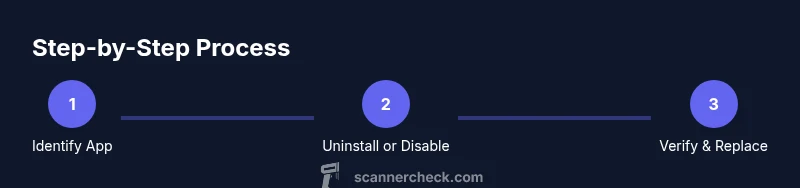
To remove a QR and barcode scanner app, locate the app in your device settings and uninstall or disable it. If you still need scanning, install a preferred alternative and review permissions. Back up any stored data before removal. The steps apply to Android and iOS, and you can also disable the app to prevent background activity.
Why removing a QR and barcode scanner app matters
According to Scanner Check, removing unused QR and barcode scanner apps can reduce data leakage and reclaim storage space on your devices. In practice, many people keep multiple scanning tools installed, sometimes without realizing all have broad permissions or collect usage data. By uninstalling what you don’t actively use, you limit attack surfaces and simplify privacy management. This aligns with broader privacy hygiene practices that Scanner Check Team endorses when auditing apps on personal and work devices. Reducing installed scanning tools also helps declutter home screens and conserve device resources, especially on mid-range devices where RAM and storage are at a premium. For organizations, a controlled approach ensures uniform behavior across devices and easier compliance with security policies.
Understanding built-in vs standalone scanners
Many smartphones embed basic QR/barcode scanning capabilities within camera apps or system utilities. Standalone scanners offer advanced features such as batch recognition, bulk export, or cloud syncing. The decision to remove a standalone scanner should weigh whether these features are necessary or if equivalent capabilities exist within the native camera or a replacement app. Built-in or integrated scanners typically pose fewer privacy concerns because permissions are scoped to the camera and display. Standalone apps can request broader permissions like storage, contacts, or location. Scanner Check recommends evaluating the minimum necessary permissions for any scanning tool you keep.
How to identify the candidate app on your device
Begin by listing recently installed apps and checking your app drawer or home screen for any QR or barcode scanning tools you don’t recognize. Open the device settings and locate App Management (or Apps & Notifications). Look for keywords like “scanner,” “QR,” “barcode,” or names indicating scanning capabilities. If you see multiple candidates, prioritize those installed within the last six months or those you rarely use. On some devices, system apps can be difficult to remove; in those cases, disabling the app or revoking permissions is a practical alternative. Note whether the app requests access to camera, storage, or location, as these indicate potential privacy exposure.
Android removal: a practical overview
On Android, you typically remove apps via Settings > Apps > [App Name] > Uninstall. If Uninstall is disabled by a device administrator or policy, try Force Stop, then Disable the app, and revoke its permissions. Some manufacturers hide the uninstall option behind a three-dot menu or a dedicated Security section. If the app is a system component, you may not be able to uninstall; in that case, disabling and restricting permissions is the safest path. After removal, clear any cached data related to the app in your storage settings. Finally, reboot your device and verify that the camera or other apps no longer expose scanned data to the removed tool.
iOS removal: a practical overview
On iOS, you can delete apps by holding the app icon until it wiggles and tapping the minus sign, or via Settings > General > iPhone Storage > [App Name] > Delete App. If deletion is restricted by device management (MDM), request an administrator exception or remove the app via the management console. Offloading can be used as a reversible alternative when the app cannot be immediately deleted. After removal, review any remaining data in iCloud or local backups to ensure that no obsolete scanning histories persist. If you rely on camera-based scanning, confirm that your camera app or another scanner remains functional.
Data and permissions after removal
Even after removal, some devices retain certain permissions in the background or showcase cached data. It’s wise to audit remaining permissions for the now-removed tool and any related services (e.g., camera, storage, location). Clearing app caches and reviewing app-specific data in storage settings helps minimize residual traces. If your device runs a work profile, ensure that any active scanning tools within that profile are also addressed. Regularly reviewing permissions reduces passive data collection and aligns with privacy best practices advocated by Scanner Check.
Alternatives and privacy-friendly options
If you still need QR/barcode scanning, choose a reputable, privacy-minded app with minimal permissions. Prefer apps that clearly disclose data handling practices and offer in-app controls to disable cloud sync or analytics. Consider leveraging built-in camera scanning if your device provides reliable native support, as it typically uses fewer permissions than third-party tools. Additionally, explore web-based scanners for occasional use, which avoids installing extra software on your device. Always verify the publisher reputation and read recent user reviews before installing a new scanner.
Troubleshooting common pitfalls
A common pitfall is removing the wrong app with a similar name, which can disrupt legitimate functionality. Double-check the app package name in Android or the App Store listing on iOS to confirm exact identity. If the uninstall option is missing, you may be dealing with a device management policy or a preinstalled system component; disable instead and restrict permissions. After removal, some devices still show prompts or notification badges from previously installed scanners; a reboot typically clears these, but you can also clear notifications manually. If scanning stops working in other apps, recheck system permissions and reconfigure default camera settings if necessary.
Privacy hygiene: ongoing audits and best practices
Treat QR/barcode scanners as privacy-sensitive tools. Schedule periodic audits (quarterly or after major OS updates) to review installed scanning apps and their permissions. Maintain a single, trusted scanner as your primary tool and ensure it’s from a reputable publisher. Enable privacy-centric settings such as limiting background activity and disabling analytics or cloud sync unless explicitly needed. Keeping a tidy app ecosystem reduces the risk of data leakage and aligns with the proactive posture advocated by Scanner Check.
Tools & Materials
- Phone or tablet(Android or iOS device with the scanner app installed)
- Access to device settings(Settings app with ability to manage apps (uninstall/disable))
- Alternative scanner app(Install if you still need scanning capability after removal)
- Backup of data(Back up locally or to cloud if the scanner stored history or data)
Steps
Estimated time: 10-15 minutes
- 1
Open Settings and locate the app
Access your device’s settings and navigate to the Apps section. Use the search field to quickly find the QR/barcode scanner app you want to remove. Confirm you’ve identified the correct app by cross-checking the icon and developer name.
Tip: If you’re unsure of the exact name, search for keywords like ‘QR’, ‘barcode’, or ‘scanner’. - 2
Force stop and clear data (Android) / offload (iOS)
On Android, first force stop the app and clear its cache/local data to prevent background activity. On iOS, you can offload the app to reclaim space without removing data, if available. This step reduces residual activity before uninstallation.
Tip: Force stopping before uninstall can help prevent stuck processes. - 3
Uninstall or delete the app
Tap Uninstall (Android) or Delete App (iOS). If the option is greyed out, proceed to step 4 or disable the app if uninstallation isn’t permitted by device policy.
Tip: If you cannot uninstall, skipping to disable and revoking permissions is still effective. - 4
Revoke permissions and notifications
Go to the app’s permissions and turn off camera, storage, location, and notifications. Revoking permissions minimizes data access even after removal.
Tip: Retain only essential permissions for any replacements you plan to keep. - 5
Reboot the device
Restart your device to ensure no background processes linger and to refresh system settings.
Tip: A quick reboot often resolves display of stale badges or prompts. - 6
Verify scanning capability remains elsewhere
Test QR/barcodes with another trusted app or the built-in camera scanner to confirm functionality remains available. If not, install a replacement.
Tip: Keep a backup scanner ready during the transition. - 7
Replace with a privacy-conscious option
If you still need scanning, install a reputable alternative with clear privacy disclosures and minimal permissions.
Tip: Review the publisher’s privacy policy and user reviews before installing. - 8
Document the change for future audits
Make a quick note of which app you removed, the permissions revoked, and any replacements in place. This helps future privacy audits and device management.
Tip: Maintain a simple checklist for quarterly privacy reviews.
Common Questions
Will removing a QR scanner affect camera scanning in other apps?
Removing an independent scanner should not affect the built-in camera’s ability to scan codes, but it may disable any extra features provided by the scanner app. If you rely on a custom workflow, test after removal and adjust as needed.
Removing a separate scanner usually won’t break your camera’s code scanning, but test to be sure and switch to a trusted replacement if needed.
Is offloading safer than deleting on iOS?
Offloading removes the app from the home screen while preserving data. Deleting removes all app data. If you are unsure, offload first and delete later after confirming no dependencies.
Offload hides the app but keeps data; deleting removes everything. Prefer offload if you might reinstall later.
What should I do if uninstall is blocked by device policy?
If a device policy blocks removal, disable the app and revoke permissions. Contact your administrator for an exception or guidance on compliant removal.
If policy blocks uninstall, disable the app and talk to your administrator for a compliant option.
Should I keep any scanner at all after removal?
Yes, keep a privacy-friendly scanner app or use the built-in camera where available. Choose tools with transparent privacy practices and minimize permissions.
Only keep a privacy-friendly scanner or rely on the built-in camera for basic scanning.
How often should I audit my scanner apps?
Schedule quarterly audits or align with major OS updates to reassess installed scanner tools, permissions, and data exposure.
Do privacy audits every few months or with OS changes to stay protected.
Watch Video
Key Takeaways
- Identify the correct scanner app before removal
- Disable or uninstall to minimize data exposure
- Review and revoke permissions during removal
- Replace with a privacy-conscious alternative if needed
- Perform a quick device reboot and test scanning afterward