How to Download and Use a QR Barcode Scanner
Learn how to safely download and use a qr barcode scanner, compare features, grant permissions wisely, and test your setup for quick QR and barcode reading. A thorough guide by Scanner Check to help tech enthusiasts choose the right app.


This guide covers the qr barcode scanner download process for your device, plus how to evaluate features and install with proper permissions. It explains compatible devices, app stores, and safety best practices, with quick setup steps to start scanning QR codes and barcodes right away. By the end, you’ll have a reliable scanner ready for everyday use.
What a qr barcode scanner download brings to you
According to Scanner Check, a reliable qr barcode scanner download should balance speed, accuracy, privacy, and a clean interface. In practice, the right app lets you read both QR codes and standard barcodes, save scan history, export data, and even look up product information on the fly. You want apps that are easy to use, responsive, and respectful of your privacy. This section outlines what you should expect from a modern scanner app and how to set expectations before you begin your download. You’ll learn why a good download choice affects daily tasks—from quick price checks to inventory tracking. By understanding core capabilities, you can skip dubious apps and focus on reputable options that deliver consistent results across devices and contexts.
Key features to evaluate in a scanner app
When evaluating a qr barcode scanner download, there are several features that separate solid options from noise. First, confirm broad code type support: QR, Data Matrix, Code 39, Code 128, UPC, EAN, and more. Next, assess speed and accuracy with real-world tests, especially in suboptimal lighting. Offline mode matters for privacy and reliability—ensure the app can read codes without an internet connection. Look for useful extras like scan history, export options (CSV or JSON), product lookup, and batch scanning for multiple codes at once. A clean, intuitive UI reduces learning time and errors. Privacy controls and transparent permissions are critical; prefer apps with clear privacy policies and minimal data sharing. Finally, consider cross-platform support and updates, as these affect consistency across smartphone and tablet ecosystems.
How to compare different apps: offline mode, speed, and ads
To compare qr barcode scanner download options, start with offline capability. A strong offline mode means you can scan without data connectivity, which is essential for fieldwork or remote locations. Evaluate speed by performing the same scan with several apps and noting time to focus, read, and display results. Ad frequency is a practical concern: lightweight, non-intrusive ads improve long-term usability, while aggressive ads ruin the experience. Review the permissions asked by each app; avoid those requesting camera, storage, location, and contacts unless strictly necessary for scanning features. Developer reputation matters—check the publisher’s history, update cadence, and user feedback. Finally, confirm data export formats and compatibility with your preferred tools (spreadsheets, cloud storage, or inventory software).
How to download safely: sources and verification
Safely downloading a qr barcode scanner download starts with using official app stores (Google Play or Apple App Store). Verify the developer’s name, read the description, and skim the privacy policy before installing. Look for user reviews that mention reliability and accuracy, and note the number of downloads as a rough maturity gauge. Check the requested permissions—camera access is essential, but storage, contacts, or location should only be requested if the app explicitly uses them. Ensure the app has an updated timestamp and recent reviews. If a source outside official stores appears, proceed with extreme caution and prefer trusted publishers. Finally, after installation, perform a quick sanity check using a few known codes to confirm expected behavior.
Installation and first-run setup
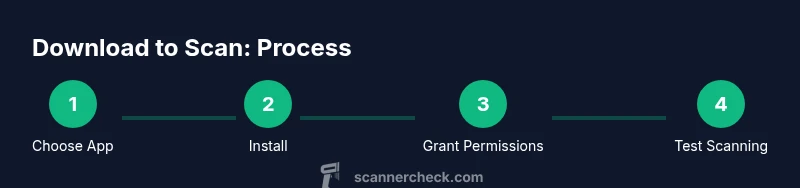
Open the installed app and grant necessary permissions, starting with camera access, which is essential for scanning. Calibrate any camera settings such as brightness or auto-focus if available. Set preferences for offline scanning, history retention, and export options. If the app offers warnings about privacy or data sharing, review them carefully before proceeding. Some apps prompt for notifications or location usage; disable these if you don’t need them. Customize the scan button placement or gesture controls to fit your workflow. Completing this setup ensures the app is ready for accurate, fast scans from the moment you start using it.
Testing with real codes
After setup, test your qr barcode scanner download with a variety of real codes: a QR code linking to a website, a URL, a vCard contact, and a product barcode. Observe how quickly the code is recognized and how the results are presented. If a code fails to read, adjust lighting, rotate the device, and ensure the camera lens is clean. Use a few practice codes to verify whether the app’s product lookup or price fetch features work as expected. Document one or two reliable codes you can reuse for ongoing validation, so you catch regressions after updates.
Privacy and security considerations
Privacy matters when you use a qr barcode scanner download. Review how the app handles scan data: does it store scans locally or upload them to the cloud? Prefer apps with transparent privacy policies and options to disable cloud sync. Be wary of apps that require excessive permissions or push unnecessary data collection. If a code contains sensitive information (like login tokens or personal data), avoid saving it in the app’s history unless you can encrypt or securely delete the record. Periodically audit the app’s permission settings after updates to ensure nothing unwanted has been added.
Troubleshooting common issues
If scans fail consistently, start with a basic checklist: ensure the app is up to date, grant camera access, clean the lens, and test in different lighting. Some apps allow you to toggle between color and grayscale processing or adjust exposure; try these options if codes aren’t detected reliably. If export features aren’t saving data, verify the chosen export path and file permissions. On rare occasions, a device reboot fixes temporary conflicts. If problems persist, consider trying another reputable qr barcode scanner download and compare results to isolate whether the issue is app-related or device-specific.
Maintenance and updates
Keep your scanner app current by enabling automatic updates when possible. Regular updates bring performance improvements, new code type support, and security patches. Periodically review permissions after updates and disable any that are no longer necessary. Maintain device hygiene by clearing cache or storage that could slow scanning. If you rely on the app for business tasks, consider versioning your setup or keeping a backup of essential configuration data. A well-maintained scanner app delivers consistent, accurate performance over time.
Tools & Materials
- Smartphone or tablet(Device with a camera and internet access (iOS or Android))
- Active app store account(Google Play or Apple App Store to download apps)
- Reliable internet connection(Wi‑Fi or cellular data for downloading and updates)
- Sufficient storage space(At least a few hundred MB free for the app and data)
- QR/barcode test codes(Printed or digital codes to verify scanning accuracy)
Steps
Estimated time: 25-35 minutes
- 1
Open the app store
Launch Google Play or the Apple App Store on your device and ensure your internet connection is active. This step prepares you to search for a qr barcode scanner download app.
Tip: Make sure you are on the official store and not a third-party marketplace. - 2
Search for a QR/Barcode Scanner
Use the search field to look for 'QR barcode scanner' or 'QR scanner' and review the top results. Pay attention to ratings, size, and recent updates.
Tip: Sort by rating and install size to avoid low-quality or fake apps. - 3
Review app details and permissions
Tap a candidate app and read the description, privacy policy, reviews, and requested permissions. Scrutinize whether camera and storage access are necessary for scanning functionality.
Tip: If an app requests unnecessary permissions, move on to another option. - 4
Install the app
Tap install and wait for the download to finish. Don’t interrupt the process and ensure you have adequate storage space.
Tip: Prefer apps with offline scanning capability for reliability. - 5
Open and grant initial permissions
Launch the app and approve required permissions, starting with camera access. Accept other essential prompts as needed for full functionality.
Tip: Review permission prompts before granting to avoid over-sharing data. - 6
Test with sample codes
Use a few real QR codes and barcodes to confirm scanning works. Explore results and adjust settings if necessary.
Tip: If a code doesn’t read, try moving the device closer or farther and adjust lighting.
Common Questions
What is the best way to download a qr barcode scanner app?
Download from official app stores and verify the developer. Review permissions and privacy policy before installing. This reduces risk and improves reliability.
Download from official stores and check permissions and privacy first.
Do QR scanner apps work offline?
Many QR scanner apps offer offline scanning for basic codes. Check the app description to confirm offline capabilities before installing.
Yes, many apps support offline scanning; verify in the app details.
Why do apps ask for camera permissions?
Camera access is required to read codes. Reputable apps request only essential permissions and explain why.
Camera access is needed to scan codes; ensure it’s clearly justified.
Are there scams to avoid when downloading scanners?
Yes. Avoid apps from unknown developers, those with excessive permissions, or dubious review patterns. Stick to trusted publishers and check privacy policies.
Avoid unknown developers and apps that request many permissions.
Can I use my built-in camera to scan codes?
Some devices include native camera scanning in the stock camera app. If not, a trusted QR scanner app can provide reliable scanning features.
Yes, many phones can scan codes with the built-in camera or a trusted app.
What should I do if scanning fails after installation?
Check lighting, clean the lens, ensure permissions are granted, and update the app. If problems persist, compare with another reputable scanner to isolate the cause.
Check lighting and permissions, then update or try another trusted scanner.
Watch Video
Key Takeaways
- Choose reputable scanner apps
- Grant only necessary permissions
- Test with real codes
- Prefer offline-capable options