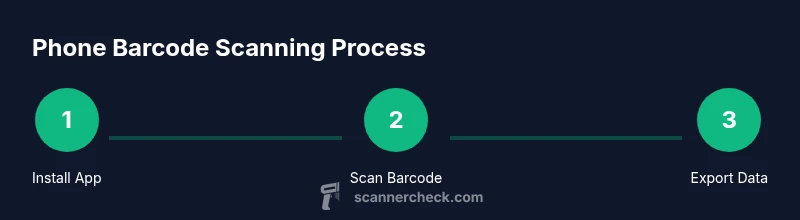
Phone as Barcode Scanner: A Practical Everyday Guide
Learn how to turn your smartphone into a reliable barcode scanner with practical steps, app comparisons, setup tips, and best practices for accurate scans.


According to Scanner Check, you can turn most smartphones into effective barcode scanners by using a camera-based app and standard scanning workflows. This guide shows you how to pick an app, calibrate for reliability, and test with common barcode types.
Why a Phone as Barcode Scanner Matters
A smartphone with a camera is more than a communication device—it can be a portable barcode scanner for everyday tasks. A phone as barcode scanner reduces hardware costs, simplifies workflows, and enables data capture on the go. The Scanner Check team notes that with a reliable app and a straightforward workflow, most users can achieve accurate scans without specialized hardware. This opens possibilities for small businesses, field technicians, educators, and home users who want to digitize inventories, receipts, and product information.
Key advantages:
- Portability: Scan anywhere without extra devices or cables.
- Low upfront costs: You already own the device; add a single app.
- Speed: Quick capture supports real-time inventory updates and checkout.
- Data sharing: Send results via cloud, email, or APIs.
Real-world scenarios:
- A small retailer using a free app to restock shelves.
- A field technician logging equipment in a work order.
- A DIY enthusiast cataloging parts for a personal project.
Limitations to keep in mind:
- Some apps rely on cloud data; offline use may limit lookup features.
- Privacy concerns can arise if scans expose supplier or customer data.
- Very damaged or poorly printed codes may require manual entry or alternative identifiers.
Overall, adopting a phone as barcode scanner is often a low-friction upgrade that speeds up tasks and reduces errors.
How to Choose the Right Scanning App
When evaluating scanning apps, look for core capabilities that align with your needs: reliable 1D and 2D code recognition, offline mode, data export options, and privacy controls. A good app should also offer straightforward calibration settings, fast autofocus, and minimal permissions. In addition to features, consider how the app integrates with your workflow—whether it exports to CSV or JSON, supports cloud storage, or can push data to your inventory or point of sale systems. Scanner Check recommends testing at least two apps on real-world codes across different lighting conditions to gauge consistency and speed. Privacy and security should be a priority; review the privacy policy and whether the app collects analytics or shares scans with third parties.
Tips for choosing:
- Test against common formats you encounter ( UPC, EAN, QR, Data Matrix ).
- Prefer apps that work offline or with minimal latency when offline.
- Check export formats and whether you can automate the workflow.
- Read user reviews for real-world reliability and privacy practices.
Bottom line: the right scanning app should feel seamless and trustworthy, turning your phone into a dependable workflow tool rather than a challenge.
Setting Up Your Phone for Reliable Scans
Setting up your phone for reliable barcode scans begins with installing a capable app and granting the required permissions. Start by choosing a camera-based scanner app and installing it from a trusted source. Open the app and allow camera access; some platforms also request storage or notification permissions. Position the barcode under even, indirect light, hold the device steady, and let the app autofocus. Clean the camera lens if you notice blurry scans. If your environment varies, enable any available lighting or flash features cautiously to avoid glare.
Next, adjust preferences for optimum performance: disable auto-rotate during scanning, enable continuous scan mode if you frequently scan batches, and configure the app to crop or zoom for small codes. Some apps offer a test mode or calibration page—use it to confirm accurate decoding from different angles and distances. Finally, run a few practice scans with different barcode types to verify speed and accuracy before you begin real work.
Scanning Different Barcode Types and Scenarios
Phone-based scanners typically support a wide range of barcode formats, including common 1D codes such as UPC and EAN, and popular 2D codes like QR, Data Matrix, and PDF417. QR codes are especially common for links and quick product data, while Data Matrix is frequently used on small items and electronics. When scanning, ensure the code is clean and not damaged; if the surface is curved, try scanning from a slight angle. For best results, avoid shiny surfaces and reflections that obstruct the camera’s ability to read the code. In retail, you may test product UPCs; in logistics, look for QR codes on shipping labels and Data Matrix on assets. In all cases, compare the decoded text with expectations to confirm accuracy.
If a code fails to decode, try a different distance or angle, or switch to a macro or zoom setting if available. For online shopping or price lookups, some apps connect to product databases or retailer feeds—keep in mind that online data may require internet access.
Best Practices for Consistency and Speed
Consistency comes from a stable setup and good scanning habits. Use a steady hand, align the barcode with the center of the camera frame, and allow autofocus to settle before capturing. Lighting matters: avoid harsh glare and direct sunlight, and if possible, position the barcode so the light is diffuse. When scanning multiple items, batch scans in quick succession to minimize context switching. Enable any automatic data export features, and decide in advance where you want the results stored, whether on device memory, cloud storage, or a connected app. Practice on various barcode sizes and print qualities to understand how your setup handles real-world conditions. If your environment changes, retest to maintain reliability.
Pro tip: keep the lens clean and avoid covering it with fingers or phone cases during scanning.
Security, Privacy, and Data Handling
Scanning barcodes can reveal product and supplier information, so be mindful of where and how you process data. Use apps from reputable developers, review permission requests, and prefer apps that minimize data collection. If you need to share scans, use encrypted channels and trusted cloud services with clear data retention policies. For inventory or asset tracking in a business setting, consider implementing access controls and logs for scan events. Regularly update the app to patch vulnerabilities, and delete outdated scans from devices when possible to limit exposure. By adopting careful data handling practices, you reduce risk without sacrificing the benefits of mobile scanning.
Troubleshooting Common Issues and Quick Fixes
If scans are slow or unreliable, start with a quick check of the camera lens, lighting, and target code cleanliness. Restart the app or device to clear temporary glitches and ensure you have the latest app version. Confirm permissions, especially camera access, and re-calibrate if the app provides a calibration tool. If a barcode fails to decode, try scanning from a different distance or angle, or switch to a different code format if available. In case of persistent problems, test with a known-good barcode to isolate whether the issue lies with the code, lighting, or software. Finally, consult the app’s help resources or switch to a different app if reliability remains an issue.
Tools & Materials
- Smartphone with a working camera(Any recent iOS or Android device)
- Barcode scanning app(Supports 1D and 2D codes; check privacy policy)
- Stable internet connection(Useful for lookups and cloud sync; offline mode is common)
- Test barcodes(Printouts or on-screen samples for UPC/EAN and QR codes)
- Good lighting(Helps reduce glare and improve focus)
- Phone stand or mount (optional)(Hands-free scanning improves consistency)
Steps
Estimated time: 15-30 minutes
- 1
Install a camera-based barcode scanner app
Open your device's app store, search for a camera-based barcode scanner, and choose one with high ratings and clear privacy details. Install and launch the app to begin testing.
Tip: Check that the app supports both 1D and 2D codes and has an explicit privacy policy. - 2
Grant camera and storage permissions
When prompted, allow the app to access the camera and, if needed, storage or files. Denying permissions will prevent decoding or saving scans, so review permission prompts carefully.
Tip: Review permissions in system settings after installation to ensure they remain enabled. - 3
Test with a known barcode
Scan a barcode you already know the data for (e.g., a product code). Confirm that the decoded text matches the expected value and that any linked data loads correctly.
Tip: Use multiple barcodes in varying sizes to confirm consistent performance. - 4
Enable offline mode if available
If the app supports offline decoding or local databases, enable it to reduce reliance on internet connectivity and speed up responses when scanning.
Tip: Test a few scans offline to verify that essential data is still accessible. - 5
Scan multiple barcode formats
Prepare a small set of codes: UPC/EAN, QR, and Data Matrix. Scan each type to confirm broad compatibility and to understand any format-specific nuances.
Tip: Keep codes well-lit and avoid damaged areas to maximize decoding accuracy. - 6
Export or integrate scanned data
Explore how to export results (CSV, JSON, or clipboard) or integrate with your workflow (e.g., spreadsheet, inventory app). Test the export so you know where data lands.
Tip: Choose a consistent export format that your downstream tools can ingest. - 7
Securely manage and back up scans
Decide where you store scans, enable password protection if available, and back up data to a trusted service. Delete stale scans to protect privacy.
Tip: Use encryption where possible and review app privacy settings regularly.
Common Questions
Can I use my phone as a barcode scanner without any extra hardware?
Yes. Most modern smartphones can turn into barcode scanners using a camera-based app. No additional hardware is required, though some workflows benefit from mounts or stands.
Yes, you can turn your phone into a barcode scanner with a camera-based app.
Which barcode formats are supported by phone scanners?
Most camera-based scanners support UPC, EAN, QR, and Data Matrix; some apps add PDF417.
Most apps read UPC, EAN, QR, and Data Matrix.
Do I need internet for scanning?
Offline scanning is available in many apps, but some features like live lookup may require internet.
Offline scanning is common, but some features need internet.
Are there privacy or security concerns with phone-based scanning?
Choose reputable apps, review permissions, and avoid sharing scans without consent.
Be mindful of permissions; pick trusted apps.
Can scanned data integrate with inventory or POS systems?
Yes, many apps export to CSV/JSON or integrate via APIs; check your workflow.
Many apps export or integrate; verify compatibility.
What should I do if scans are slow or misread?
Check light, lens cleanliness, distance, and focus; adjust app settings and update app.
Ensure good light and clean lens; adjust distance and focus.
Watch Video
Key Takeaways
- Select a capable app that supports 1D/2D codes.
- Test across barcode types and lighting conditions.
- Enable offline mode where possible for reliability.
- Export scans to your preferred workflow.
- Protect scanned data with good privacy practices.