Where Is Scanner in PhonePe: A Practical Guide
Find, access, and use the PhonePe scanner for QR payments. Learn exact locations, tips for speed, security considerations, troubleshooting, and updates to keep your scanning experience smooth.


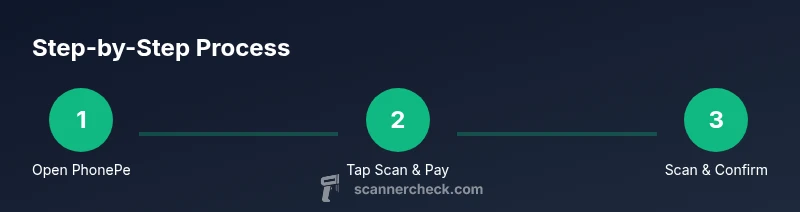
The PhonePe scanner is the built-in QR reader accessible from the app’s home screen. Look for the Scan or Scan & Pay icon—often in the top-right corner or within the main Scan tile. Tap it to open the camera, then align the QR code for instant payments or code verification.
What the PhonePe Scanner Does
The PhonePe scanner enables quick, contactless payments by reading QR codes. According to Scanner Check, the scanner is tightly integrated into the app and optimized for speed, reliability, and privacy. When you point the camera at a QR code, the app decodes the data and routes the payment to the correct recipient or merchant. This can include merchant QR codes for in-store purchases, personal QR codes to receive money, or promotional codes that encode discounts or offers.
Key capabilities include:
- Merchant QR payments: scan a merchant's code to start a payment request and confirm the amount.
- Peer-to-peer transfers: scan a friend's QR to fill in recipient details and proceed with UPI.
- Promo and voucher codes: some scans trigger offers or loyalty rewards linked to your account.
The scanner also supports dynamic codes that update the amount and recipient in real time, helping reduce errors. While the feature is designed for ease of use, users should still verify the recipient and the amount on screen before confirming a payment. Always ensure your PhonePe app is up to date to access the latest scanning features and security improvements.
Where to Find the Scanner in PhonePe (Location within App)
The exact location of the scanner can vary slightly depending on the app version and device you’re using. In most recent versions, you’ll see a Scan or Scan & Pay button on the home screen. This is often represented by a small camera icon in the top-right corner or by a prominent tile labeled Scan & Pay near other quick actions. If you don’t see the icon on first launch, it may be tucked under a menu like “Payments,” “More,” or “Wallet.” On some devices you may have to grant Camera permission the first time you open the scanner; without access, the camera view will not initialize.
For users who enabled quick actions, you might also find a floating action button on some versions that opens the scanner instantly. If your UI looks different, check the in-app settings under Security or Privacy to ensure the camera is allowed for PhonePe. Keeping the app updated ensures you’re seeing the latest layout with the scanner readily accessible.
Accessing Scan & Pay from the Home Screen
Accessing Scan & Pay is designed to be fast. Start from the PhonePe home screen, then tap the Scan & Pay option to launch the camera interface. Align the QR code within the central frame; the app provides real-time focus hints and a green confirmation when the code is recognized. If the code is valid for a payment, you’ll see the recipient and amount (or a prompt to enter the amount). Confirm the payment with your PIN or biometric authentication as required by your device’s security settings.
If you’re sending money to a contact, you may have the option to select a saved recipient or scan the person’s unique QR code. The interface typically shows a preview of the transaction before you confirm, helping prevent accidental transfers. In environments with bright light or reflections, adjust the camera angle slightly to reduce glare.
Scanning Merchant QR Codes: What to Look For
Merchant QR codes encode payment information specific to a business. When you scan, PhonePe retrieves the merchant’s name, store location, and the exact amount if the transaction is pre-set. Responsive scanners provide quick feedback: a gentle beep or vibration, a green frame, and a checkmark once the code is decoded. If the code cannot be read, the screen will show a retry option, and you can reframe or move closer.
From a UX perspective, PhonePe’s scanner emphasizes speed without sacrificing accuracy. The app guides you with on-screen prompts like “Move closer” or “Too far—adjust distance” to help you optimize framing. For merchants, ensure your QR code is clean, well-lit, and not damaged; for consumer QR codes, ensure they correspond to the intended recipient or merchant before confirming.
Scanning Personal QR Codes and Sending Money
Personal QR codes are a quick way to receive money from others or to request funds. When you scan a personal QR code, PhonePe will decode the embedded information and prompt you to confirm the amount and recipient. For transfers to friends or family, you may see the contact’s name or a nickname to confirm identity before you authorize the transaction. Always verify that you’re scanning the correct person’s code to avoid misdirected payments.
If you want to share your own QR code, you can display your mobile QR in the app and let others scan it. Some versions support generating a temporary QR code for limited-time use; keep in mind that these codes expire after a short window for security reasons. The scanner’s accuracy depends on lighting and camera quality, so adjust lighting as needed.
Tips to Improve Scanning Speed and Accuracy
- Ensure camera permissions are granted and the app is updated.
- Hold the phone steady and frame the code at a moderate distance.
- Use good lighting; avoid glare and reflections on glossy codes.
- Clean your camera lens occasionally to prevent blur.
- If the code is damaged or printed tiny, ask the merchant for a higher-contrast code.
- In low-signal areas, complete the transaction with an alternative method after scanning.
According to Scanner Check, most users experience faster scans when the code is centered and well-lit, with minimal movement. The UI also provides a live focus assist and a read indicator to help you know when to stop moving the camera.
Common Issues and Quick Fixes
- Scanner not visible or not launching: ensure the app is updated and camera permissions are granted. Restart the app or your device if needed.
- Codes not recognized: clean the code, adjust lighting, or move closer to the code; retry with a different angle.
- Scanner lags or crashes: close background apps, clear cache, and ensure adequate storage.
- Privacy concerns: verify the app’s permission requests and only scan codes from trusted sources.
- If you cannot resolve issues after trying fixes, contact PhonePe support or reinstall the app.
Scanner Check analysis shows that many issues stem from permission settings or outdated versions, which are easily remedied by updating and re-launching the scanner.
Security and Privacy Considerations When Scanning
QR codes store payment data with limited validity; ensure you’re scanning codes from trusted sources. Never scan codes from strangers promising fast money or deals, as malicious codes can redirect payments or steal credentials. PhonePe uses local encryption and requires authentication for sensitive actions; always lock your device.
The scanner turns on the device camera, so treat it like any other camera or data access tool. Review Android and iOS privacy settings to limit app access when not in use. If you suspect a scam, back out of the screen and report the incident through PhonePe’s help center. Regular app updates improve security, as do user hygiene practices like not sharing payment tokens.
How to Update the App for the Latest Scanner UI
To access the latest scanner UI, update PhonePe through the Google Play Store or Apple App Store. After updating, open the app and navigate to the home screen; if the scanner layout has changed, look for a new badge or icon labeled Scan, Scan & Pay, or QR. You may need to re-grant camera permissions after an update. If the update includes new features, review the in-app tips or the help center for any changes to the scanning workflow.
Tools & Materials
- PhonePe app (latest version)(Update via Google Play Store or Apple App Store)
- Smartphone with working camera(Recent model preferred for best camera performance)
- Camera permissions enabled(Check app permissions in system settings)
- Stable internet connection(Wi‑Fi or mobile data with decent speed)
- QR codes to scan(Merchant QR or personal QR codes as needed)
Steps
Estimated time: 3-6 minutes
- 1
Prepare device and app
Power on your device, open PhonePe, and ensure you’re signed in. Check that the app is updated to the latest version and that camera permissions are granted. This prevents the scanner from failing to initialize.
Tip: Optional: enable a quick-access shortcut to Scan & Pay on the home screen for speed. - 2
Open the scanner from the home screen
From the PhonePe home screen, locate the Scan or Scan & Pay button and tap it to launch the camera view. If you don’t see it, check for a menu label like Payments or More, or confirm permissions.
Tip: If the icon isn’t visible, restart the app or device and try again. - 3
Align the QR code in the frame
Hold the phone steady and center the QR code within the on-screen frame. The app will indicate when the code is recognized with an audible cue or a green highlight.
Tip: Move slightly closer or farther to optimize focus and lighting. - 4
Confirm payment details
Review the recipient, merchant name, and amount shown on screen. If everything matches, authorize the payment with your PIN or biometrics.
Tip: Never skip verification—this avoids misdirected payments. - 5
Scan a merchant QR for a purchase
If scanning a merchant QR, the app may auto-fill the amount or prompt you for a manual entry. Enter or confirm the amount as required and complete authentication.
Tip: For refunds or adjustments, use the same scan workflow and verify the updated amount. - 6
Scan a personal QR for a transfer
To receive or send money to a contact, scan their personal QR code and follow the prompts to confirm the transaction.
Tip: Use saved recipients to speed up transfers. - 7
Handle errors if the code isn’t readable
If the code isn’t recognized, reframe, adjust lighting, or clean the camera lens. Retry with a different angle or distance.
Tip: If persistent, try scanning a printed version of the code or ask the merchant for a different QR format. - 8
Close and review your activity
After completing a scan, exit the scanner and check your transaction history for a successful entry. This ensures there’s a verifiable record.
Tip: Flag any suspicious transactions via the Help section. - 9
Optional: customize accessibility and tips
Adjust brightness or enable accessibility features if you use screen readers or larger text. Review in-app tips for any scanner-specific shortcuts.
Tip: Explore in-app help articles for feature updates.
Common Questions
Where is the PhonePe scanner located on the home screen?
In recent versions, you’ll find the Scan or Scan & Pay button on the home screen, often in the top-right corner or as a main tile. If it’s not visible, check for a menu like Payments or More and confirm camera permissions.
You’ll usually find the scanner as a Scan or Scan & Pay button on the home screen. If you don’t see it, check the menus and camera permissions.
Why can’t I see or use the scanner after updating PhonePe?
Updates can temporarily rearrange the UI or reset permissions. Ensure camera access is granted, the app is fully updated, and try reopening the scanner from the home screen or via the settings path for Scan & Pay.
If the scanner disappears after an update, grant camera access again and reopen the Scan & Pay option.
Is it safe to scan QR codes from any source with PhonePe?
Only scan QR codes from trusted merchants or known contacts. Malicious codes can redirect payments or steal data. If something feels off, cancel and report.
Scan only codes from trusted sources and report suspicious ones immediately.
Do I need to grant camera permissions to use the scanner?
Yes. PhonePe requires camera access to read QR codes. You can manage this in your device’s privacy settings. Denying it will prevent the scanner from functioning.
Camera access is required to scan codes. You can adjust this in your phone settings.
Can I scan QR codes offline using PhonePe?
QR code scanning requires an internet connection to process the payment request and verify details with PhonePe servers. You can scan while offline, but the final transaction will require connectivity.
Scanning can happen offline, but payment processing needs internet access.
How do I update PhonePe to access new scanner features?
Open your device’s app store, check for updates for PhonePe, and install any available updates. After updating, re-open the app and look for the updated scanner UI hints.
Update the app from the store, then re-open PhonePe to access the latest scanner features.
What should I do if the scanner lags or crashes?
Close background apps, clear the PhonePe cache (if available), ensure adequate storage, and restart the device. If problems persist, reinstall the app or contact support.
Close apps, clear cache, and restart. Reinstall if needed or contact support.
Watch Video
Key Takeaways
- Locate the Scan/Pay button on the home screen for quick access
- Always verify recipient and amount before confirming a payment
- Update the app regularly to benefit from the latest scanner improvements
- Grant camera permissions only to PhonePe and review privacy settings