Why the PhonePe Scanner Isn’t Working and How to Fix It
A practical, step-by-step troubleshoot guide to fix PhonePe scanner issues—from permissions to updates—so you can pay quickly again. Includes diagnostic flow, step-by-step fixes, and prevention tips.


Why is the scanner not working in PhonePe? Common causes include camera permissions, an outdated app, or poor lighting. Quick fixes: update PhonePe, grant camera and storage access, clear the cache, and restart the app. If the issue persists, check your network, test the camera with another app, and consider reinstalling PhonePe.
Why the PhonePe Scanner Fails: Common Causes
If the PhonePe scanner suddenly stops reading QR codes or barcodes, you're not alone. In many cases the issue stems from app permissions, an outdated version, or poor lighting. According to Scanner Check, permission misconfigurations and outdated apps are among the top culprits across Android and iOS devices in 2026. Additionally, hardware constraints like a smudged lens or a lens cover can degrade focus. Network hiccups can also prevent the server from decoding and validating a scan, especially for payments that require live verification. Finally, some phones show scanner failures due to a conflict with other apps requesting camera resources. System updates sometimes reorder permission prompts or reset defaults, leading to a fresh round of access requests. By understanding these categories, you can methodically isolate the problem rather than guessing. The following sections walk you through a practical, fault-tolerant checklist.
Before You Troubleshoot: Quick Prerequisites
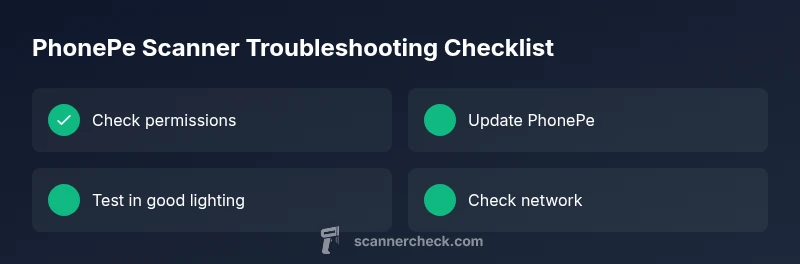
Before you dive into deeper troubleshooting, confirm a few basics that commonly block scanning. First, ensure PhonePe has permission to access the camera and storage. Then verify your device is online (Wi‑Fi or mobile data) and that the PhonePe app is up to date. If permissions are tangled or the app is stale, scanning may fail regardless of lighting. Finally, perform a quick screen lock and unlock to reset the app state. These checks save time and prevent chasing phantom issues.
- Check Camera and Storage permissions for PhonePe on Android/iOS.
- Confirm a stable internet connection.
- Restart PhonePe or reboot the device if needed.
- Ensure you’re using the latest PhonePe version.
If these basics are satisfied and the scanner still won’t work, you’re ready to move to diagnosis and targeted fixes.
Diagnostic-Flow: Symptom to Diagnosis
When the scanner fails to read, categorize the symptom: is it a complete failure to open the scanner, or does it scan but fail to decode some codes? The diagnosis often maps to a few high‑impact causes: (1) Camera permission blocked or reset during a system update (likely high), (2) Outdated PhonePe version or corrupted cache/data (high), (3) Poor lighting, dirty lens, or camera lens obstruction (medium), (4) Network or server verification hiccups (medium). A systematic flow helps you avoid guesswork. Start with permissions and updates, then test the camera with another app to rule out hardware issues, and finally verify lighting and data connection. If you identify a server issue, you may need to wait briefly or retry after network stabilization. This approach aligns with practical troubleshooting methods and reduces frustration when scanning fails.
Step-by-Step Fix: Most Common Cause (Camera Permissions & App Update)
This section walks you through the primary fix: ensuring camera permissions and updating the app. Start with the easiest checks and progress to more involved steps. Each step includes a quick pro tip to help you avoid common mistakes and accelerate resolution.
- Check phone permissions: Open Settings > Apps > PhonePe > Permissions and ensure Camera and Storage are allowed. Pro tip: Do this while PhonePe is closed to prevent runtime prompts from interfering.
- Update the app: Go to Google Play or the App Store, check for PhonePe updates, and install any that appear. Pro tip: Enable automatic updates to prevent future gaps.
- Restart the app: Force close PhonePe and reopen it. Pro tip: If issues persist, reboot the device to clear transient states.
- Test with a simple camera app: Open a camera app to verify the lens focuses and captures clearly. Pro tip: Clean the lens with a soft microfiber cloth before testing.
- Clear PhonePe cache/data (Android) or reinstall (iOS): Navigate to Settings > Apps > PhonePe > Storage > Clear cache (Android). Pro tip: If you clear data, you may need to sign in again, so keep credentials handy.
- Try again in good lighting: Ensure the scanned code isn’t overexposed or underexposed. Pro tip: Move to natural light or use a lamp to illuminate the code.
Advanced Fixes If It Still Doesn’t Work
If the common cause fix doesn’t resolve the issue, broaden your scope. Confirm your network is stable; a flaky connection can hinder verification even when the code is decoded locally. Check for other camera‑using apps that may be throttling resources, and temporarily disable them. For Android users, test with a different user profile to rule out profile‑specific settings. If the problem persists, contact PhonePe support with details about your device model, OS version, app version, and a description of the failure. In some cases, a temporary server outage or a regional restriction can affect scanner performance. Document the exact codes scanned, the environment, and the time of the attempts to help the support team identify patterns.
Safety, Usability Tips, and Prevention
Always prioritize safety and privacy when granting permissions. Only enable camera access for PhonePe and revoke it if you’re not actively using the feature. Keep your device updated to minimize permission resets after OS updates. Regularly clean your lens and avoid screen protectors that blur vision. Use bright, steady lighting and avoid backlighting that hides the code. If you routinely require scanning in field conditions, consider a dedicated device with a high‑quality camera. Finally, establish a quick health check routine: after each PhonePe app update, run a test scan to confirm continued reliability.
What to Watch For Next: Monitoring and Support
After you implement fixes, monitor the behavior for a few days. Note if scans fail under certain conditions (low light, certain codes, or after specific app actions). If you detect recurring patterns, capture screenshots and log times of attempts to share with support. Regular updates and proactive checks reduce repeat issues. If the scanner remains unreliable after steps, it may be time to escalate to PhonePe support or seek a device diagnostics check from a technician.
Steps
Estimated time: 15-20 minutes
- 1
Check Camera Permissions
Open your device settings and confirm PhonePe has both Camera and Storage permissions enabled. If prompts appear, grant them. This is the most common blocker when the scanner fails to initialize.
Tip: Do this with PhonePe closed to avoid runtime prompts. - 2
Update the PhonePe App
Visit the Play Store or App Store, search for PhonePe, and install any available updates. Updates often fix scanning bugs and improve camera handling.
Tip: Enable automatic updates to reduce future gaps. - 3
Restart and Test the Camera
Force close PhonePe and reopen it; if needed, reboot your device. Then test scanning with a clear, well-lit QR or barcode.
Tip: Use a clean lens and hold steady for the best focus. - 4
Clear Cache/Data (Android) / Reinstall (iOS)
If issues persist, clear PhonePe cache (Android) or reinstall the app (iOS). Be prepared to sign back in.
Tip: Back up credentials if you use password managers. - 5
Improve Lighting and Lens Condition
Scan codes in bright, uniform lighting and wipe the lens gently. Poor lighting is a frequent, easy fix.
Tip: Avoid glare by adjusting angle and distance. - 6
Check Network and Server Status
Ensure a stable internet connection and retry scans. Some transactions require server-side verification.
Tip: If you suspect a regional outage, check official PhonePe status pages.
Diagnosis: PhonePe scanner fails to read QR codes or barcodes
Possible Causes
- highCamera permission denied or reset after OS update
- highOutdated PhonePe version or corrupted app cache
- mediumLens obstruction, smudges, or poor lighting
- mediumWeak network connection or server-side verification issue
Fixes
- easyGrant camera and storage permissions for PhonePe
- easyUpdate PhonePe to the latest version and clear cache/data if needed
- easyClean the camera lens and improve ambient lighting
- easyVerify network stability and retry; wait if a server issue is suspected
- mediumReinstall PhonePe if problems persist after updates
Common Questions
What permissions does PhonePe need to scan codes?
PhonePe requires camera and storage permissions to scan codes and verify payments. If these are blocked, the scanner will not initialize. Always grant these only to PhonePe and recheck after OS updates.
PhonePe needs camera and storage access to scan codes and verify payments. Grant these permissions and retry.
Why does the scanner work sometimes and fail other times?
Inconsistent scanning is often caused by lighting, lens cleanliness, or temporary permission resets after a software update. Ensuring permissions, updating the app, and testing in good light usually resolves this.
Inconsistent scanning is usually lighting or permission related; fix those, then test again.
Does PhonePe require internet to scan?
Decoding the code can happen offline, but payment verification and server-side checks require an internet connection. A stable network helps prevent post-scan failures.
Decoding can work offline, but you need internet for payment verification.
What if none of the fixes work?
If issues persist after updating, permissions, and lighting checks, reinstall the app or contact PhonePe support with device model, OS version, and the exact failure time.
If fixes fail, reinstall the app or contact support with device details.
Can camera hardware cause scanner failures?
Yes. A damaged lens or degraded camera sensor can impede focus and decoding. Test with other camera apps to isolate hardware problems.
Hardware issues can cause scanning failures; test with another app to confirm.
Should I report a server outage?
Yes. If many users report failures simultaneously, there may be a regional server issue. Check official PhonePe status pages or social channels for announcements.
If many users report failures, there might be a server issue; check status pages.
Watch Video
Key Takeaways
- Improve permissions and update first
- Test camera with other apps to rule out hardware issues
- Refresh network connection before reinstall
- Clean lens and ensure bright lighting
- If it still fails, contact support with details