Why Your Barcode Scanner Doesn’t Work: A Quick Troubleshooting Guide
Urgent troubleshooting guide to fix why barcode scanner doesn't work. Learn quick checks, diagnostics, and step-by-step fixes from Scanner Check to restore reliable scanning fast.


If your barcode scanner isn’t reading codes, start with the basics: power, cable connections, and testing with multiple barcodes. According to Scanner Check Team, most failures are due to simple, correctable issues that can be fixed in minutes. If the problem persists, the next steps cover drivers, configuration, lighting, and barcode quality to help you diagnose and resolve the root cause quickly.
Why barcode scanning failures happen and why they matter
When a barcode reader suddenly stops reading, it disrupts workflows from point-of-sale to warehouse inventory. The impact can ripple through data accuracy, order fulfillment, and customer experience. According to Scanner Check, many instances of "why barcode scanner doesn't work" boil down to simple, fixable issues rather than mysterious hardware faults. The team finds that power issues, loose connections, or incorrect host interfaces are responsible for the majority of failures in everyday environments. By focusing on practical checks you can perform quickly, you reduce downtime and restore throughput without expensive service calls. This section lays the groundwork for a methodical approach, so you can identify the exact cause and apply the right fix fast.
As you read, keep in mind that the goal is to return to reliable scanning with minimal disruption. We’ll walk through diagnostics, safe maintenance practices, and proven remedies—backed by Scanner Check analysis from 2026. You’ll gain confidence that the next time a user asks, “why barcode scanner doesn’t work,” you have a plan rooted in real-world testing and data-driven steps.
Start with the basics: power, connections, and test barcodes
The first layer of troubleshooting is always the simplest. Verify the scanner is powered on and connected to the correct host interface (USB, RS-232, Bluetooth). Disconnect and reconnect cables to confirm there’s no loose contact, and swap in a fresh battery if it’s a cordless model. Then test with multiple barcodes, including common UPC codes and less common Code 128 samples. If a reader can scan some codes but not others, the issue may involve code quality, symbology settings, or lighting. Scanner Check Team consistently observes that power or interface mismatches are frequent culprits that mask deeper problems. By isolating those variables, you’ll narrow down the root cause quickly.
Lighting, glare, and barcode quality: environmental factors
Even a flawless reader can fail if lighting is off. Reflected glare on shiny labels or insufficient contrast between the code and its background makes decoding difficult. Ensure the scanning surface is clean and that ambient light does not wash out the barcode. When codes are damaged, misprinted, or printed with low contrast, the scanner will struggle even with a healthy device. Try repositioning the label, increasing illumination, or using a handheld reader at a different angle. The impact of barcode quality is often underestimated, yet it determines whether the device can consistently decode the symbol.
Firmware, drivers, and configuration: keep software in sync
Outdated firmware or drivers can disrupt compatibility with newer barcode types or inadvertently alter symbology settings. Check the device’s firmware version and compare it with the latest release from the manufacturer. Reinstalling drivers can fix corrupted software stacks and restore stability. Verify the scanning interface and enable the correct symbologies (e.g., QR, Code 39, Code 128). For Bluetooth readers, ensure stable pairing and that the host device isn’t interrupting scans. Regular software updates are a simple, high-impact preventive measure noted by Scanner Check Analysis in 2026.
Hardware health and maintenance: cleaning, cables, and wear
Dust, fingerprints, and a dirty scan window can impair performance. Clean the scanning window with a dry microfiber cloth; never use solvents that could damage coatings. Inspect cables for nicks or bends and replace damaged leads. If your model has a replaceable head, verify alignment and seals. Routine maintenance reduces intermittent failures and extends the device’s life. A quick check now can prevent bigger issues down the line.
Testing methods: verify fixes with controlled tests
After making changes, re-test with a controlled set of barcodes, recording success rate and read speed. Create a small test pack with codes of varying contrast and sizes, plus a dedicated test barcode you use regularly. Use multiple hosts or software apps to rule out host-side interference. Document the results carefully; a clear log helps you know when the issue is resolved and supports future troubleshooting when needed.
When to escalate: professional help and warranties
If you’ve tried the basics and firmware/driver updates but the problem persists, escalate to a technician or contact the manufacturer under warranty. The issue may be a hardware fault, sensor misalignment, or internal PCB problem that requires specialized tools. Before sending the device for service, collect model information, firmware version, purchase date, and a concise symptom log. A documented history accelerates diagnosis and minimizes downtime, which is why we emphasize proper record-keeping at every stage.
Preventive practices: keep scanners reliable
Establish a routine maintenance schedule that includes periodic cleaning, firmware updates, and calibration checks if your model supports them. Train staff to handle barcodes properly, avoid damaged or dirty codes, and report recurring issues early. Maintain spare cables and batteries so you can swap quickly during peak periods, and choose readers compatible with your primary barcode types to minimize future problems. Small habits today prevent major disruptions tomorrow.
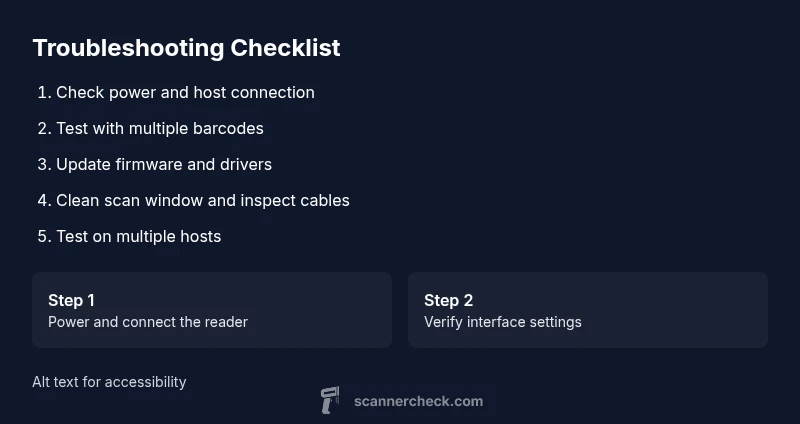
Steps
Estimated time: 40-60 minutes
- 1
Verify power and host connection
Make sure the scanner is powered and connected to the correct host interface. Check for a visible status indicator and try a different USB port or Bluetooth pairing if needed. This step eliminates simple power/connection issues that are the most common cause of failure.
Tip: If you’re using a shared hub, try a direct PC connection to rule out port failures. - 2
Run basic barcode tests
Test with multiple code types and sample barcodes. Include UPC, Code 128, and QR codes to see if some symbologies work while others don’t. Note which codes fail and under what conditions.
Tip: Record the test results for reference in later steps. - 3
Check interface settings and drivers
Open the device manager or scanner app and confirm the correct interface mode (USB HID, COM port, or Bluetooth). Reinstall drivers if they appear corrupted or unstable. Ensure symbologies you rely on are enabled.
Tip: Avoid changing too many settings at once; change one parameter and test. - 4
Inspect barcode quality and environment
Look for damaged or poorly printed labels. Check glare, contrast, and label orientation. Move to better lighting or use a matte surface to improve readability.
Tip: If possible, switch to a pristine test label to confirm the issue isn’t label-related. - 5
Clean the scan window and cables
Power off the device, clean the scan window with a dry microfiber cloth, and inspect cables for wear. Replace frayed cables or damaged connectors.
Tip: Avoid solvents on the window; solvents can degrade coatings. - 6
Update firmware and reset defaults
Check for firmware updates from the manufacturer and install them. If problems persist, reset to factory defaults and reconfigure gradually.
Tip: Back up settings before a reset. - 7
Test on multiple hosts and software
Connect the scanner to a second PC or device to determine if the issue is host-specific. Test with different software to rule out application-level conflicts.
Tip: Compare results across at least two software environments. - 8
Escalate when needed
If tests show no improvement, collect device data and contact support or the manufacturer. Warranty may cover hardware faults not easily diagnosed at home.
Tip: Prepare model, firmware version, purchase date, and symptom log before contacting support.
Diagnosis: Scanner intermittently fails to read codes
Possible Causes
- highPower issue or USB/serial disconnect
- mediumPoor lighting or glare on reflective codes
- mediumOutdated firmware/drivers or incorrect configuration
- lowDamaged or poorly printed barcodes
Fixes
- easyCheck power supply, battery level, and cable connections
- easyAdjust lighting angle, clean scanner window, and try different lighting
- mediumUpdate firmware and reinstall drivers; reset to defaults
- easyTest with high-contrast, pristine barcodes; avoid damaged labels
Common Questions
Why won't my barcode scanner read any codes at all?
If nothing reads, start with basic checks: ensure power is on, confirm the correct host interface, and test with multiple code types. If still no reads, proceed through the diagnostic steps to rule out simple issues first.
If nothing reads, start with power and connection checks, then test with several code types.
What should I do if codes are damaged or printed poorly?
Damaged or poorly printed codes are a common cause of failed reads. Improve lighting, switch to high-contrast labels, or replace the label with a clean example for testing. If the reader still fails after code quality improvements, check the device settings and firmware as a next step.
Damaged codes are often the problem; fix lighting and label quality, then verify firmware and settings.
Can a reset fix issues with a barcode scanner?
A factory reset can resolve configuration or firmware glitches, but it should be done with a plan: back up settings, update to the latest firmware, and reconfigure. If issues persist after resets, contact support.
A reset can fix glitches, but back up settings and test after reconfiguration.
Is it safe to clean a barcode scanner window with liquids?
No. Use a dry microfiber cloth only. Liquids can seep into seams and damage internal components. If stubborn grime remains, consult the manufacturer’s cleaning guidelines.
Only use a dry cloth on the window; liquids aren’t safe.
When should I escalate to professional support?
If the issue persists after all basic fixes, submit a support ticket with model, firmware, and symptom logs. A hardware fault or sensor misalignment may require professional service under warranty.
If fixes fail, contact support with your device details and symptom log.
Watch Video
Key Takeaways
- Check power and connections first
- Inspect barcode quality and environment
- Update firmware and drivers to fix compatibility
- Document recurring issues for vendor support