Why Your Scanner Isn’t Working: Quick Troubleshooting Guide
An urgent, practical guide to diagnosing and fixing common scanner issues—from power and connections to drivers, firmware, and workflow glitches. Learn fast steps to restore reliable scanning today.


Most scanner failures are caused by simple hardware or software issues, not a dead device. Start with power and cables, then verify the scanner is selected as the active device in your software. If the driver won’t load or the lights blink, update or reinstall the driver and run the built-in troubleshooter.
Symptom snapshot
If your scanner seems unresponsive, shows no image, or only produces blank scans, you’re not alone. Intermittent failures often stem from straightforward culprits—power, connections, or software settings—rather than a hardware fault. Before you panic, list the exact symptoms: does the device wake up, is it detected by the computer, do scans appear as blank pages, and do color or grayscale modes affect output? Documenting symptoms helps narrow the cause quickly and informs the diagnostic flow that follows.
Power, cables, and power supply
The simplest fixes often live at the edge of your setup: power and cables. Check that the scanner is plugged into a reliable outlet and the power indicator is solid. If you’re using a USB connection, try a direct port on the computer rather than a USB hub, and swap in a fresh USB cable. Some scanners also have a dedicated power switch or a sleep mode; ensure the unit isn’t in a low-power state. If the device requires AC power, confirm there’s no tripped breaker or surge protector interfering with the supply. A tiny change here can revive a seemingly dead device.
OS recognition and driver status
Windows, macOS, and Linux rely on drivers to bridge the scanner with applications. Start by checking whether the OS recognizes the scanner in the hardware panel or device manager. If the device is listed with a warning icon, the driver may be corrupted or incompatible. Visit the manufacturer’s site to download the latest driver, or use the OS’s built-in driver database if available. If you’re upgrading the OS, a driver mismatch can occur—reinstalling the driver or rolling back the OS update may restore compatibility. After any driver change, reboot the computer and re-test the scanner.
Driver updates, reinstall, and TWAIN/WIA specifics
Many scanning issues trace back to drivers or scanning interfaces like TWAIN or WIA. Uninstall existing drivers completely before reinstalling the latest version from the manufacturer. If your setup uses TWAIN, ensure the source is enabled in the TWAIN panel of your scanning app. If you rely on WIA, verify that the Windows Image Acquisition service is running. In some cases, multiple scanner drivers coexist for different software; removing unused drivers can reduce conflicts. After reinstalling, attempt a cold start scan to confirm baseline functionality.
Scanning workflow and test pages
A working scanner isn’t just about the device; it’s about the workflow. Open a simple scanning app and perform a basic test page in a neutral color (black-and-white, standard DPI) to verify output. If the test page is blank, try a different file type or destination (e.g., save as PDF instead of JPEG). Verify that the destination folder exists and has write permissions. Check that the scanner is configured as the default imaging device in the application’s preferences. If your workflow uses multiple apps, test with at least one more to determine if the issue is app-specific.
Resolution, color modes, and output destinations
Sometimes the culprit is the scan settings themselves. Ensure the color mode (color, grayscale, black-and-white) aligns with your expectations; some printers or scanners produce blank images if the selected mode is incompatible with the document type. Check resolution and compression settings; extremely high DPI can produce unexpectedly large files, and too low DPI can look under-sampled. Confirm the correct output destination (local folder, cloud, or email) and that the target path is accessible. Resetting to default settings can help isolate problematic configurations.
Network scanners: IPs, sharing, and permissions
If you’re using a network-connected scanner, connectivity becomes a two-device problem: the scanner and the network. Verify the scanner’s IP address matches the one configured in your software. Corporate or home networks with strict firewalls can block scanning ports; temporarily disable the firewall to test or add exceptions for the scanner. If the device is shared, ensure other users aren’t locking the scanner or consuming all its bandwidth. When in doubt, print a network diagnostic page (if your model supports it) to confirm reachability.
Firmware updates, resets, and when to seek help
Firmware updates fix hidden issues and improve reliability, but they require a steady power source. Check the manufacturer’s site for available firmware, read the release notes, and follow the update steps exactly. If problems persist after a firmware update, perform a factory reset of the scanner, then reconfigure from scratch. If the device still fails, gather the symptom log, your scanner model, firmware version, OS, and steps tried, and contact the manufacturer’s support line or a certified technician for hands-on diagnostics.
Safety, data, and prevention reminders
Always back up presets and profiles before performing resets or firmware updates. Handle the scanner with dry hands and avoid forceful pushing on any panel. When disposing or recycling, follow local e-waste guidelines. To prevent future issues, keep drivers updated, avoid using too many USB hubs, and periodically run the vendor’s diagnostic tools to catch issues early. Regular maintenance can reduce downtime and keep your workflows flowing smoothly.
Steps
Estimated time: 30-45 minutes
- 1
Power cycle and cable check
Turn off the scanner, unplug, wait 10 seconds, then reconnect and power on. Inspect the USB cable for wear and try a fresh cable in a direct port.
Tip: A loose cable is the most common cause. - 2
Verify OS detection
Open the OS hardware panel to confirm the scanner appears. If not listed, test another USB port or another computer to rule out firmware issues.
Tip: Use a different USB port to rule out port-specific faults. - 3
Reinstall drivers
Uninstall current drivers completely, then install the latest from the manufacturer. Reboot after install and retry a test scan.
Tip: Remove older drivers to prevent conflicts. - 4
Test with a basic scan
Run a simple scan using a default app or OS utility to verify baseline function. Check color mode and destination path.
Tip: Use a neutral test page for consistency. - 5
Check and reset scan settings
Review color mode, resolution, and file format; reset to default if unsure. Attempt a second scan after the reset.
Tip: Default settings are a reliable baseline. - 6
Firmware and reset
Check for firmware updates and apply them with the device connected. If available, perform a factory reset after backing up presets.
Tip: Power should stay on during updates. - 7
Cross-device test
If possible, connect the scanner to another computer or try another app to narrow down the issue.
Tip: Isolate whether the fault is device- or software-related. - 8
Contact support with logs
If unresolved, capture symptom details, model, firmware, OS, and steps performed; reach out to manufacturer support for advanced diagnostics.
Tip: Provide a concise problem report to speed up support.
Diagnosis: Scanner won’t respond or provide output despite power and connections.
Possible Causes
- highPower issue or USB connection fault
- highOutdated or corrupted driver/software conflict
- mediumFirmware mismatch or hardware fault in the scanner
- lowIncorrect scan software settings or wrong active device
Fixes
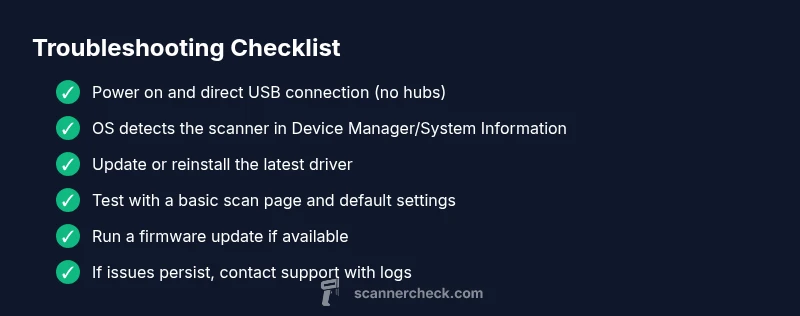
- easyConfirm power is on and direct, non-hub USB connection; replace cables if worn
- easyUpdate or reinstall the scanner driver; run the OS troubleshooter and reboot
- mediumApply available firmware updates or perform a factory reset following manufacturer instructions
- mediumTest with another computer or application to isolate software conflicts; consult support if unresolved
Common Questions
Why isn't my scanner showing up in Windows or macOS?
First verify power and direct USB connections, then check whether the scanner appears in the OS device manager. If not, reinstall or update the driver and test on another port or computer to rule out a device fault.
Make sure the scanner is powered and connected directly to your computer. If it still doesn’t appear, reinstall the driver and try a different USB port or computer.
Why are scans blank or just a white page?
Blank scans usually come from misconfigured scan settings or a failed driver read. Check color mode, resolution, and destination, then perform a test page with a simple document.
Blank scans are often caused by wrong settings or a driver issue. Check color, resolution, and destination, then test with a plain page.
Do USB hubs cause scanning problems?
Yes, hubs can introduce power or data-handling issues. Try a direct connection to the computer or a powered hub, and avoid cascading devices during testing.
USB hubs can cause problems; connect directly or use a powered hub during testing.
Is it risky to update firmware?
Firmware updates are generally safe when done with official tools and a stable power supply. Follow the manufacturer’s instructions and back up presets beforehand.
Firmware updates are usually safe if you follow official steps and keep power stable.
When should I replace a scanner?
If issues persist after driver, firmware, and workflow fixes and the device is aging or hardware shows signs of failure, replacement may be the best option. Consult manufacturer guidance and warranty status.
If persistent issues remain after fixes and the device is aging, consider replacement and check warranty options.
What if issues persist after following steps?
Collect a symptom log, model, firmware version, OS, and all troubleshooting steps performed, then contact the manufacturer’s support or a certified technician for hands-on diagnostics.
If it’s still not working, gather logs and device details and contact support.
Watch Video
Key Takeaways
- Power and cables first; most failures are hardware or connection based
- Keep drivers and firmware current to avoid conflicts
- Test across apps and devices to isolate the problem
- Firmware updates require steady power; don’t interrupt
- If unresolved, escalate with logs and model details