Using an OBD2 Scanner While Driving: A Practical How-To
Discover whether you can safely use an OBD2 scanner on the move, what data you can monitor in real time, setup tips, and best practices for on-the-go diagnostics.


According to Scanner Check, you can monitor live engine data with an OBD-II scanner while driving using a Bluetooth/Wi‑Fi adapter and a compatible app. This setup lets you view real-time PIDs, temperature, RPM, and fuel data, but you should not attempt code-clearing or major diagnostics while moving. Park safely if you notice a serious issue.
Can You Use an OBD-II Scanner While Driving? Key Reality
Yes—modern OBD-II scanners connected to a compatible mobile app can stream live data while you drive. This capability is valuable for monitoring engine health, driving conditions, and performance in real time. However, use must be balanced with safety. The Scanner Check team emphasizes that on-the-go scanning is a diagnostic aid, not a substitute for safe driving. Avoid any distraction that could affect attention, and never perform complex diagnostics or code clearing while the vehicle is in motion. If you notice a serious issue, safely pull over and address it.
How OBD-II Scanning Works in a Moving Vehicle
OBD-II systems use standardized protocols (most notably CAN) to broadcast engine and vehicle data. A portable scanner or an OBD-II dongle connects to the port under the dashboard and transmits data to a smartphone or tablet via Bluetooth or Wi‑Fi. Real-time data streams include engine RPM, vehicle speed, coolant temperature, fuel trim, O2 sensor readings, and more. While the underlying technology is designed for continuous data flow, the interpretation depends on the app you choose and how you configure the PID set you’re monitoring.
Data You Can Monitor in Real Time While Driving
Real-time monitoring focuses on safety and maintenance signals rather than repair actions. You can typically view:
- Engine RPM and vehicle speed
- Coolant and intake air temperatures
- Fuel trim (short-term and long-term)
- Oxygen sensor voltages and heater status
- Mass air flow (MAF) and manifold absolute pressure (MAP)
- Battery voltage and alternator status
- Diagnostic trouble codes (DTCs) in a read/clear history mode when stationary or with the vehicle in a safe state
Interpretation should be conservative: use dashboards and alerts to notice anomalies, not to chase minor fluctuations during active driving.
Safety and Legal Considerations
Safety is the top priority when using an OBD-II device on the move. Keep the device mounted in a stable position, use hands-free controls, and set the app to display non-distracting alerts. Laws vary by jurisdiction regarding device use while driving; in many places, distraction laws apply to any non-essential device interaction. Always comply with local regulations and avoid interacting with the device when focus on the road is required.
Choosing an OBD-II Adapter and App for On-The-Go Use
The best setup for driving is a reliable Bluetooth or Wi‑Fi dongle paired with a well-rated app that supports live data streaming and easy interpretation. Look for:
- CAN protocol compatibility (most modern cars use CAN)
- Stable pairing and low latency
- Clear PID definitions and customizable dashboards
- Offline data logging for later review
- Safe, simple interface that minimizes tapping while driving
Before you hit the road, charge the phone or tablet and ensure the device is not draining power from the vehicle battery. A dedicated mount helps keep the screen within sight without requiring you to take your hands off the wheel.
Step-by-Step: Using OBD-II Scanner While Driving (On-The-Go)
- Verify safety and legality: Confirm that you are allowed to use diagnostic tools while driving in your area. If conditions are risky, wait until you can park safely.
- Gather your gear: OBD-II adapter, smartphone/tablet, mount, and a charger if needed. Ensure the app is installed and updated.
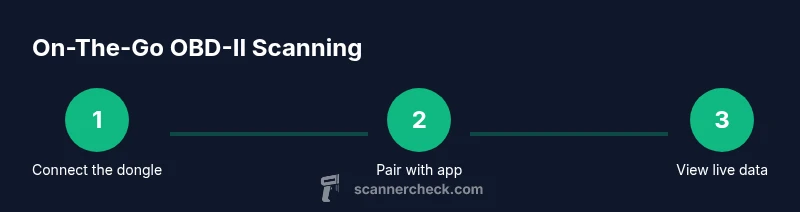
- Connect the dongle: Plug the OBD-II adapter into the vehicle’s port and turn the ignition to accessory or run as required by the device.
- Pair and configure: Enable Bluetooth/Wi‑Fi on your device, pair with the dongle, and open the app. Select CAN and the PIDs you want to monitor.
- Start the live data stream: Begin data logging only when you can do so safely; keep eyes on the road and use hands-free controls.
- Interpret PIDs: Focus on critical signals like RPM, speed, coolant temperature, fuel trim, and battery voltage. Set alerts for unusual values.
- Periodic checks, not fixes: Use the data to guide decisions like whether to stop for further inspection, but do not perform repairs while driving.
- End session safely: When your trip ends or you reach a safe stop, stop data logging, disconnect the dongle, and store the device properly.
- Review later: After the drive, review saved logs to identify patterns or recurring issues for a professional check.
Practical On-The-Road Scenarios: Diagnostics vs Data Logging
On the road, you’ll likely use live data streaming primarily for monitoring rather than diagnosing. If the app flags a persistent fault code or a dangerous sensor reading, evaluate whether you should pull over and consult a professional. Data logging can help you reproduce symptoms later, but it’s not a substitute for a shop visit when a vehicle shows signs of danger.
Interpreting Live Data: How to Read Common PIDs
Key measurements that help you gauge vehicle health include RPM, speed, coolant temperature, and battery voltage. Some apps translate raw values into intuitive gauges or color-coded alerts (green/amber/red). Learn what constitutes a normal range for your specific model, as acceptable values vary by engine type and environmental conditions. If a reading spikes or drifts outside expected ranges, note the context (driving speed, load, ambient temperature) and plan a follow-up check when parked.
Troubleshooting Common Issues with Driving Scans
If you see a sudden code or warning while driving, first ensure the vehicle is functioning normally (no misfires, no power loss). If you suspect a real problem, pull over safely and inspect basic factors like fuel level, oil/ coolant levels, or obvious sensor issues before driving again. Use offline data logs to discuss with a technician later. If you rely on the app for maintenance reminders, configure non-intrusive alerts rather than constant pop-ups that could distract you.
Data Privacy, Battery, and Device Care
Treat the OBD device as a data accessory: disable unnecessary data sharing if the app requests it, and use a reputable app with clear privacy policies. Some adapters draw power from the OBD port; prolonged use can drain the car battery in older vehicles, so monitor the device’s power usage and unplug when parked for long periods. Keep the device clean and away from direct heat under the dashboard to prolong its life.
When to Stop Scanning and Seek Professional Help
If the vehicle shows a stubborn fault that triggers repeated DTCs, if you notice a loss of power, rough running, or unusual noises, stop driving and arrange a professional diagnosis. On-the-go scanning is a tool for awareness and basic monitoring, not a substitute for professional service. Park safely, document symptoms with date/time and load conditions, and take the car to a qualified technician for a thorough inspection.
Tools & Materials
- OBD-II adapter (Bluetooth or Wi‑Fi)(CAN protocol support; battery-friendly; compact design)
- Smartphone or tablet(With a stable mount and charger for longer journeys)
- Vehicle mount(Keeps the screen visible without hands-on interaction)
- Charger or power bank(Useful for long drives to prevent device shutdown)
- OBD app(Choose app with real-time data and robust PID support)
- Owner’s manual (optional)(Helpful for parking lot safety steps and port location)
Steps
Estimated time: 5-15 minutes to set up; ongoing data streaming during the drive
- 1
Confirm safety and legality
Check local laws about using diagnostic tools while driving. If conditions are unsafe, postpone setup until you can stop safely. The primary goal is to avoid distraction and maintain full attention on the road.
Tip: If you’re new to this, practice in a quiet area before attempting on busy roads. - 2
Prepare your gear
Gather your OBD-II adapter, a compatible smartphone, a dash mount, and a charger. Ensure the app is updated and configured to show essential PIDs clearly.
Tip: Use a dedicated mount so your hands stay on the wheel and eyes stay on the road. - 3
Connect the hardware
Plug the OBD-II dongle into the vehicle’s port and power on the ignition if required by the device. Make sure the vehicle is in a safe state to avoid triggering any alarms.
Tip: Route cables neatly to prevent interference with pedals or shifters. - 4
Pair and configure the app
Enable Bluetooth or Wi‑Fi on your device, pair with the dongle, and select the PID set you plan to monitor. Keep the interface simple to reduce distraction.
Tip: Enable auto-reconnect if you drive frequently in variable coverage areas. - 5
Start live data streaming
Begin streaming data only when you can do so safely. Focus on high-priority signals like RPM, speed, coolant temperature, and voltage.
Tip: Set alerts for threshold values to avoid staring at the screen. - 6
Interpret data with care
Understand what the PIDs indicate and avoid diagnosing complex engine conditions while driving. Document any unusual readings for a later check.
Tip: Compare current readings to your vehicle’s typical ranges from the owner's manual. - 7
Decide whether to stop
If a critical issue appears (loss of power, misfire symptoms, or warning lights), pull over safely and perform a quick assessment or call for roadside assistance if needed.
Tip: Don’t ignore alarming data; safety first. - 8
Disconnect and store
When done, stop the session, disconnect the dongle, and store accessories away from airbags and moving parts. Review any saved logs later.
Tip: Keep a small log of notable readings for service appointments.
Common Questions
Can I clear DTCs while driving with an OBD-II scanner?
No. Clearing codes or performing major diagnostics should be done when the vehicle is safely parked. Driving with active codes can mask problems and distract you from safe operation.
Clearing codes while driving isn’t recommended. Park safely and perform any resets after you’ve addressed underlying issues.
Is it legal to use an OBD-II scanner while driving in most places?
Laws vary by jurisdiction, but the general guidance is to avoid distraction. Use safe, hands-free methods and follow local regulations when using diagnostic tools on the move.
Laws vary, but always prioritize safety and local rules when using diagnostic tools on the road.
What data is most useful to monitor while driving?
Critical live data includes RPM, speed, coolant temperature, voltage, and fuel trim. Use alerts for values outside typical ranges and review stored logs after trips.
Key live readings are RPM, speed, temp, voltage, and fuel trim; keep alerts on to catch issues early.
Do I need internet access to use an OBD-II scanner on the move?
Not for basic live data or local storage. Internet access is only needed for cloud backups, updates, or some advanced features in certain apps.
No internet needed for basic on-the-go monitoring; it’s mainly for updates or cloud features if you want them.
How should I choose an OBD-II adapter for driving?
Select a CAN-capable adapter with stable Bluetooth or Wi‑Fi, good app support, and a small form factor for easy mounting. Read reviews focused on on-the-go use.
Pick a CAN-capable adapter with stable wireless, solid app support, and a compact design for driving.
What if I see a dangerous reading while driving?
If a reading or warning indicates a risk to safety, slow down and pull over in a safe area to assess. Seek roadside assistance if needed.
If a dangerous reading appears, pull over safely and assess or call for help if needed.
Watch Video
Key Takeaways
- Monitor live data safely with proper setup.
- Use driving time for awareness, not for repairs.
- Pull over to clear codes or perform deeper diagnostics.
- Choose a reliable adapter and app with clear PID definitions.
- Review on-road data after your trip for professional follow-up.