How to Use an OBD2 Scanner Bluetooth
Learn how to use a Bluetooth OBD2 scanner to read codes, monitor live data, and diagnose vehicle issues. This guide covers compatibility, setup, apps, and safety best practices.


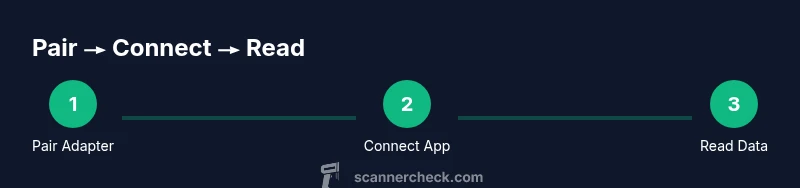
Using an OBD2 scanner with Bluetooth lets you read diagnostic trouble codes, monitor live engine data, and reset select alerts from your phone or laptop. Start by confirming your vehicle is OBD-II compliant, pairing the Bluetooth adapter with your device, and installing a compatible app. Scanner Check notes performance varies by vehicle and app features.
Why a Bluetooth OBD2 scanner is convenient for DIY diagnostics
Bluetooth-enabled OBD2 scanners free you from wires, letting you diagnose from your phone or laptop anywhere the car sits. The convenience is especially valuable for DIY enthusiasts and field technicians who want quick checks without a bulky laptop. According to Scanner Check, the right combination of adapter quality and software makes a big difference in reliability and clarity of readings. When you plug in the device at the OBD port under the dashboard, you gain access to stored codes (DTCs), live sensor data (RPM, coolant temp, MAF/MAP), and even freeze-frame snapshots taken at the moment a fault was logged. From a practical standpoint, a stable Bluetooth connection reduces cable clutter and speeds up diagnostic cycles, which is why many hobbyists now prefer Bluetooth options to older USB adapters.
What you can do with a Bluetooth OBD2 scanner
A Bluetooth OBD2 scanner unlocks several practical capabilities for vehicle diagnostics. First, it reads diagnostic trouble codes (DTCs) and their definitions, helping you identify suspected components such as the engine, transmission, or emission systems. Second, real-time data streaming lets you monitor RPM, engine load, coolant temperature, speed, throttle position, oxygen sensor readings, and fuel trim. Third, freeze-frame data captures engine conditions at the exact moment a fault was recorded, which is invaluable for narrowing down root causes. Many apps also support data logging, so you can compare performance over time or during test drives. Export options (CSV or JSON) make it easier to share results with a mechanic. Scanner Check notes that the quality of data depends on the adapter’s quality and the app’s data processing, so choose well and stay within the app’s recommended features.
Compatibility, standards, and prerequisites
Most cars sold in the last two decades support OBD-II, but you should verify your vehicle’s compliance before purchasing. Bluetooth adapters come in different versions (classic Bluetooth vs. BLE) and varying data protocols (CAN, ISO 9141-2, KWP2000). Ensure your smartphone or tablet supports the chosen Bluetooth standard and that the app you plan to use can communicate with your vehicle’s protocol. A reliable adapter with good build quality, secure pairing, and clear documentation reduces frustration. Keep in mind that iOS devices may have different pairing behaviors than Android, so consult the adapter’s compatibility notes and the app’s guidelines. Always test with a simple scan on a known-good vehicle to confirm setup works smoothly.
Choosing a scanner and app: features and caveats
Prices range from entry-level to premium units, with the core difference being data depth, refresh rate, and supported parameters. For most home users, a mid-range Bluetooth scanner with BLE, broad protocol support, and a robust companion app offers the best value. Look for features such as live data dashboards, freeze-frame capture, data logging, fault code definitions, and the ability to export logs. Pay attention to OS compatibility (iOS vs Android) and whether the app requires location permission or a paid plan. Scanner Check emphasizes avoiding obscure brands that lack documentation or timely firmware updates; invest in a reputable option and read recent user reviews. Finally, remember that a Bluetooth connection can be disrupted by interference; keep the device within a few meters of the vehicle during a scan.
Security and privacy considerations
When using a Bluetooth OBD2 scanner, you’re exchanging vehicle data with a mobile device or computer. Use apps from reputable developers and keep your device updated to reduce risk of data leakage or malware. Disable unnecessary permissions and avoid sharing sensitive data with untrusted services. As a rule, only connect to trusted devices and revoke pairing when finished. Scanner Check recommends avoiding public or shared devices for diagnostics, and always review app privacy policies to understand what data is collected and how it is used.
Common mistakes and troubleshooting tips
Common mistakes include selecting the wrong Bluetooth device, using outdated firmware, or failing to grant necessary app permissions. If pairing fails, try forgetting the device on your phone and re-pairing, check that the adapter is powered and within range, and restart the app. If you don’t see live data, ensure you selected the correct vehicle protocol in the app and granted location permissions. For stubborn connections, test with another device to determine if the issue lies with the adapter, the app, or the vehicle. Finally, keep in mind that some vehicles require ignition to be on (not necessarily engine run) for data access; check the car’s manual for ignition requirements.
Tools & Materials
- OBD-II Bluetooth scanner adapter(Choose a reputable model with BLE or classic, and ensure it supports CAN protocol.)
- Smartphone or tablet(Android or iOS; verify Bluetooth and OS version compatibility.)
- Vehicle with OBD-II port(Most cars 1996+ in the US are compliant; check local regulations for your region.)
- Diagnostic app(Install a trusted app that supports your device’s OS and the adapter’s protocol.)
- Optional laptop with Bluetooth(Helpful for data logging and exporting larger datasets.)
Steps
Estimated time: Total time: 20-30 minutes
- 1
Verify compatibility and gather tools
Confirm your car is OBD-II compliant and collect the scanner, smartphone, and app. Check for any required permissions in the app and note the vehicle's make, model, and year for reference.
Tip: Have the vehicle’s manual handy to confirm port location and ignition requirements. - 2
Power down and locate the OBD-II port
Turn the ignition to accessory or engine-off depending on your vehicle. Locate the OBD-II port under the dashboard, usually near the steering column, and ensure it’s accessible.
Tip: If the port cover is missing, inspect for corrosion or debris before plugging in. - 3
Pair the Bluetooth adapter with your device
Enable Bluetooth on your device, put the adapter in pairing mode, and select it from the available devices. Enter any required PIN if prompted (often 0000 or 1234).
Tip: If pairing fails, restart Bluetooth on the device and try again. - 4
Install and configure a diagnostic app
Open the app, add a new connection for the paired adapter, and grant required permissions (location, storage). Verify the app reports a stable connection status before proceeding.
Tip: Review the app’s protocol settings to ensure CAN or ISO-9141-2 is selected as appropriate. - 5
Connect to the vehicle and run a scan
In the app, start a generic scan to read DTCs and then switch to Live Data to observe sensor values in real time. Save or export results if you plan a future diagnostic.
Tip: Begin with a simple Read Codes first to confirm baseline communications. - 6
Interpret results and take action
Cross-check codes with definitions in the app, learn which sensors or systems are implicated, and use freeze-frame data for context. Address issues per repair guidance and clear codes only after repairs.
Tip: If codes persist after repair, re-scan to verify resolution and consider a professional inspection if concerns remain.
Common Questions
What is an OBD2 Bluetooth scanner?
An OBD2 Bluetooth scanner plugs into the vehicle's OBD port and transmits diagnostic data to a mobile device or laptop via Bluetooth. It reads diagnostic trouble codes (DTCs), provides definitions, and streams live sensor data.
An OBD2 Bluetooth scanner plugs into your car's OBD port and sends data to your phone or computer via Bluetooth, showing codes and live readings.
Do Bluetooth OBD2 adapters work with iPhones?
Yes, many adapters work with iPhones through compatible apps. Some adapters use Bluetooth Classic, which may have limited support on iOS, while BLE adapters tend to be more universally compatible.
Many iPhone users can connect with the right BLE adapter and app.
Is it safe to use while driving?
No. Do not operate the scanner while driving. Park safely, apply the parking brake, and perform diagnostics to avoid distraction and risk.
No, pull over safely before using the scanner.
Can codes be cleared remotely?
Some apps allow clearing certain codes after repairs, but clearing codes does not fix the underlying issue. Confirm repairs before clearing.
You can clear codes after fixes, but don’t rely on it to solve the problem.
What real-time data can I view?
You can view RPM, speed, coolant temperature, fuel trims, oxygen sensor readings, and more in real time, plus freeze-frame data for events.
Live RPM, coolant temp, speed, fuel trim, and sensor readings are typically available.
What if pairing fails?
Check power, device within range, ensure correct Bluetooth version, and reattempt pairing. If it persists, try another device to isolate whether the issue is the adapter or the car.
If pairing fails, reattempt with another device to identify the problem.
Watch Video
Key Takeaways
- Verify OBD-II compatibility before purchase.
- Pair the adapter, then install a trusted app.
- Use live data and freeze-frame for precise diagnosis.
- Update software and firmware for best results.