How to Install Scanner Driver in Windows 11
Learn how to install a scanner driver in Windows 11 with a clear, step-by-step approach. From built-in options to vendor installers, this guide covers troubleshooting and best practices for reliable scanning in 2026.


If you’re wondering how to install scanner driver in Windows 11, start by connecting the scanner and letting Windows search for a driver. If that fails, download the official driver from the vendor and run the installer. This quick path gets you scanning quickly, with a full step-by-step guide below.
Why Windows 11 needs a scanner driver
According to Scanner Check, modern scanners rely on dedicated drivers to translate device signals into usable data by Windows 11 and apps. Without a proper driver, a scanner may appear in Device Manager as an unknown device, or you may see limited functionality. A driver ensures correct color profiles, scan resolution, duplexing, and network sharing. On Windows 11, built-in drivers can cover common devices, but many models require vendor-specific software for full features. In 2026, the landscape includes USB-connected, Wi-Fi, and network-scanner setups, all benefiting from a streamlined driver approach. Having the right driver reduces errors during scans, speeds up recognition by applications, and improves reliability when saving files in formats like PDF, PNG, or TIFF. This section highlights why you should invest a few minutes to install the correct driver rather than relying on generic, limited support.
Brand note: The Scanner Check team finds that investing in the proper driver pays off with consistent scans and fewer glitches in daily workflows. A dependable driver also helps when you’re collaborating with colleagues who expect compatible documents across devices.
Prerequisites and quick checks
Before you start the driver install on Windows 11, gather essential information and confirm system readiness. Identify your scanner’s exact model number, current firmware revision, and the vendor’s official support page. Check that Windows 11 is up to date with the latest cumulative updates, as some drivers depend on recent Windows components. Ensure your user account has administrative privileges, and have a stable internet connection for downloading the driver or updates. If you plan to use a network printer/scanner, verify the device’s IP address and network accessibility. Finally, consider disabling antivirus temporarily if it blocks driver installers from unknown publishers, but re-enable protection as soon as installation finishes.
Why this matters: Failing to prepare can cause driver mismatches or installation failures that mimic hardware faults. A smooth start reduces the chance of errors during the install.
Method A: Use Windows Update and built-in drivers
Windows 11 includes a driver search mechanism that can detect many scanners when you connect the device via USB or the network. Start by plugging in your scanner and turning it on. Open Settings > Bluetooth & devices > Printers & scanners, then select Add device or Scan. Windows may find a compatible driver through Windows Update and install it automatically. This approach is often the simplest and least risky, because Windows signs the driver through Microsoft’s trusted catalog. If a match is found, you’ll be prompted to finish the installation. After completion, perform a quick test scan to confirm functionality and basic features like color accuracy and document feeding. If Windows Update doesn’t locate a driver, proceed to the vendor route described later.
Tip: Keeping Windows updated increases the likelihood of successful automatic driver installation and better compatibility with scanning apps.
Method B: Install from the scanner vendor website
If Windows Update can’t locate a driver, visit the manufacturer’s official support page and download the latest Windows 11 driver package for your exact model. Save the installer to an accessible folder, preferably on the Windows desktop or a dedicated Downloads folder. Run the installer with administrative privileges, accept the license terms, and follow on-screen prompts. Some vendors provide a two-step process: a driver package plus vendor software for enhanced features like OCR or cloud scanning. After installation, restart your computer and re-connect the scanner to ensure Windows recognizes the newly installed driver. Verify with a test scan to ensure resolution, color depth, and document size match expectations.
Note: Use only the official vendor site for drivers to avoid malware or unstable builds. If the vendor offers a driver package in a .zip file, extract it before running the installer.
Method C: Use a universal or generic driver when specific support is unavailable
In cases where the vendor driver is not available for Windows 11, a universal or generic USB scanner driver may provide basic functionality. This option should be viewed as a fallback rather than a long-term solution. Connect the scanner, then in Device Manager (right-click Start > Device Manager), choose Add legacy hardware and browse for the universal driver if prompted. After installation, test basic scanning operations in common apps (Windows Fax and Scan, Paint, or your preferred document app). If performance is suboptimal or features like color correction are missing, revert to the vendor-provided driver as soon as it becomes available. Universal drivers typically offer essential scanning but may lack advanced features.
Caution: Generic drivers may not support all model-specific features and can conflict with vendor software. Always aim to install the original driver from the manufacturer when possible.
Verifying installation and basic troubleshooting
After any driver installation, verify the scanner is visible in Settings > Bluetooth & devices > Printers & scanners and test a quick scan. In many cases, you can access scanning options via the Windows Search box by typing Scan, or within your imaging app (e.g., Windows Photos, Paint, or a PDF editor). If the scanner shows as offline or unresponsive, try these steps: unplug and replug the device, try a different USB port or network port, restart the computer, and ensure the scanner isn’t blocked by firewall rules. For network scanners, confirm the device is accessible by pinging the IP address and ensuring the Windows 11 firewall allows traffic on the scanner’s ports. If issues persist, consult the vendor’s support resources and verify driver signature status in the BIOS/UEFI settings—some security configurations can affect driver loading.
Test plan: Run at least two scans at different resolutions to verify performance consistency and to confirm that the installation process did not degrade image quality.
Troubleshooting: common issues and quick fixes
Even with the best preparations, you may encounter issues during installation. Common problems include driver not found, device not recognized, or poor scan quality. Start with simple checks: ensure the USB cable is securely connected, try a different USB port, reboot after driver installation, and run Windows Update again to fetch any dependent components. If you see “Unknown device” in Device Manager, remove the device and reinstall the driver, or try installing in Safe Mode if conflicts persist. For network scanners, verify that the scanner and PC share a network segment, and that the correct IP address is entered. Update firmware on the scanner if available, as updated firmware can improve compatibility and performance. When all else fails, contact the vendor’s technical support, providing the exact model number, OS version, and error messages you observed.
Helpful hint: Document the steps you’ve tried so far; this makes vendor support faster and more effective.
Best practices for ongoing maintenance and updates
Once the driver is installed, set a plan for maintenance to keep scanning reliable. Periodically check for driver updates from the vendor and apply firmware updates if offered. Consider setting a recurring reminder to verify driver health after Windows updates, as occasionally a Windows patch can affect device compatibility. Keep a reference copy of the driver installer in a safe location, and avoid installing drivers from third-party sites that claim to provide cheaper options. If you routinely scan documents to cloud storage, enable any vendor software that provides auto-scan profiles or OCR capabilities for consistent results.
Future-proofing tip: Join the vendor’s support newsletter or forum to stay informed about Windows 11 compatibility notes and new feature integrations.
Security and reliability considerations
Security matters when installing hardware drivers. Always download from official vendor pages or trusted repositories. Scan drivers can carry malware if sourced from untrusted sites; this is why the Scanner Check team emphasizes sticking to official channels. After installation, run a quick malware scan if you suspect tampering and ensure Windows Defender or your preferred protection remains enabled. Regularly review device permissions and disable any vendor features you don’t use to minimize potential risk surfaces. If you use a shared computer, consider enabling a standard user account to reduce accidental changes to the driver setup. Finally, maintain backups of your system state before major driver updates so you can restore quickly if something goes wrong.
Final notes and next steps
With the steps outlined here, you’re equipped to successfully install a scanner driver in Windows 11 using Windows Update, vendor installers, or a fallback option when necessary. The key is to verify compatibility, download from official sources, and test the scanner thoroughly. This approach reduces the chance of driver conflicts and ensures reliable scanning across applications. For ongoing success, keep your system updated, track driver versions, and review any new Windows 11 updates that might affect peripheral support. The Scanner Check team’s guidance emphasizes careful preparation, verification, and maintenance to ensure a smooth scanning experience.
Tools & Materials
- Windows 11 PC or laptop(Ensure it's up to date with the latest cumulative updates)
- Scanner device (USB or network)(Know the exact model and vendor)
- Official scanner driver installer(Download from the vendor's support page for Windows 11)
- USB cable or reliable network connection(For setup and updates)
- Internet connection(To fetch drivers and firmware)
- Optional: Driver CD or recovery media(If provided by vendor)
- Administrative privileges on Windows 11 account(Needed to install drivers)
- Printer/Scanner troubleshooting sheet (PDF)(Reference for common issues)
Steps
Estimated time: 60-90 minutes
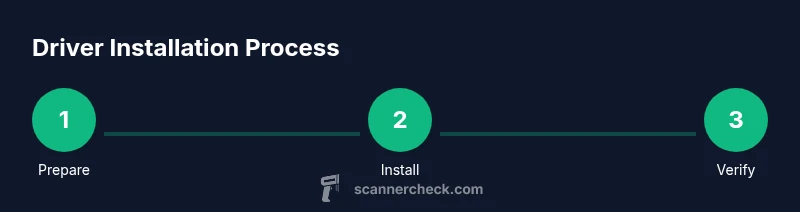
- 1
Prepare your system
Confirm Windows 11 is updated, note the scanner model, and ensure you have admin rights. Gather the driver package from the vendor and a reliable internet connection. Close unnecessary apps to speed up installation and avoid resource conflicts.
Tip: Write down the exact model number and driver version to verify you downloaded the correct package. - 2
Connect the scanner to your PC
Connect via USB or ensure the scanner is on the network if you’re using a wireless or ethernet connection. Power on the device and wait for the device to initialize before proceeding.
Tip: If the scanner isn’t powering on, try a different USB port or power supply. - 3
Open Settings and start driver search
Open Settings > Bluetooth & devices > Printers & scanners. Click Add device or Scan to trigger Windows’ driver search. If your model appears, select it and allow Windows to install the driver automatically.
Tip: Use the built-in diagnose option if the device is listed but shows an error. - 4
Use Windows Update to find drivers
If Windows detects the scanner, choose to install the driver from Windows Update. This approach leverages Microsoft’s trusted catalog and minimal risk. After installation, restart your PC to ensure proper integration.
Tip: After reboot, re-check the scanner in Settings to confirm a successful installation. - 5
Install the vendor driver from the manufacturer
If Windows Update cannot locate a driver, download the Windows 11 driver package from the vendor’s official site and run the installer with admin rights. Follow the on-screen prompts and accept the license terms.
Tip: Verify the downloaded file matches your model and OS version before running it. - 6
Restart and reconnect the scanner
Restart your computer after the driver installation. Reconnect the scanner and check Device Manager for the device status. Attempt a test scan to validate the installation.
Tip: If the device still doesn’t appear, try a different USB port or cable. - 7
Test scanning in apps
Open a scanning app (Windows Fax & Scan, Paint, or your preferred app) and perform a test scan at multiple resolutions to confirm reliability and image quality.
Tip: Check color depth and DPI to ensure output meets your needs. - 8
Troubleshoot if needed
If issues persist, consult vendor support, verify firewall settings, and consider firmware updates for the scanner. Review error messages and keep a log of steps tried.
Tip: Document model, OS version, error codes, and steps tried to speed up support calls. - 9
Maintain driver health
Set reminders to check for updates, back up installer packages, and periodically re-test scanning to catch regressions after Windows updates.
Tip: Use vendor software for advanced features like OCR when available.
Common Questions
Can I install a scanner driver without an internet connection?
Yes, if you already have the driver installer on a USB drive or disc, you can install it offline. Some vendors offer a local installer package that works without internet access. You may still need internet access to verify licensing or receive firmware updates.
Yes—offline is possible if you have the installer on a USB drive, though some updates require online access.
What should I do if Windows 11 doesn’t find a driver for my scanner?
Check the vendor’s site for an exact Windows 11 driver package for your model. If unavailable, try a generic USB driver as a temporary solution and contact vendor support for a confirmed path. Ensure you’re using admin privileges during installation.
If Windows 11 can’t find a driver, download the official package from the vendor or contact support for guidance.
Is it necessary to uninstall old drivers before installing a new one?
Often not required, but removing a conflicting old driver can prevent issues. Use Device Manager to uninstall the current scanner driver, then install the new one and reboot. This helps reduce driver conflicts.
Sometimes removing the old driver helps prevent conflicts; reboot after installing the new one.
Does Windows Update automatically provide scanner drivers?
Windows Update can supply basic drivers for many scanners, but some models require vendor-specific software for full features. If your device isn’t fully functional, install the vendor driver from the manufacturer’s site.
Windows Update may cover basic drivers, but vendor software often provides full functionality.
Can I use a network scanner with Windows 11?
Yes. Add the scanner by its IP address in Windows settings or install vendor software for network features. Ensure the device is reachable on the same network and that firewall settings allow traffic.
Network scanners work in Windows 11 by adding them via IP, with vendor software for features.
Is it safe to disable antivirus during installation?
Only temporarily and if you trust the installer source. Re-enable protection immediately after installation and scan the system. Avoid leaving antivirus disabled for extended periods.
Only disable temporarily for trusted installers; re-enable protection right away.
Watch Video
Key Takeaways
- Identify the correct driver for Windows 11.
- Start with Windows Update before vendor downloads.
- Test your scanner across apps and resolutions.
- Keep drivers and firmware up to date.
- Use official sources to avoid security risks.