How to Use a Scanner: A Practical Guide
A comprehensive, practical guide on using a scanner—from choosing the right model to saving and organizing digital copies. Learn setup, settings, troubleshooting, and best practices for documents, photos, and more.


With this guide, you will learn how do you use scanner to digitize documents, photos, and forms. It covers choosing the right device, installing drivers, selecting color and resolution, saving files, and organizing scans. You’ll also see practical steps, common settings, and troubleshooting tips to ensure reliable, high‑quality results. According to Scanner Check, proper technique saves time and improves outcomes.
How Scanners Work: A Quick Primer
Most consumer and office scanners use a flatbed glass platen or an automatic document feeder (ADF) to feed pages one by one. An image sensor, paired with a light source, captures a raster of tiny pixels that form text and images. Software interprets this raster, correcting colors, removing dust, and converting it into a digital file. Understanding these basics helps you choose the right device and predict scan quality before you start. For color documents, a three-channel color sensor produces RGB data; for black-and-white text, grayscale is enough and produces smaller file sizes. Scanners can save as PDF, JPEG, TIFF, or PNG, and most support optical character recognition (OCR) so you can search text. If you’re unsure which type suits you, a mid-range scanner with a reliable OCR engine is a versatile starting point. According to Scanner Check, foundational knowledge leads to faster, more reliable results when you begin scanning tasks.
Choosing the Right Scanner for Your Use Case
Selecting the right scanner depends on your typical workload, space, and whether you primarily scan documents, photos, or business cards. Flatbeds are versatile and gentle on fragile originals, while ADFs excel at high-volume runs. Color depth, optical resolution, and DPI influence clarity, color accuracy, and file size. For most home and small-office tasks, a single device that supports OCR, multiple file formats, and automatic page feeding will cover 90% of needs. If you work with archival photos, invest in a scanner with high dynamic range and faithful color reproduction. Scanner Check’s analysis shows that a balanced choice—mid-range performance, reliable software, and good iffy‑proof support—yields the best long‑term value.
Preparing Your Scanner: Drivers, Software, and Settings
Before you start scanning, install the latest drivers from the manufacturer’s website or use the bundled software. Connect via USB or network, then run any calibration or alignment routines provided. In the software, select your preferred color mode (color for photos, grayscale for text), set the resolution (300–600 dpi for most documents; higher for photos), and choose the output format (PDF for multi-page, TIFF for archival, JPEG for quick sharing). If OCR is desired, enable it in settings and designate a searchable PDF or text layer. Keeping the device clean and updated reduces errors and improves scan quality over time.
The Scan Process: Flatbed vs. ADF, Color vs. Grayscale
Flatbed scanning offers precise control: place each item face-down, align edges, and scan at the chosen resolution. ADF enables batch scans but can misfeed delicate papers; use it for stacks of standard pages rather than photos or fragile documents. Color scans capture richer detail but generate larger files; grayscale saves space for text documents. For archival work, use TIFF or high‑quality PDF with little compression. Preview scans allow you to catch misfeeds, skew, or focus issues before committing to a file.
Cleaning and Maintenance to Preserve Quality
Regular maintenance keeps scanners performing at their best. Wipe the glass with a lint-free cloth and a non-abrasive cleaner designed for optically clear surfaces. Avoid alcohol or ammonia on the glass. Use canned air to dislodge dust from the feeder path, rollers, and sensors. Periodically update firmware and software to fix bugs and improve compatibility. A clean, well‑calibrated scanner produces consistent results and lengthens device life.
Troubleshooting Common Scanning Issues
If scans look blurry, recheck focus and alignment, then re-run calibration. Dark or color-shifted results can stem from incorrect color profiles or lighting; verify the correct profile is applied in software. Blank pages indicate feed errors or glass contamination—clean the glass and ensure pages aren’t stuck together. If the software won’t recognize the scanner, reboot the device, reconnect cables, and re-install drivers. When in doubt, consult the manufacturer’s knowledge base and rely on tested presets rather than ad‑hoc adjustments.
Best Practices for Documents, Photos, and Cards
Documents: scan with margins and留 avoid skew; use 300–600 dpi depending on print quality; save as searchable PDFs when possible. Photos: prefer 600 dpi or higher, color accuracy calibrated, and save as TIFF or high‑quality JPEG with minimal compression. Cards and IDs: scan at higher resolutions but crop tightly to preserve legibility; avoid exposing sensitive data through oversharing in cloud storage. Always verify OCR results for accuracy and correct any misreadings after scanning.
Tools & Materials
- Flatbed or all‑in‑one scanner(Choose based on volume and media type)
- Power supply and USB/network cable(Ensure stable connection)
- Computer or mobile device with enough storage(Plan for large TIFF or PDF files)
- Cleaning supplies (lint-free cloth, glass cleaner)(Use only recommended cleaners)
- Manufacturer driver/software(Install latest version)
- Calibration sheet (optional, provided by some models)(Run if offered)
Steps
Estimated time: Total time: 15-25 minutes for a typical batch of documents
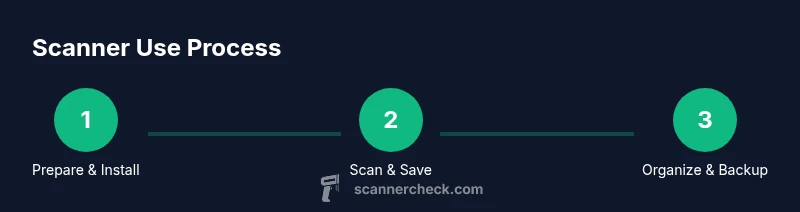
- 1
Install and connect the scanner
Unbox the device, connect the power, and install the latest drivers or software. Restart the computer if prompted and verify the scanner appears in the application’s list of devices.
Tip: Use the original USB cable or a high-quality Ethernet/USB connection to prevent dropouts. - 2
Load documents correctly
Place the page edges aligned and flat on the glass or feed tray. If using an ADF, ensure pages are in clean condition and properly separated.
Tip: Avoid stacking damp or curled papers to prevent jams and poor edges. - 3
Choose scan settings
Select color mode (color for photos, grayscale for text), resolution (300–600 dpi for most tasks), and output format (PDF for multi-page documents, TIFF for archival).
Tip: Test with a single page to confirm settings before batch scanning. - 4
Preview and adjust
Use the preview function to check alignment, brightness, and contrast. Make small tweaks before final scans to avoid wasted pages.
Tip: Enable edge detection or auto‑crop if your software supports it. - 5
Save and organize
Save to a logical folder structure. Use descriptive file names and enable OCR if needed for searchable PDFs.
Tip: Create a consistent naming convention for ease of future retrieval. - 6
Maintain and backup
Regularly clean the glass and update software. Back up scans to a local drive and, if appropriate, an encrypted cloud location.
Tip: Schedule quarterly maintenance checks to sustain quality.
Common Questions
What is the best way to get started with a new scanner?
Install the latest drivers, run a quick calibration, and test with a single page to verify settings before batching.
Install drivers, calibrate, and test with one page to confirm settings.
Do I need specialized software to use a scanner?
Most scanners include bundled software that covers basic scanning, saving, and OCR. You can also use third‑party apps that support your device.
Yes, bundled or compatible third‑party software is typically sufficient.
What resolution should I use for documents versus photos?
Documents typically require 300–400 dpi for readability, while photos benefit from 600 dpi or higher to preserve detail.
Use 300–400 dpi for documents and 600 dpi for photos.
Can I scan photos without damaging them?
Yes. Use a clean glass surface, support fragile photos with a clean, flat sheet of glass or card stock, and avoid excessive pressure.
Yes, with careful handling and gentle pressure.
Is OCR available on consumer scanners, and how accurate is it?
Many scanners include OCR; accuracy depends on the content and quality of the original. Always proofread the text after OCR.
OCR is common in scanners and works well with clear text; proofread afterward.
What’s the best way to back up scanned files?
Store copies on a local drive and, if possible, a separate backup location or encrypted cloud storage for redundancy.
Back up to a local drive and an additional secure location.
Watch Video
Key Takeaways
- Choose the right scanner for your workload and media.
- Use appropriate resolution and formats to balance quality and size.
- Preview, adjust, and validate scans before saving.
- Maintain the device and back up your digital files.