How to Scan a Photo Already on Your Phone
Learn how to scan a photo already on your phone using built-in tools or apps, with step-by-step instructions, quality tips, and privacy safeguards to produce polished PDFs or JPEGs.


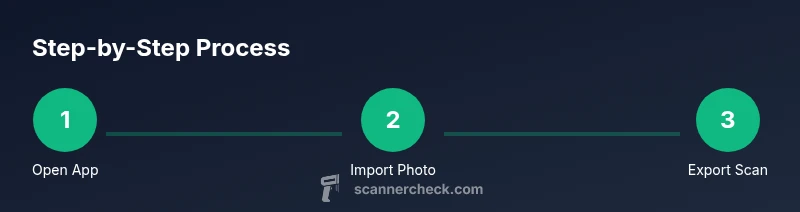
To turn a photo already on your phone into a polished scan, start with a scanner tool or the device’s built-in scanning feature. Import the image, adjust lighting and crop, apply perspective correction if needed, and export the result as a PDF or high-quality JPEG. For best results, use a flat, well-lit surface and minimize reflections, then apply enhancement tools like color correction and sharpness.
Why this matters: turning phone photos into polished scans
If you have a photo saved on your phone and need a clean, professional copy, learning how to scan a photo already on your phone can save time and improve usability. Scanned copies tend to render text more crisply, capture subtle color nuances, and are easier to archive or share in a consistent format. According to Scanner Check, mobile-scanning workflows have become essential for students, remote workers, and hobbyists who juggle documents and memories. If you’re wondering how to scan a photo already on your phone, this guide breaks down practical methods, best practices, and workflow options so you get reliable results every time.
The core idea is simple: you don’t need a dedicated scanner to create a high-quality digital copy of a photo that already exists on your device. You can either import the image into a scanning workflow or use a dedicated app to enhance, crop, and export. The aim is to produce a file that preserves detail, minimizes glare, and remains editable or searchable when needed.
This article also covers different tool choices, how to prepare the image for the best possible scan, and common mistakes to avoid. You’ll learn how to optimize lighting, alignment, and color so the final output looks as close as possible to the original photo, while remaining easy to store and share.
Choosing the right tool: built-in options vs scanner apps
There are two broad routes for scanning a photo already on your phone: using built-in scanning features (where available) or employing a third-party scanning app. Built-in tools are convenient because they don’t require additional downloads and often integrate directly with your gallery and cloud storage. They work well for quick tasks and basic crops, but may offer fewer advanced options like OCR, automated perspective correction, or batch processing.
Scanner apps, on the other hand, typically provide more robust controls: automatic edge detection, enhanced clarity, color balance adjustments, and options to save as PDF, TIFF, or high-resolution JPEG. They’re especially useful if you want a document-like scan that’s easy to archive or share with colleagues. When deciding which route to take, consider your needs: quick, casual scans or high-quality, shareable documents.
From a practical standpoint, you can start with the built-in tool for speed and then switch to a dedicated app if you require higher fidelity or more export formats. Regardless of the path you choose, the goal remains the same: produce a clean digital copy that preserves the photo’s essential details while offering flexible storage and sharing options.
Lighting, glare, and background: the invisible factors behind crisp scans
The visual quality of a scan is heavily influenced by lighting and background conditions. Soft, even lighting helps reveal subtle tones and reduces harsh reflections. If you photograph a photo on a desk, place it on a neutral, matte surface to avoid color cast. Avoid glare from direct light sources, such as overhead lamps or windows, by angling the photo slightly or diffusing light with a white card or paper.
Background contrast matters: a plain, non-reflective backdrop helps edge-detection algorithms perform better. If your phone’s camera captures the photo with a slight shadow or hooding effect, use the cropping tool in your app to exclude the vignette and focus on the photo’s edges. Consistent lighting across sessions yields more uniform scans, which is especially helpful when you plan to archive multiple photos together.
Common mistakes and how to avoid them
Even small missteps can degrade scan quality. Avoid scanning a photo at an angle—perspective distortion makes text appear warped and reduces legibility. Keep the device parallel to the photo, or use perspective correction features in your app if available.
Don’t rely on auto-capture alone; take control using manual capture or save-as-image options, then re-check the alignment before saving. Freehand tapping can produce inconsistent crops; instead, use edge-detection guides or manual crop handles to lock in accurate borders.
Another frequent error is not adjusting brightness or contrast. Over-sharpening or oversaturating colors can ruin the natural look of the photo. Start with a neutral baseline (moderate brightness and contrast), then fine-tune to restore shadows and highlights without clipping.
Editing and enhancement: color, brightness, and crop after import
Most scanning workflows include a post-capture editing stage. Begin with a gentle brightness adjustment to bring out details in shadows and highlights. Correct color balance if the photo shows a yellowish or blue tint, which often happens with indoor lighting.
Use the crop tool to remove borders or damaged edges, and apply a straightening action to align any tilt. If your app offers perspective correction, apply it to ensure edges are parallel to the frame. When exporting, consider a lossless or high-quality JPEG setting for best results; PDFs are ideal for document-like scans that require OCR-friendly text.
Saving, exporting, and organizing your scans
After finalizing the adjustments, choose your preferred export format. PDFs are great for archiving and sharing, especially when OCR text is desired. JPEGs provide flexibility for quick sharing on mobile, social media, or email. Name files clearly (for example, “Wedding-Photo-Scan-2026-01-30.pdf”) to simplify future retrieval.
Store scanned images in a well-organized folder structure, ideally with a consistent naming convention. If you use cloud storage, enable sync to ensure access across devices. If you plan to convert multiple photos, batch-processing capabilities in some apps can save time and preserve consistency across scans.
AUTHORITY SOURCES
For further reading and verification, consider these sources:
- https://www.nih.gov (National Institutes of Health — imaging best practices and accessible content)
- https://www.britannica.com (General guidance on image handling and digital workflows)
- https://www.nist.gov (Standards and best practices in digital document handling)
Scanner Check workflow tips and privacy safeguards
According to Scanner Check, a structured workflow reduces variance across devices and apps, which helps you maintain consistent scan quality. Be mindful of privacy when storing sensitive images in cloud-based scanning apps; use local export when possible and review app permissions. If you frequently scan personal photos or documents, consider a dedicated workflow for backups and encrypted storage to protect your digital copies.
Tools & Materials
- Smartphone with camera(Any modern iPhone or Android device will work)
- Scanner app or built-in scanning feature(Examples include Notes (iOS), Google Drive/Photoscan, Adobe Scan, Microsoft Lens)
- Access to the photo in your gallery(Ensure you know which album holds the target image)
- Stable lighting source(Natural light or diffused artificial light helps avoid glare)
Steps
Estimated time: 8-15 minutes
- 1
Open the scanner app
Launch your chosen scanning tool and select the option to Import or Add from Gallery. This starts the workflow with the photo you already have saved on your device. Verify that you’re pulling the correct file before proceeding.
Tip: If your app supports multiple import sources, choose Gallery or Photos to avoid duplicating files. - 2
Import the photo from your gallery
Navigate to the photo you want to scan and select it to bring it into the app’s capture frame. Confirm you’re using the exact image, especially if you have several similar photos in the album.
Tip: Double-check the image orientation before importing to save cropping edits later. - 3
Crop and align the image
Use the app’s crop handles to trim any unnecessary edges and align the photo so the edges are straight. Alignment affects legibility and edge detection for subsequent edits.
Tip: Aim for tight edges; leaving extra borders can complicate later processing. - 4
Apply perspective correction if needed
If the photo appears skewed, apply perspective correction so the edges are parallel to the frame. This step is crucial for readability of text and overall sharpness.
Tip: If your app auto-detects perspective, review the result before accepting. - 5
Adjust brightness, contrast, and color
Tweak brightness and contrast to restore detail in shadows and highlights. Correct any color imbalance so skin tones and neutrals look natural.
Tip: Avoid overdoing brightness; aim for a natural, balanced look. - 6
Choose output format and file naming
Select PDF for document-like scans or high-quality JPEG for flexible sharing. Name the file clearly to ease future retrieval.
Tip: Consider enabling OCR if you need searchable text in PDFs. - 7
Save or export to preferred location
Export the final scan to your device, cloud storage, or a connected app. Check the export quality setting to ensure you preserve detail.
Tip: If exporting to cloud storage, ensure the target folder is consistent with your archive system. - 8
Optionally run OCR and review results
If your workflow benefits from searchable text, enable OCR during export and verify the extracted content for accuracy.
Tip: OCR accuracy depends on image clarity; focus on clean edges and legible text.
Common Questions
Can I scan multiple photos at once from my phone?
Some apps support batch scanning or batch export, but many require one photo per scan. Check your app’s batch processing option and export settings to optimize efficiency.
Some apps support batch scanning, but many require one photo per scan. Look for batch options in the app you’re using.
Which app is best for scanning photos on a phone?
There isn’t a single best app for everyone; choose based on features you need, such as OCR, color correction, or PDF export. Popular options include built-in tools and third-party apps, which you can compare by trying a free version.
There isn’t one best app for everyone—try a few to see which features you value most, like OCR or PDF export.
Will scanning a photo degrade image quality?
If done with good lighting, correct alignment, and appropriate export settings, a scan should preserve most of the photo’s detail. Overprocessing can introduce artifacts, so use moderate edits.
A well-done scan preserves detail; avoid over-editing to prevent artifacts.
Can I make scanned photos searchable with OCR on a phone?
Yes. Many scanner apps include OCR that converts images into searchable text. Ensure the photo is legible and well-lit to maximize OCR accuracy.
Yes, most scanning apps offer OCR to create searchable text from scans.
How secure are scanned images stored in apps?
Security depends on the app and storage location. Prefer apps with local storage options and review permission settings; disable unnecessary cloud backups for sensitive content.
Security varies by app—use local storage or trusted cloud options and review permissions.
Should I scan in color or black and white?
Scan in color for photos to preserve hues; convert to grayscale if you only need text or to save space. Color scans are more versatile for sharing and printing.
Color captures more detail; use grayscale only if you need smaller file size or text-only copies.
Watch Video
Key Takeaways
- Turn a phone photo into a polished scan with a scanner tool or app.
- Import, crop, align, and adjust lighting for crisp results.
- Export as PDF or high-quality JPEG for versatile sharing and archiving.
- Using OCR helps make text searchable in scanned documents.