How to Scan with Your Phone: A Practical Guide for 2026
Learn how to scan with your phone using simple apps, proper lighting, and smart workflow to produce clean PDFs and images. This comprehensive 2026 guide covers setup, step-by-step scanning, post-processing, storage, and privacy tips for reliable mobile scanning.


Want to learn how to scan with my phone? This quick answer breaks down the essentials: pick a scanning app, prepare a clean, well-lit surface, and capture straight pages. Save as PDF or image, then crop, adjust brightness, and organize for easy sharing. Follow these steps to get reliable results fast.
Why smartphone scanning matters
In today’s digital workflow, your phone can replace many dedicated scanners for everyday documents. This approach is convenient, portable, and often sufficient for invoices, contracts, and notes. According to Scanner Check, mobile scanning quality has improved dramatically with better cameras, smarter edge detection, and built-in OCR features. The Scanner Check Team found that choosing the right app and following a consistent workflow can yield results that rival entry-level scanners, especially for non-bound materials and quick-turn tasks. This section sets the context for why you should invest a few minutes to learn a solid phone-scanning routine and avoid common missteps.
Key takeaway: You don’t need expensive equipment for most everyday scans; a modern phone and a good app can do the job.
Choosing the right scanning app
There are many mobile scanning apps, each offering edge detection, perspective correction, and OCR. Look for:
- Edge detection and perspective correction to flatten pages
- OCR for searchable text
- Export options (PDF, JPEG, PNG) and cloud sync
- Batch scanning for multi-page documents
Popular options vary by platform, but the core features matter most. Start with one app to avoid workflow fragmentation, then explore others if you need more advanced features. If you often share documents via cloud services, pick an app with seamless export to your preferred storage.
Tip: Test at least two apps on a representative document to compare edge accuracy and readability before committing.
Preparing your environment for mobile scanning
A clean, controlled environment makes a big difference. Prepare these factors:
- Light: Use indirect, diffuse lighting to reduce glare and shadows. Avoid direct overhead lighting that creates harsh shadows on glossy pages.
- Background: Use a solid, light-colored background under the document to improve edge detection.
- Surface: Place the document on a flat, stable surface; a clipboard or board helps keep pages steady.
- Phone position: Maintain a steady hold and parallel alignment to the document plane to minimize perspective distortion.
These preparations help ensure clean edges, accurate text, and consistent results across scans.
Step-by-step workflow for a clean scan
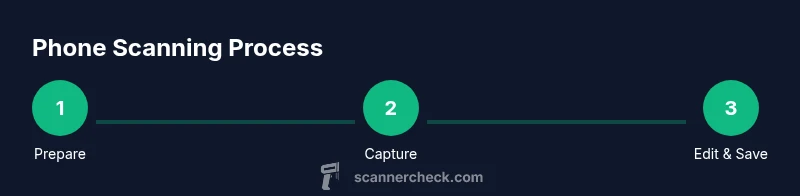
- Open your scanning app and select the document scan mode. 2. Place the document flat on the background, aligning the edges with the screen grid. 3. Hold the phone steady and frame the page so that all edges are visible. 4. Capture the image, ensuring it’s centered and not cropped. 5. If your app supports multi-page capture, add subsequent pages in the same session. 6. Save or export the scan as PDF or image with a descriptive file name.
Pro tip: Enable grid or edge-detection overlays in the app to help you align the page quickly during capture.
Post-processing: cropping, brightness, and perspective
After capturing, spend a moment on post-processing for professional-quality scans:
- Crop to remove margins and stray edges. Use auto-crop first, then fine-tune manually.
- Correct perspective if the page appears skewed; most apps offer perspective suds or warp corrections.
- Adjust brightness and contrast to maximize readability; avoid over-sharpening which can introduce artifacts.
- If available, apply a grayscale or black-and-white filter for dense documents to improve readability.
These adjustments can dramatically improve legibility in printed and handwritten documents alike.
Saving, organizing, and sharing scans
Create a consistent naming convention (date_document_title_version) and choose a structured folder system. Prefer PDFs for multi-page documents and fixed layouts, JPEG/PNG for photos or quick captures. Enable automatic cloud backup or export to your preferred service for accessibility on other devices. Finally, consider password protection for sensitive scans if your app offers it.
Common pitfalls and how to avoid them
- Blur from moving: Keep elbows tucked and elbows braced; use a stable surface or tripod where possible.
- Poor lighting: Avoid direct light; use diffuse daylight or indirect lamps.
- Cropped edges: Use edge-detection crops, then adjust manually to reveal the full page.
- Inconsistent white balance: Stick to one lighting setup per session to keep scans uniform.
By anticipating these issues, you’ll maintain consistent quality across scans and sessions.
Advanced tips: OCR, multi-page docs, and mobile workflows
If you need searchable text, enable OCR during export and review the recognized text for accuracy. For long documents, use a multi-page capture mode to assemble a single PDF. Some apps store scans locally, while others sync to cloud—choose the option that aligns with your privacy and accessibility needs. For legal or archival work, export to a lossless format when possible and maintain an audit trail of edits.
Security, privacy, and long-term storage considerations
Scanned documents can contain sensitive data. Use apps that offer local storage options or encrypt cloud backups. Review app permissions, and avoid uploading sensitive items to questionable services. Regularly prune unnecessary scans and back up to an encrypted drive or trusted cloud provider. Consider setting expiration or access controls when sharing links with others.
Scan quality benchmarks and what to expect
Quality depends on lighting, page condition, and app capabilities. In optimal conditions with a mid-range phone, you should expect sharp text, clear edge detection, and consistent output across pages. When documents are fragile or warped, scans may lose edges or show perspective distortion; in these cases, re-shoot with a flatter sheet or a different angle. Over time, your consistency will improve as you refine lighting and alignment.
Tools & Materials
- Smartphone with camera(Any recent iPhone/Android model.)
- Scanning app(Choose one with edge detection and export options.)
- Stable surface or tripod(Reduces motion blur.)
- Diffused lighting or indirect daylight(Avoid harsh direct glare.)
- Solid background (white or light)(Improves edge detection.)
- Digital storage (cloud or local)(Plan your backup and sharing workflow.)
Steps
Estimated time: 15-25 minutes
- 1
Prepare your device and environment
Open the scanning app and set up preferences (PDF, image, or both). Arrange the document on a flat, well-lit surface with a neutral background to minimize reflections.
Tip: Enable grid lines to help align the page for straight scans. - 2
Position the document
Place the document within the frame, ensuring all edges are visible. Keep the phone parallel to the page to avoid perspective distortion.
Tip: If edges are not visible, crop later rather than forcing a poor capture. - 3
Capture the scan
Hold the device steady and capture with a single tap. Use a brief pause after the shot to reduce motion blur.
Tip: Use a light touch on the screen to avoid shutter shake. - 4
Review and adjust
Check the edge detection, crop boundaries, and focus. If needed, retake the page for better clarity.
Tip: Keep the page flat and reframe if the text is not sharp. - 5
Edit brightness and contrast
Tweak brightness or contrast to improve legibility, especially for smudges or faded text.
Tip: Avoid over-adjustment that creates haloing around text. - 6
Save with a clear filename
Choose a descriptive file name and select the export format (PDF for multi-page, image for single pages).
Tip: Include date and topic in the filename to simplify retrieval. - 7
Organize in folders
Deposit scans into a logical folder structure (Year/Project/Documents).
Tip: Use a consistent naming scheme for easy search later. - 8
Share securely
If sharing, use password-protected files or trusted cloud links with access controls.
Tip: Remove permissions when the recipient no longer needs access. - 9
Review OCR results
If you enabled OCR, verify text accuracy and correct obvious mistakes.
Tip: OCR isn’t perfect—proofread important documents.
Common Questions
Can I scan documents with any phone?
Yes. Most smartphones can scan documents using built-in features or third-party apps. The quality depends on camera resolution, lighting, and the app’s edge-detection capabilities.
Yes. Most phones can scan documents with built-in or third-party apps; quality depends on camera and lighting.
Which app is best for scanning?
There isn’t a single best app for everyone. Look for strong edge detection, easy cropping, OCR options, and reliable export formats like PDF. Test a couple to see which fits your workflow.
There isn’t one best app for everyone; test a couple to see which fits your workflow.
Can I scan in color or grayscale?
Most scanning apps let you choose color, grayscale, or black-and-white. Choose color for photos or receipts; grayscale or black-and-white for text-heavy documents to improve legibility.
You can switch between color or grayscale; pick grayscale for text clarity.
How secure are scanned documents?
Security depends on where you store the scans. Use encrypted cloud storage or local storage with device authentication, and enable password protection for PDFs when available.
Store scans in encrypted cloud storage or on a secure device; password-protect PDFs when possible.
What can I do about blurry scans?
Blurry scans are usually due to motion, glare, or poor focus. Improve lighting, stabilize the device, and re-capture. Use edge-detection crops to salvage borderline scans.
Stabilize the device and recapture with better lighting to fix blur.
Is OCR reliable for legal documents?
OCR works well for typed text but may struggle with signatures or seals. Always proofread and verify critical passages in legal documents.
OCR helps with typed text; verify critical parts in legal docs.
Watch Video
Key Takeaways
- Master lighting and alignment for clear scans.
- Choose a single, reliable mobile scanning app.
- Crop, adjust brightness, and save consistently.
- Organize files with a clear naming scheme.
- Secure sensitive documents when sharing.