How to Scan Without a Scanner: A Practical DIY Guide
Learn how to scan without a scanner using your smartphone, apps, and cloud tools. This guide covers technique, privacy, formats, and workflows for clean, searchable digital documents.


To scan without a dedicated scanner, use your phone with a scanning app and solid technique. Start by lighting the page evenly, then capture with edge detection, crop, and save as PDF or image. Enable OCR when available to make text searchable, and store files in the cloud for quick access. According to Scanner Check, this approach yields reliable results for everyday documents.
How to scan without scanner: the concept and setup
If you’re learning how to scan without scanner, you’ll rely on a smartphone, a reliable scanning app, and careful capture technique. This approach is popular for receipts, letters, and documents when a physical scanner isn’t handy. The goal is to produce clean, readable images or PDFs that preserve layout, text accuracy, and searchability. Throughout this guide, you’ll see practical guidance from Scanner Check on choosing tools, lighting, edge detection, and workflow design. By following these principles, you can turn a few quick phone captures into professional-looking digital copies in minutes rather than hours. The process is particularly useful for on-the-go professionals, students collecting notes, or small offices that don’t want to invest in dedicated hardware. Expect to alternate between quick captures and deliberate edits to ensure every page is legible and properly organized. As you proceed, remember that consistency in lighting and framing dramatically improves OCR results and overall document integrity.
Choosing the right tools: apps, devices, and formats
Selecting the right toolset is the foundation. Start with a modern smartphone that handles high-resolution imaging and stable video. Pick a scanning app that supports edge detection, automatic cropping, and optional OCR. Popular choices include Office Lens, Adobe Scan, and Google Drive’s built-in scan feature. For multi-page documents, prefer a format that preserves text layers, such as PDF or PDF/A for long-term archival. If you work with images rather than text, a high-quality PNG or JPEG can be sufficient. Your choice of cloud storage matters too: a trusted service helps you organize, search, and share documents securely. In practice, the best setup is one that integrates with your existing workflow—whether you use a notebook, a laptop, or a cloud-first environment. Scanner Check’s guidance emphasizes consistency in file naming and folder structure to simplify retrieval later.
Photo technique: lighting, angles, and capture quality
Lighting is everything when you’re not using a physical scanner. Aim for bright, even illumination that avoids harsh shadows or glare. Position the page flat and parallel to the camera, keeping a steady grip to minimize blur. Use a background with high contrast to make edges easier to detect. If your app offers a “document” mode, enable it to help with automatic cropping and perspective correction. Tap to focus on the text area, and consider a light touch of editing after capture to adjust brightness, contrast, and white balance. Consistency in distance and angle across pages dramatically improves OCR accuracy and the legibility of fine print. Scanner Check notes that practice with these techniques pays off when you’re processing dozens or more pages in a row.
Edge detection, perspective correction, and cropping
Modern scanning apps use edge detection to find the page outline automatically. After capture, verify the detected corners and adjust as needed so the content sits squarely within the frame. Correct any perspective distortion by aligning the page to a rectangular boundary; this reduces skew and unwanted perspective changes in text lines and tables. Cropping should remove extraneous margins but keep all critical content. When pages contain receipts or graphs, ensure the entire page is visible without clipping. If your app supports batch cropping, apply it consistently to every page to maintain a uniform look across the document. This step is crucial for producing clean, professional PDFs that are pleasant to read and easy to search.
OCR and file formats: PDF, TIFF, JPEG, and text extraction
Opt for PDF when processing multi-page documents, as it preserves layout and text layers for searching. If you only need images, JPEG or TIFF can be appropriate, with TIFF offering higher fidelity for archiving. OCR turns scanned images into searchable text; the accuracy improves with sharp focus and good contrast. When enabling OCR, choose a language pack that matches your document’s language and review the first few pages for errors, especially with unusual fonts or small print. For long-term accessibility, keep a workflow that creates a searchable PDF as a default. Scanner Check recommends validating the extracted text against the original page for critical documents, especially contracts or legal notices.
Cloud storage, privacy, and sharing considerations
Storing scans in the cloud provides easy access across devices and collaborators, but it also raises privacy questions. Use reputable providers with strong encryption and two-factor authentication. Prefer apps that allow local saves or offline processing when handling sensitive material. Implement clear naming and folder structures so you (and your team) can locate files quickly without exposing sensitive metadata. Be mindful of permissions when sharing documents; use password protection for PDFs or restrict access to specific people. If you ever delete a page or file, consider using a local backup or an encrypted archive to prevent accidental data loss. Scanner Check highlights that a disciplined approach to cloud storage reduces confusion and enhances information governance.
Quick-start troubleshooting and common mistakes
Even with good technique, beginners run into issues. Blurry images come from camera shake or poorly stabilized devices—use a stand or steady hand technique. Shadows and glare reduce OCR accuracy; re-capture with indirect lighting or a diffuse light source. Misaligned pages create crooked text lines; re-capture and re-crop to straighten. If OCR misses characters, try rescanning with higher resolution or adjust brightness for better contrast. Overcropping hides important margins, so keep a consistent crop boundary. Finally, avoid mixing color documents with black-and-white scans if you plan to archive or OCR; color can help preserve details that grayscale might miss. Rigor in this step reduces frustration later when you search and retrieve information.
Advanced tips for multi-page documents and workflows
For professional use, assemble multi-page scans into a single, searchable PDF. Use a consistent page order and naming convention; consider a master folder with subfolders per project. If you routinely process receipts, invoices, or forms, set up automated workflows that route scanned pages to the right cloud folder, rename files with date and source, and trigger OCR automatically. Some apps can export to cloud-native formats with embedded text layers, while others favor separate text extraction tools. By building a repeatable process, you minimize manual rework and accelerate document digitization across your team. Scanner Check notes that repeatable workflows are the difference between a one-off scan and a scalable digitization project.
Real-world scenarios: receipts, contracts, and photos
Receipts require compact, searchable PDFs with legible dates and totals; use edge detection and a clean white background to avoid artifacts that hinder OCR. Contracts benefit from high-resolution scans with complete margins and clear signatures; favor PDF/A for archiving and ensure text remains selectable. For photos and handwritten notes, preserve legibility by capturing close-ups with even lighting and avoiding shadows. In each scenario, the goal is universal: a digital copy that is easy to store, search, and share without requiring a physical scanner. With the right app, a solid workflow, and attention to detail, learning how to scan without a scanner becomes a simple, repeatable skill.
Authority sources and further reading
For readers who want to dive deeper into digitization standards and best practices, consult trusted references such as Library of Congress digiformats guidelines and National Archives file-format resources. They provide foundational concepts for preserving documents and ensuring long-term accessibility. Scanner Check also highlights practical workflows and quality checks that align with professional digitization standards. Refer to the following sources for additional context: https://www.loc.gov/standards/digformats/ and https://www.archives.gov/preserve/file-formats. These publications can bolster your understanding of document scanning quality, archiving considerations, and metadata management.
Tools & Materials
- Smartphone with a high-quality camera(Recent model with good autofocus and image stabilization.)
- Document scanning app(Office Lens, Adobe Scan, Google Drive, or equivalent.)
- Stable surface or tripod(Helps prevent blur during captures.)
- Clean, flat surface and neutral background(Reduces edge detection errors.)
- Good lighting (natural or diffused)(Avoid direct sunlight and harsh shadows.)
Steps
Estimated time: 15-30 minutes
- 1
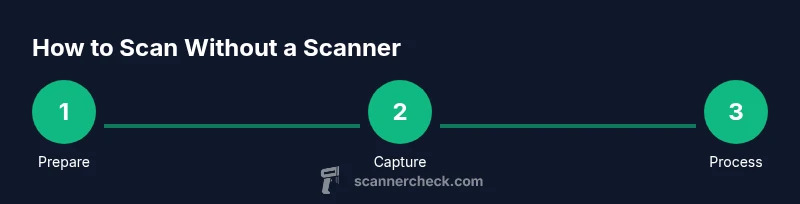
Prepare the capture environment
Set up a flat work surface, ensure even lighting, and remove clutter. Position the document so its edges are parallel to the camera frame. This reduces distortion and improves readability when OCR is applied.
Tip: If possible, use a stand or tripod to stabilize your phone. - 2
Open a scanning app and select document mode
Launch your chosen app and pick the document capture option. Many apps auto-detect the page edges and suggest crop boundaries for you, speeding up the process.
Tip: Enable edge detection before capturing to ensure clean boundaries. - 3
Capture with steady hands
Hold the device directly above the document, keep it level, and press capture with a gentle, steady motion. Capture multiple pages if needed.
Tip: Take two quick captures per page in case you need a backup. - 4
Review and adjust crops
Review detected edges and adjust corners to snugly fit the page content. Re-crop if margins include artifacts or shadows.
Tip: Use a grid view to compare consistency across pages. - 5
Apply enhancements and OCR
If available, adjust brightness/contrast and enable OCR. This helps convert images into searchable text and improves legibility.
Tip: Run OCR language packs aligned with the document’s language. - 6
Choose a file format and save
For multi-page docs, save as a single PDF with embedded text. If you only need images, choose PNG or high-quality JPEG.
Tip: Prefer PDF/A for long-term archival and searchability. - 7
Organize and sync
Rename files with a consistent scheme and upload to a pre-defined cloud folder. Add metadata like date, source, and topic to improve retrieval.
Tip: Maintain a minimal, predictable folder structure for scalability.
Common Questions
Can I scan without a scanner using only my phone?
Yes. A modern smartphone with a scanning app can capture, crop, and OCR documents to create searchable PDFs or images. Good lighting and steady handling improve results.
Yes. You can use your phone and a scanning app to capture, crop, and OCR documents, producing searchable PDFs with decent quality.
What are the best apps for scanning on iPhone and Android?
Popular options include Microsoft Office Lens, Adobe Scan, and Google Drive's scan feature. They offer edge detection, cropping, and OCR across platforms.
Great scanning apps include Office Lens, Adobe Scan, and Google Drive's scan, which work well on both iPhone and Android.
Is OCR reliable for scanned documents?
OCR works well on clear, high-contrast text. Some fonts or very small print may yield errors, which you can correct manually after scanning.
OCR is generally reliable on clear text, but you may need to fix some characters in tricky fonts.
Which file format should I use for multi-page documents?
PDF is typically best for multi-page documents, especially when you want a single, searchable file. Consider PDF/A for long-term archiving.
PDF is ideal for multi-page documents, with PDF/A great for long-term storage.
How can I protect sensitive scans in the cloud?
Use trusted cloud providers, enable two-factor authentication, and consider local-only saving for highly sensitive documents. Share only with necessary people.
Protect sensitive scans by using trusted services, turning on two-factor authentication, and limiting sharing.
Watch Video
Key Takeaways
- Start with proper lighting and a stable setup.
- Use document mode and edge detection to ensure clean captures.
- Enable OCR and save as searchable PDFs when possible.
- Name and organize files consistently for quick retrieval.
- Process multi-page docs as a single, indexed PDF.