Scan Documents with Phone: A Practical How-To Guide
Learn how to scan documents with your phone using a scanning app, capture best practices, OCR tips, and secure storage. A comprehensive, step-by-step guide from Scanner Check.


By using a smartphone, you can reliably scan documents with dedicated scanning apps that guide you through capture, cropping, and OCR-enabled text extraction. The key requirements are a modern phone, a good scanning app, and a clean, well-lit workspace. This quick answer outlines the steps and best practices for high-quality digital copies you can share or archive.
Why scanning with a phone is convenient
Phone scanning has moved from novelty to a reliable everyday workflow for students, professionals, and home offices. With a modern phone and a capable scanning app, you can produce searchable PDFs or image files in minutes, bypassing the need for a scanner. The advantage is convenience: you can digitize receipts, contracts, notes, and forms anywhere, then share or archive them instantly. According to Scanner Check, mobile scanning now delivers consistent results under typical lighting and with standard documents, making it a viable alternative to traditional scanners for many tasks. The quality you achieve is heavily influenced by lighting, distance, and the app's edge-detection and cropping features. When done well, you gain fast access to edit, search, and organize your documents, and you can tag or categorize scans for faster retrieval. This section introduces the practical reasons to embrace phone-based scanning and sets expectations for the rest of the guide.
To ensure this content stays grounded, the Scanner Check team emphasizes practical use cases and common pitfalls, especially for those new to mobile scanning. The insights are tailored toward tech enthusiasts and IT professionals who want reliable, repeatable results without buying a dedicated scanner. You’ll also see how mobile scanning integrates with broader document-management workflows and how the data produced can be indexed for future retrieval.
Before you start: define your goals
Before opening any app, clarify what you want to accomplish. Are you creating a single-page PDF of an invoice, or a multi-page archive of reports? Do you need editable text via OCR, or is a high-quality image copy sufficient? Answering these questions helps you choose the right app settings and export format. Think about the destination: email, cloud storage, or a local archive on your device. Also consider privacy: if documents contain sensitive data, decide whether you’ll scan offline or use a trusted cloud service with encryption. Scanner Check highlights the importance of aligning your scanning workflow with your end-use, which reduces rework and increases reliability. In practice, a clear goal saves time and ensures you select features such as multi-page capture, automatic edge detection, and text-searchable PDFs.
Defining goals also guides your file-naming conventions, metadata tagging, and archival structure. When you know you’re building an expense-pack or a compliance record, you’ll choose the right OCR language packs and export formats from the outset. This upfront planning helps you avoid re-scans and messy folders later on. For teams, agree on a common folder structure and document naming scheme to keep everyone aligned.
Choosing the right scanning app
Your app choice drives capture quality, OCR accuracy, and ease of sharing. Look for automatic edge detection, perspective correction, and cropping to frame the document precisely. Multi-page support, OCR language packs, and export options (PDF, searchable PDF, JPG, PNG) are critical for versatility. Compare apps on how they handle glare, shadows, and color accuracy, as well as the ability to reorder pages after capture. Privacy controls and permission management matter: prefer apps that minimize data collection and offer local processing when possible. In Scanner Check's evaluation, the best apps balance ease of use with robust features like batch processing and cloud export. Try a few options with a simple two-page test to see which yields consistent margins and sharp text. This choice has a long-term impact on how easily you can archive and retrieve documents.
Choosing a scanning app is a one-time setup decision that pays dividends over months of usage. If you work with contractors or teammates, favor apps that support shared folders and role-based access. The right app will also provide a reliable export path to PDF, ZIP, or cloud destinations.
Step-by-step overview: capture quality
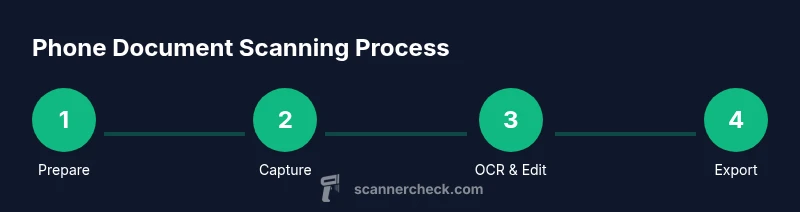
While the full step-by-step guide is below, here's a quick overview of the key ideas that influence results: prepare the document on a flat, non-reflective surface; stabilize your camera to avoid motion blur; hold the phone directly over the page; use natural or diffused light to minimize shadows; and rely on the app's automatic cropping to output aligned margins. A well-captured image reduces the amount of editing later and improves OCR success. In practice, you should aim for a well-lit scene, with the page filling most of the frame and minimal perspective distortion. Remember that a few seconds of care at capture time pays off in legibility and searchability later. Scanner Check's guidance emphasizes consistency and repeatability in capture to build reliable digital archives.
A practical takeaway is to perform a quick test capture of a sample page to calibrate lighting, distance, and focus before scanning a batch. This reduces the chance of iterable re-scans and ensures that your folder structure remains predictable.
OCR and text extraction: turning images into editable text
Optical character recognition (OCR) converts the captured image into searchable text. Mobile OCR is good enough for many business and personal documents, especially when the source is clean and the text is printed rather than handwritten. The fidelity depends on font size, line spacing, and contrast. After capture, check the app's OCR result against the original page and correct misread characters, then save the file in a text-searchable format (such as PDF with embedded text). For long documents, segment the scan into logical groups (invoices, receipts, letters) to keep your library organized. Our experience aligns with Scanner Check's practical findings: with careful capture and post-processing, mobile OCR can reduce manual data entry by a meaningful margin.
OCR quality improves with consistent page margins and avoiding compressed or noisy backgrounds. If you find OCR errors consistently across a set of pages, revisit lighting or try a different app’s OCR engine to compare results. Modern mobile OCR supports multiple languages and can even recognize form fields for structured data extraction.
Multi-page documents: organizing scans
Many everyday documents are multi-page; the ability to stitch pages into a single PDF matters for archiving and sharing. Apps often support adding pages sequentially, reordering, and inserting blank pages if needed. When assembling multi-page PDFs, maintain consistent page size, orientation, and margins. If you expect to add more pages later, choose apps that preserve an intuitive page order and provide reliable page numbering. In practice, this helps you avoid confusion when reviewing archives months later. Scanner Check notes that consistent multi-page workflows yield the most searchable and portable results.
To optimize for retrieval, create a short, descriptive title for each document and place it in folders that match your business processes. This reduces the cognitive load when searching for records months later and makes backups more predictable.
Export formats and cloud storage options
Export choices include PDFs (searchable or image-only), JPG/PNG for image-first captures, and sometimes TIFF for archival quality. PDFs are ideal for multi-page documents; keep text selectable for future editing. For collaborations, choose export options that preserve OCR text and preserve metadata like date and author. Cloud storage offers convenience but consider security: enable encryption, use password protection on PDFs, and implement access controls. If you prefer offline storage, export to device storage and transfer via secure methods. Scan exports should align with your existing document management system's requirements.
From a practical standpoint, start with a default export to PDF with OCR so you have a searchable archive, then create backups to a trusted cloud service. For sensitive materials, keep offline backups with encryption and restrict sharing permissions. Scanners created with phone apps often allow batch exports; leverage this to minimize repetitive tasks in your workflow.
Privacy, security, and data retention considerations
Scan work can involve sensitive information. Always consider who can access your scans and where they are stored. Review app permissions, disable access to unnecessary data, and choose apps with strong privacy policies. When using cloud backups, enable two-factor authentication and encryption. For added control, keep a local encrypted archive of sensitive pages and periodically purge obsolete copies. The Scanner Check team emphasizes mindful handling of personal data: plan retention periods and disposal procedures and ensure your workflow complies with organizational policies. "Scan-smart" practices help prevent data leakage and ensure compliance with privacy standards.
In practice, documenting your retention policy and automating deletion after a defined period can significantly reduce risk. If you must share documents externally, consider redaction or secure viewer links rather than sending raw files. Consistent privacy practices are a core part of sustainable scanning workflows.
Troubleshooting common issues
Captured images may appear blurry, skewed, or exhibit glare. If this happens, retake the page using more direct alignment and better lighting; check that auto-cropping is enabled and that the page fully fills the frame. OCR may misread characters in small print or unusual fonts; try a higher-contrast capture, or zoom in before applying OCR. If multi-page PDFs export as separate files, adjust the export settings to combine them into a single document. For the best results over time, maintain consistent lighting, use templates for different document types, and keep your scanning app updated. If you notice persistent issues across devices, compare the same document scanned with different apps to determine the source of quality differences. Scanner Check recommends documenting your observed issues and testing fixes in a controlled, repeatable way.
Another common issue is color shifts on glossy documents. If color fidelity matters, use a diffuse light source and avoid direct flash; some apps offer color correction features that can help align scans with the original.
Real-world workflows: personal use and small teams
Individually, you might scan receipts for expense tracking, contracts for digital filing, or notes from meetings for reference. In small teams, create shared folders and establish naming conventions to keep scans discoverable. Build a routine: after capturing a batch, run OCR, save to a central repository, and back up weekly. Over time, you’ll build a searchable library of documents. Scanner Check's practical guidance points out that the best outcomes come from consistent practices: standard templates, predictable export formats, and clear privacy controls. In teams, standardize the scan-to-archive workflow, assign ownership for each category of documents, and implement periodic audits to ensure everything remains accessible and compliant.
This approach minimizes redundant effort and improves cross-team collaboration. It also makes it easier to track missing pages, verify OCR results, and locate key documents quickly when needed.
Tools & Materials
- Smartphone with camera(Ensure the camera lens is clean and autofocus works reliably.)
- Scanning app with OCR(Choose an app that supports edge detection, multi-page PDFs, and export options.)
- Stable surface for documents(Use a flat, clean background to improve edge detection.)
- Optional external lighting (diffused)(Helpful for glare reduction on glossy stock.)
- Naming convention and local/cloud storage strategy(Plan folder structure and file naming before scanning.)
Steps
Estimated time: 15-25 minutes
- 1
Prepare documents
Lay the page flat on a clean surface, remove folds or staples, and align edges with the camera frame. Check lighting and reduce reflections by using natural light or diffused lamps.
Tip: Use a plain background to improve edge detection. - 2
Open the scanning app
Launch your chosen app and select the scan option. Grant camera and storage permissions if prompted, then set any default preferences (PDF, OCR on/off, multi-page).
Tip: Enable auto-cropping and perspective correction if available. - 3
Frame the document
Position the phone straight over the page, keeping the edges parallel to the frame. Hold the device steady to avoid motion blur.
Tip: A small tripod or stable surface helps maintain alignment. - 4
Capture the image
Tap capture when the page is fully visible and text is sharp. Use a quick, deliberate motion to minimize blur.
Tip: Aim for the page to fill most of the frame without cropping text. - 5
Crop and straighten
Review the capture, apply edge detection, correct perspective, and crop to page boundaries with uniform margins.
Tip: If margins are inconsistent, re-capture with better alignment. - 6
OCR and text verification
Run OCR if you need editable text and compare the results to the image to fix misreads. Save as a searchable PDF if possible.
Tip: Check difficult fonts or small print at higher zoom levels. - 7
Export and save
Choose your export format (PDF with embedded text or image-only PDF) and save locally or to a chosen cloud location with a clear name.
Tip: Use a consistent naming convention for easy retrieval.
Common Questions
What is the best app for scanning documents on a phone?
There are several reputable apps with OCR; choose one with edge detection, multi-page support, and reliable export options.
Look for apps with edge detection, OCR, and easy exporting.
Can I scan multi-page documents with my phone?
Yes. Most apps support adding pages and exporting as a single PDF. Organize pages in the correct order before saving.
Yes, you can scan multiple pages and save as one PDF.
How accurate is OCR on a phone scanner?
OCR accuracy depends on image quality. Better lighting and straight shots improve results; you may need to edit minor errors.
OCR is usually good for clean text; expect minor corrections.
What file formats are best when scanning documents?
PDF is ideal for multi-page documents with selectable text; JPEG/PNG are good for single-page images. Check app support for your needs.
PDF for multi-page, images for single pages.
How should I organize scanned files securely?
Store scans in encrypted cloud services or local encrypted storage with strict access controls. Review retention and disposal policies.
Use encrypted storage and access controls.
Watch Video
Key Takeaways
- Prepare documents on a clean surface for crisp scans.
- Choose a capable app with edge detection.
- Capture with steady hands and proper lighting.
- Run OCR and verify text accuracy.
- Export as PDF for multi-page documents.