How to Scan to PDF on iPhone: A Practical Guide
Learn to scan documents to PDF on iPhone using built-in tools or third‑party apps. This comprehensive guide covers step‑by‑step workflows, tips for quality, and best practices for organizing and sharing scanned PDFs.


Using your iPhone, you can turn paper documents into PDFs in minutes with built‑in apps or dedicated scanners. For reliable results, you’ll need an iPhone running iOS 14 or newer and a document to capture. This guide walks you through practical, step‑by‑step methods to scan, export, and share PDFs.
Why scanning to PDF on iPhone is worth it
Scanning documents to PDF on iPhone offers instant digitization, easy sharing, and long-term archival. With the ubiquity of mobile cameras and cloud storage, you can replace piles of paper with searchable, portable PDFs that travel with you. The phrase scan to pdf iphone embodies a workflow that fits both home and office needs, from quick receipts to contract scans. According to Scanner Check, mobile scanning provides a practical starting point for personal and professional document digitization, especially when you value speed and privacy. This section explores why an iPhone is a compelling tool for converting paper to digital form and how you can leverage it in everyday life.
What you need before you start
Before you begin, gather the basics: a document to scan, a charged iPhone with iOS 14 or newer, and a plan for how you’ll store or share the resulting PDF. A clean, flat surface with stable lighting improves edge detection and readability. If you anticipate multi‑page documents, consider a simple filing strategy (e.g., a dedicated folder in Files or iCloud). Optional extras include a third‑party scanning app for advanced features like automatic edge detection, multi‑page capture, OCR, and better compression. Having these items ready minimizes interruptions and ensures smooth scanning to PDF iphone workflow.
Built-in iPhone methods: Notes and Files
Apple’s built‑in tools can handle most scanning tasks without installing extra software. The Notes app lets you capture pages as PDFs directly from your camera, while the Files app offers a native Scan Documents feature for quick multi‑page captures. Both workflows produce high‑quality PDFs that you can rename, organize, and share from within your iPhone. The advantage of built‑in tools is consistency and fewer apps to manage, which translates to fewer points of failure when you need to scan fast. In this section, we compare two paths and set expectations for output quality.
Quick-start checklist for a fast scan
If you want a fast start, use this concise checklist: 1) keep documents flat and well lit; 2) use high contrast paper to improve edge detection; 3) scan in color for the most accurate reproduction of text and graphics; 4) review for alignment and crop any skew; 5) export as PDF and save to a known folder. Following these steps helps ensure the resulting PDF is legible, searchable, and easy to share. The goal is to minimize retakes and maximize file usability.
Quality tips for sharp, readable PDFs
High quality starts with lighting, camera distance, and resolution. Aim for 300–600 dpi equivalent on the iPhone when possible, and ensure the document fills most of the frame without wrapping. Avoid glare from shiny surfaces by angling the page slightly and using diffuse light. For multi‑page scans, keep consistent distance and angle between pages. If you’re using Third‑party apps, enable OCR only after confirming privacy terms. These practices improve searchability and accuracy in the final PDF.
Organizing, naming, and storing scanned PDFs
A small upfront naming convention saves time later. Include the document type, date, and a short descriptor (for example: Invoice_20260315_ClientA.pdf). Store PDFs in a clearly labeled folder structure in Files or cloud storage. If you need to share, keep permissions tight and use password protection for sensitive documents. Regular maintenance—deleting duplicates, archiving old scans, and syncing folders—keeps your digital workspace tidy and efficient. This approach makes scan to pdf iphone a sustainable habit.
Troubleshooting common issues
If a scan looks blurry, re‑position the page, improve lighting, or adjust the crop. If edge detection misses parts of the page, retake the scan with a flatter surface and avoid glossy paper. For large documents, scan in sections and combine later in your PDF editor. If PDFs export with wrong orientation, check the page setup before exporting and rotate within the viewer after export. Finally, if you encounter app crashes, close other apps and restart the device.
Accessibility and future-proofing your scans
Digital documents have long lifespans, but formats and apps change. Save PDFs with embedded fonts and OCR where available to maximize readability across devices. Use descriptive file names and add metadata when possible to improve accessibility for assistive technology. Consider backing up to multiple storage locations and periodically re‑exporting older scans if the original software becomes deprecated. These steps help ensure your scan to pdf iphone workflow remains usable for years.
Tools & Materials
- iPhone with iOS 14+(Ensure camera and Files/Notes apps are available)
- Documents to scan(Paper documents, receipts, or client papers)
- Stable surface with good lighting(Diffuse lighting to reduce glare; avoid shadows)
- Notes app(To scan and export PDFs without extra apps)
- Files app(Can export or organize PDFs; alternative workflow)
- Optional third‑party scanning app(For multi‑page capture, OCR, or advanced compression)
- Cloud storage or email ready(To share or back up scanned PDFs)
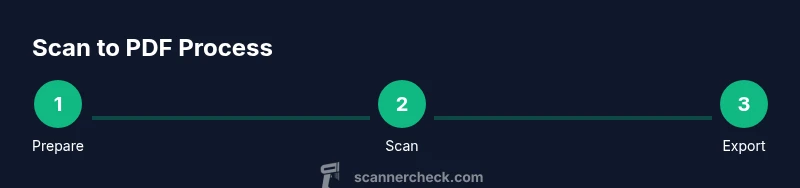
Steps
Estimated time: 15-25 minutes
- 1
Prepare your document and workspace
Lay the paper flat on a clean surface. Check that lighting is even and bright without harsh shadows. Smooth out creases so the camera can detect edges cleanly. This reduces the need for retakes and improves OCR accuracy later.
Tip: A well‑lit, flat page minimizes blur and helps edge detection. - 2
Choose your scanning method
Decide whether to use built‑in Notes/Files or a third‑party app. Built‑in tools are fast and reliable for single or multi‑page scans; third‑party apps offer advanced features like automatic cropping and better compression.
Tip: If you plan multi‑page scans often, consider an app with multi‑page capture. - 3
Scan with Notes
Open Notes, create a new note, tap the camera icon, and select Scan. Align the document and capture. Review edges, adjust corners, and keep the document flat for each page. Tap Save or Add Page to continue.
Tip: Use auto edge detection and manual cropping to ensure clean edges. - 4
Scan with Files
Open the Files app, tap the three dots or Scan Documents option, then capture the page. Use the same alignment steps as Notes and add pages as needed. When finished, choose Save to create a PDF.
Tip: Files Scan Documents can be convenient for organizing in folders. - 5
Export as PDF
From the capture, use Share > Create PDF (Notes) or Share > Save to Files (Files). You can rename the file and choose a destination folder or cloud storage. Make sure the final PDF is oriented correctly before saving.
Tip: Rename the file descriptively to aid future retrieval. - 6
Organize and share your PDF
Move the PDF to a well‑named folder, set permissions if sharing, and use a secure method (password or encrypted sharing) for sensitive documents. Regularly back up your scans to multiple locations.
Tip: Maintain a simple folder structure so you can locate scans quickly later.
Common Questions
Can I scan to PDF on iPhone without internet?
Yes. Scanning to PDF using Notes or Files does not require an active internet connection. You can save the PDF locally on your device and share later when connected.
Yes, you can scan offline and save the PDF locally, then share when you have connectivity.
What’s the best iPhone app for scanning to PDF if I need OCR?
Many apps offer OCR as an option; enable OCR after reviewing privacy and data handling terms. For simple tasks, built‑in tools are often sufficient.
OCR is available in some apps; check privacy terms before enabling OCR.
How do I rename a scanned PDF on iPhone?
Open the PDF in the appropriate app, tap the file name or share menu, and choose Rename. Use a descriptive convention to aid later search.
Open the file, choose Rename in the menu, and name it descriptively.
Can I combine multiple scans into a single PDF on iPhone?
Yes. Most native workflows let you add pages to a single PDF or merge after export. Look for 'Add Page' during scanning or use a PDF editor afterward.
You can add pages during scanning or merge PDFs afterward.
Is there a size limit for PDFs scanned on iPhone?
PDF size depends on page count and image quality. If needed, adjust resolution or compress the PDF during export or in a PDF editor.
File size depends on pages and quality; you can compress if needed.
Where should I store scanned PDFs for security?
Use encrypted cloud storage with strong authentication or keep sensitive scans on a device with device-level passcode protection. Back up to multiple locations when possible.
Store sensitive scans in encrypted storage and back up securely.
Watch Video
Key Takeaways
- Start with built‑in tools for speed and reliability
- Name and organize PDFs for quick retrieval
- Keep lighting and alignment consistent
- Export securely and back up frequently