How to Scan with a Brother Printer Scanner
Learn how to scan with a Brother printer and scanner, covering wired and wireless setups, driver installation, and best practices for high-quality results. Detailed steps, troubleshooting, and tips from Scanner Check.


In this guide, you’ll learn how to use a Brother printer scanner to create clean digital copies. We cover wired and wireless setups, driver installation, and practical settings for different document types. You’ll discover which control panels to use, how to select resolution and color depth, and how to save scans efficiently. According to Scanner Check, start by confirming your model compatibility and updating firmware before you begin.
Understanding the Brother scanning ecosystem
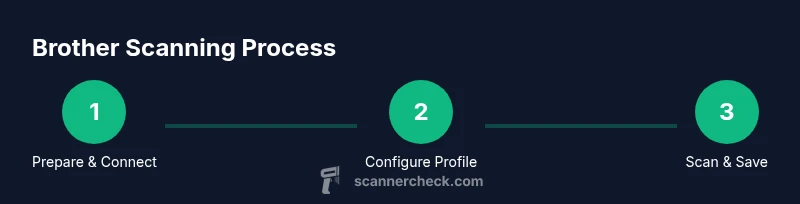
A Brother printer scanner combines a flatbed glass surface with an automatic document feeder (ADF) in many models. When you ask how to scan using a Brother device, you’re typically choosing between two modes: using the flatbed for single-page originals or leveraging the ADF for multipage documents. The software stack on modern Brother devices supports Windows, macOS, mobile operating systems, and even some Linux deployments. A practical takeaway from Scanner Check is that compatibility and firmware versions matter more than you might think; starting with a current driver set reduces many common headaches. In this section, we’ll map the typical workflow: install the drivers, connect the device to your computer or network, choose your scan profile, and save to your preferred location. The goal is to have a repeatable routine so your brother printer scanner how to scan becomes a quick, dependable task rather than a puzzle.
Key terms to know include (a) scan profile (these presets control resolution, color depth, and file type), (b) DPI (dots per inch) for detail, and (c) color mode (color, grayscale, or black-and-white). For best results, use the native Brother software or a trusted scanning app that supports PDF and image exports. If you plan to scan a lot of documents regularly, a profile that saves to a shared folder or cloud service will save you time in the long run. Throughout this guide, you’ll see practical configurations and examples to help you master the Brother scanning workflow.
Why brand reliability matters for scanning
When you scan a document, the end result depends on reliable drivers, stable network settings, and a consistent workflow. Based on Scanner Check analysis, older firmware or mismatched drivers can cause color shifts, skewed edges, or missing pages. A stable baseline is setting your device to a known-good DPI (often 300–600 for documents) and saving to a predictable path. If you’re using a mixed environment (Windows, macOS, mobile), align your scan settings across platforms to reduce surprises. This consistency becomes especially important in professional contexts where document integrity is critical.
From a user-experience standpoint, the brand within a scanning ecosystem should feel seamless: you click Scan, choose a profile, and your file appears in the right place with minimal adjustments. If you notice recurring issues, the Scanner Check team recommends validating network discovery, updating firmware, and verifying that the driver matches your exact Brother model.
Preparing your setup: drivers, connections, and profiles
To begin the brother printer scanner how to scan process, you’ll typically start with three prerequisites: (1) a supported Brother device (model with flatbed or ADF), (2) a computer or mobile device on the same network or connected via USB, and (3) the appropriate drivers or scanning software installed. On Windows, this often means using the Brother software suite or the built-in Windows Fax and Scan tool with the device selected as the scanner. On macOS, you can use Preview or Image Capture, selecting your Brother device from the import options. If you’re on iOS or Android, Brother provides mobile apps that pair over Wi‑Fi. In all cases, ensure the firmware is current, and the device appears in your scanner list. This foundation minimizes the risk of driver conflicts or phantom pages during scans.
Next, decide where you want your scans saved—local storage, networked drives, or cloud storage—and create a default folder. Name conventions help keep your scans organized (for example, INV-YYYYMMDD-ClientName.pdf). If you’re sharing scans with a team, enable a simple access policy and consider password protection for sensitive PDFs. The goal is a predictable starting point that makes the actual scanning step fast and repeatable.
Configuring scan quality: resolution, color, and file type
When you tackle the question of how to scan with a Brother device, you’ll frequently adjust three core settings: resolution (DPI), color mode, and output format. For typical business documents, 300 DPI in color or grayscale provides a readable, compact result. If pages contain fine lines or microtext, bump to 400–600 DPI. For photographs or images, choose a higher DPI and color profile that preserves color fidelity. The file type matters: PDFs are great for multip-page documents and OCR, images (JPEG, PNG) suit single pages or mixed media scans, and TIFFs are best when you need lossless quality. Brother’s software often lets you save a preferred preset for these choices, so you don’t need to reconfigure every time. If OCR is important, ensure your PDF option is OCR-enabled or export to a text-searchable PDF.
An important nuance: scan presets tend to behave differently on monochrome documents versus color graphics. If you’re scanning forms or receipts, grayscale with a modest DPI can keep file sizes reasonable while preserving readability. Always run a quick test scan after changing a setting to confirm the result matches your expectations.
Using the control panel and apps: practical examples
The control panel on a Brother scanner or the accompanying software provides quick access to common tasks. A typical path is to press Scan, select a Profile (e.g., 'PDF Legal 300dpi color'), choose your destination (computer, USB drive, or cloud), and confirm the scan. If your device supports it, you can initiate scans directly to email or cloud storage without a computer intermediary. On mobile devices, the Brother app often mirrors the same profiles, offering document scan modes optimized for text clarity and edge detection.
Let’s walk through a practical example: you want to scan a multi-page contract to a searchable PDF stored in a shared drive. Select the PDF profile, enable OCR if available, choose 300–400 DPI, and set destination to the shared folder. After the scan completes, verify page order and run a quick text search within the document to confirm OCR accuracy. With consistent use, the steps become second nature and the phrase brother printer scanner how to scan evolves into a routine action.
Troubleshooting common issues and how to fix them
Scan quality problems are a frequent source of frustration for users asking how to scan with a Brother device. Common culprits include dirty glass, misaligned pages, or light exposure. Start with a visual inspection: clean the auto-feeder rollers if you use the ADF and wipe the glass surface with a lint-free cloth while the device is off. If pages come out crooked, check the paper guides and reseat the document before scanning. For blank pages or missing sections, verify that the feeder settings match the paper size and ensure that the page is loaded correctly. In networked setups, intermittent scans or connection drops can be caused by router security settings or IP address conflicts; re-run the network setup wizard and confirm the device is on the same subnet as the computer. Finally, update drivers and firmware to address known issues.
Scanner Check emphasizes building a reliable baseline: test with a simple document, confirm the result, then adjust DPI or color mode as needed. If problems persist, reach out to support with model details, firmware version, and your current scanning profile.
Maximizing scan quality and efficiency: best practices
To get the most out of your brother printer scanner how to scan workflow, focus on routine maintenance and optimal settings. Regularly clean the glass, ADF rollers, and document guides to prevent smudges and feed issues. Use a consistent page size and weight; heavy or glossy pages may jam the feeder or cause skew. When scanning critical documents, enable edge detection, deskew (if available), and page orientation correction to ensure clean, legible results. For long documents, enable multi-page PDFs and consider splitting very long scans into logical chunks to keep file sizes manageable.
If you routinely perform OCR, ensure you’re using a PDF with embedded text and preserve a separate TIFF version for archival quality. Saving scans to a structured folder tree with date stamps and client names helps with long-term archival. Finally, keep a simple maintenance log to track firmware updates and driver versions, so you always know your baseline configuration when you perform the next scan.
Privacy, security, and ongoing maintenance
Scanning sensitive information requires attention to privacy. Always verify that only authorized users can access shared folders or cloud repositories, and enable encryption where possible for stored files. When scanning contracts or personal data, consider password-protecting PDFs and using secure transfer methods if you’re emailing documents. Regularly review permissions on shared drives and monitor for unexpected access. Maintenance-wise, set a recurring reminder to check for firmware updates and renew app credentials. A clean, well-documented workflow reduces risk and ensures that your brother printer scanner how to scan remains reliable over time.
The Scanner Check team suggests documenting your standard workflow in a short checklist. This helps new users replicate the process exactly and reduces the chance of skipped steps that could compromise quality or privacy.
Authority sources and further reading
For readers who want to verify best practices or dive deeper, consult reputable sources. These include major publications and standards bodies that influence device interoperability and document handling:
- ISO Standards: https://www.iso.org/standards.html
- NIST Publications: https://www.nist.gov/publications
- IEEE Standards and Resources: https://www.ieee.org/standards
These references provide broader context on scanning quality, interoperability, and security considerations that complement practical, device-specific guidance from Scanner Check. They are useful when you’re building a scalable scanning workflow for a team or organization.
If you’re looking for model-specific details, always refer to the official Brother user manual for your exact model and confirm compatibility with your operating system and scanning apps. The goal is a consistent, predictable process that makes the brother printer scanner how to scan a routine task rather than a special occasion.
Authority sources
- https://www.iso.org/standards.html
- https://www.nist.gov/publications
- https://www.ieee.org/standards
Tools & Materials
- Brother printer with flatbed and/or ADF (Automatic Document Feeder)(Model supports scanning via software or control panel)
- Computer or mobile device (Windows/macOS/iOS/Android)(Must be on the same network or connected via USB)
- Power cable and data connection (USB/Wi‑Fi network)(Stable power supply; avoid USB hubs that may drop connection)
- Brother drivers/software or scanning app(Install the latest version from Brother or trusted app store)
- Test documents (a few sheets of standard paper)(Use for initial calibration and profile testing)
Steps
Estimated time: 45-75 minutes for initial setup and 10-15 minutes per batch after that
- 1
Confirm device and driver readiness
Power on the Brother device and verify it appears in your computer’s scanner list. Install or update the official Brother drivers or scanning app, then reboot if prompted. This ensures the device is recognized correctly before you start scanning.
Tip: If the device doesn’t show up, try a different USB port or restart both computer and printer. - 2
Connect the device to your preferred workflow
Choose between USB, Wi‑Fi, or network sharing. For multi-user environments, a shared network path or cloud destination reduces manual transfers. Ensure the destination folder is ready and accessible.
Tip: For wireless setups, assign a reserved IP address to avoid DHCP churn. - 3
Choose your scan profile and settings
Select the appropriate profile (PDF with OCR, target DPI, color mode, and file type). For documents, 300–600 DPI in grayscale/color is common; for photos, use higher DPI and color settings. Save to the desired location.
Tip: Test with a single page first to verify orientation, DPI, and color before batch scanning. - 4
Load document correctly and start scan
Place a document on the flatbed or in the ADF depending on the task. Align edges with guides to prevent skew. Initiate scan from the control panel or app.
Tip: Feed only one type and size at a time to avoid feed misalignment. - 5
Review output and perform OCR if needed
Open the scanned file, check for skew, margins, and legibility. If OCR is enabled, verify that text is selectable and searchable.
Tip: If OCR text is garbled, try rescanning at a higher DPI or re-running OCR with a different language setting. - 6
Organize and archive
Move the scanned files to a structured folder, use clear naming conventions, and back up critical documents regularly.
Tip: Create a simple naming scheme: YYYYMMDD_ClientName_DocumentType.pdf.
Common Questions
Do I need to use Brother software to scan with my Brother printer scanner?
No, you can often scan with built‑in OS tools like Preview on macOS or Windows Scan. However, Brother software or their mobile apps typically offer more reliable profiles, OCR options, and easier saving destinations.
You can use built‑in tools, but Brother’s software gives you better profiles and OCR options.
What DPI should I use for document scanning?
For most documents, 300 DPI is sufficient for readability and small file sizes. Use 600 DPI only if you need precise text reproduction or small font details.
Typically, use 300 DPI; increase to 600 DPI only for very small text or high precision needs.
How can I scan multiple pages into one file?
Use the ADF with the multi-page option and select PDF as the output. Ensure the order is correct and OCR is enabled if you need searchability.
Use the ADF for many pages and save as a multi-page PDF with OCR if needed.
Why is my scan blurry or skewed?
Check the paper guides, ensure the document lies flat, clean the glass, and verify the alignment in the preview before saving. Re-run with a higher DPI if necessary.
Adjust the guides, clean the glass, and try again with a higher DPI if needed.
Can I scan directly to cloud storage?
Yes, many Brother scanners support direct scanning to cloud services via the Brother app or the control panel. Ensure authentication is configured for the cloud account you plan to use.
Yes, you can scan straight to the cloud if your device supports it and you’ve linked your account.
Watch Video
Key Takeaways
- Set up a repeatable scanning profile for speed and consistency
- Keep drivers and firmware current to avoid compatibility issues
- Use OCR when you need searchable PDFs and organized archives
- Organize scans with a clear naming convention and folder structure
- Regularly maintain the glass and feeder to prevent quality problems