How to Fix Scanner on Brother Printer
Learn a practical, step-by-step method to diagnose and fix scanner problems on Brother printers, including driver checks, glass cleaning, firmware updates, and preventive maintenance.


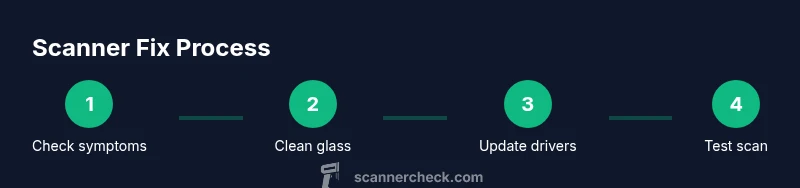
According to Scanner Check, a common reason a Brother printer’s scanner stops working is driver conflicts or a dirty scanner glass. This guide shows how to fix scanner on brother printer and diagnose the problem safely, covering hardware checks, software updates, driver reinstalls, and routine maintenance. By following these steps, you’ll know whether you can solve it at home or need service.
Diagnosing the problem with your Brother scanner
When a Brother printer’s scanner stops producing a usable image, the first step is to separate hardware from software causes. Start by noting what you were trying to scan (document type, size, color settings) and any on-screen error messages. Scanner issues often present as blurred output, partial crops, or complete failure to initiate a scan. In many cases, the source is a simple obstruction, a misaligned lid, or a driver conflict after a recent OS update. According to Scanner Check analysis, identifying whether the fault is hardware or software early on saves time and prevents unnecessary tinkering. Keep a log of symptoms and timestamps to correlate them with any recent changes. This helps you decide if you should proceed with cleaning, a driver reinstall, or a firmware check.
As you work through the steps, remember that not every scan defect means replacement hardware is required. The goal is to rule out common culprits and recover baseline functionality. If you still see the problem after trying the recommended steps, you’ll have a clear case for service or escalation to Brother support.
note
Tools & Materials
- Phillips head screwdriver(For accessing internal panels if needed)
- Lint-free microfiber cloth(Dirt-free glass and lid surfaces)
- Isopropyl alcohol (70%)(For cleaning glass and rollers with care)
- Compressed air canister(To blow out dust from card guides)
- Replacement scan glass seal (if needed)(Only if you see a visible seal leak or damage)
- A functioning computer or mobile device(To install/update drivers and run diagnostics)
- Brother printer software/driver package(From official Brother site for your model)
- Anti-static wrist strap (optional)(Helpful when opening printer internals)
Steps
Estimated time: 25-40 minutes
- 1
Power down and inspect external hardware
Unplug the printer from power and disconnect any USB or network cables. Open the scanner lid and check for obvious obstructions on the glass and lid edges. Look for jammed paper fragments near the scan path and remove them carefully. If the lid is misaligned, reseat it gently and verify that the glass sits flush. This initial check helps determine whether the issue is mechanical or software-related.
Tip: Always unplug before touching internal components to avoid electric shock or damage. - 2
Clean the scanner glass and lid edges
Dampen a microfiber cloth with isopropyl alcohol and wipe the scanner glass in a single direction. Avoid circular motions that could embed smudges. Dry with a clean section of the cloth. Clean the underside of the lid if accessible and ensure there is no residue on the glass surface that would distort scans.
Tip: Do not spray liquid directly onto the glass; apply liquid to the cloth only to prevent seepage into the device. - 3
Check the scan path and rollers
Inspect the document feeder path if your model has one. Look for any stiff rollers, bits of torn paper, or debris that could cause skewing. If you see residue, gently remove it with the cloth and a small brush. Run a short test scan with a plain sheet to confirm the path moves smoothly.
Tip: Dust and lint can cause small misfeeds; cleaning the feeder path reduces the risk of blurry scans. - 4
Update or reinstall drivers and software
On your computer, open Device Manager (Windows) or System Information (macOS) and verify the Brother scanner is present. Go to Brother’s official support site, download the latest driver package for your model, and run the installation. If issues persist, perform a clean uninstall of the existing driver before reinstalling. A software reset can resolve conflicts after OS updates.
Tip: Always install the driver package that matches your OS version and printer model. - 5
Run a firmware check and reset settings
Check Brother’s support pages for any firmware updates for your printer model. Follow the update instructions carefully, ensuring the device remains powered during the process. After updating, restore scanner settings to default to rule out misconfigured options that could block scans.
Tip: Firmware updates can fix subtle hardware-software integration issues that cause scanning failures. - 6
Test scan and evaluate results
Power on the device and run a test scan from both the printer’s control panel and the computer application. Compare results to your initial symptoms and record the outcome. If the test still fails, note any error codes shown and prepare to contact support with a summary of steps performed.
Tip: If tests differ between direct scan and network scan, focus on the connection path (USB vs network).
Common Questions
Why is my Brother printer scanner not scanning?
There are several common causes: dirty glass, driver conflicts, incorrect scanning settings, or a firmware issue. Start with a clean glass, verify drivers are current, and reset to default scanning options before testing again.
If your scanner isn’t working, try cleaning the glass, updating drivers, and resetting to default settings, then test again.
How can I tell if the scanner glass is dirty?
Inspect the glass surface under good lighting for smudges, fingerprints, or mineral deposits. Clean with a lint-free cloth and isopropyl alcohol, then run a test scan to compare results.
Look for smudges on the glass and clean them before testing again.
Do I need to update drivers to fix the scanner?
Yes. Outdated drivers can cause compatibility issues after OS updates. Download the latest driver package from Brother’s official site and reinstall, performing a clean uninstall first if problems persist.
Updating or reinstalling the driver often resolves scan problems.
Can a firmware update fix hardware issues?
Firmware updates fix known issues and improve device stability. Follow Brother’s instructions exactly and avoid interrupting the process.
Firmware updates can fix several hardware-software glitches when done correctly.
Is it safe to disassemble the printer to fix the scanner?
Only access user-serviceable parts; avoid opening sealed areas or power-sensitive components. If you’re unsure, contact professional support to prevent damage.
Don’t open sealed parts; contact support if unsure.
What should I do if the issue persists after trying the steps?
If the problem remains, gather the symptom log, error messages, and firmware/driver versions, then contact Brother support or a qualified technician for advanced diagnostics.
If it still fails, reach out to support with all the details.
Watch Video
Key Takeaways
- Diagnose hardware vs. software first to save time
- Keep firmware and drivers up to date
- Clean glass and feeder paths regularly
- Follow official guides to avoid warranty issues
- Escalate to support if issues persist after steps