Download HP Scanner Software: Step-by-Step Guide
Discover how to safely download hp scanner software, install the latest drivers, and troubleshoot common issues on Windows and macOS with practical guidance.


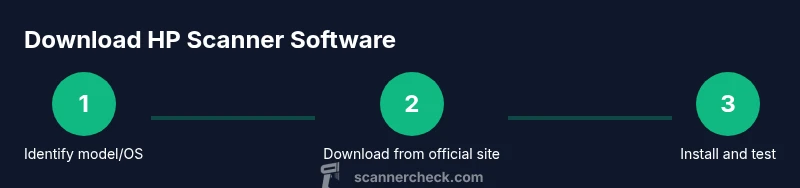
According to Scanner Check, you can download hp scanner software by locating your exact HP model, visiting HP’s official support site, and downloading the latest drivers and scanning software. Before you begin, verify your operating system version, back up important files, and connect the scanner to your computer. After download, run the installer and follow on-screen prompts to complete setup.
Understanding the HP scanner software ecosystem
When you think about downloading hp scanner software, it helps to understand the ecosystem that supports most HP scanners. The software stack typically includes drivers, a scanning utility, and optional applications for OCR, cloud storage, or mobile capture. The goal is to establish reliable communication between your computer and the device while unlocking full feature sets like duplex scanning, color profiles, and document management. According to Scanner Check, starting with official HP support pages reduces risk and ensures compatibility across Windows and macOS. Before you click any download, confirm your exact model number, identify your operating system version, and decide whether you want a minimal driver package or a full-featured suite that includes scanning utilities and cloud integration. If you own an older or retired HP scanner, you may encounter archived drivers; approach those pages with caution and verify the source is legitimate. Finally, set up a quick test plan: run a simple scan, try a color capture, and export to preferred formats (PDF, JPEG, TIFF) to confirm the software works as expected. This upfront planning saves time during installation and reduces frustration later.
Finding the correct driver and software package
Locating the right software begins on HP's official support site. Start by entering your scanner's exact model number in the search box; if you can't locate it, inspect the device label or consult your device's user manual for the model string. HP typically offers multiple download packages per model: a base driver, a scanning utility, and optional extras like OCR, cloud connectivity, or mobile apps. Make sure you select the correct operating system (Windows, macOS, or others) and language/region. Download the package to a known folder so you can verify the file name and size before you run it. If multiple versions are listed, prefer the latest stable release that includes recent security and compatibility fixes. Avoid downloading from third-party mirrors, as they may bundle unwanted software or malware. After the download completes, you should see a single installer file that you can run to start the installation wizard.
Download safety: official sources and verification
Safety begins with source credibility. Always download from HP's official support site and avoid generic software aggregators. Before executing any installer, verify the URL begins with https://www.hp.com or the corresponding regional HP site. If your browser flags the file as potentially harmful, use built-in scanning features or your antivirus to perform a quick check, and ensure the digital signature matches the publisher. HP installers typically include a digital certificate; you can view this in the file properties before running the setup. If you encounter a warning about unsigned software, stop the installation and download again from the official HP page. After the download, scan the archive with your antivirus, then proceed with the installation.
Installing HP scanner software
Run the downloaded installer and follow the on-screen prompts. You may be asked to connect the scanner physically during installation, or the wizard may guide you to connect after the initial setup. Grant any required permissions (network access, USB access, or accessibility features) so the software can communicate with the device. Choose a standard installation path unless you have a specific organizational requirement. If you encounter a prompt to restart, save open documents and proceed with the reboot to finalize components. After the system comes back online, open the scanning application to verify detection and test a basic scan.
Troubleshooting common download and install issues
If the installer cannot find the device, try unplugging and replugging the scanner, or switch USB ports if you use a direct connection. Ensure USB drivers are up to date in your operating system, and temporarily disable conflicting software that might block the installer. If you see a “driver not recognized” or “device not found” error, reinstall the driver package or use HP’s diagnostics tool, if available. Network-scanner scenarios may require firewall or antivirus exceptions; add the installer to trusted apps and retry. Finally, confirm you downloaded the correct OS version; a mismatch will prevent successful installation.
Optimizing performance and maintenance after installation
With the software installed, keep your system healthy by enabling automatic updates, configuring scan quality, and selecting preferred file formats. Regularly check HP's site for driver releases that fix bugs or improve compatibility with your OS updates. Periodically clean the scanner’s glass and ensure the device is on a stable power source to avoid interruptions during scans. Consider enabling cloud integration if you work across devices, but be mindful of security and permissions for cloud services. If you use OCR features, run a quick accuracy check on a sample document and adjust recognition settings as needed.
Next steps: using scan apps and cloud features
Explore optional HP apps and features that enhance productivity, such as mobile scan capture, cloud storage connectors, and PDF management utilities. Optimize workflows by creating scanning presets for common tasks (legal vs. letter size, color vs. grayscale, dense vs. light text). Save preferred export formats (PDF/A for archiving, JPEG for quick sharing) and set automatic file naming conventions. If your hardware supports it, enable duplex scanning and batch processing to speed up larger jobs. Finally, review privacy and data retention settings if you work with sensitive documents to ensure compliance.
Tools & Materials
- Computer or laptop (Windows or macOS)(Ensure your OS version is up to date.)
- HP scanner model (e.g., HP ScanJet, HP OfficeJet with scanning capability)(Have the exact model handy for driver selection.)
- USB cable or network connection(Use USB if you want direct connection; if network-enabled, ensure same network.)
- Internet connection(Needed to download drivers from HP official site.)
- Admin privileges on your computer(Required to install drivers.)
- Web browser(For navigating to HP support site.)
- Optional: Printer/scanner software disk or previously downloaded installer(Use as fallback if online install fails.)
- Backup drive or cloud storage (optional)(Back up important docs in case of misconfig.)
Steps
Estimated time: 45-60 minutes
- 1
Identify model and OS
Locate the exact scanner model on the device label or manual, then confirm your computer's operating system version. This ensures you download the correct driver package and avoid compatibility issues. If you’re unsure of the OS version, check System Information (Windows) or About This Mac (macOS).
Tip: Document the exact model and OS version before starting. - 2
Visit HP official support site
Open a browser and navigate to HP’s official support page. Enter the model number, select your OS, and review the available driver packages. Use HP's regional site if you live outside the default region to ensure proper language and licensing.
Tip: Always click the official HP link from a trusted source. - 3
Choose the correct software package
Identify whether you need just drivers, a full scanning application, or additional tools like OCR. Download the OS-specific package and read release notes for important fixes.
Tip: If you need OCR or cloud features, select the full-featured package. - 4
Download the installer
Save the file to a dedicated folder such as Downloads/HP_Scanner. Verify the file name and size before starting the installer. Avoid runs from temporary folders to prevent corrupted installs.
Tip: Pause any ongoing downloads if your internet is unstable. - 5
Run the installer and grant permissions
Execute the downloaded file and follow the prompts. Allow any requested permissions (USB/network access, firewall exceptions) so the scanner can communicate with the OS and the software.
Tip: Run as administrator if Windows blocks parts of the installer. - 6
Connect the scanner if prompted
Connect the scanner via USB or ensure it’s on the same network if the installation is network-based. The installer may search for the device and complete the setup automatically.
Tip: If the device isn’t detected, try a different USB port or restart the PC after installation. - 7
Test and configure preferences
Open the scanning app and run a test scan. Adjust resolution, color mode, file format, and destination folder. Set a default scanner if you have multiple devices and save your preferences.
Tip: Run a color vs grayscale test to confirm output meets your needs.
Common Questions
What should I do before downloading hp scanner software?
Confirm your HP scanner model and operating system, then use the official HP site to locate the correct driver package. Prepare a test plan to verify function after installation.
Confirm your model and OS, and download from HP's official site to start with a clean setup.
Can I download hp scanner software for Windows and macOS at the same time?
HP provides separate drivers for Windows and macOS. Choose the appropriate OS on the download page and install the matching package.
Yes, but you need the correct OS version for your device. Pick Windows or macOS on the HP site.
What if the download is blocked by security software?
Ensure you’re on HP’s official site and the file is from a trusted publisher. If blocked, retry after temporarily adjusting security prompts or using a different browser.
If blocked, verify the source is official and try again from a different browser after checking security prompts.
Is HP software safe to download from the official site?
Yes. Official HP sites provide signed installers. Always keep your antivirus and OS updated and scan the downloaded file before running it.
Yes—HP's site is safe when you verify the file and keep security software up to date.
Do I need to restart after installation?
A restart is often required to finalize driver installation and apply system changes. Save work before rebooting.
Yes, a restart is usually needed to complete the setup.
How do I test the scanner after installation?
Open the HP scanning software or your OS scanning utility, run a test scan, and check output quality. Adjust settings if needed.
Run a quick test scan to confirm the output looks right.
Watch Video
Key Takeaways
- Verify model and OS before downloading
- Use official HP sources for the download
- Test scanning after installation
- Keep software up to date for best compatibility