A Practical Guide to Download Scanner Drivers and Software
Learn how to download scanner drivers and software securely, verify OS compatibility, install correctly, and test your scanner for reliable performance. This guide covers official sources, model matching, and post-install checks to keep your setup smooth and safe.


Goal: learn how to download scanner drivers and software safely, verify OS compatibility, install correctly, and test your scanner. This guide covers official sources, model matching, and post installation checks to keep your setup smooth and secure. By following these steps you can complete a clean, reliable setup.
Why downloading scanner drivers matters
When you own a physical scanner or multifunction printer, the software that actually talks to the device lives in drivers and companion apps. The act of downloading scanner drivers is more than just getting a file; it ensures compatibility with your operating system, preserves scanning quality, and protects against security risks from unsigned or outdated software. A clean driver install improves color accuracy, speeds up scans, and reduces the chance of driver conflicts with other peripherals. If you need to download scanner drivers, use the official vendor page rather than third-party sites. The goal is to verify identity, authenticate the source, and apply the correct package for your hardware.
This section helps you understand the broader rationale behind driver updates, including how they can enable new features, fix known bugs, and close security gaps. It also clarifies common myths, such as assuming generic software will work for every model. The bottom line is practical: you should download only from trusted publishers, confirm compatibility, and follow vendor instructions to avoid wasted time and potential damage to your device.
Compatibility and prerequisites
Before you begin the download, you must check several prerequisites to avoid wasted effort. Identify your scanner’s exact model number, the operating system version (Windows, macOS, or Linux), and the architecture (32-bit vs 64-bit). Confirm whether the device uses USB or Wi-Fi and whether your computer has the right drivers for those interfaces. Many vendors publish separate driver packages for different OS versions; downloading the wrong package leads to installation errors or non-functional scanners. If you are on a corporate device, verify that you have administrator privileges or coordinate with IT to install the drivers. Ensure your antivirus software won’t block the installer, and consider temporarily disabling any overly aggressive security features if the vendor asks you to do so. Finally, prepare a backup plan in case the new driver conflicts with existing software.
Official sources vs third-party download sites
Downloading from official sources minimizes the risk of malware, bundled software, or tampered packages. Start at the vendor’s own pages and, when possible, use direct download links rather than autofill forms. For example, go to the manufacturer’s support portal, locate the exact model, and grab the most recent driver package signed by the vendor. If a third-party site promises universal scanners or all‑in‑one drivers, treat it as suspicious. In addition to the driver, you may be offered firmware updates; these should come from the device maker, not from unrelated download aggregators. Always read the release notes to understand changes, system requirements, and any reboot steps. If you can, enable two-factor approval for driver downloads on shared machines.
Step-by-step checklist to download scanner software
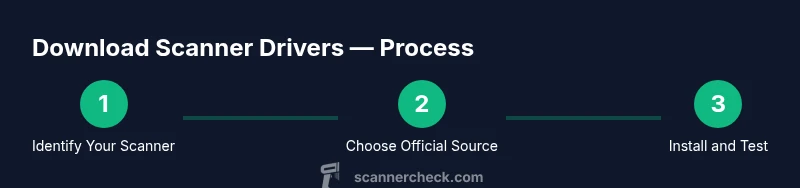
This section provides a high‑level checklist you can follow in sequence to avoid backtracking. Confirm model and OS, locate the official driver page, choose the exact package, download the installer, run it with proper permissions, connect the device if required, complete the setup wizard, test a sample scan, and finally check for firmware updates. Keep a record of the driver version and the install date for future troubleshooting. If the process stalls, pause and verify each prerequisite before trying again.
Security considerations and privacy controls
Security should guide every download decision. Verify the digital signature on the installer. Use an official network (not public Wi-Fi) when downloading large driver files. Maintain updated antivirus definitions and use a password manager to guard vendor accounts. Be cautious about additional software offered during installation; deselect optional utilities unless you need them. If your scanner supports cloud features, review the permissions required and limit data sharing to what is strictly necessary. Finally, after installing, run a quick security scan of your system to ensure no new threats were introduced during the process.
How to verify the installation with a test scan
After completing the installation and initial setup steps, perform a test scan with a simple document. Check that color, grayscale, and text scans render correctly, and ensure the scanner’s optical alignment has not shifted. Compare scan results across software applications that support your device to confirm consistency. If any test fails, revisit the driver version, reset the scanner, or reinstall the software using the vendor’s recommended steps. Document the test results so you can reproduce them if issues recur.
Authority Sources
For further reading and official guidance, consult these resources:
- https://www.nist.gov
- https://www.iso.org
- https://support.microsoft.com
Tools & Materials
- Stable internet connection(Broadband recommended for large driver packages (50–200 MB typically))
- Computer with admin rights(Needed to install drivers and modify system settings)
- Scanner model and manufacturer(Exact model number and hardware revision help choose the correct package)
- Official vendor download page(Use direct vendor links to avoid tampered packages)
- USB cable or Wi-Fi setup(Have the appropriate connection method ready before installation)
- Supported operating system version(Windows, macOS, or Linux version and architecture (32/64-bit))
- Antivirus/endpoint protection(May need to temporarily adjust settings to allow the installer)
Steps
Estimated time: 30-50 minutes
- 1
Identify your scanner model and OS
Locate the exact model number on the device or its packaging. Note the current operating system and architecture of your computer to ensure you download the correct driver package.
Tip: Having the exact model and OS info ready prevents selecting the wrong driver. - 2
Visit the official vendor page
Open the manufacturer’s support or drivers page using a trusted browser. Use the search feature to locate your model and the compatible driver for your OS.
Tip: Avoid search results from third‑party sites; always click through to the official domain. - 3
Select the correct driver package
From the model page, choose the exact driver for your OS version and architecture. Check for any prerequisites listed in release notes.
Tip: If there are multiple versions, prefer the latest signed package. - 4
Download the installer
Click the download button and save the file to a known folder. If prompted, verify the digital signature before saving.
Tip: Do not run installers from email attachments or untrusted downloads. - 5
Run the installer
Launch the downloaded file and follow on-screen prompts. Grant administrator permissions when asked and allow any required reboot.
Tip: Close other applications to prevent conflicts during installation. - 6
Connect the scanner and complete setup
If using USB, plug in the device and power it on. If using Wi-Fi, ensure the device is on the same network and that the scanner is discovered by your OS.
Tip: If discovery fails, re-check network settings or try a direct USB connection first. - 7
Test a scan and verify settings
Run a test scan and check color, grayscale, and text modes. Compare results across software to confirm consistent output.
Tip: If results differ between apps, consider reinstalling or updating the driver. - 8
Update firmware and drivers as needed
Check for firmware updates on the vendor page and apply them after driver installation if recommended by the manufacturer.
Tip: Firmware updates can fix compatibility and performance issues.
Common Questions
What should I do if the scanner isn't detected after installation?
First, recheck that you installed the correct driver for your OS and model. Verify the device is powered and connected, then reopen the software or restart the computer. If the problem persists, try a different USB port or re‑install the driver from the vendor page.
If your scanner isn't detected after installation, verify model and OS match, check the connection, and consider re-installing the driver or trying another USB port.
Can I install drivers for multiple OSes at once?
You generally need to install the OS-specific driver package for each platform you intend to use. On a single machine, you can install only the driver that matches the current operating system. If you switch between Windows and macOS, repeat the download and installation steps for the new OS. Some devices support universal software, but driver packages are usually OS-specific.
Drivers are usually OS-specific, so install the package that matches your current operating system, and repeat if you switch platforms.
Is it safe to enable automatic driver updates?
Automatic updates can keep your scanner secure and compatible, but enabling them should be done through trusted channels. Prefer vendor-managed update mechanisms rather than third‑party tools, and review update notes before applying changes to avoid unexpected behavior.
Automatic updates are convenient, but use only official vendor tools and read notes before applying updates.
How do I verify the driver version after installation?
Open the scanner software or system device manager and check the driver version against the vendor's latest release notes. If there is a mismatch, consider re-downloading the latest official package and reinstalling.
Check the driver version in the device manager or scanner software against the vendor’s notes to confirm you have the latest release.
Do all scanners require vendor-specific software?
Most scanners work with vendor-specific drivers, but many also support generic TWAIN or WIA interfaces. Use the vendor driver for best performance and features, and rely on standard interfaces only if your device lacks a dedicated driver.
Generally, vendor drivers are best; you can use standard interfaces if a dedicated driver isn’t available, but features may be limited.
Should I uninstall old drivers before installing new ones?
Yes, it is usually best to uninstall older drivers before installing a new version to avoid conflicts. Use the official uninstall tool or the operating system’s add/remove programs feature, then reboot before installing the new package.
Uninstall older drivers first to prevent conflicts, then reboot and install the new package.
Watch Video
Key Takeaways
- Download only from official sources
- Verify model and OS before downloading
- Run installers with proper permissions
- Test with a real document after setup
- Keep drivers and firmware updated