Start Scanner: A Practical How-To
This comprehensive how-to walks you through starting a scanner—from model selection and driver installation to your first test scan, with maintenance, privacy tips, and common troubleshooting.


You will learn how to start a scanner, including selecting the right model, installing drivers, and performing a first test scan. Key requirements: a compatible computer or mobile device, the scanner's power supply, and any necessary cables or wireless setup. Follow the step-by-step guide to ensure reliable results. This quick start covers basic safety and common connection methods.
What It Means to Start a Scanner
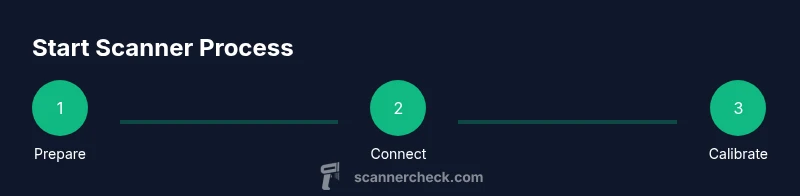
Starting a scanner isn't just flipping a power switch; it involves preparing the device, installing drivers, configuring software, and performing a calibration. According to Scanner Check, a smooth start depends on having the right connectivity method and up-to-date software. In this section we'll define the core steps and clarify common misconceptions, so you can begin digitizing documents, photos, and receipts with confidence. We’ll cover wired, wireless, and mobile scanning use cases and explain how to choose the right setup for your workflow.
Pre-Start Readiness: Assess Your Gear and Space
Before you power anything on, take a quick inventory of what you’ll need and where you’ll work. A clean, flat surface helps prevent glass scratches during loading, and good lighting helps you spot dust and specks. Verify the scanner model supports your intended workflow (flatbed vs. feeder, color depth, optical resolution). Ensure you have the power adapter, any required cables, and a compatible computer or mobile device ready. A tidy, well-ventilated workspace reduces heat buildup and condensation, which can affect image quality over time.
Connectivity and Power: Wired, Wireless, and Power Needs
Scanners offer several connectivity paths: USB, Ethernet, Wi-Fi, and sometimes Bluetooth. Pick the method that matches your computer or network setup. If you’re using a portable scanner with a battery, confirm your battery health and charge level. For wired setups, keep cables organized to avoid accidental unplugging. For wireless setups, ensure your device and scanner are on the same network and that the network is stable to prevent interrupted scans.
Drivers, Software, and Install Basics
Most scanners require drivers or a vendor-provided app to communicate with your computer or mobile device. Start by visiting the manufacturer’s support site to download the latest drivers for your exact model and operating system. Install the software following the prompts, then reboot if requested. Once installed, open the scanning software to confirm the scanner appears as an available device. This step is critical to avoid miscommunications between hardware and software.
Running Your First Test Scan: Calibration and Verification
With the hardware recognized, load a plain, clean sheet and perform a test scan at the default resolution. Check the image for dust specks, color accuracy, and edge alignment. If you notice blurriness or color shifts, run a basic calibration if your software offers one, or use the built-in calibration tool in the scanner’s control panel. Save a copy of the test scan and compare it against a baseline to gauge any adjustments you may need to apply for future scans.
Troubleshooting Common Startup Issues
If the scanner isn’t appearing in your software, recheck connections, ensure the device is powered, and confirm the correct driver is installed. On wireless setups, verify the scanner is connected to the same network and re-run the network discovery. If you encounter driver conflicts, uninstall older drivers and reinstall the latest version. For persistent issues, consult the manufacturer’s knowledge base and look for firmware updates that improve compatibility and reliability.
Privacy, Security, and Data Handling When Scanning
Scanning often involves sensitive or personal documents. Enable any built-in privacy features, such as automatic image redaction for sensitive fields, and choose reputable software with solid data handling practices. When saving files, configure encryption or password protection for sensitive folders. Regularly review your scan storage locations and delete duplicates or outdated scans to minimize data exposure.
Routine Maintenance and Pro Care for Longevity
Keep glass clean using a soft microfiber cloth and a gentle cleaning solution recommended by the manufacturer. Dust should be removed from vents and fans to prevent overheating. Regularly update drivers and software, and keep firmware current if available. Store cables neatly and avoid twisting or pinching connectors. Regular maintenance reduces wear and extends the life of your scanner.
Quick-Start Preparations Checklist
- Power adapter and a fully charged battery (if applicable)
- USB, USB-C, Ethernet, or Wi-Fi setup ready
- Latest drivers/software downloaded from the manufacturer
- Clean, dust-free scanning area
- A sample document to test image quality
- Backup plan for stored scans (cloud or local storage)
Tools & Materials
- Scanner device(Flatbed or sheet-fed; ensure it supports your intended workflow.)
- Power adapter(Use the original adapter if possible; check voltage compatibility.)
- Link cables or wireless setup(USB cable for wired, Wi-Fi or Bluetooth for wireless.)
- Computer or mobile device(Windows, macOS, iOS, or Android; ensure OS is up to date.)
- Scanner drivers and software(Download from manufacturer support page for your exact model.)
- Cleaning cloth and blower (optional)(Use for glass cleaning and dust removal before scanning.)
Steps
Estimated time: 40-60 minutes
- 1
Power up and prep the workspace
Place the scanner on a clean, stable surface. Connect the power supply and turn on the device. Verify that the power indicator is steady before proceeding, and clear the area of dust and debris to prevent specks on your first scan.
Tip: Always start with a clean surface to avoid catching dust on the glass during loading. - 2
Connect the scanner to your computer or network
Choose USB for a direct connection or Wi‑Fi/Bluetooth for wireless setups. If using USB, plug into a dedicated port and check for any device conflicts in your OS. For wireless, join the same network as your computer and run a quick network test to confirm connectivity.
Tip: If your network is congested, temporarily switch to a wired connection for stability. - 3
Install drivers and software
Visit the manufacturer’s site, download the correct drivers for your OS, and install following on-screen prompts. Reboot if prompted. Open the scanning app to verify the device appears in the list of available scanners.
Tip: Use the exact model number to avoid driver mismatches. - 4
Run a test scan
Place a plain document on the glass, select the default scan profile, and perform a test scan. Check for alignment, color accuracy, and edge-to-edge capture. Save the test file for comparison with future scans.
Tip: If the test shows misalignment, adjust the document alignment and retest. - 5
Calibrate and adjust settings
If available, run the calibration routine and adjust resolution, color mode, and brightness to suit your documents. Use a sample with text and mixed graphics to verify output quality.
Tip: Calibration improves consistency across multiple scans. - 6
Save, organize, and back up files
Choose a logical folder structure for scans (e.g., year/item/type). Enable auto-saving if available and set up a backup plan to cloud storage or an external drive.
Tip: Consistent naming conventions prevent later sorting chaos. - 7
Secure your data
Enable any built‑in privacy features and add file protections for sensitive documents. Review permissions for apps and ensure encrypted storage if possible.
Tip: Regularly review access to your scanning apps and folders. - 8
Maintenance and cleanup routine
Wipe the glass with a microfiber cloth, clear dust from vents, and check cables for wear. Update drivers and firmware when updates are released.
Tip: Set a monthly reminder to perform a quick maintenance check. - 9
Document your setup
Record model, firmware version, and software versions in a simple setup log. This helps with future troubleshooting and upgrades.
Tip: A timestamped log saves time when diagnosing issues later.
Common Questions
What does it mean to start a scanner?
Starting a scanner means preparing the hardware, installing the necessary drivers, configuring software, and validating with a test scan before regular use.
Starting a scanner means you power it up, install the software, and run a test scan before you begin regular use.
Do I need a computer to start scanning?
Most scanners require a computer or mobile device to run the software and drivers, but some models support standalone operation or cloud-based workflows.
Most scanners need a computer or mobile device for software, but some models work standalone.
Can I start scanning over Wi‑Fi?
Yes, many scanners support Wi‑Fi; ensure the device and computer are on the same network and that firewall settings allow the connection.
Yes, you can scan over Wi‑Fi; just connect both devices to the same network and allow the connection.
Why is my first scan blurry or off-color?
Blurriness and color shifts usually come from dirty glass, calibration needs, or incorrect resolution settings. Clean the glass and recalibrate as needed.
If your first scan looks blurry, clean the glass and recalibrate the color and resolution settings.
Is wireless scanning safer for privacy?
Wireless vs wired doesn’t inherently change privacy; use secure networks, encrypt saved files, and limit app permissions to protect sensitive data.
Privacy depends on your setup and practices, not the connection type alone.
How often should I update scanner firmware?
Check for updates every few months or when the manufacturer releases one; updates can fix bugs and improve compatibility.
Check for firmware updates a few times a year to stay current.
Watch Video
Key Takeaways
- Power up on a clean surface and verify indicators.
- Install the correct drivers for your OS.
- Run a test scan and calibrate for accuracy.
- Secure data with proper privacy settings and backups.
- Perform routine maintenance to extend life.