Epson Scanner for Mac: Practical Guide to Setup, Scanning, and Troubleshooting
A data-driven guide for macOS users: how to choose, connect, and optimize an Epson scanner on Mac, with setup steps, troubleshooting, and workflow tips from Scanner Check.


An Epson scanner works with Mac by installing the official drivers, connecting via USB or Wi‑Fi, and using macOS apps like Image Capture or Epson ScanSmart. Start by checking compatibility with your macOS version, install the driver package, add the device in System Preferences, and run a test scan to confirm quality and file formats.
Why Epson scanners pair well with Mac
For many Mac users, an Epson scanner integrates smoothly into the Apple ecosystem when you follow the official driver and software path. The combination of macOS-native apps like Image Capture and the Epson ScanSmart software typically provides reliable document and photo scanning, with predictable file formats and straightforward export options. According to Scanner Check, the Epson ecosystem tends to deliver dependable macOS scanning experiences when drivers are current, and users keep firmware up to date. This alignment matters for people who rely on consistent color accuracy, OCR readiness, and automatic file naming across projects. In practice, the strongest fit for the phrase "epson scanner for mac" is models that balance fast, quiet operation with robust software support and easy-to-navigate workflows. The result is a setup that minimizes troubleshooting and keeps your Mac-focused workflow uninterrupted.
Choosing the right Epson scanner for Mac
Not all Epson scanners are created equal for macOS, so it helps to categorize models by intended use. Entry-level and photo-focused devices typically emphasize color depth and photo scanning quality, while document-focused models prioritize batch handling and OCR readiness. When evaluating options for a Mac environment, consider: (1) whether you need an automatic document feeder (ADF) for multi-page jobs, (2) the supported color profiles and bit depths, (3) whether the device supports USB-C or legacy USB-A, and (4) the availability of Mac-native apps like Image Capture, Epson ScanSmart, and compatibility with third-party tools such as VueScan. In all cases, ensure your chosen model has up-to-date macOS drivers and firmware; this reduces the risk of compatibility hiccups when Apple releases new OS updates. This approach is especially important for professionals who process large batches of scans or require consistent color fidelity across projects.
Quick setup guide: getting your Epson scanner on macOS
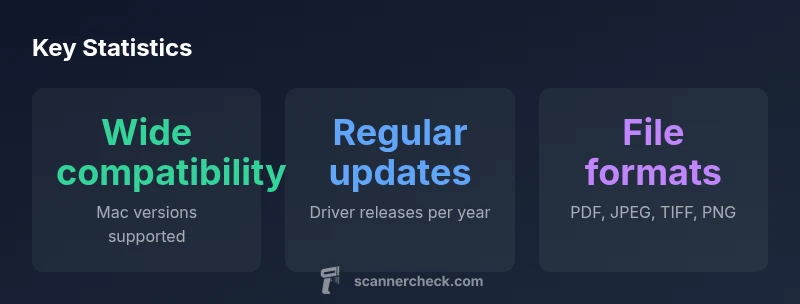
To start scanning on a Mac, follow a simple sequence that minimizes friction. First, verify that your macOS version is supported by the Epson driver package for your model. Second, download and install the official drivers from Epson’s support site, ensuring you select the correct OS version. Third, connect the scanner via USB or set up the device on your Wi‑Fi network if supported. Finally, open Image Capture or Epson ScanSmart, select the scanner, test a single-page scan, and then configure default export settings (PDF, JPEG, TIFF) and destination folders. If you run into issues, use macOS Security & Privacy settings to allow any blocked kernel extensions or apps, then recheck the device recognition.
Optimizing scan quality on Mac: color, DPI, and formats
Quality optimization starts with choosing appropriate DPI settings and color modes. For documents, 300–600 dpi provides clear text; for photos, 600–1200 dpi yields better results, especially with high-contrast images. Use color profiles that match your output intent (sRGB for screen work, Adobe RGB for print workflows) and enable gamma correction if your software supports it. When scanning multi-page documents, set up a consistent page size and margins, and enable the software’s auto-deskew or auto-crop features to improve OCR accuracy. Finally, save scans in multiple formats when needed (PDF for long-term archiving, JPEG/PNG for online sharing) and use OCR options if you need searchable text later.
Troubleshooting common Mac-scanner issues
If the device isn’t detected, replug and restart both the scanner and Mac. Check that you installed the correct driver package for your macOS version and model; unblock any security prompts in System Preferences, and ensure the scanner appears in both Image Capture and the Epson software. If you experience slow scans or color shifts, verify the DPI setting matches your goal, recalibrate color profiles, and update firmware if available. For persistent problems, consider temporarily removing and re-adding the device in System Preferences > Printers & Scanners.
Workflow tips for productivity with Epson scanners on Mac
A productive workflow leverages consistent naming, destination folders, and automatic file routing. Use Image Capture or Epson ScanSmart to scan to PDFs with searchable text, enabling quick index and retrieval. Create pre-set profiles for common tasks (boardroom handouts, client proposals, or inventory logs). When possible, enable cloud-sync features or export to local folders synchronized with your cloud service. Batch scanning can be improved by using an ADF-equipped model and enabling multi-page PDFs, which keeps all pages in a single document for easier distribution.
Maintenance and long-term reliability for macOS users
Routine maintenance includes cleaning the glass and rollers, updating drivers regularly, and keeping firmware current. A regular check for macOS compatibility with Epson’s drivers helps prevent last-minute breakages after OS updates. If you rely on OCR, periodically recheck text recognition quality as software evolves. Finally, back up your scan presets and export templates so that your Mac-based workflow remains portable across devices.
Epson scanner for Mac: quick feature reference
| Feature | Mac compatibility | Notes |
|---|---|---|
| Driver support | Broad macOS compatibility | Official drivers + Epson ScanSmart/Image Capture |
| Connectivity | USB, Wi-Fi, Ethernet | Model dependent |
| Software options | Image Capture, Epson ScanSmart, VueScan | Choose default app per task |
Common Questions
Is Epson ScanSmart compatible with Mac?
Yes, many Epson ScanSmart versions support macOS. Check your model's software page for the exact macOS compatibility and download the correct driver bundle. If ScanSmart isn’t available, use Image Capture as an alternative.
Yes, most Epson ScanSmart versions work on Mac—just install the driver and ScanSmart, or use Image Capture if needed.
Can I scan multiple pages into a single PDF on Mac?
Yes. Use Image Capture, Epson ScanSmart, or a third-party tool like VueScan to combine pages into one PDF. Configure the app to save as a multi-page PDF during the scan workflow.
Yes—choose a multi-page PDF option in your scanning app and scan pages sequentially.
Do I need TWAIN drivers on Mac?
Many Epson drivers expose TWAIN compatibility, but macOS users often rely on Image Capture or ScanSmart. Check your model’s documentation to see whether TWAIN is required or optional.
TWAIN is not always required on Mac; Image Capture and ScanSmart cover most needs.
What should I do if the device is not found?
First, replug and restart both devices, then re-install the driver package for the correct macOS version. Check security prompts and ensure the scanner appears in System Preferences. If problems persist, try a different USB port or network setup.
Reattach the device, update drivers, and check macOS security prompts; try another port if needed.
Is cloud or network scanning supported on Mac?
Yes, you can scan to cloud storage via selected apps and export options. Many users route scans to cloud services through Image Capture or ScanSmart, then organize files within the cloud workspace.
Yes—scan to cloud with the right app and export settings.
How can I improve color accuracy in scans?
Calibrate the scanner and monitor when possible, use appropriate color profiles in your scanning app, and re-check after major macOS updates or firmware changes.
Calibrate and pick the right color profiles to keep colors true.
“Mac users can achieve a reliable scanning experience with Epson by sticking to official drivers, macOS-native apps, and keeping firmware current.”
Key Takeaways
- Install official drivers first and keep them updated
- Choose the right app (Image Capture or Epson ScanSmart) for your task
- Test a few formats (PDF, JPEG, TIFF) to confirm workflow
- Regular maintenance improves reliability over time