How to Use a Scanner on Mac: A Practical Guide
Learn how to scan documents on macOS using built-in tools like Image Capture and Preview, plus tips for OCR, saving, and organizing scans. This guide covers wired and wireless scanners, Continuity Camera, and troubleshooting to get reliable results.


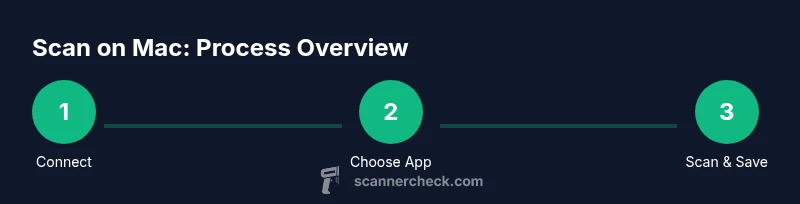
On macOS, you can scan documents using built-in apps like Image Capture or Preview. Connect your scanner, open the app, select color or grayscale, set the resolution to about 300-600 dpi, and choose a target format (PDF or image). Use Continuity Camera for iPhone scans as an alternative. This quick workflow gets you reliable results fast.
Getting Started with Mac Scanning
According to Scanner Check,
Built-in Mac Scanning Tools: Image Capture and Preview
Image Capture serves as the central hub for scanning on Mac when you have a physical scanner. It lists available devices, exposes driver options, and lets you save scans to a folder with minimal friction. Preview, while primarily used for viewing, also offers a basic scanner interface and robust export capabilities, which is convenient when you want quick edits or immediate PDF creation. Together, these apps cover most standard scanning needs without installing extra software. Be mindful of the format you choose: PDFs are ideal for multi-page documents, while JPEG/PNG are better for image-heavy content. For long-term archiving, consider PDF/A compatibility if your
Step 1: Connect Your Scanner to
Step 2: Choose the Right App for Scanning
If your goal is a simple PDF of a multi-page document, Image Capture is usually the fastest route because it can batch save pages to a chosen folder. If you need quick edits after scanning, or you plan to export to image formats, Preview can be a convenient second option since it integrates editing tools directly after you scan. If you have an
Step 3: Configure Scan Settings for Quality
Before starting, set the color mode (Color for photographs/graphics, Grayscale for text-heavy docs, Black & White for simple text), the resolution (300-600 dpi is standard for legible text; higher for photos), and the page size (Letter/A4). Choose the target file type: PDF for multi-page documents, or image formats for simple pages. In Image Capture, you can apply default settings to all scans; in Preview, you’ll adjust these settings just before you start the scan. If OCR is a goal, plan for higher resolution (at least 300 dpi) and consider saving as PDF or TIFF to preserve detail.
Step 4: Perform the Scan and Save
Position the page or document properly on the scanner bed, align the edges, and start the scan. In Image Capture, select your device, adjust the scan area if needed, and click Scan. In Preview, use File > Import from Scanner > [Your Device]. Save location you choose should be easy to back up, and name conventions should be consistent to simplify later retrieval. For multi-page jobs, use a single PDF with multiple pages, or save each page separately and merge later if your workflow requires it.
Step 5: Post-Processing: Export, OCR, and Organization
After scanning, you may want to OCR the text if you need editable content.
Wireless Scanning via Continuity Camera (
Troubleshooting Common Issues
If your scanner isn’t showing up, recheck USB connections, restart your Mac, and verify
Authoritative Sources and Practical References
Below are official sources to deepen your understanding of
Authoritative Sources
- Apple Support: Scan documents with Image Capture on Mac (https://support.apple.com/guide/image-capture-welcome/mac)
- Apple Support: Use Continuity Camera to scan documents (https://support.apple.com/en-us/HT210463)
- Apple Support:
Tools & Materials
- Mac computer with macOS(macOS Monterey or newer recommended for Live Text and Continuity features)
- Scanner with USB or network connection(Install drivers if prompted by macOS)
- Image Capture app(Preinstalled on macOS; use for most scanning tasks)
- Preview app(Optional for quick edits and exports)
- Notes app (for Continuity Camera workflow)(Only needed if you plan to use Continuity Camera via Notes)
- Optional OCR software(If you need advanced OCR features beyond Live Text)
Steps
Estimated time: 40-60 minutes
- 1
Connect your scanner
Plug the scanner into your Mac via USB or ensure it’s on the same Wi-Fi network. Turn on the device and wait for it to be recognized by macOS. If it doesn’t appear, replug the cable, restart Image Capture, or reboot the Mac.
Tip: Check System Settings > Printers & Scanners to confirm the device is listed. - 2
Open the scanning app
Launch Image Capture for wide control over device options and batch saving. If you prefer quick edits after scanning, open Preview and use File > Import from Scanner.
Tip: Set a default save folder to streamline organization. - 3
Choose scan settings
Select color mode (Color/Grayscale), resolution (300-600 dpi for text, higher for images), and page size. Choose PDF for multi-page documents or an image format for single pages.
Tip: Higher resolution improves OCR accuracy but increases file size. - 4
Scan the document
Place the document on the scan bed, align edges, and initiate the scan. Review the preview to ensure edges are crisp and text is legible.
Tip: If scanning multiple pages, choose Batch or multi-page PDF if available. - 5
Save and export
Save to your chosen folder and name files consistently. If using Preview, export to PDF or image formats from the File menu.
Tip: Use standardized filenames (e.g., PROJECT_DATE_PAGE) for easy retrieval. - 6
OCR and text extraction (optional)
If you need editable text, enable OCR via third-party software or use Live Text in compatible apps. For best results, scan at 300 dpi or higher.
Tip: Test OCR on a sample page to calibrate your workflow before scanning large batches. - 7
Organize scanned documents
Create a folder structure by project or date. Add metadata or tags in Finder comments if needed. Regular backups are recommended.
Tip: Consider a cloud backup strategy to keep scans accessible from multiple devices. - 8
Alternative: Continuity Camera
If you prefer using your iPhone, open Notes on Mac, choose New Note, click the Camera icon, select Scan Documents, and capture. The result saves to Notes and can be exported later.
Tip: This is handy for quick ad-hoc scans when desk space is tight. - 9
Troubleshooting
If scans come out blurry, check the document surface, lighting, and bed alignment. If the device refuses to connect, verify driver compatibility and OS version.
Tip: Consult the scanner’s support page for macOS compatibility notes.
Common Questions
Can I scan directly to PDF on Mac without third-party software?
Yes. Image Capture and Preview can save scans directly as PDFs, including multi-page PDFs. For more complex workflow, you can export to PDF and then re-order pages in Preview.
Yes, you can scan straight to PDF using Image Capture or Preview on Mac.
What resolution should I use for text documents?
Typically 300-600 dpi is sufficient for crisp text documents. Higher resolutions increase file size; use 300 dpi for standard text and 600 dpi when you need sharper detail for critical documents.
For text, 300 to 600 dpi works best; use 300 unless you need extra detail.
Can I scan using my iPhone and get the file on Mac?
Yes, using Continuity Camera with the Notes app lets you scan documents with your iPhone and save them to your Mac for easy access. It’s a convenient alternative when desk space is limited.
Yes, Continuity Camera lets you scan with iPhone and save to Mac.
What formats should I choose for archiving?
PDF is best for multi-page documents; JPEG or PNG can be good for image-heavy pages. For long-term archiving, consider PDF/A compatibility if supported by your tools.
PDF for multi-page, or image formats for single pages; PDF/A for long-term archiving if possible.
Do I need OCR to search scanned documents?
OCR is optional but helpful if you need text search. Use built-in Live Text in supported apps or third-party OCR software for better accuracy.
OCR helps searchability; use Live Text or third-party OCR as needed.
What should I do if the scanner isn’t detected?
Check cables, reboot the scanner and Mac, ensure drivers are installed, and verify the device appears in System Settings. If problems persist, consult the manufacturer’s support resources.
Check connections, reboot, and verify drivers; consult support if still failing.
Key Takeaways
- Connect a scanner to Mac and use Image Capture or Preview.
- Choose color/grayscale and 300-600 dpi for reliable quality.
- Save scans as PDF for multi-page docs or images for simple pages.
- Use Continuity Camera as an iPhone-based scanning alternative when needed.
- Organize scans with clear naming and a logical folder structure.